How to add Page Titles or URL's to form submissions
Sometimes you may want to include the name or URL of a page with a form submission. This can be useful for a number of reasons, primarily when forms are present on many pages. This will let you see this information on the contact, and use it to trigger or filter workflows based on the page.
Begin by adding a Custom Field that will store the Page Title and/or URL (Settings > Custom Fields). This field should be a “Single Line Text” type field.
Create a new text document on your computer and paste the following code:
If you want to capture the URL instead of the page title, replace “document.title” in the code above with “window.location.href”
Next, open the form editor and add the new field to the form. Click Preview at the top of the page.
In the Preview window, right click on the new field’s input box and click “Inspect”. A new window should pop up. Copy the text in the Name attribute from this window:
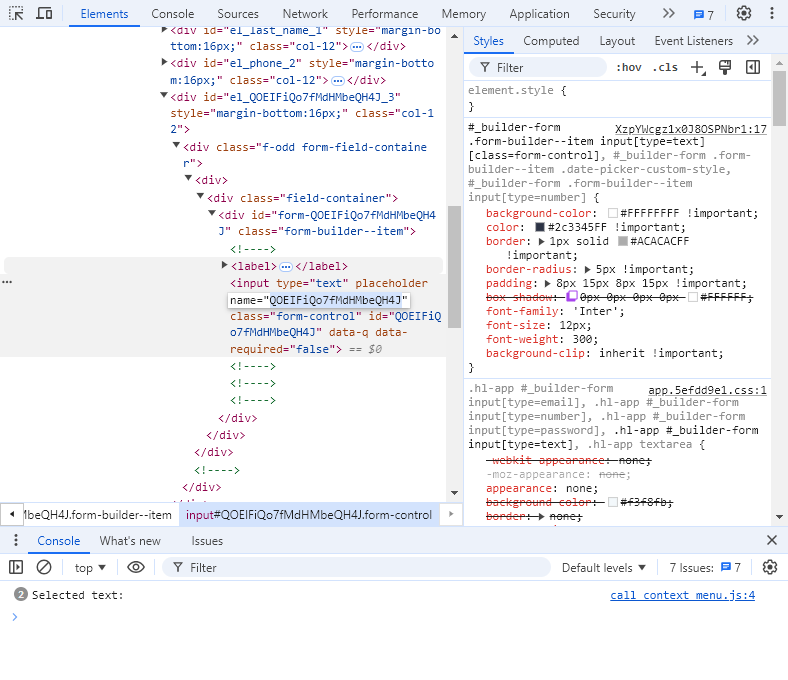
Paste the copied text into the script that you added to the text document (replacing the square brackets as well). When you’re finished, the script should look like this:
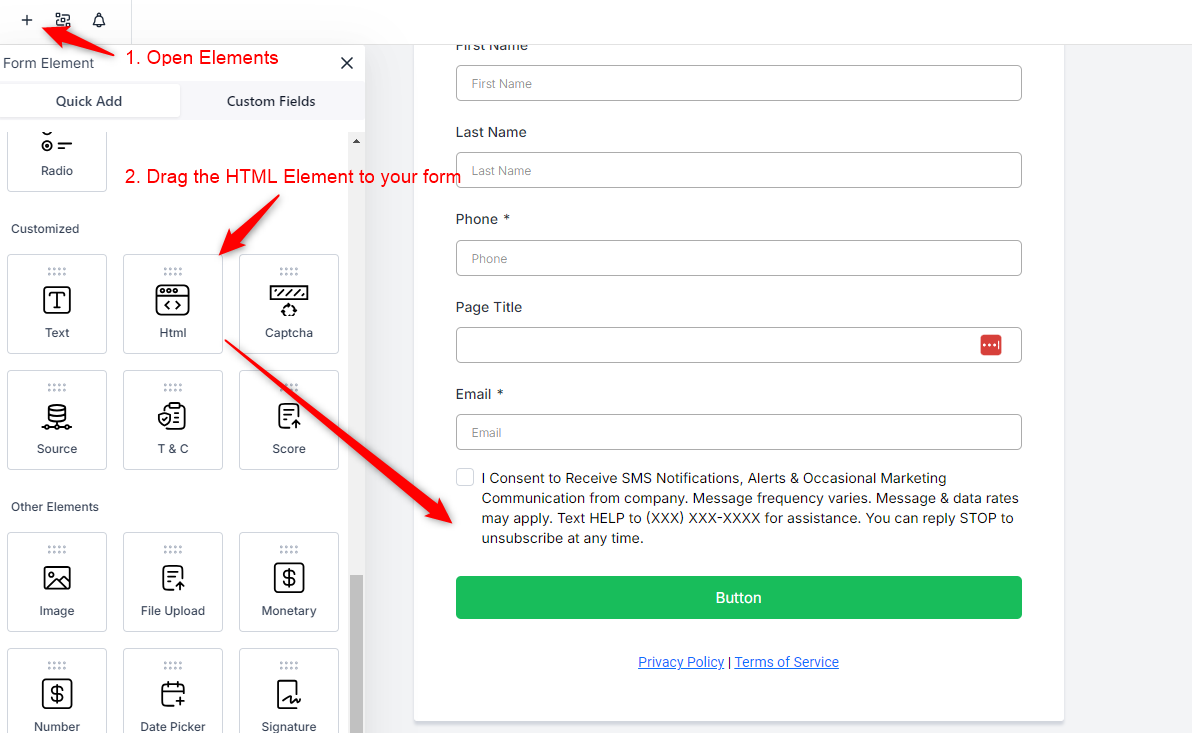
Add a new HTML element to the end of your form:
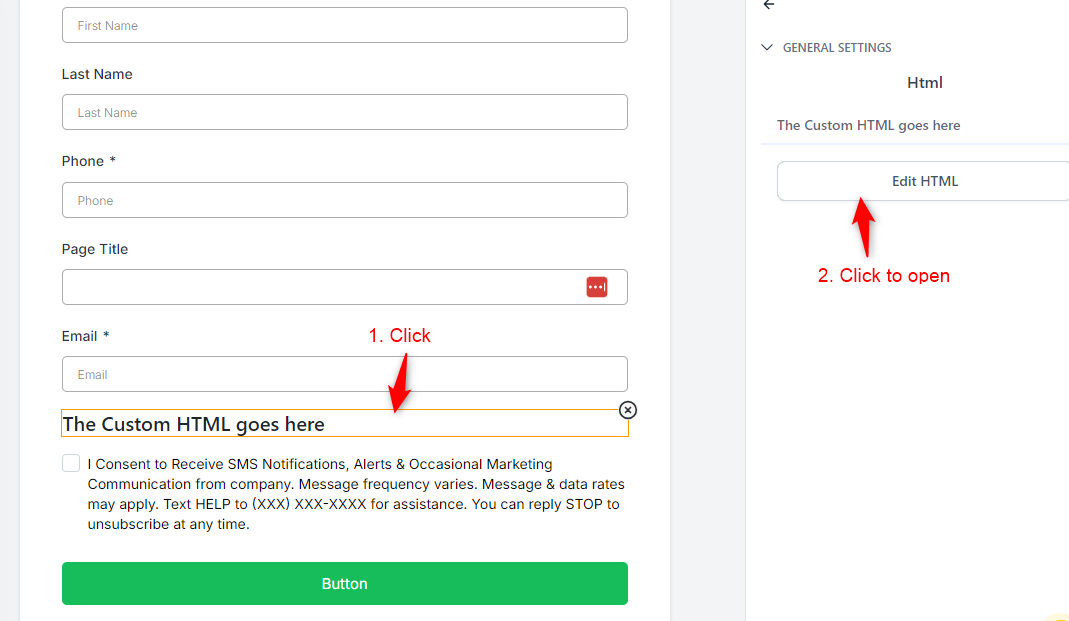
Click on the HTML element and add the code.
Click “Yes, Save”
Select the field that stores the page Title or URL and tick the checkbox “Hidden”. This will make it invisible to your users.
Now you can place the embed code onto your website or use it in a Flow Website or Funnel.
Not a Funnelbud customer yet?
Try our all-in-one CRM for sales and marketing — free for 7 days, no commitment.