LinkedIn Integration
Integrating LinkedIn enables automatic synchronization of lead data from LinkedIn lead forms into your CRM system. This integration simplifies lead management, reduces manual data entry, and ensures that your sales team has immediate access to new leads for timely follow-up.
Connecting Your LinkedIn Account
Head to the Integrations section in your account settings, locate LinkedIn, and click Connect.
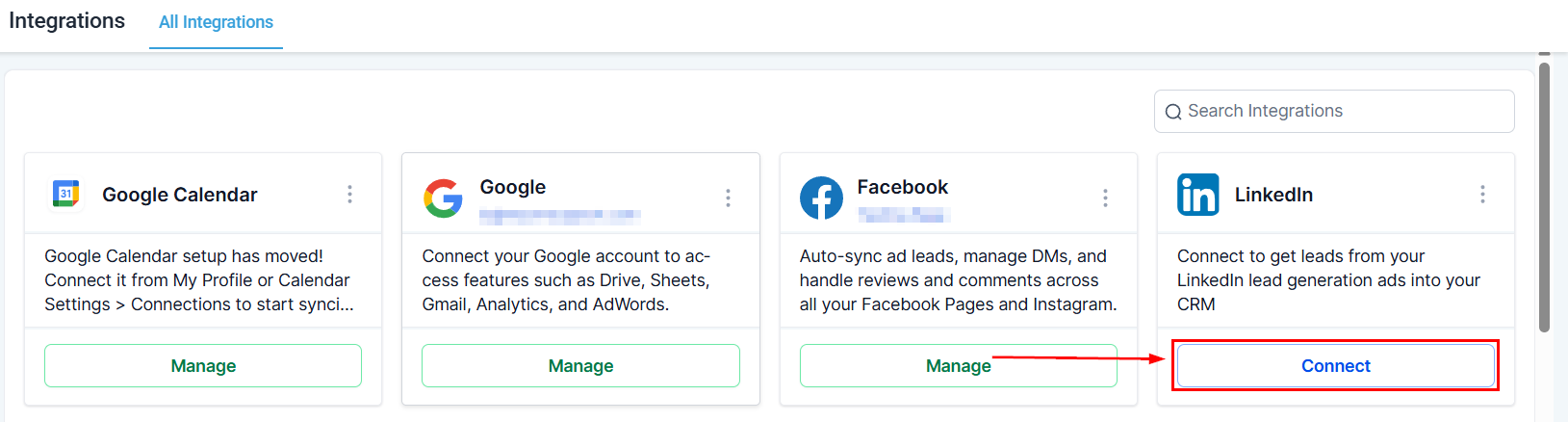
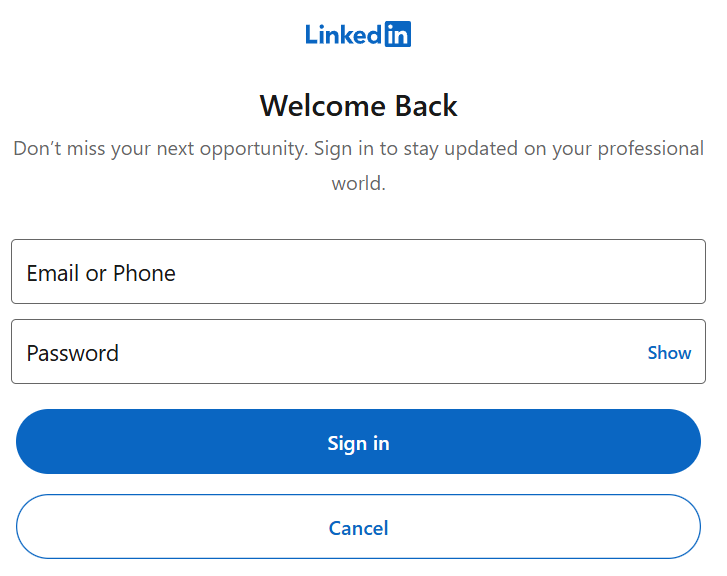
Sign in and allow all necessary permissions for the CRM to access your LinkedIn account.
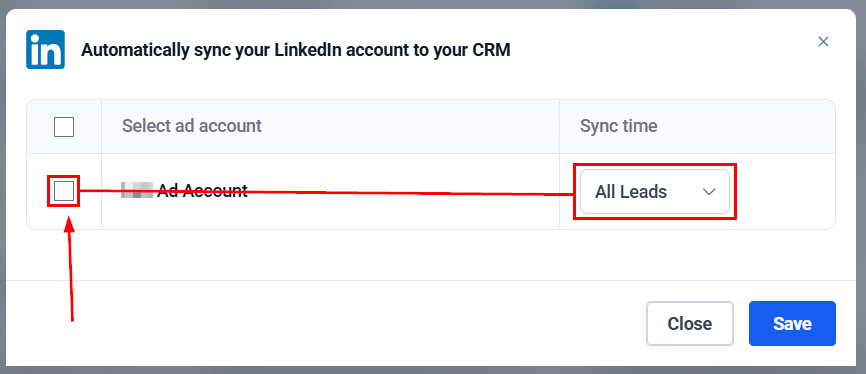
Select the LinkedIn ad account you wish to integrate, then specify your preference for syncing old leads, new leads, or all leads from the selected ad account.
Field Mapping
Click the three dots next to the LinkedIn integration and select Form Field Mapping.
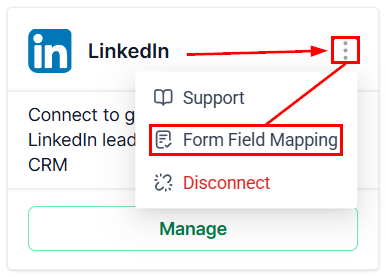
Configure field mapping to align LinkedIn lead form fields (e.g., first name, last name, email) with the corresponding fields in your CRM.
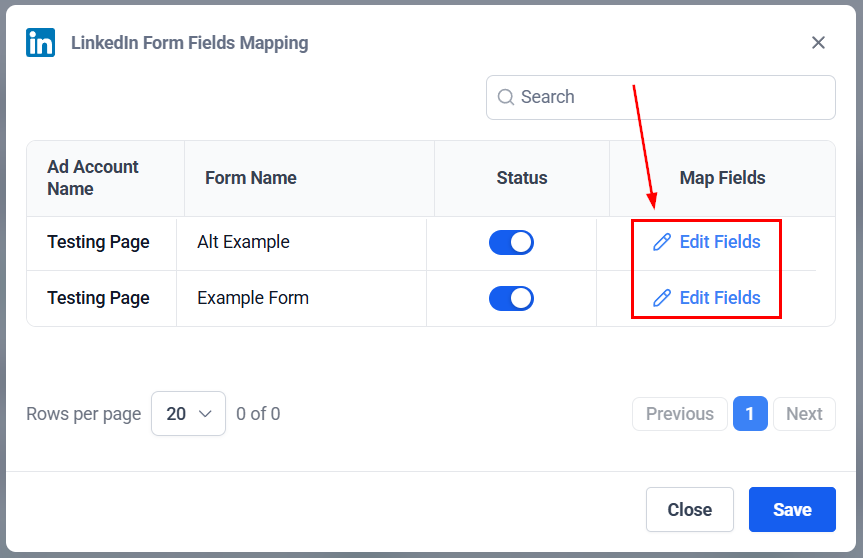
Ensure that all necessary fields are mapped correctly to facilitate accurate data transfer.
Step 5: Enabling the Integration
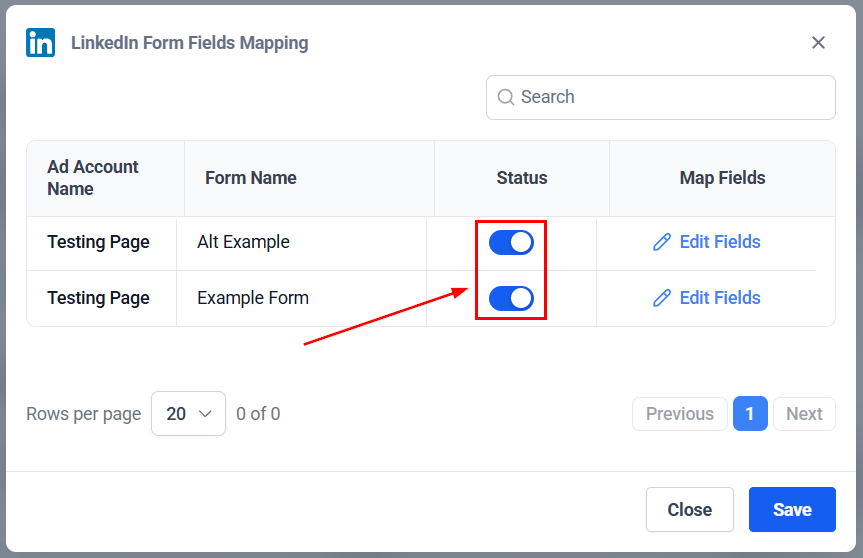
After configuring field mapping, toggle the Status switch to the on position to start syncing leads from LinkedIn to your CRM automatically. The switch will turn blue when enabled, indicating that syncing is active.
Step 6: Setting Up Workflows for Lead Management
- Navigate to the “Automation” section and select “Workflows.”
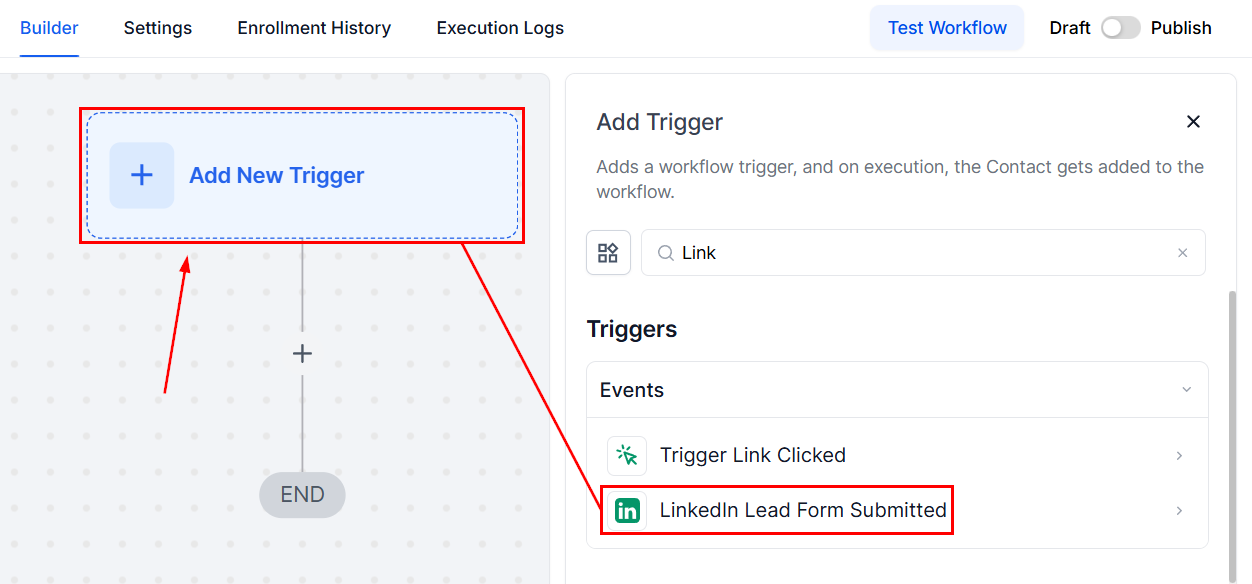
- Create a new workflow or edit an existing one to include a trigger for LinkedIn lead form submissions.
- Add actions such as tagging leads, creating or updating opportunities, and sending automated SMS or email messages to engage new leads promptly.
Practical Use Cases and Examples
- Automated Lead Tagging: Automatically tag leads from LinkedIn with a specific tag (e.g., “LinkedIn”) for easy segmentation and follow-up.
- Opportunity Creation: Set up workflows to create or update opportunities in your CRM based on the lead’s information, helping your sales team prioritize and track leads through the sales pipeline.
- Automated Messaging: Send personalized SMS or email messages to new leads, offering discounts or further information, enhancing lead engagement and conversion rates.
Troubleshooting Tips
Integration Not Working
- Ensure that you have the correct permissions set in both your LinkedIn and CRM accounts. Check the field mapping settings to ensure all fields are correctly aligned.
Leads Not Syncing
- Verify that the integration is enabled and that the correct ad account is selected. Check if the issue persists with new leads after the integration setup.
Not a Funnelbud customer yet?
Try our all-in-one CRM for sales and marketing — free for 7 days, no commitment.