Fillable Element: Initials
The Initials feature within Documents and Contracts is designed to ensure thorough review and acknowledgment of multi-page PDFs, making the process more efficient and user-friendly for both document editors and signers. By integrating the initials feature into your document template, you can enhance document security, improve review processes, and ensure all parties acknowledge each page of a multi-page document.
Key Features
- Drag and Drop Initials: Document editors can easily place the initials field on any page, ensuring that signers can indicate their review.
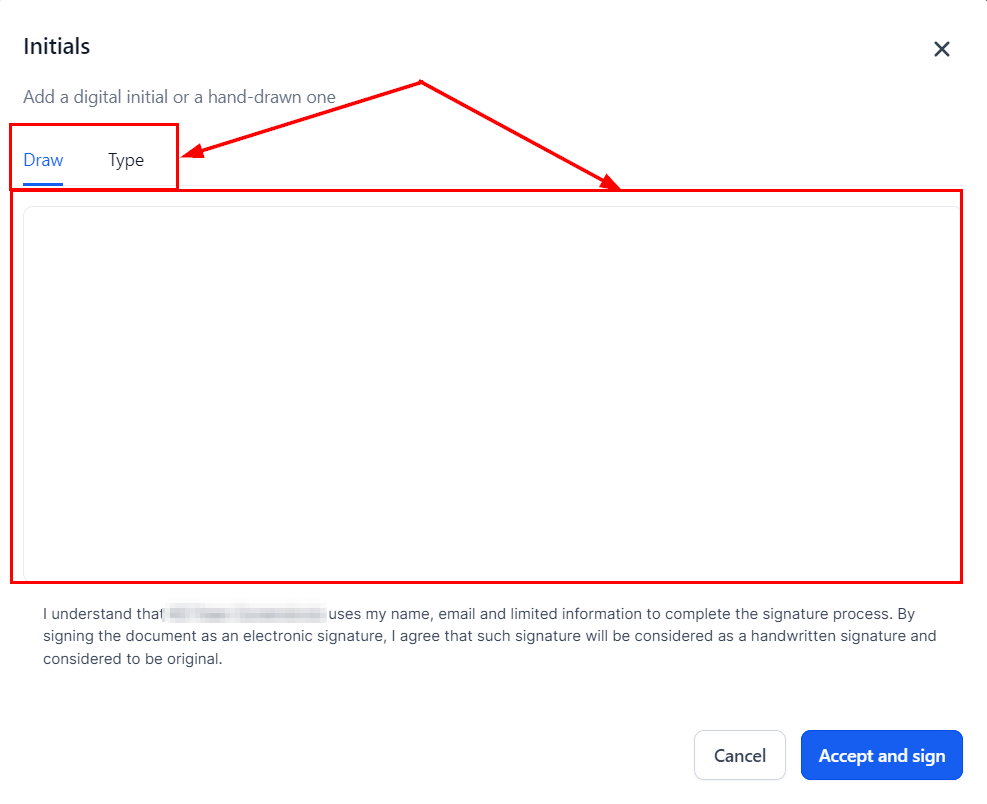
- Flexible Signer Options: Signers can click on the initials element and either type or draw their initials, providing flexibility and convenience.
Why This Feature?
The initials feature enhances document and contract management by:
- Ensuring thorough review: Signers must initial every page, indicating they have reviewed the content.
- Increasing usability: The intuitive drag-and-drop feature for editors and flexible options for signers streamline the process.
How to Use the Initials Feature
For Document Editors
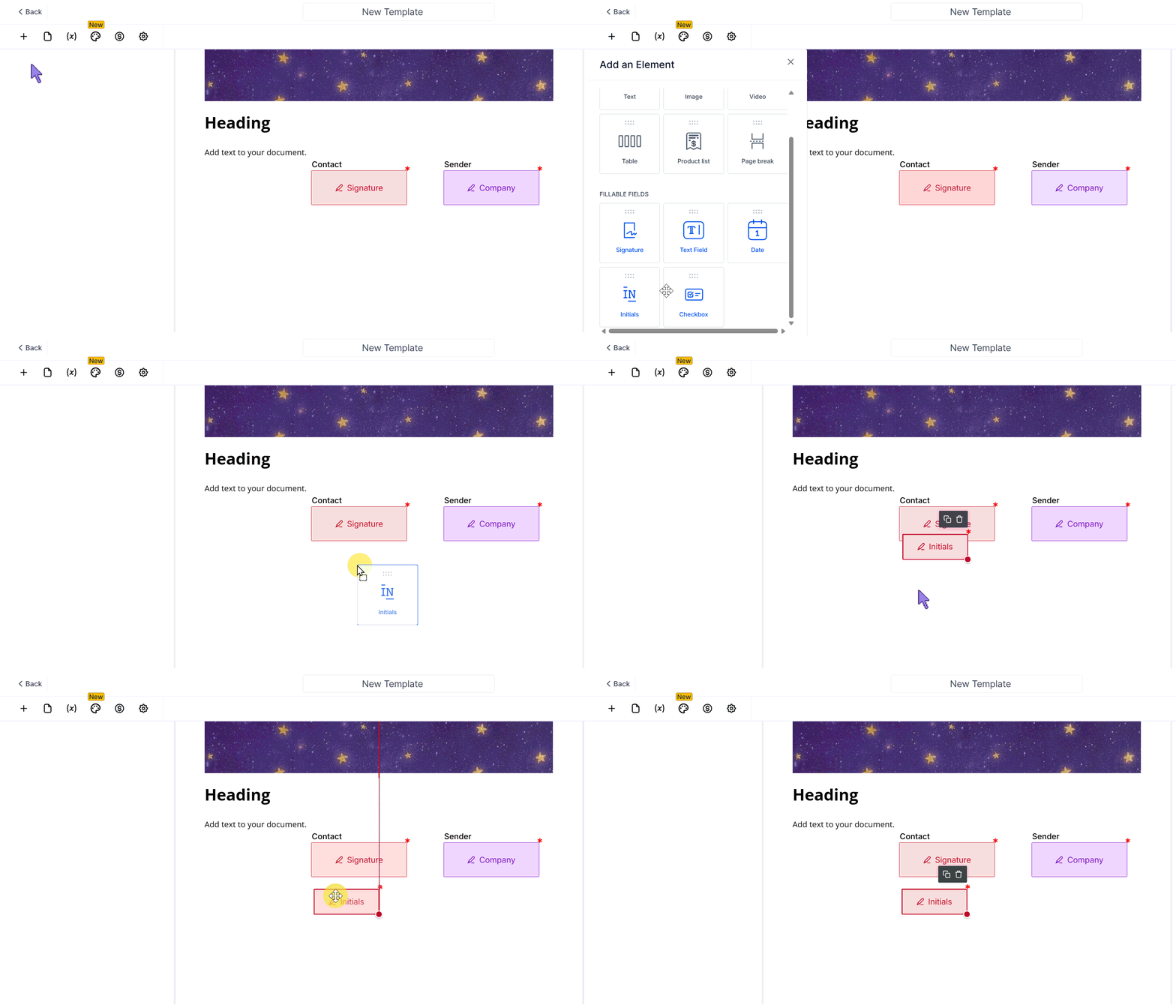
Open the side tab in the document editor interface, and drag the initials element from the side tab and drop it onto the desired page.
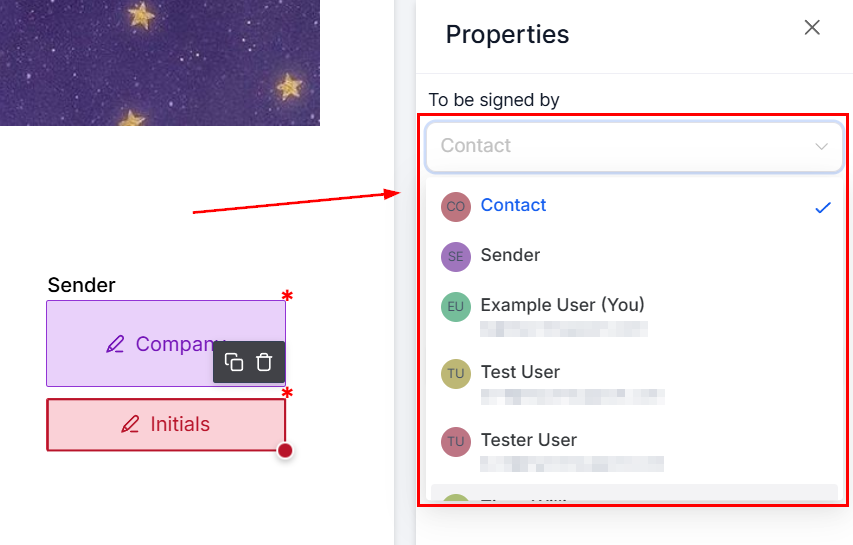
Assign the initials field to the appropriate recipient.
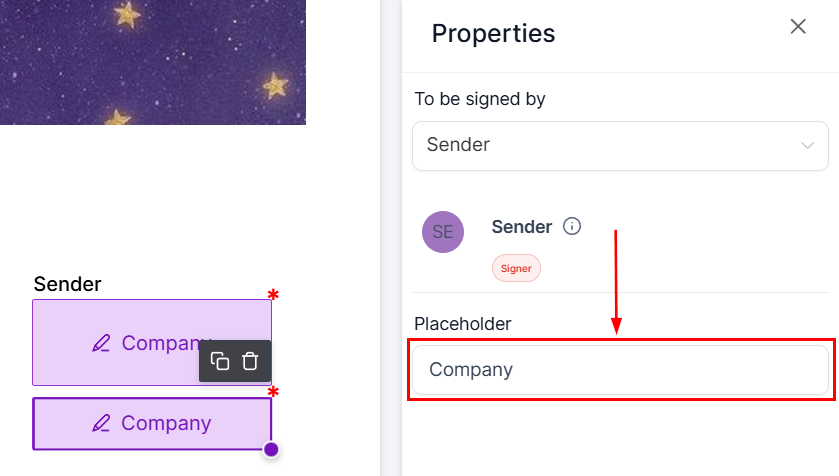
Adjust the placeholder of the Initials field if necessary.
For Document Signers
- Begin Document Completion: Locate the request in your email to sign the document, and then proceed to complete the necessary fields.
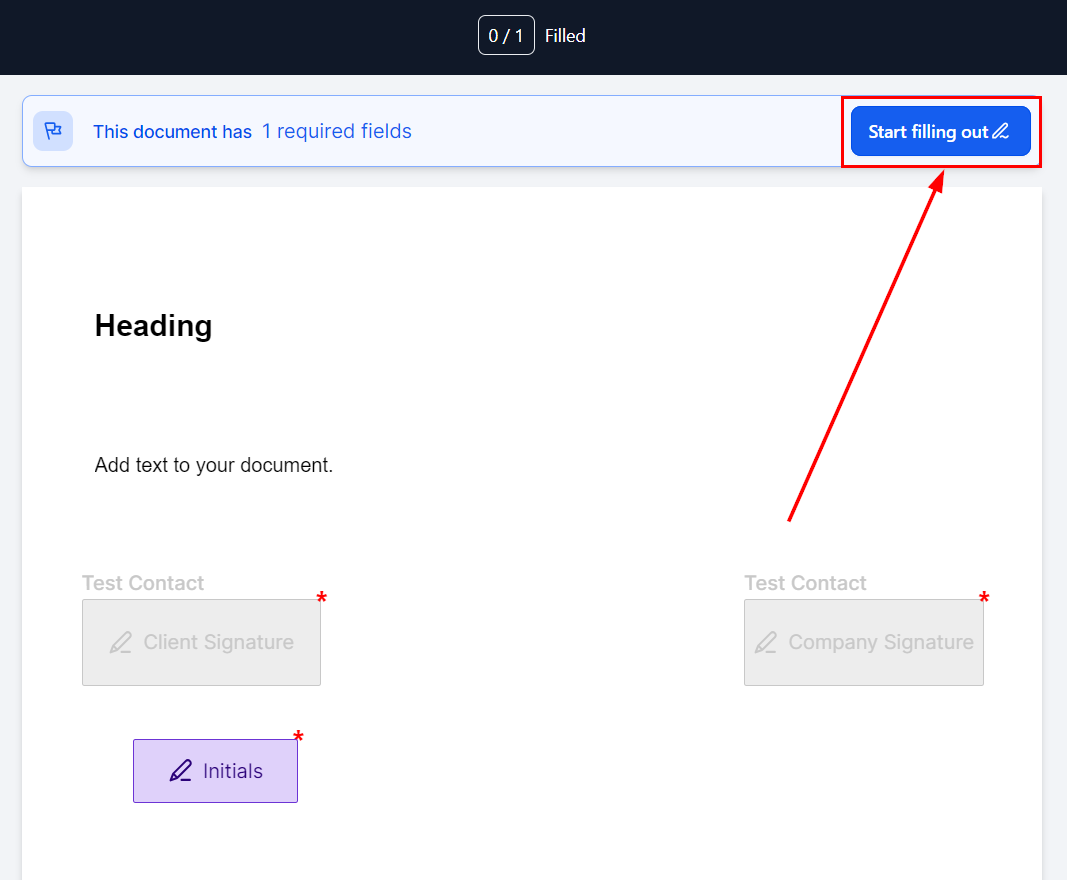
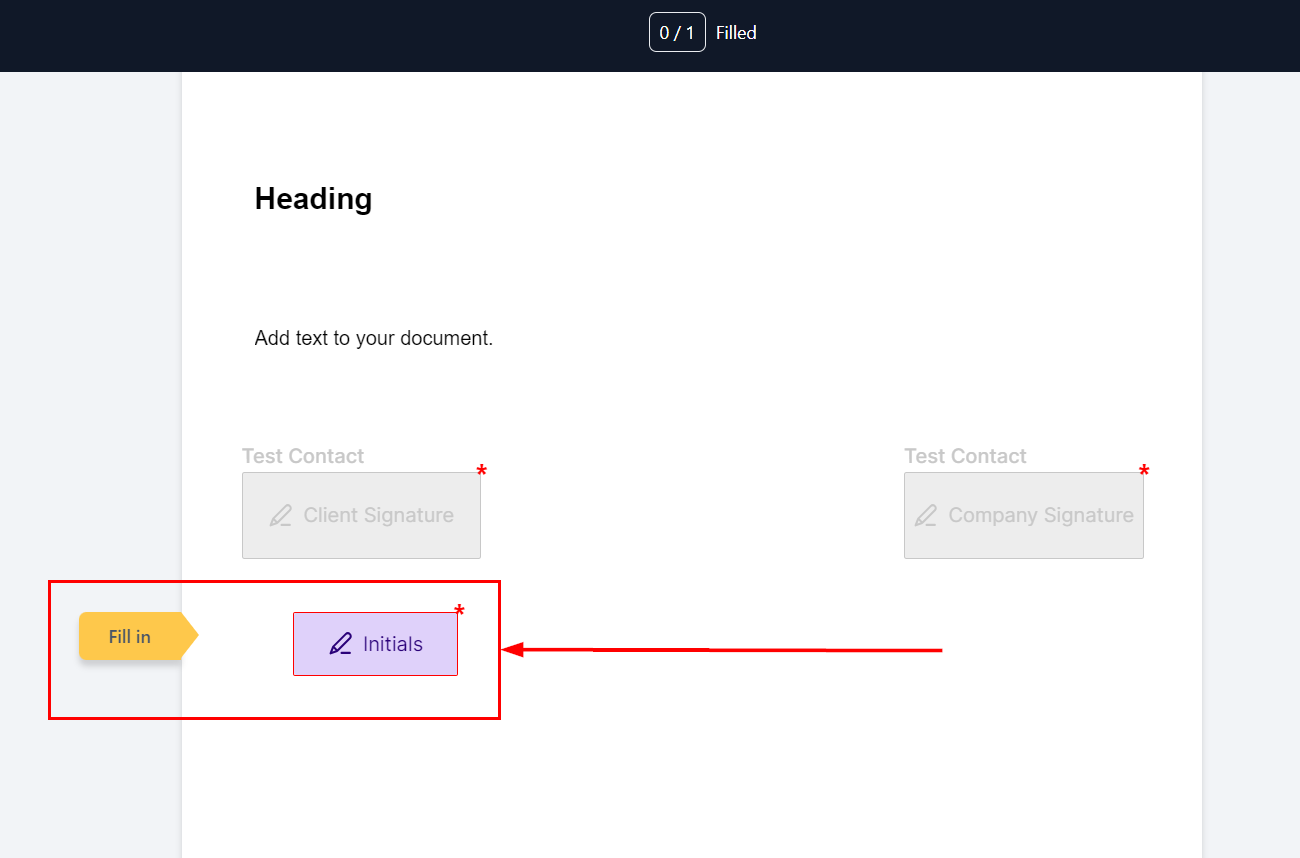
2. Click on Initials Field: Locate and click on the initials field within the document.
3. Enter Initials: Use the pre-filled text or edit to type or draw your initials.
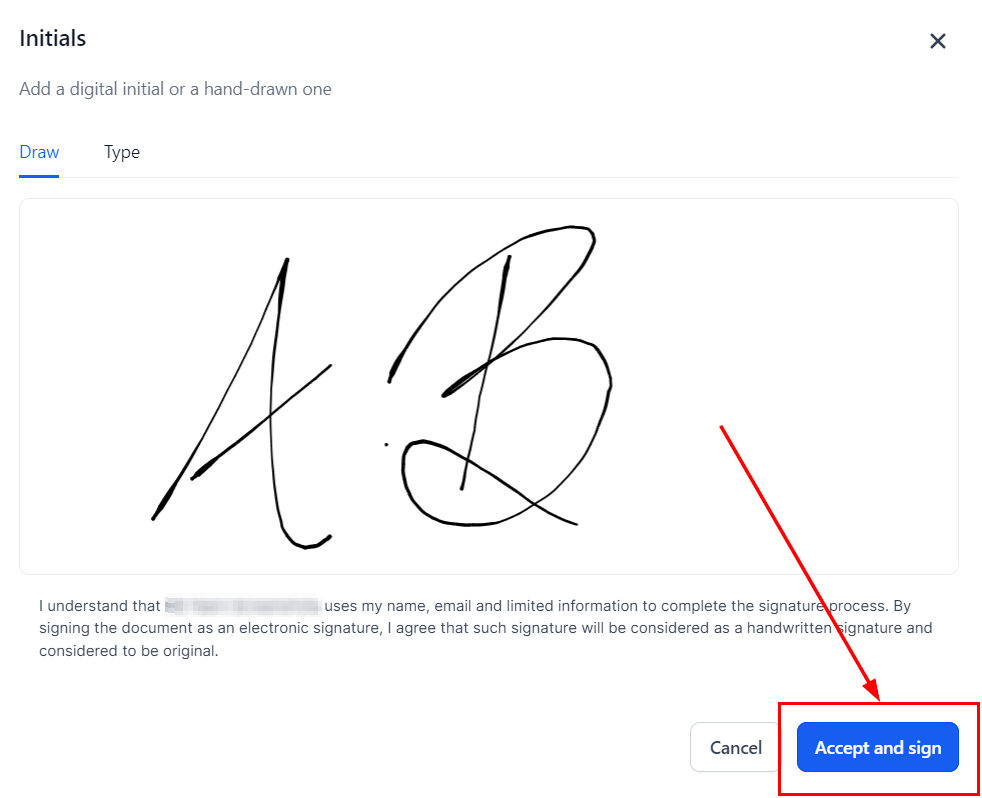
4. Click on Accept: Confirm your initials by clicking the accept button.
Frequently Asked Questions (FAQs)
Q: Can I add initials to multiple pages at once?
- Currently, initials need to be added to each page individually to ensure specific placement and assignment to the appropriate recipient.
Q: Can signers change their initials after accepting?
- Once the initials are accepted, they are locked to maintain document integrity. If changes are needed, the document will have to be edited and re-sent.
Troubleshooting Tips
Issue: The initials field is not displaying for the signer.
- Solution: Ensure the initials field has been properly assigned to the recipient. Double-check the document settings and reassign if necessary.
Issue: Signer cannot draw initials.
- Solution: Verify that the signer’s device supports drawing input. If not, they can use the typing option instead.
Issue: Changes to initials are not saving.
- Solution: Ensure the signer clicks the accept button after entering their initials. If the issue persists, refresh the document and try again.
Not a Funnelbud customer yet?
Try our all-in-one CRM for sales and marketing — free for 7 days, no commitment.