Manus Actions & Triggers
Manus is an AI tool designed to carry out complex tasks without continuous human guidance independently, so if you’re looking to connect it with your CRM, follow these steps to connect and use it in tandem with automation.
Connecting Manus
Open the workflow builder and look for Manus in the app section of your triggers or actions by selecting any.
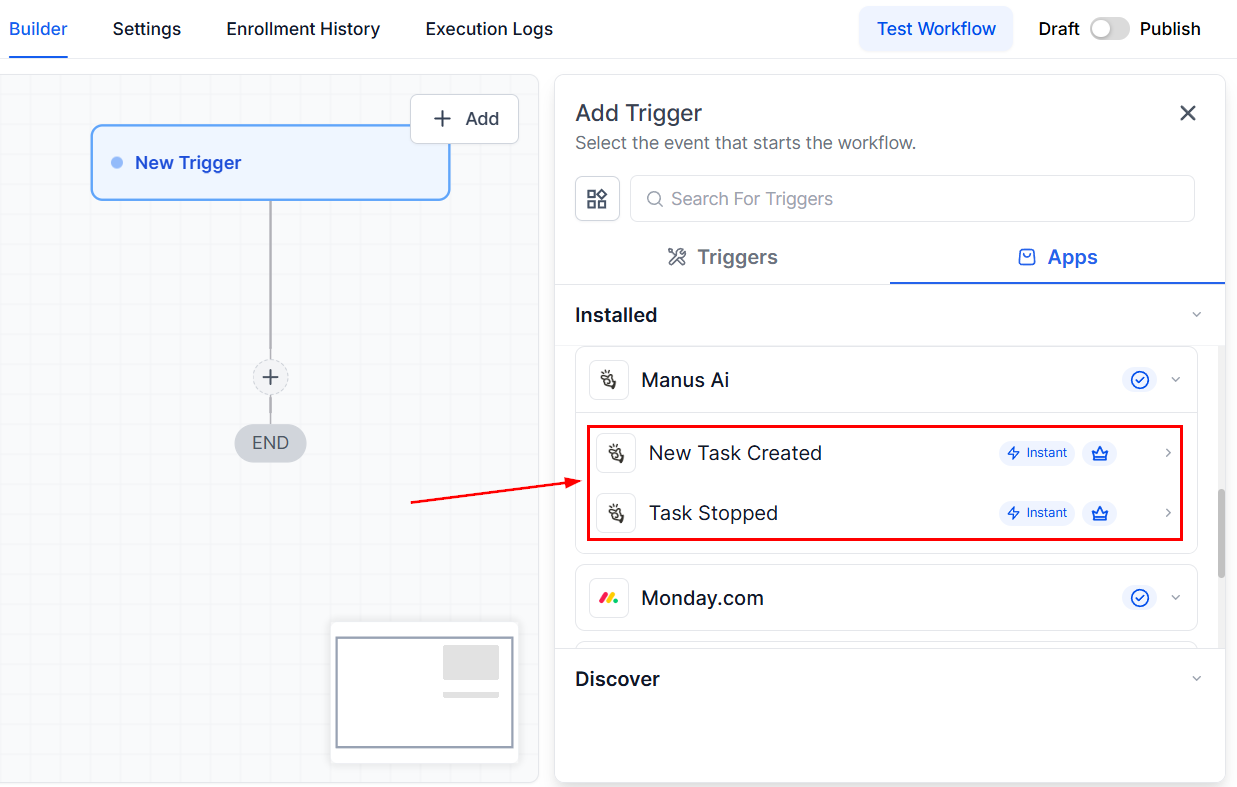
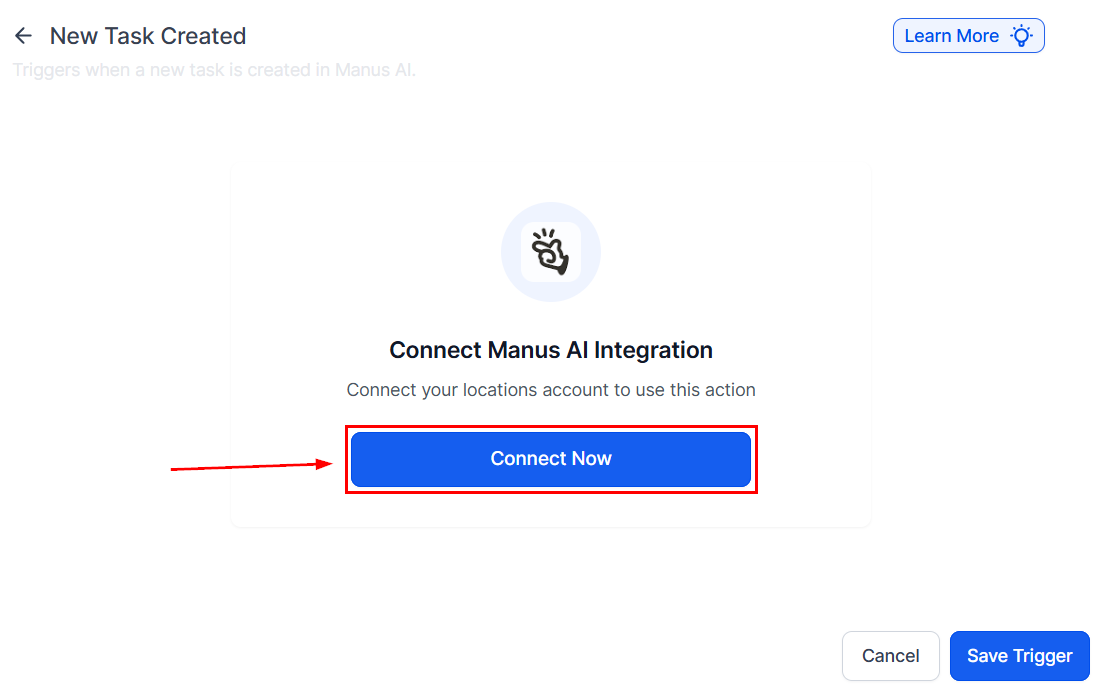
Once selected, click Connect Now.
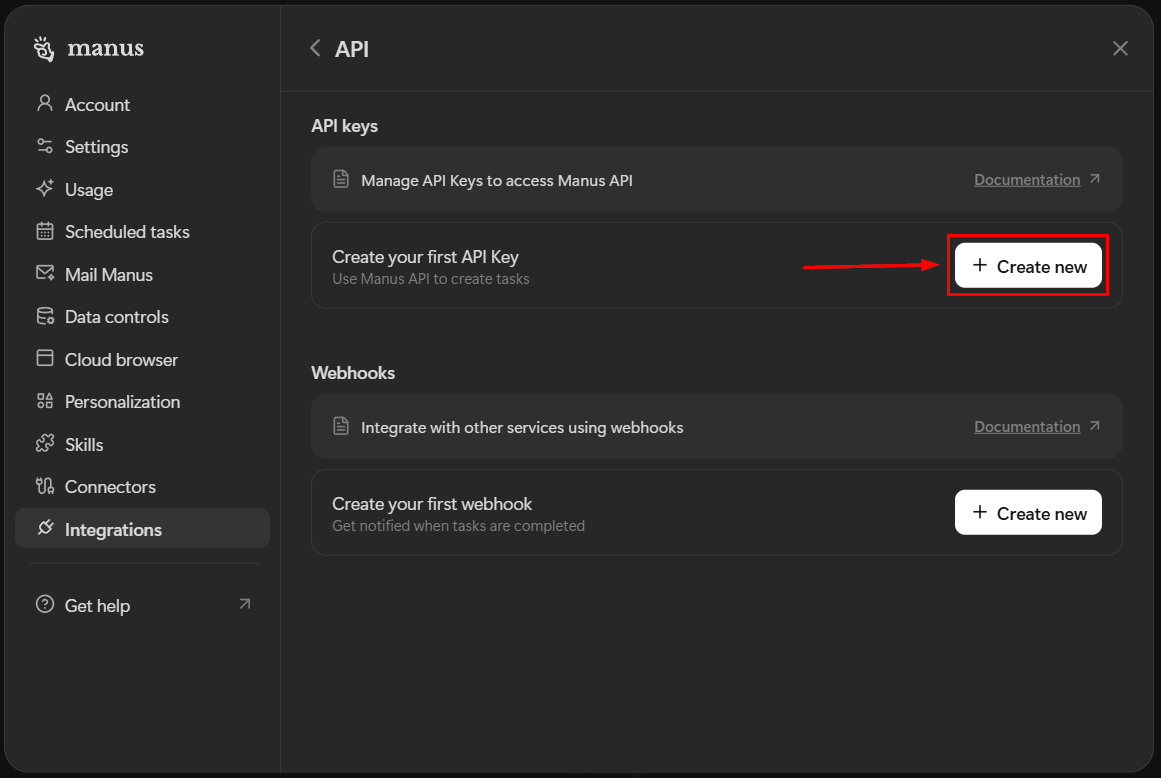
Inside your Manus account settings, create and copy an API key for your CRM.
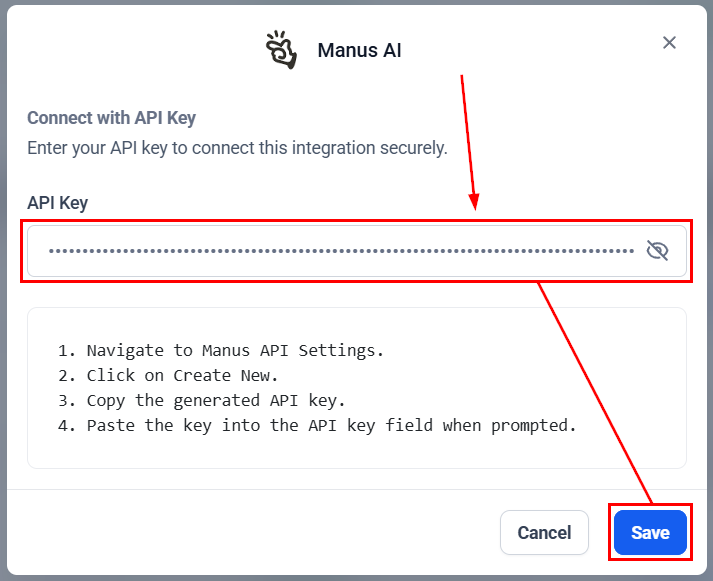
Paste the API key, then click Save.
This integration allows you to trigger workflows based on Manus task activity and perform task operations like creating, updating, continuing, fetching, or deleting tasks. Let’s review the available triggers and actions.
Triggers
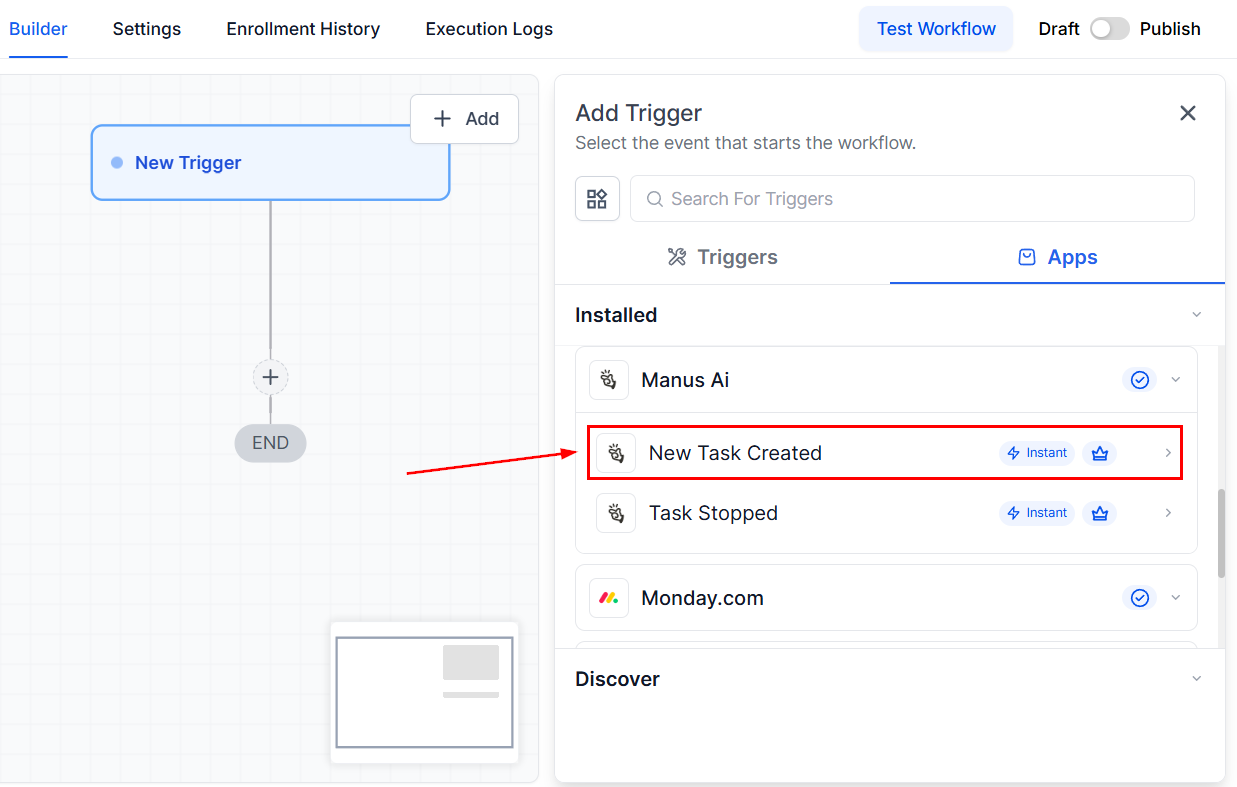
New Task Created
This trigger fires when a task is created through a workflow action.
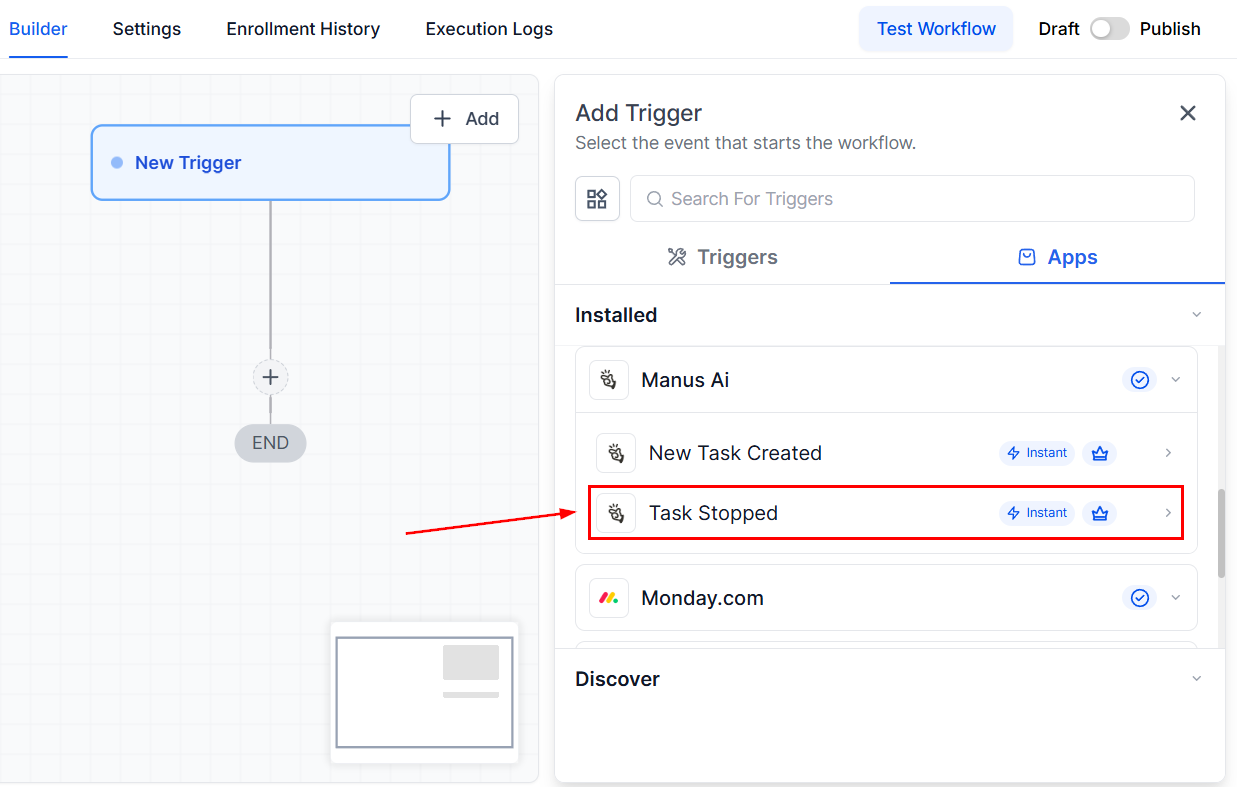
Task Stopped
This trigger fires when a Manus task created through a workflow is stopped or completed.
Testing Your Trigger
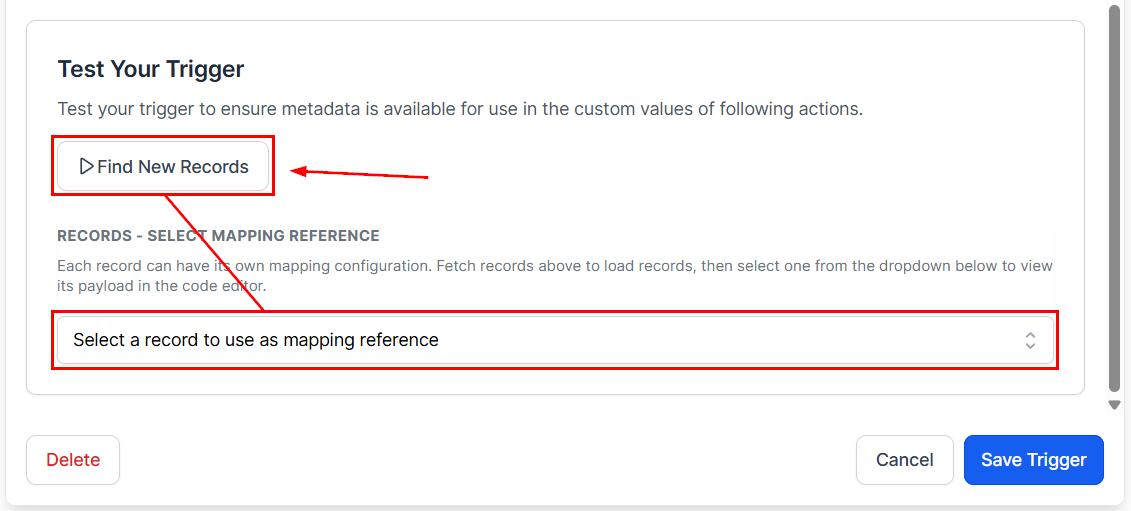
When using a Manus trigger, you must click “Find New Records” to map your reference and ensure metadata is available for use in the custom values of any following actions.
Actions
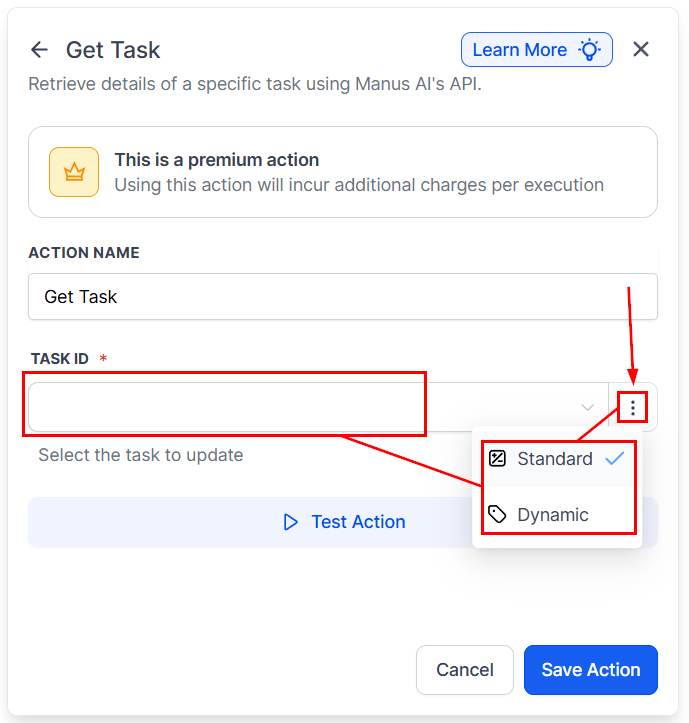
Get Task
This action allows you to retrieve details of a specific task.
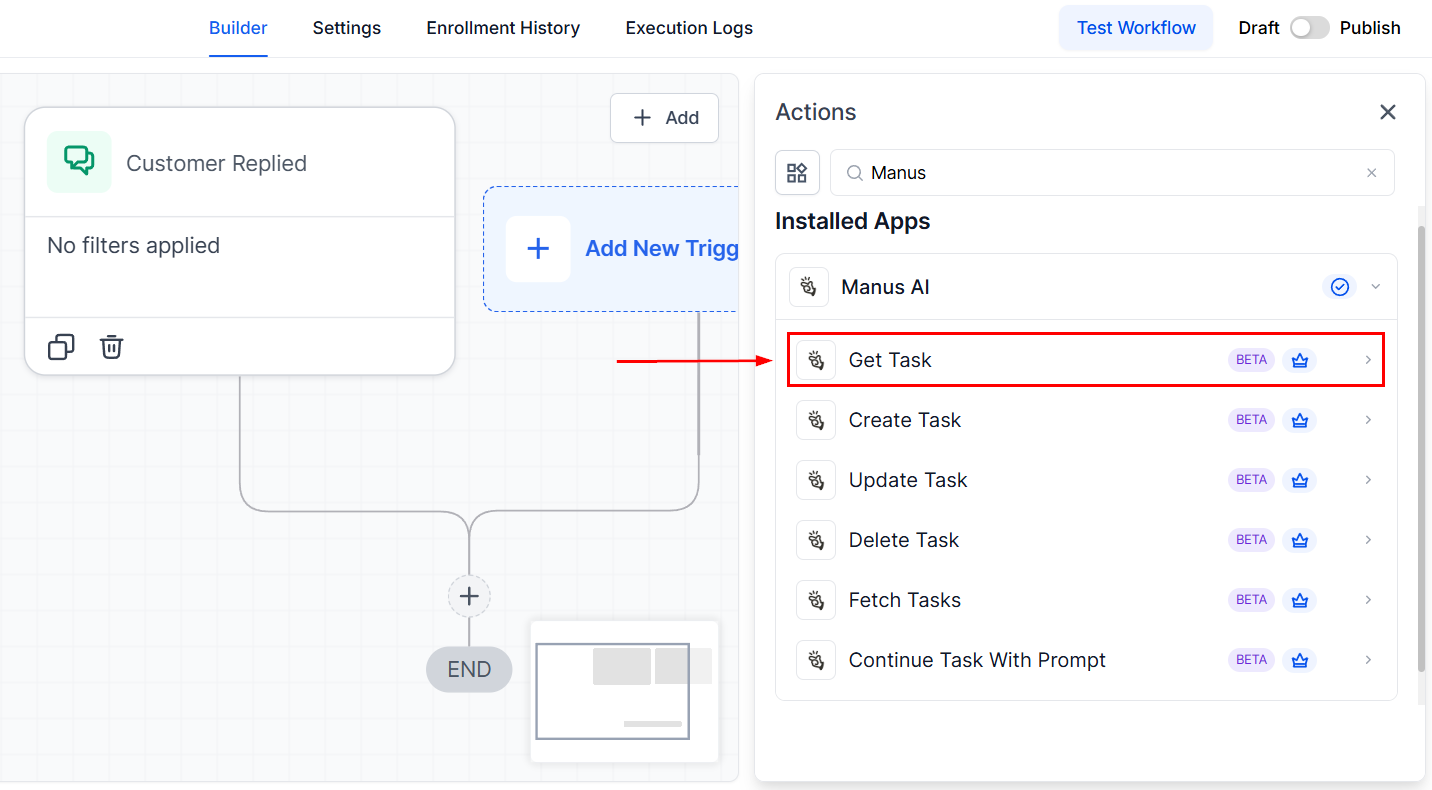
Select whether the Task ID will be a standard or dynamic value, then enter your data.
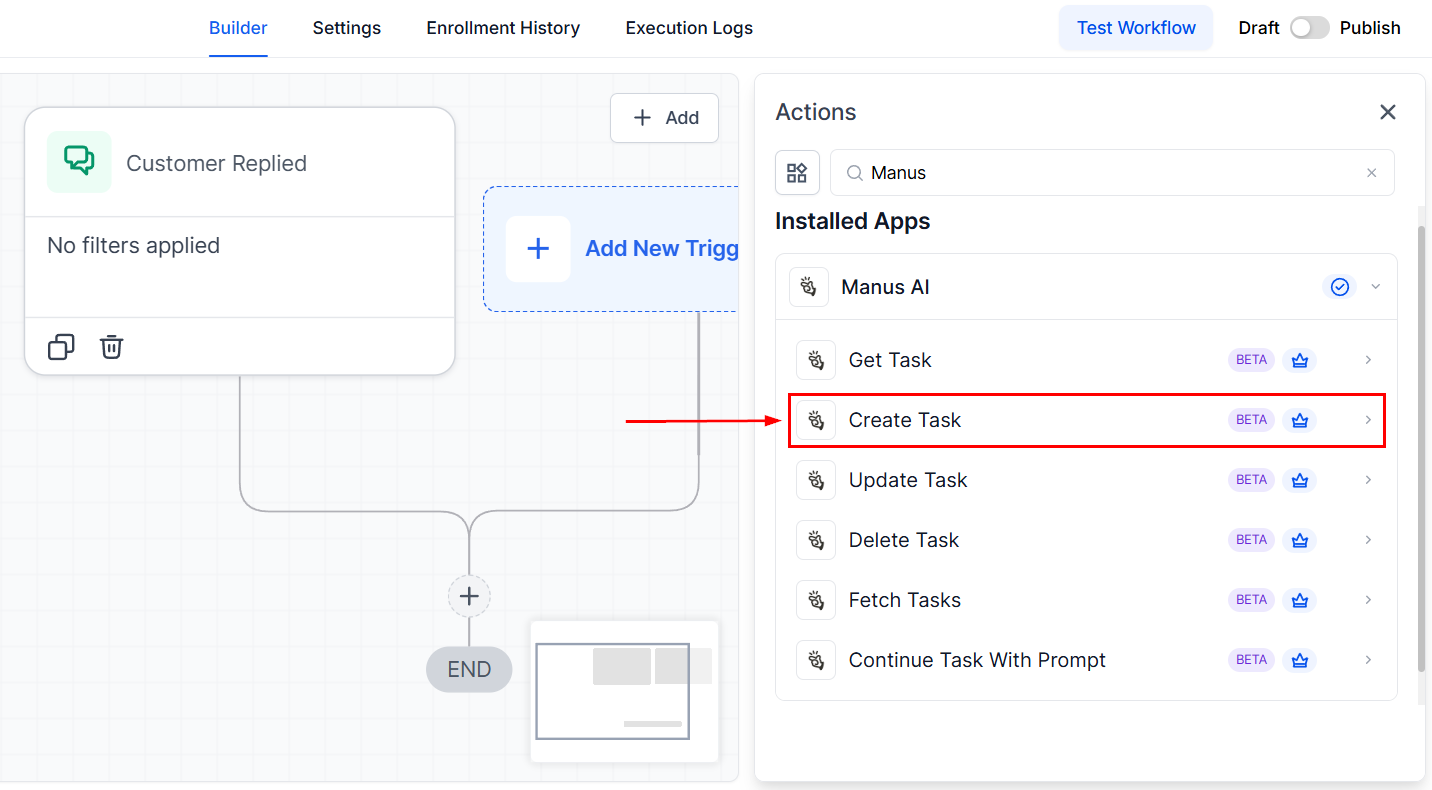
Create Task
With this action, you can create a new task in Manus.
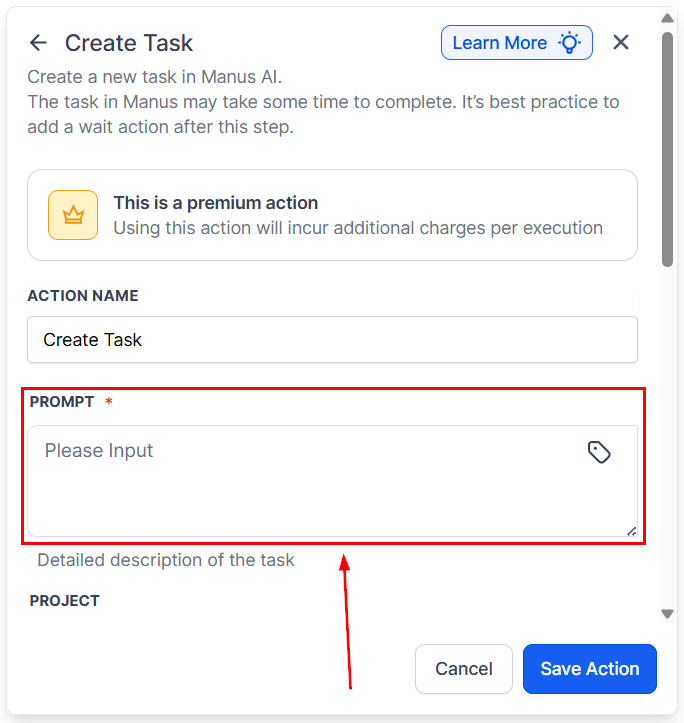
Enter a detailed description of the task to perform.
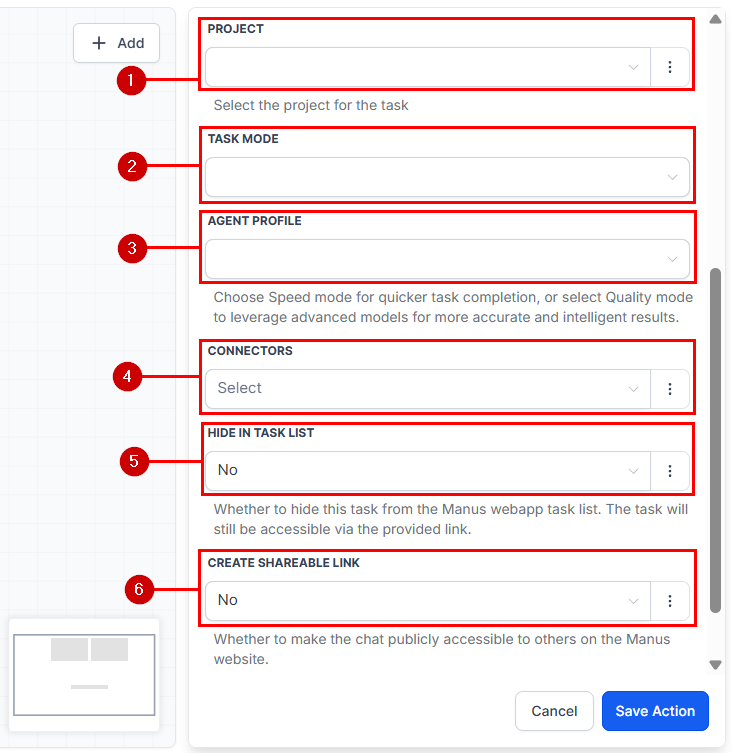
- Select the project for the task.
- Choose a Task Mode.
- Pick the model you’d like to use for your automation.
- Add any external connections you’d like to include.
- Select whether to hide this task from the Manus webapp task list. The task will still be accessible via the provided link.
- Choose whether to make the chat publicly accessible to others on the Manus website.
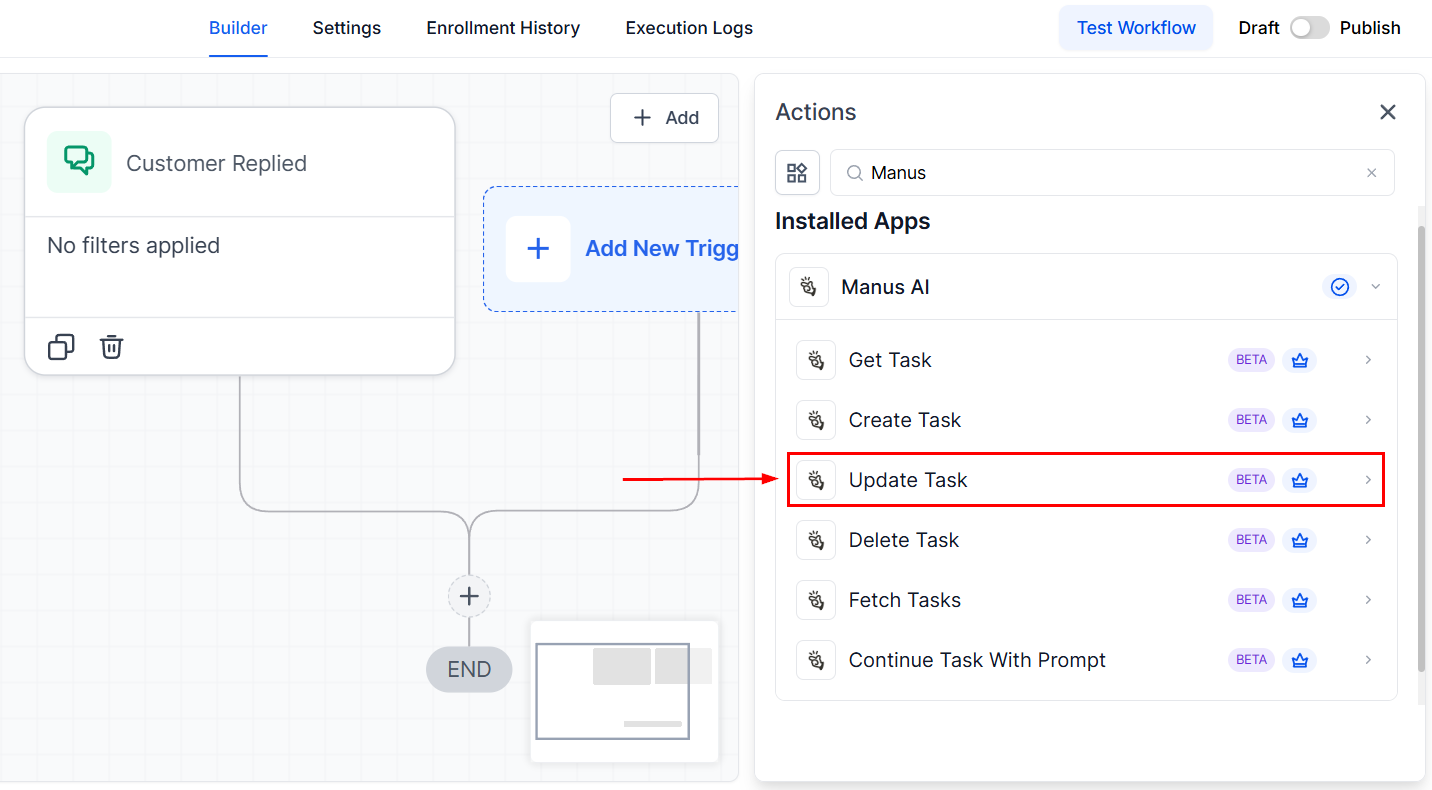
Update Task
Use this action to modify task metadata or parameters
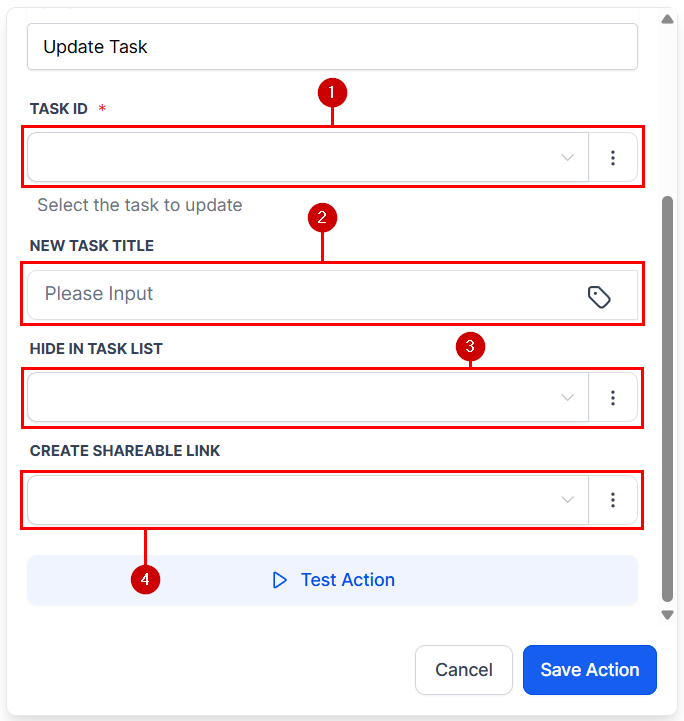
- Enter your standard or dynamic task ID.
- Give a new name to your task.
- Select whether to hide this task from the Manus webapp task list. The task will still be accessible via the provided link.
- Choose whether to make the chat publicly accessible to others on the Manus website.
Delete Task
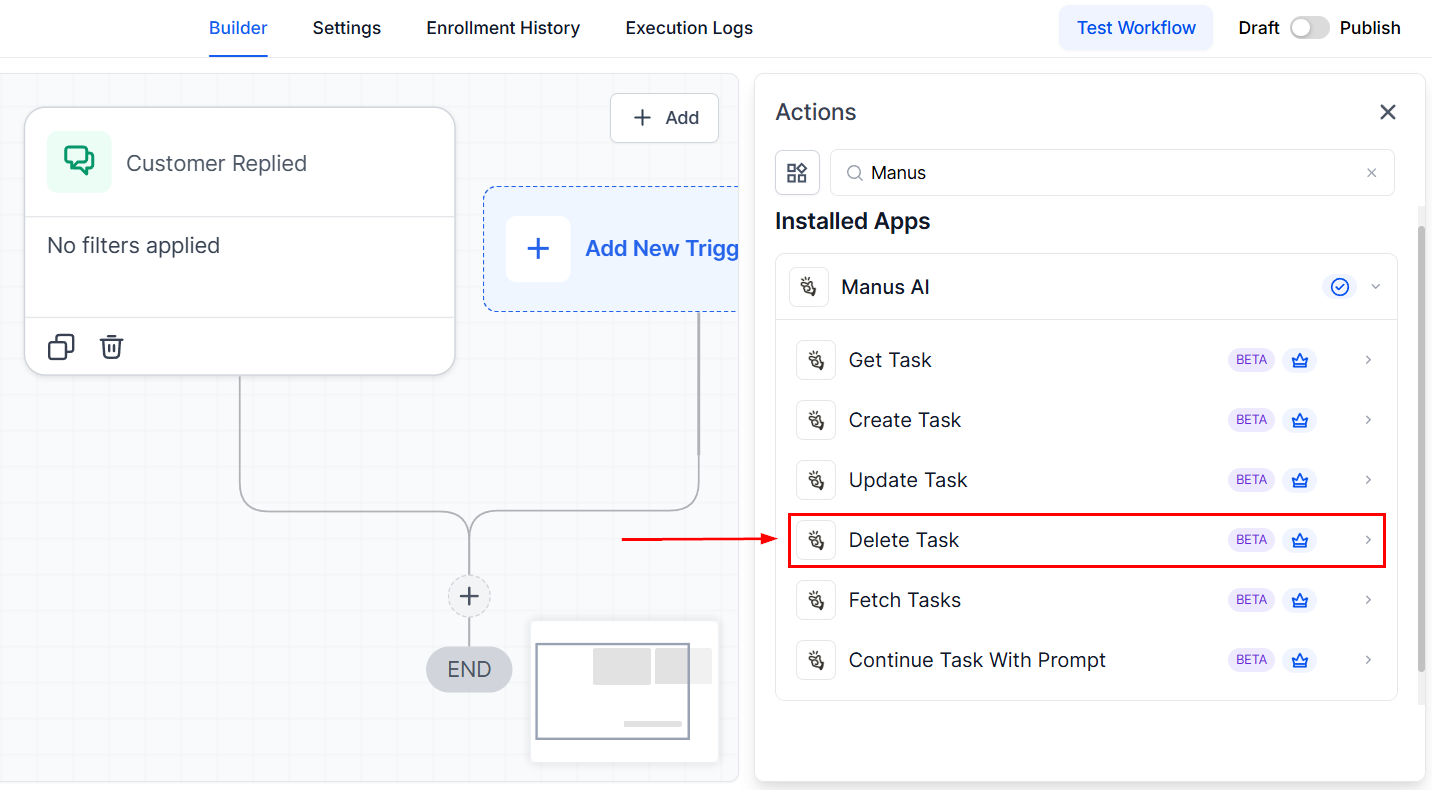
Remove a task from Manus by using this action.
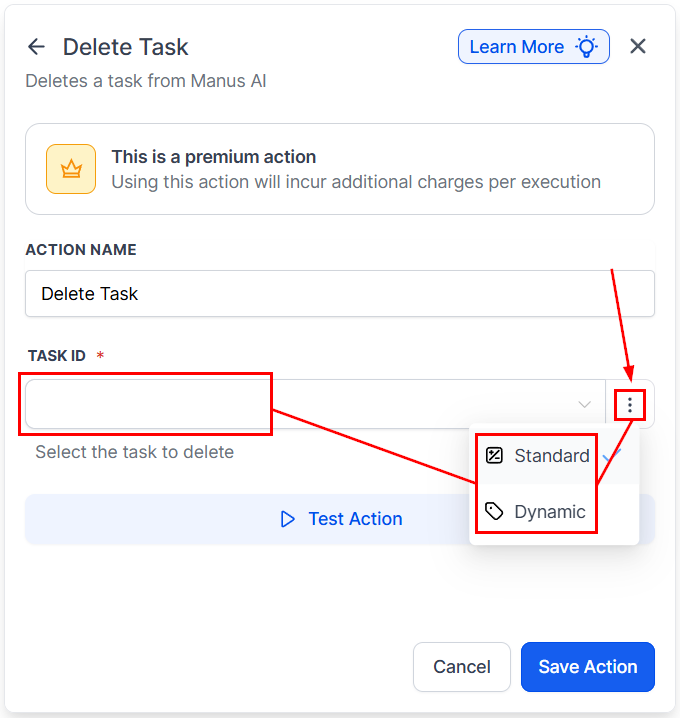
Select whether the Task ID will be a standard or dynamic value, then enter your data.
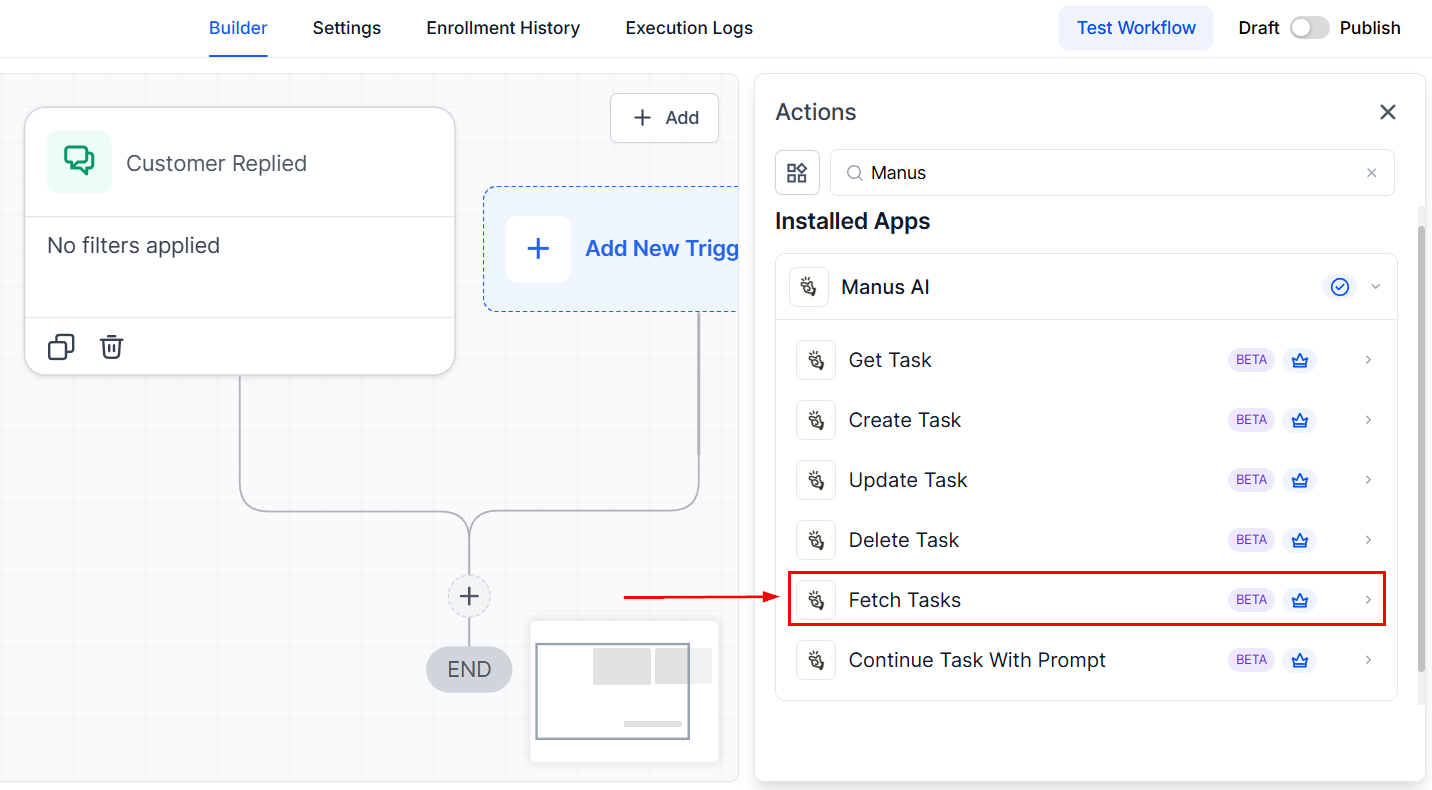
Fetch Tasks
This action helps you retrieve a list of tasks from Manus.
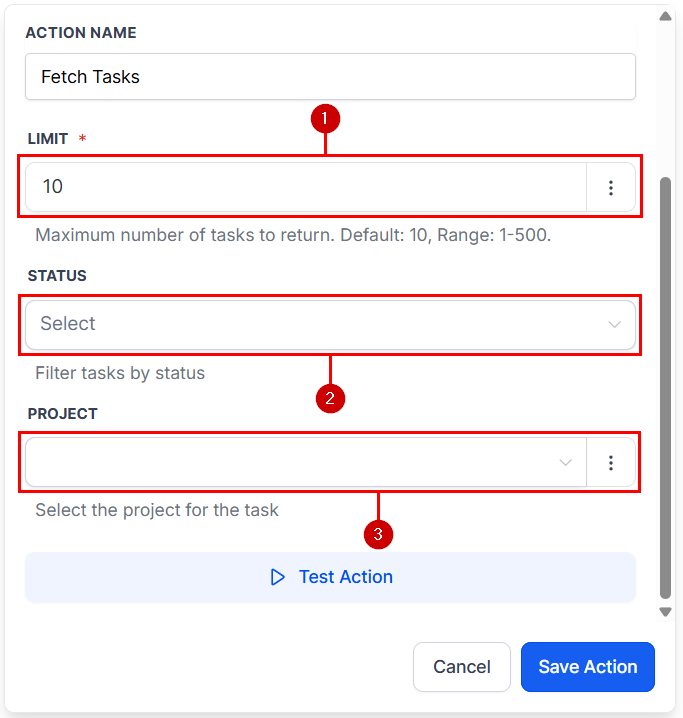
- Enter the maximum number of tasks the actions should list. You can do up to 500 tasks.
- Select a status that the tasks should be on to qualify for fetching.
- If you want tasks to belong to a specific project, select it here.
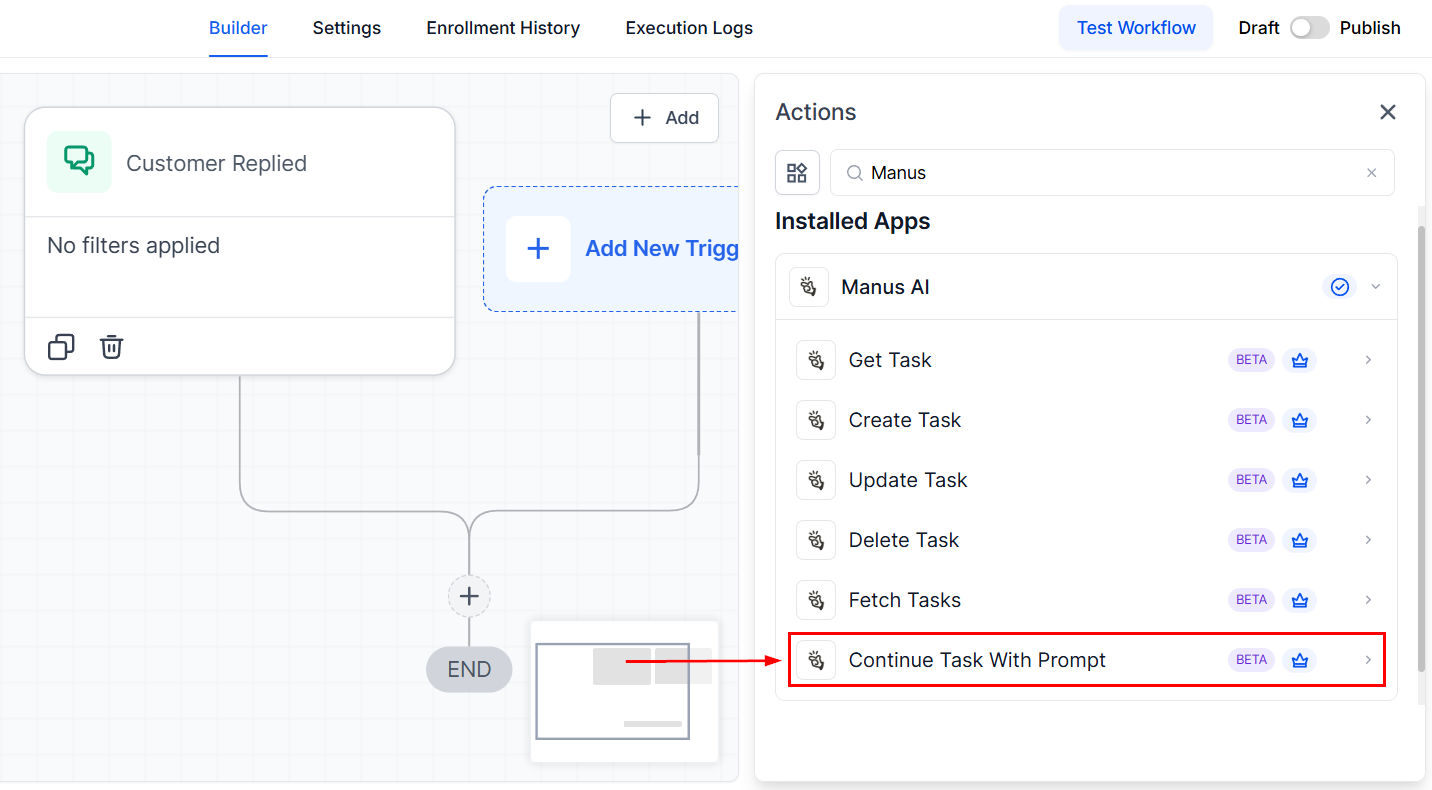
Continue Task With Prompt
Use this to add a follow-up prompt to an existing task.
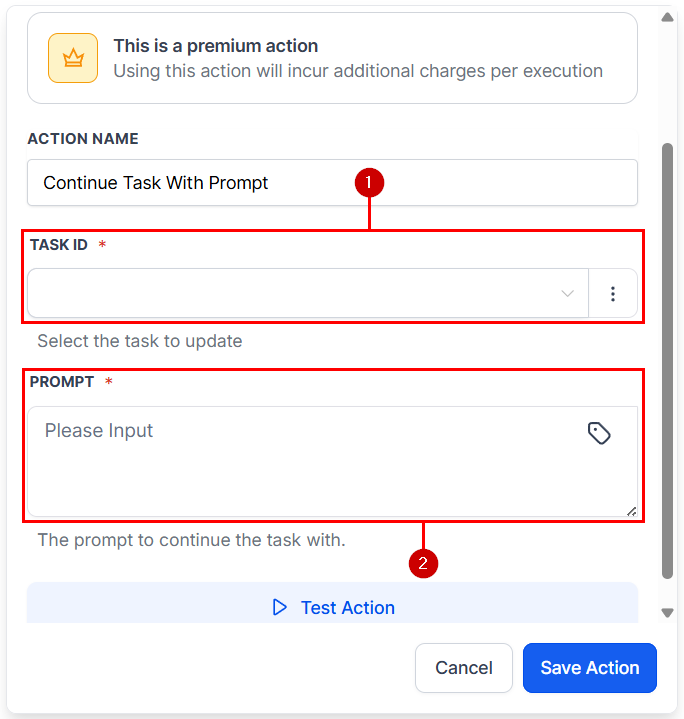
- Select whether the Task ID will be a standard or dynamic value, then enter your data.
- Enter a detailed description of the task to perform.
Make the most out of your existing Manus automation and improve your bot without manual intervention, using the CRM as a guidance tool that makes management easier with follow-up prompts, metadata, and parameter modifications, reactions to task lifecycle events, and more. We hope you enjoy it!
Not a Funnelbud customer yet?
Try our all-in-one CRM for sales and marketing — free for 7 days, no commitment.