How to Resell Ad Manager
Reselling Ad Manager to sub-accounts allows agencies to provide a valuable service to their clients while generating consistent revenue. This guide outlines the steps required to set up and manage the reselling of Ad Manager, covering prerequisites, pricing plans, customization options, and client management. By following these instructions, you can offer Ad Manager to your clients under terms that align with your business model.
Prerequisites
Before reselling Ad Manager, ensure your agency Stripe account is connected. This account will be used to collect subscription payments from your clients. For guidance on how to connect Stripe to your agency account, please refer to the How to connect Stripe to your Agency Dashboard article!
Choosing Your Plan
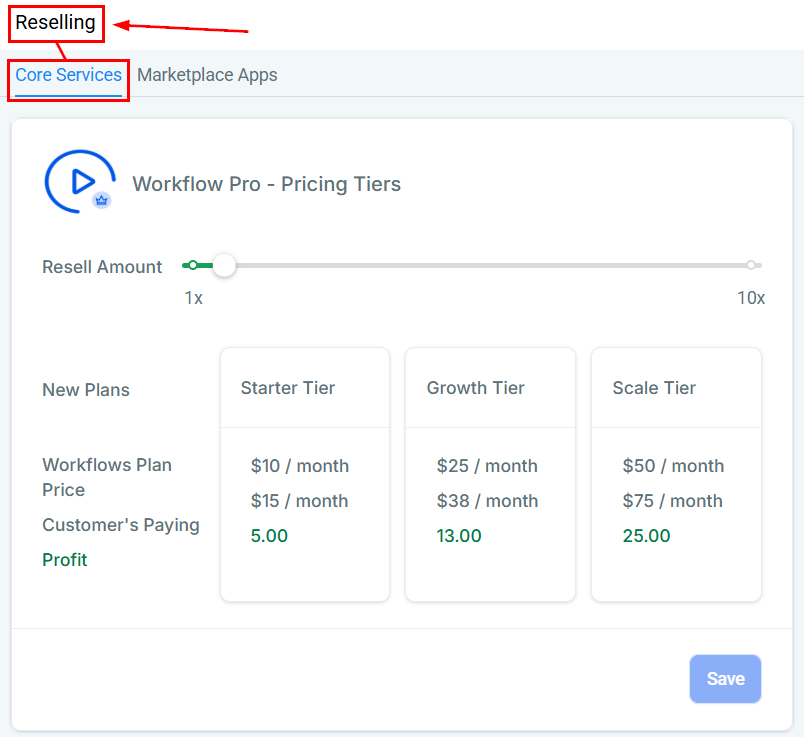
Once you have connected your account, navigate to Agency > Reselling > Core Services tab.
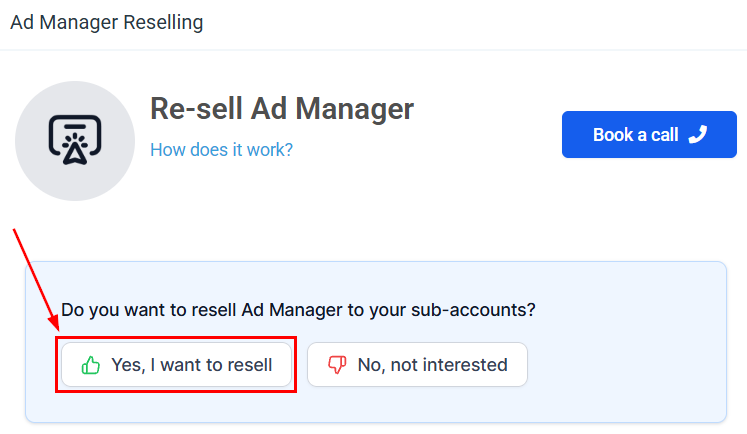
Scroll to the Ad Manager section and click Yes, I want to resell.
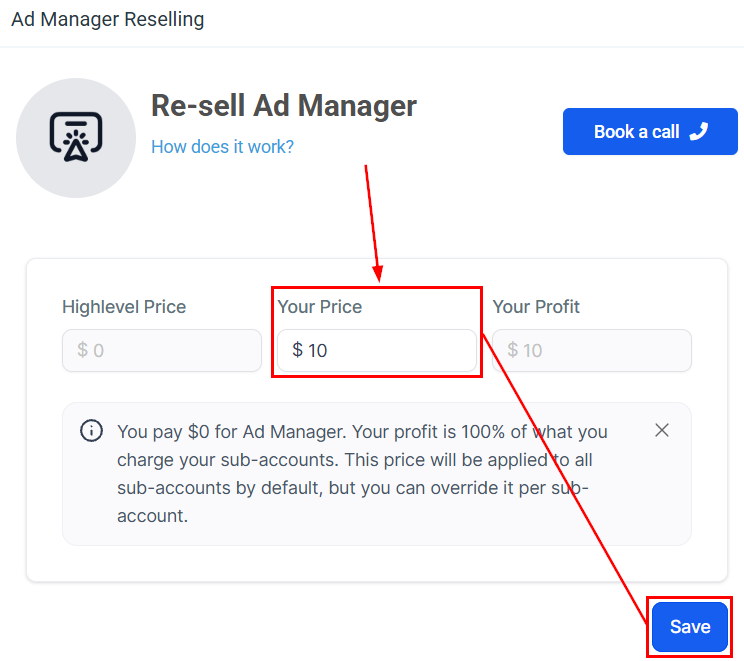
Set your price, then click Save.
Adding Ad Manager to SaaS Offerings
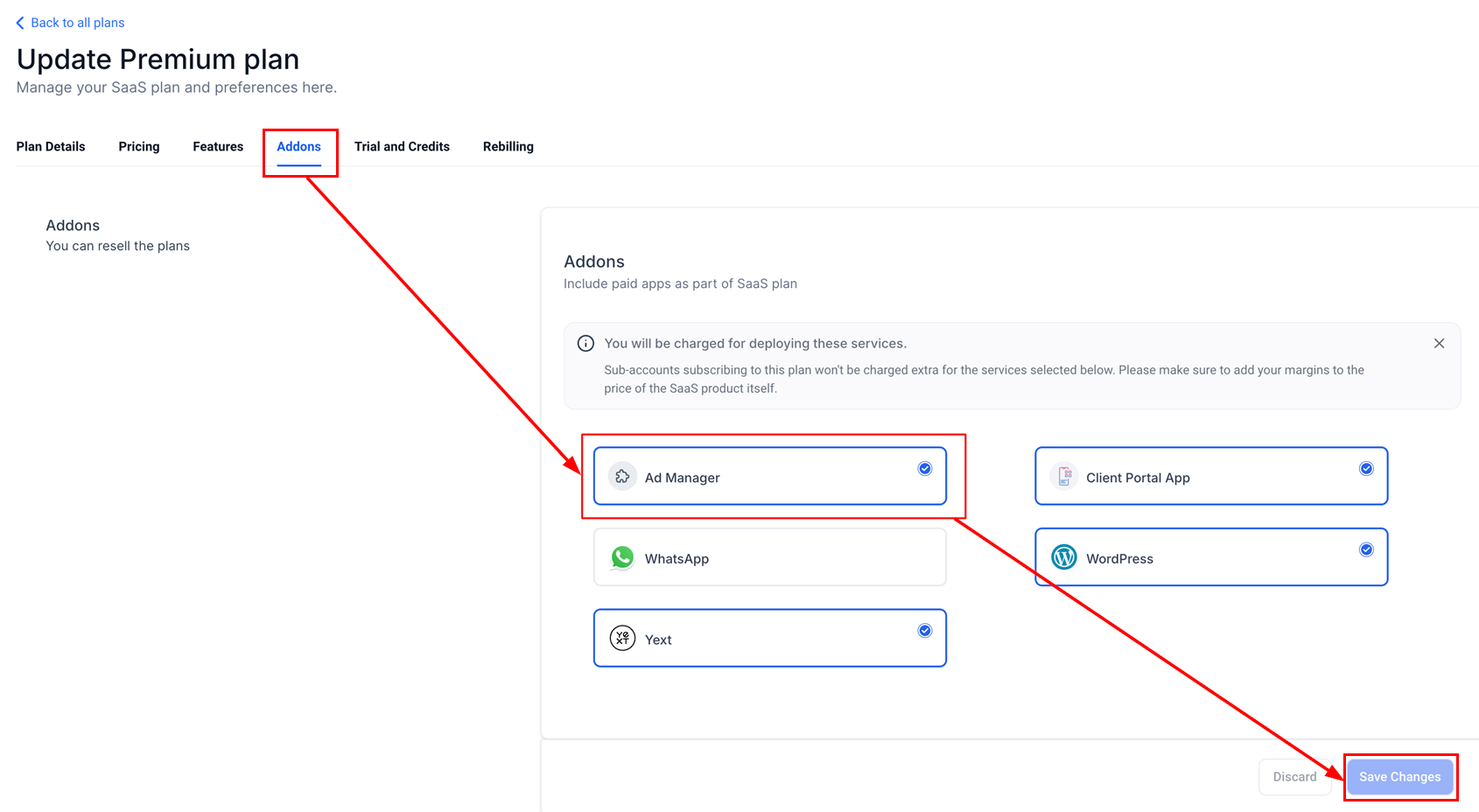
The Ad Manager feature can be seamlessly integrated into your SaaS offerings, enabling you to deliver enhanced value to your subscribers. To do this, head to the SaaS Configurator in Agency View, select the plan you wish to modify, enable the Ad Manager option, and then proceed to save your changes.
Upon the sale of a SaaS plan, an event is triggered and sent to the reselling service, conveying the details of the associated SaaS sub-account and its configurations. The reselling service then automatically generates the necessary subscriptions for the products included in the SaaS bundle.
📌Notes:
- Changes made to the bundle configurations will only apply to sub-accounts created under the corresponding SaaS plans in the future; existing sub-accounts remain unaffected.
- In the agency billing section, locations subscribed to Ad Manager through a SaaS plan will be labeled as “SaaS Bundle” instead of displaying the specific plan name.
Personalizing Offers
Customize Ad Manager pricing for specific clients within the Sub-Accounts section of the Agency View.
Locate the sub-account from the list by utilizing the search bar or scrolling through your sub-accounts list. Proceed to click the option to Manage Client from the actions menu or simply click the sub-account name.
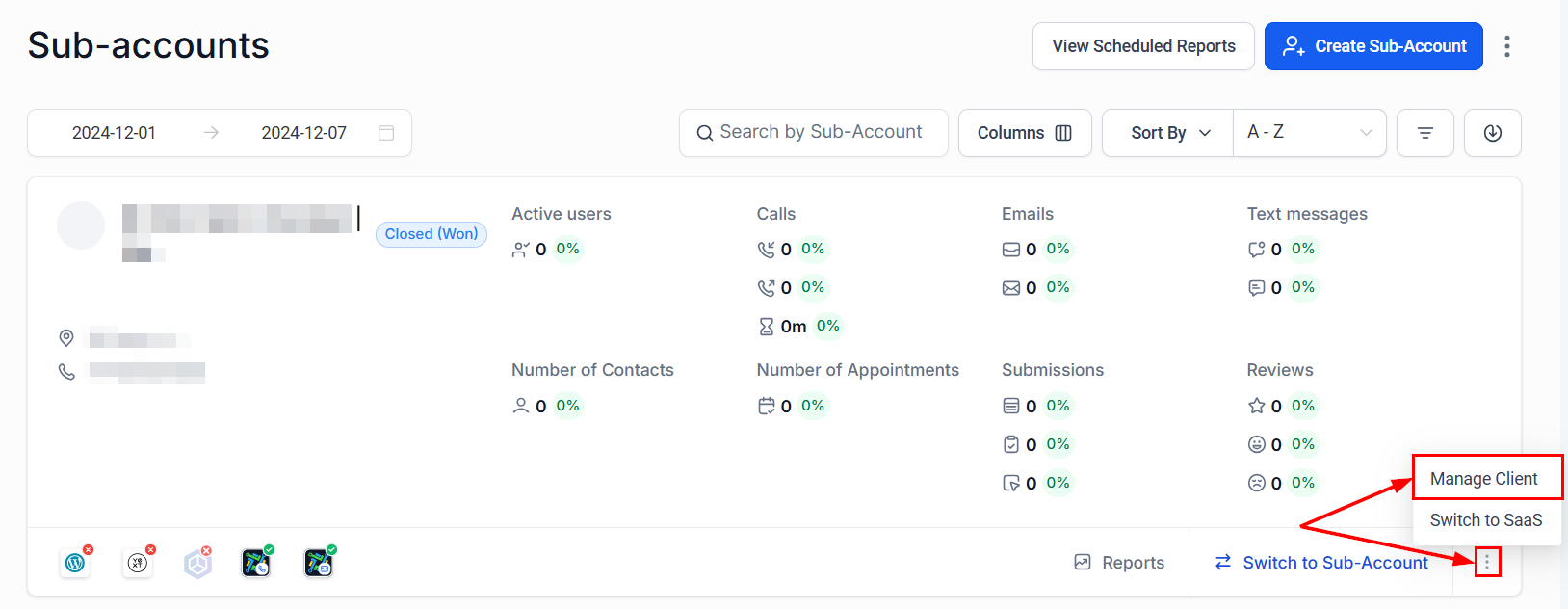
Navigate to the Reselling tab to view the available options for reselling.

Scroll to the Ad Manager card to set the reselling price based on your plan.
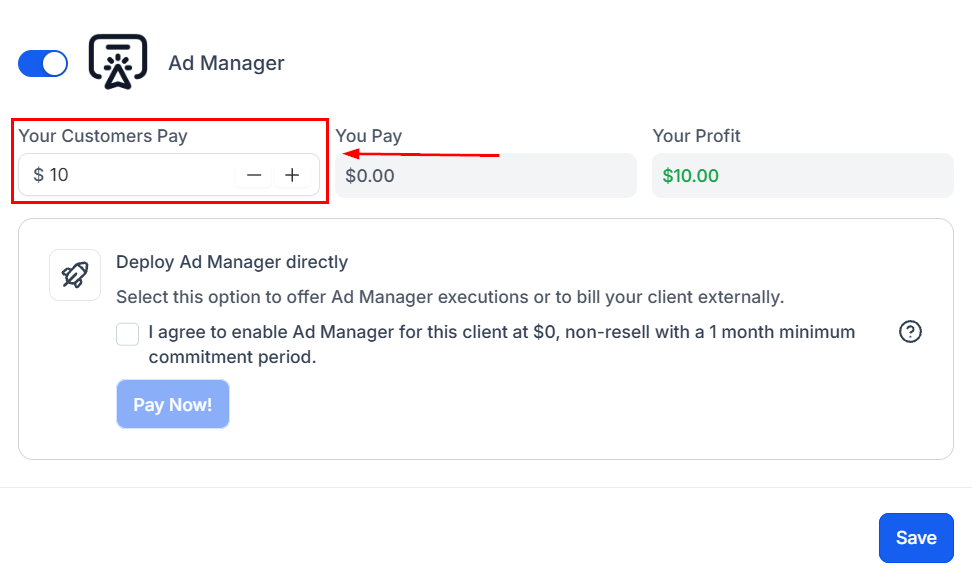
📌 Note: Pricing changes only apply to new subscriptions. Existing clients retain their initial pricing.
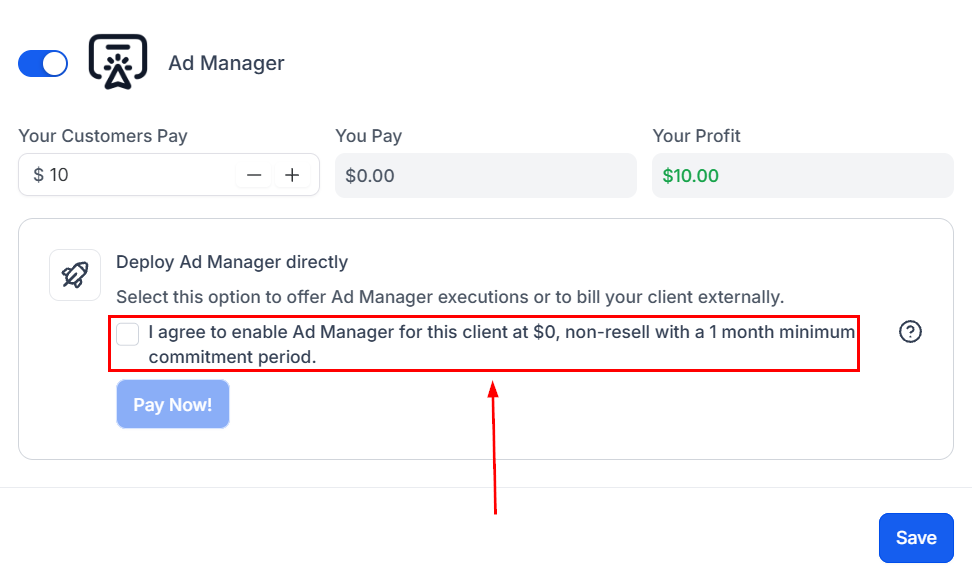
To provide Ad Manager at no cost to select clients, check the acknowledgment box under “Deploy Ad Manager Directly” and save.
📌 Note: If on the Standard Plan, HighLevel still charges $10 per sub-account.
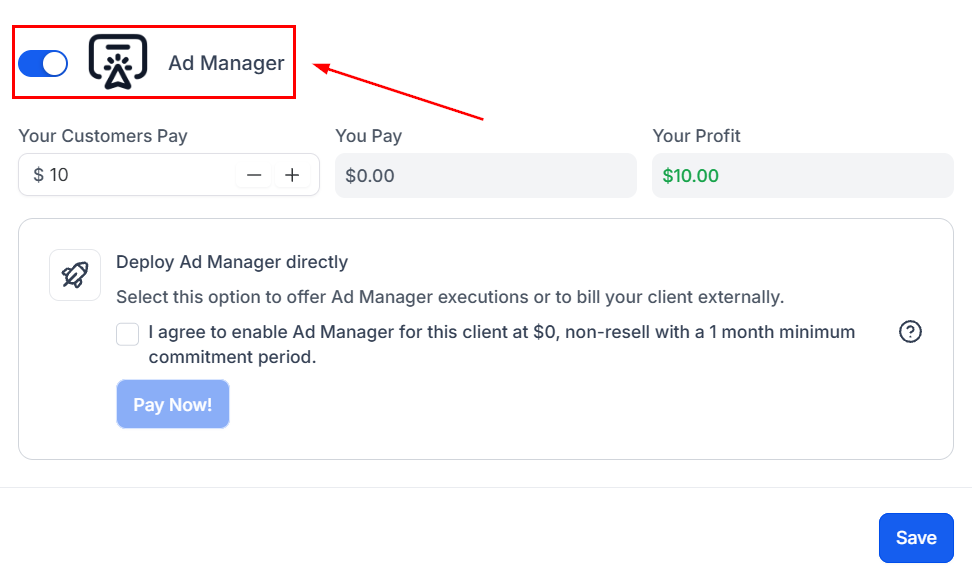
To disable Ad Manager for specific clients, toggle off the “Offer Ad Manager” option.
📌 Note: This must be done before a client purchases Ad Manager.
Client Discovery and Purchase
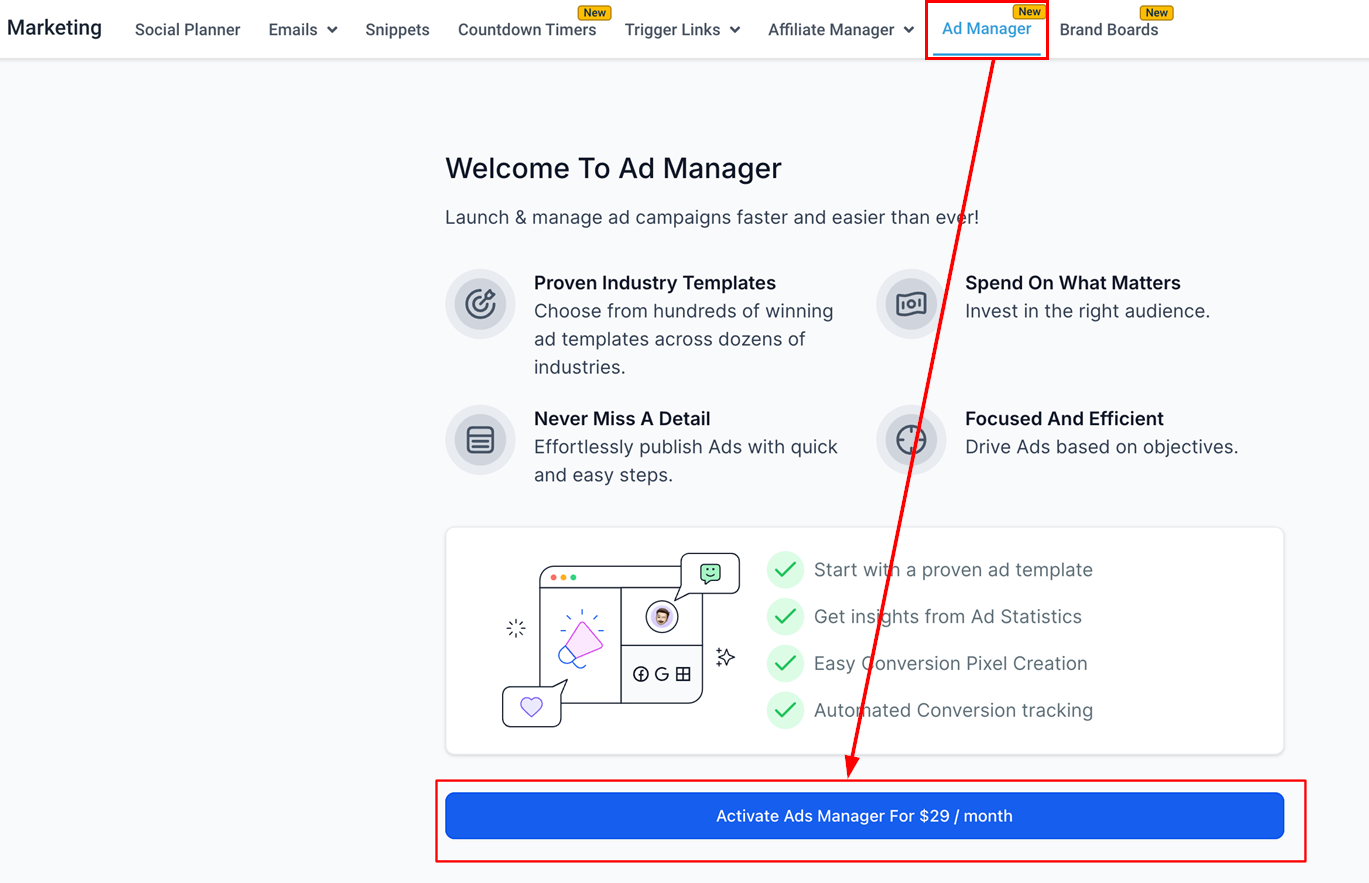
Clients can access Ad Manager via Marketing > Ad Manager in their subaccount. They can activate the feature by clicking Activate Ad Manager, creating a subscription between their payment method and your Stripe account.
Follow the outlined steps to optimize the process for both your agency and your clients!