How to Attach Files To A Contact Record
In this article, you will learn how to create a custom field and integrate it into your Contact Details to enable file attachments within a contact record. Begin by navigating to the Settings category, selecting the Custom Fields section, and clicking the “+Add Field” button to initiate the creation of your custom field.

File Upload
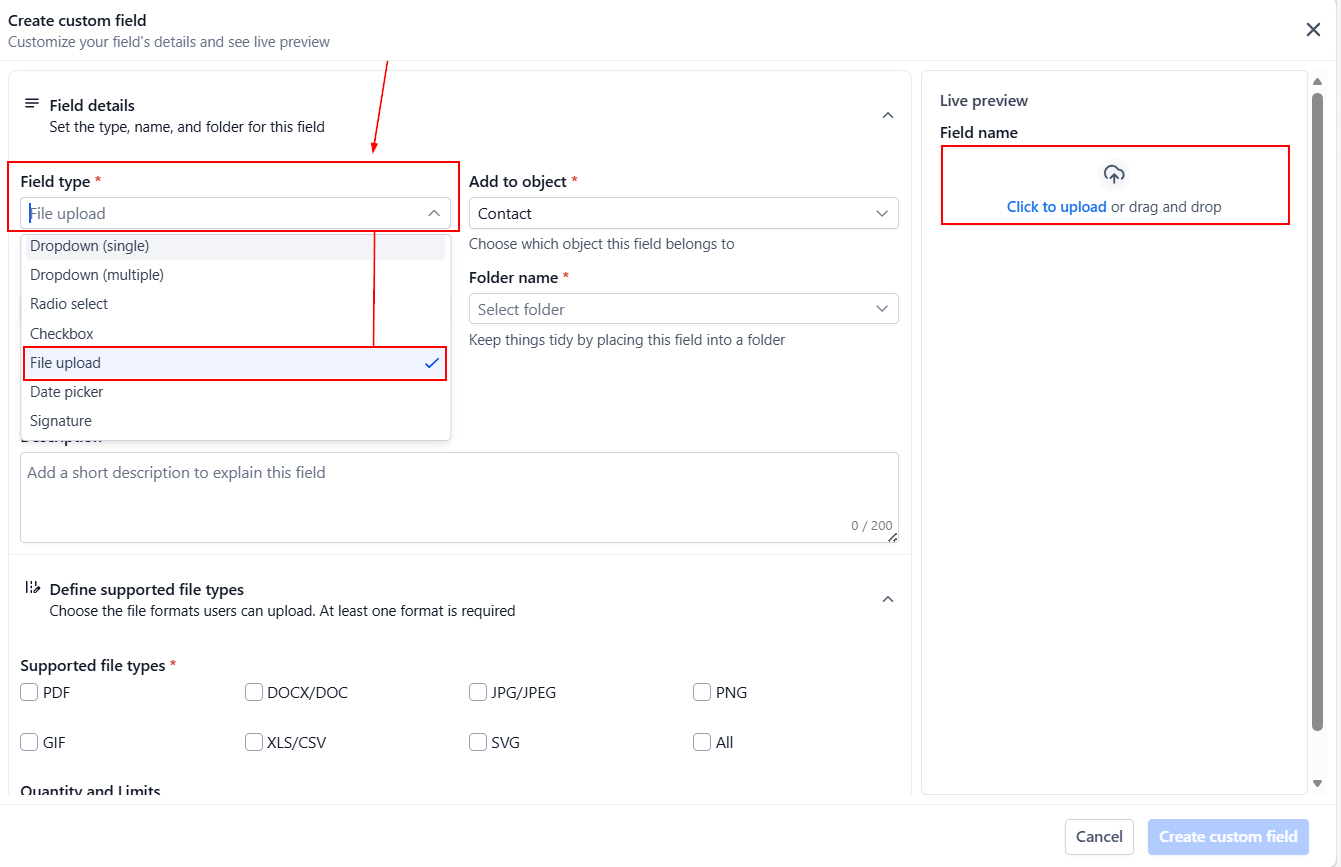
A pop-up window will appear. Click on File Upload and then upload your file using the Preview section located in the upper right corner of the popup if you so desire.
File Name and Folder
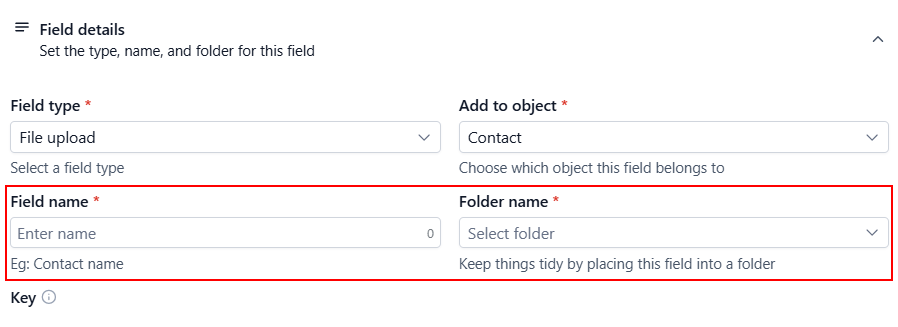
Give your new field a name to easily identify it and select the group in which you want the custom field to reside.
Select Object
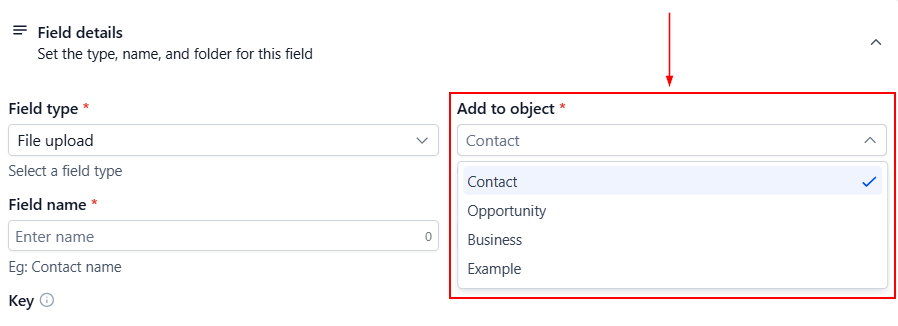
Next, choose the section within your system where you want this custom field to be applied: in Contact, Opportunity details, or a Custom Object. Since we wish to view the file(s) within a Contact record, we will choose the Contact Object here.
File Type
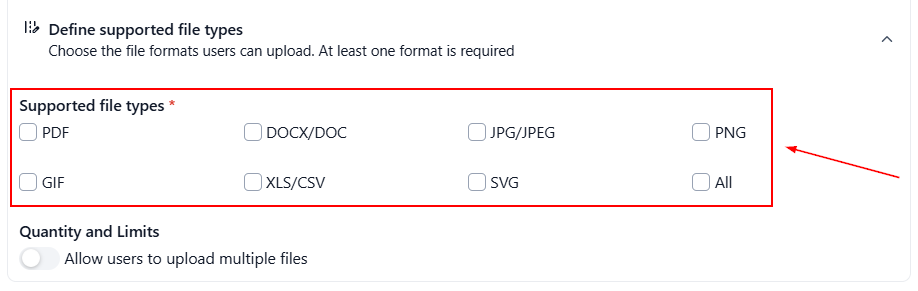
Specify the types of files that can be attached to this custom field. Alternatively, select “All” to allow any file type.
Allow Multiple Files
If you need to attach multiple files to a single custom field, enable the toggle and set the maximum number of files that can be attached.
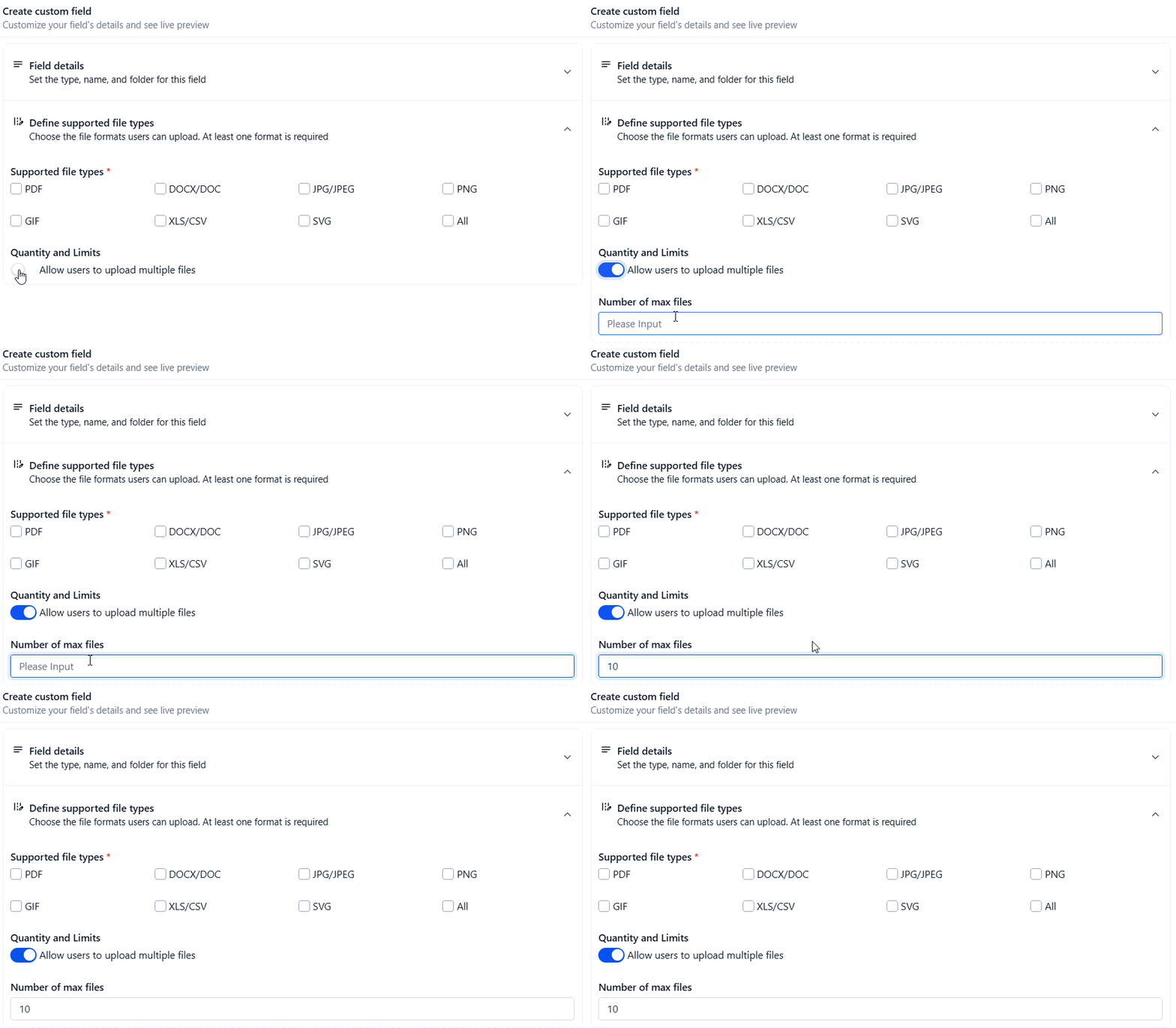
Configure any other additional preferences, then click Save.
How to Use Your Custom Field
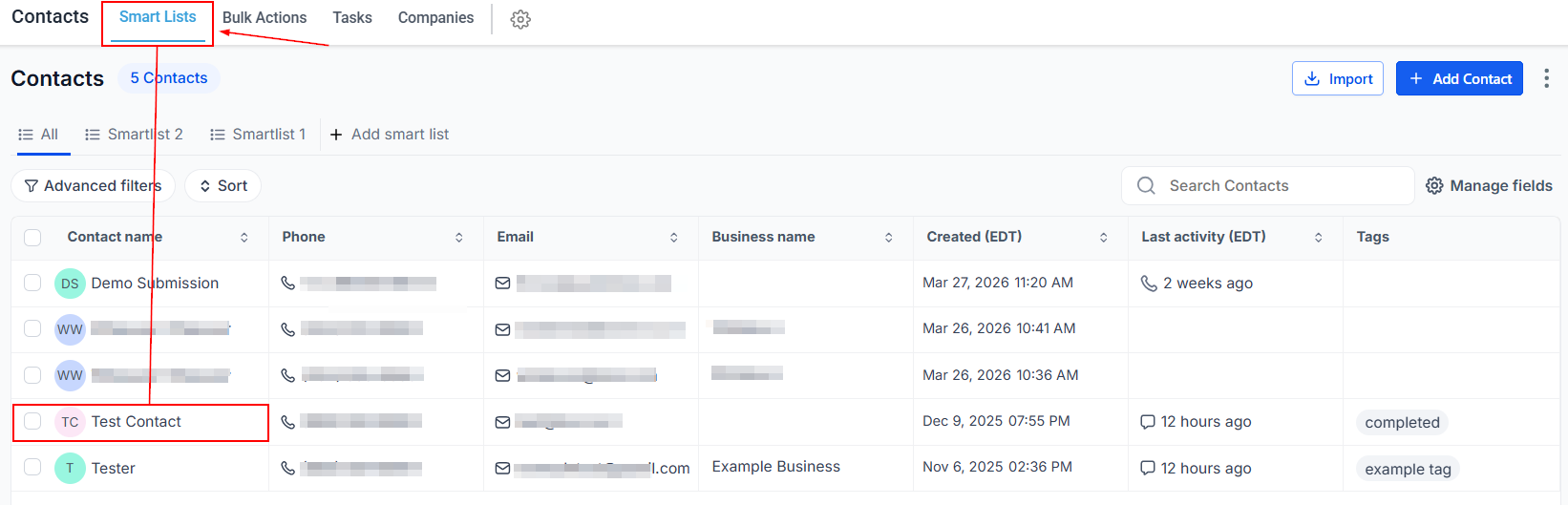
To see your custom field in action, navigate to the Contacts section from the left menu and open an individual contact record.
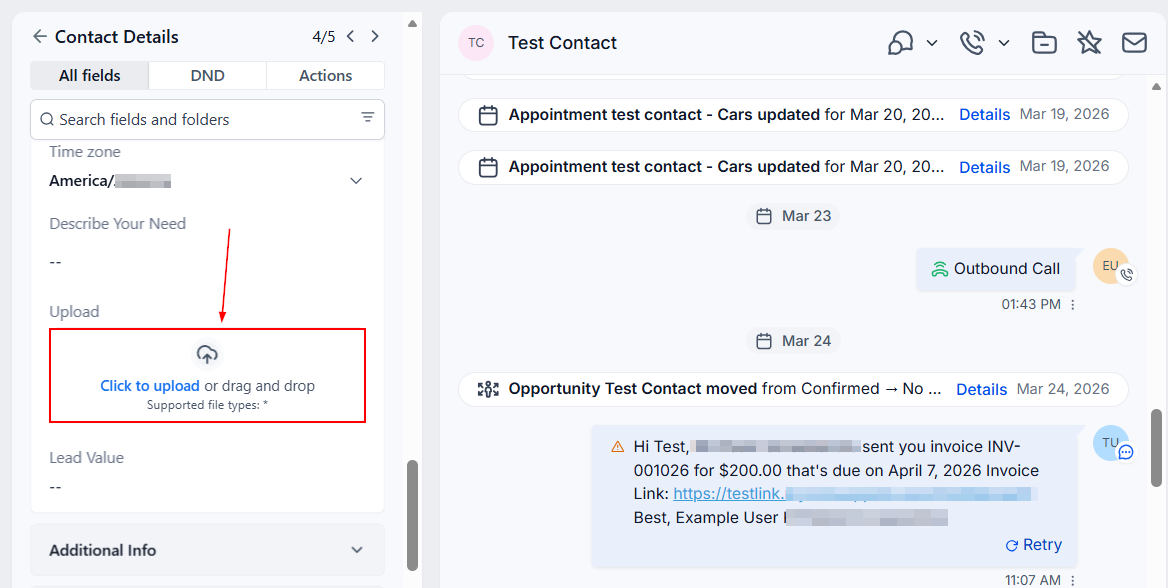
Within the contact record, locate the group you have added the custom field, then scroll down to find the new option to add files. To upload a file, click the Upload a File button, select the desired file from your local file browser, and after the file has been uploaded, click Save.
How to Use the Contact Documents Tab
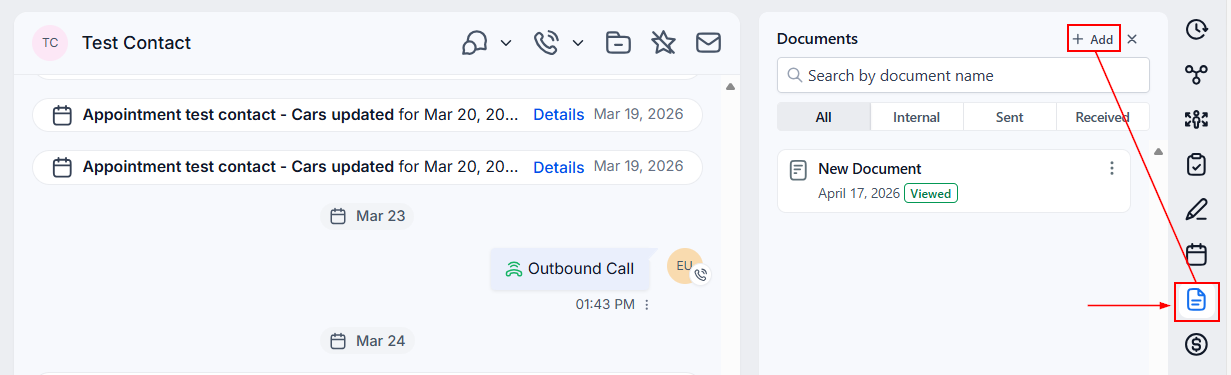
Documents can also be uploaded directly to a contact’s profile via the Documents tab. To do so, navigate to the Documents section and click the “Add” button to upload up to 10 files simultaneously. For more detailed information about this feature, please refer to the Document Management article in this section.
This process enables you to effectively organize and manage additional information within your contact or opportunity records, ensuring your data is both comprehensive and accessible.
Not a Funnelbud customer yet?
Try our all-in-one CRM for sales and marketing — free for 7 days, no commitment.