Quiz Builder
The Quiz Builder is a tool designed to streamline the creation and management of quizzes, making it an essential resource for educators, trainers, and businesses alike. With its intuitive interface and robust customization features, the Quiz Builder simplifies the process of designing quizzes, evaluating learner performance, and analyzing results. Whether you’re crafting educational assessments, lead-generating quizzes, or interactive engagement tools, this platform supports a broad range of use cases for enhanced learning, marketing, and business development.
Features of the Quiz Builder
- Multiple Question Formats: Choose from multiple question types such as multiple-choice, true/false, short answer, and essay questions to suit your needs.
- Customizable Scoring System: Tailor scoring methods for individual questions and sections to align with your specific goals.
- Branching Logic: Design quizzes that dynamically adapt based on the user’s responses, creating a more personalized experience.
- Quiz Sharing: Easily share quizzes via direct links or embed them on websites and sales funnels to maximize reach.
How to Use Quiz Builder
Navigate to the Quiz Builder within the Sites tab.
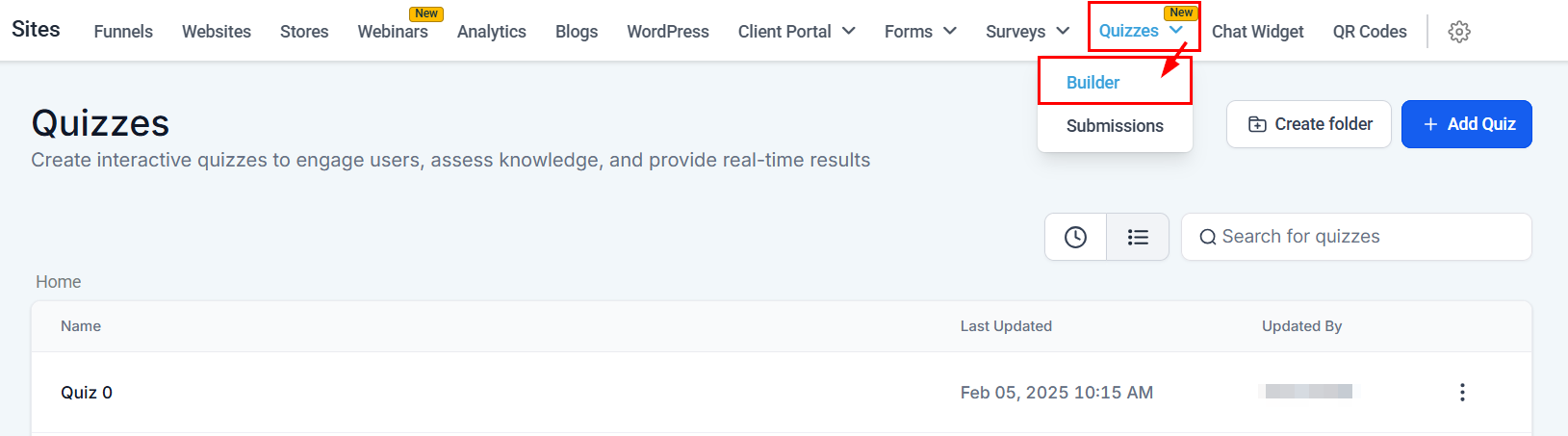
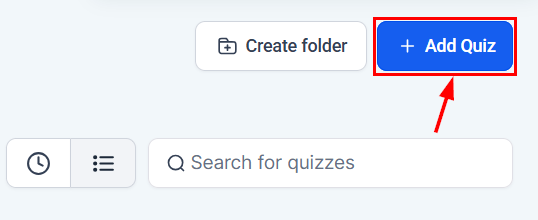
Click the “Create Quiz” button to create a new quiz.
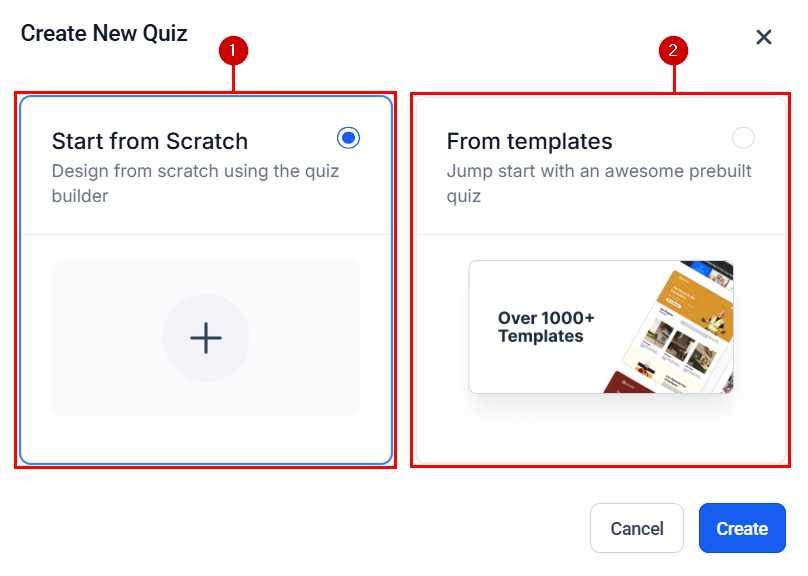
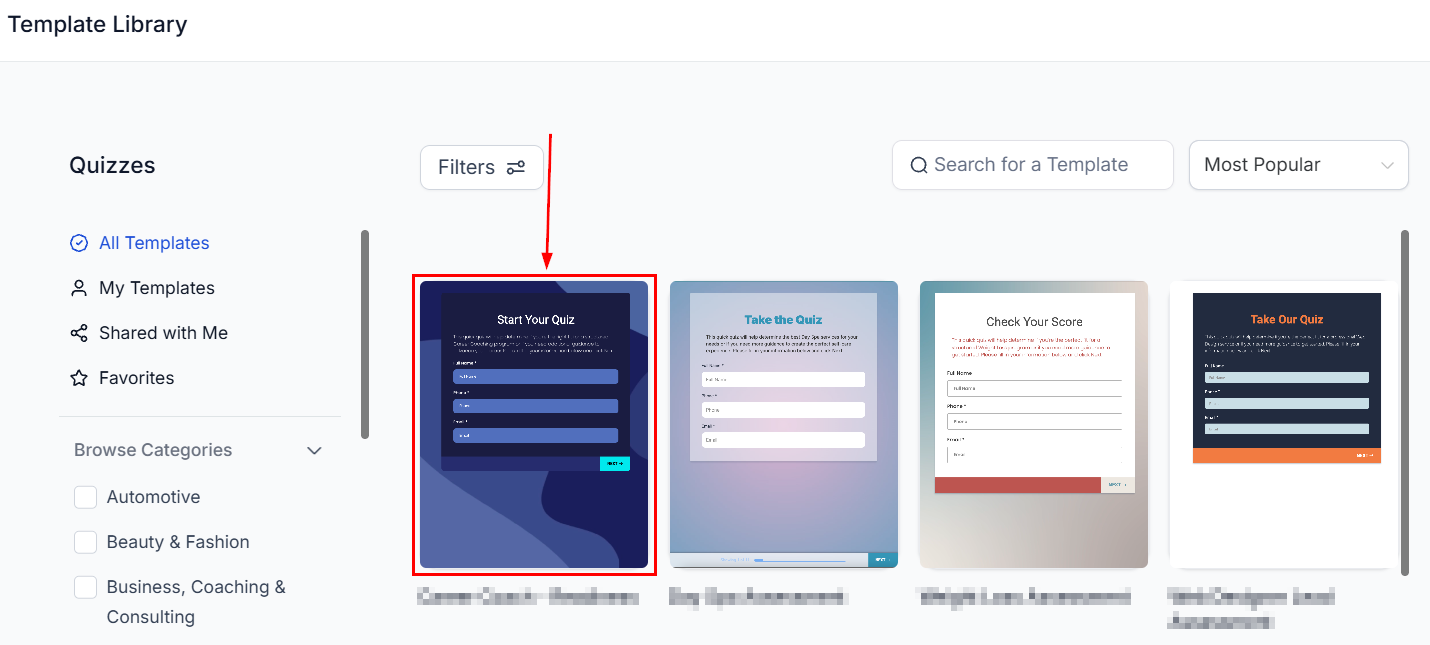
Select how to create your Quiz, you can start from zero (1) or use a template (2) to save some time.
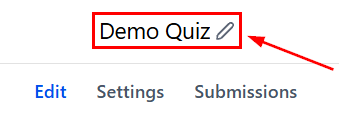
Starting from Scratch
Assign a unique name to the quiz for easy identification.
Using a Template
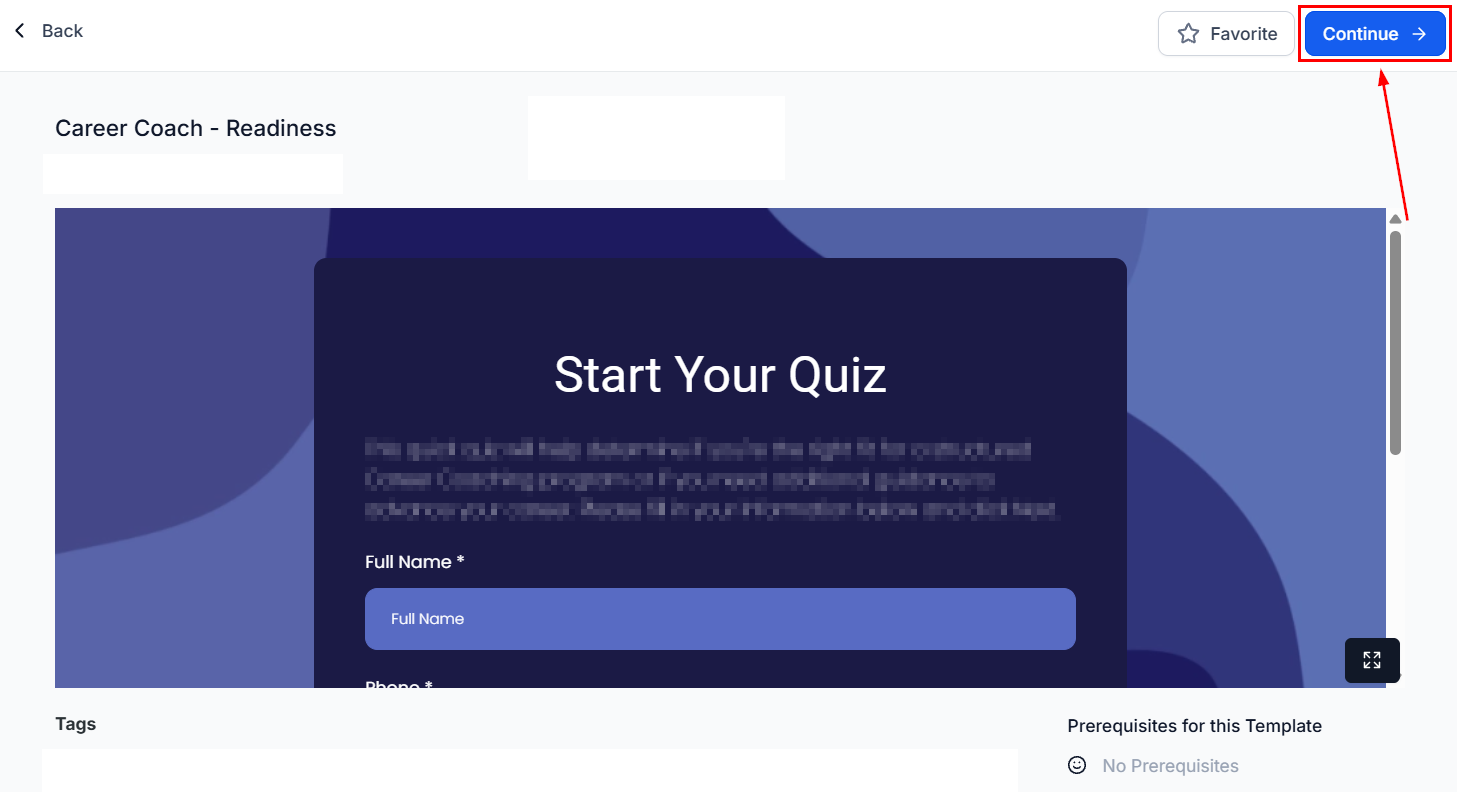
Click on a template to preview it.
Click Continue to download your Template and start editing it.
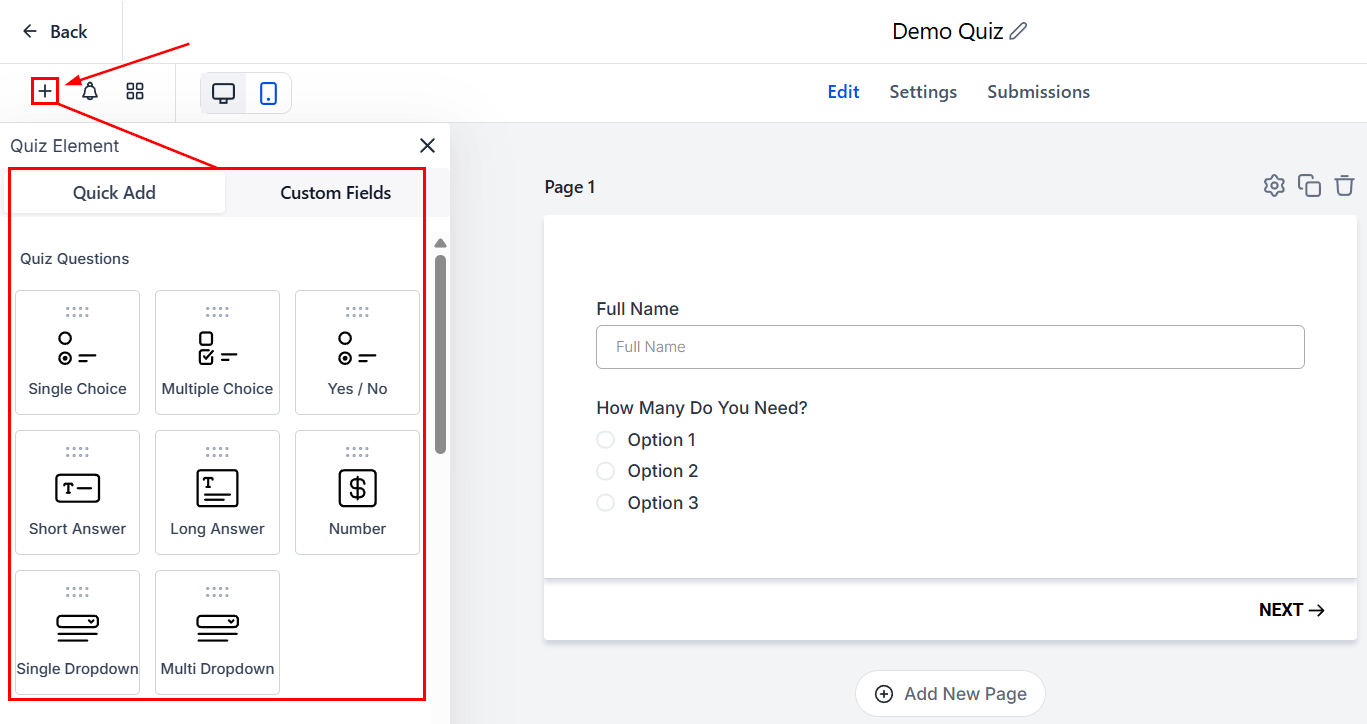
Adding Questions
Use the left sidebar to drag and drop question types (multiple-choice, true/false, short answer, etc.) onto individual slides.
Assign Categories & Scores
Set scoring parameters for multiple-choice or radio-select questions, ensuring a clear path to the final result.
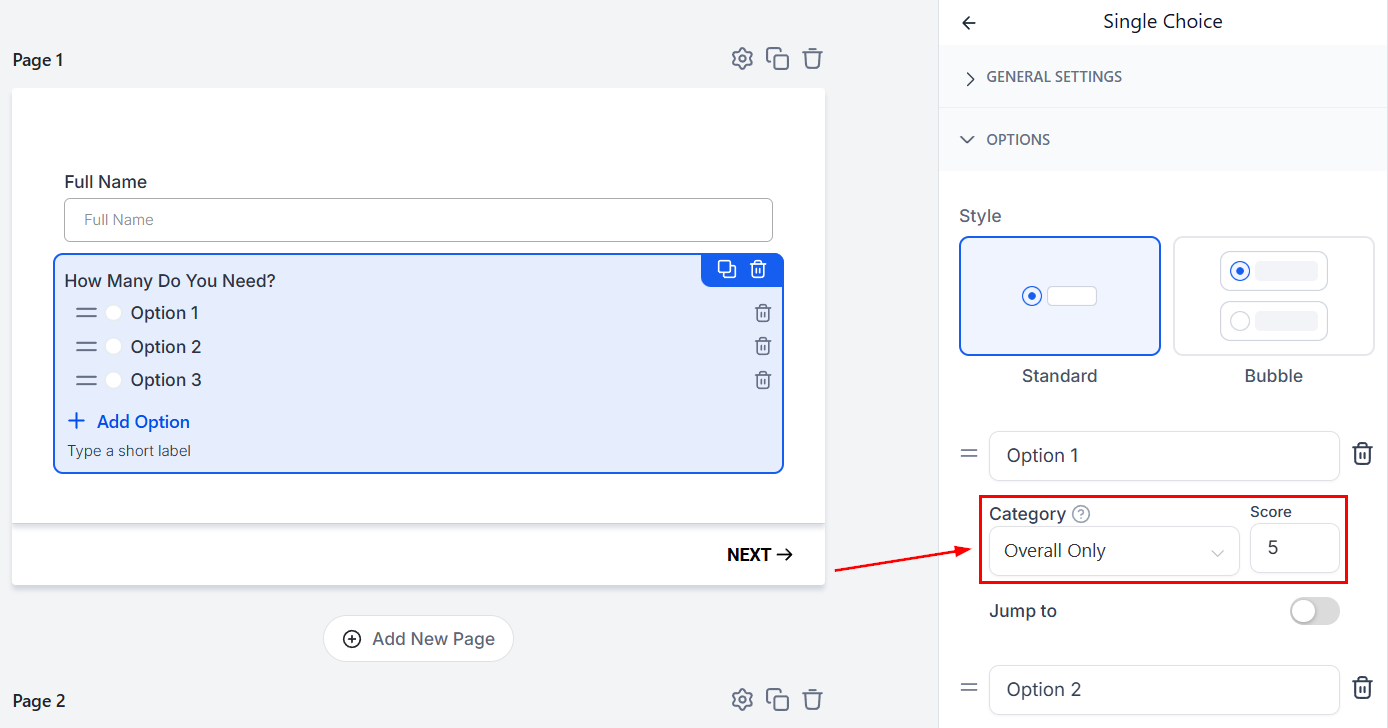
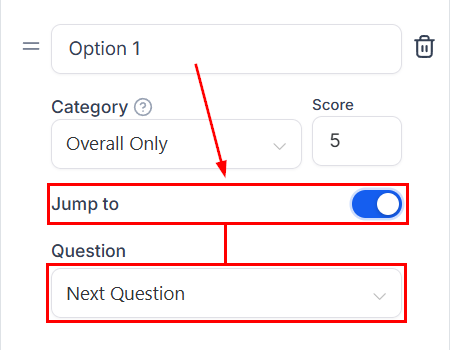
Optionally, enable the “Jump To” feature to redirect users to another page based on their provided response.
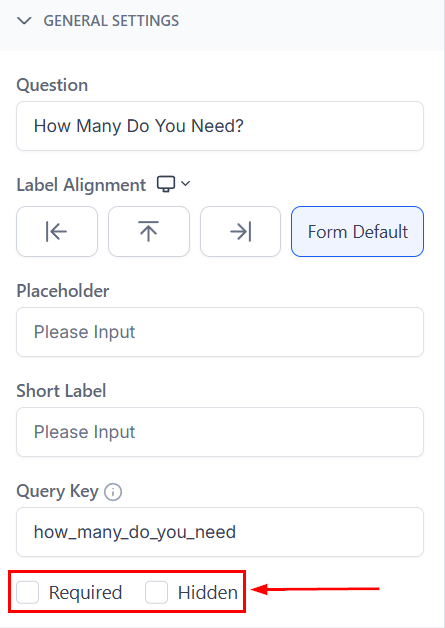
Configure additional field options, such as marking it as required or adjusting its visibility.
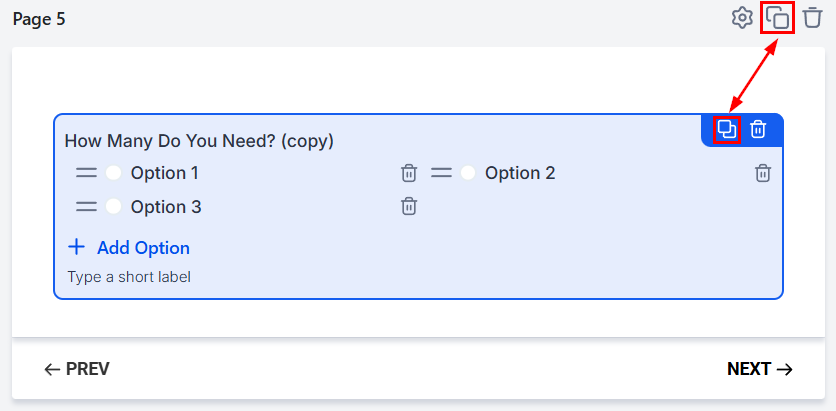
To duplicate a slide or question, click the two-square icon at the top right. This will copy the field or page with all its previously customized settings below the original.
Customize the Result Page
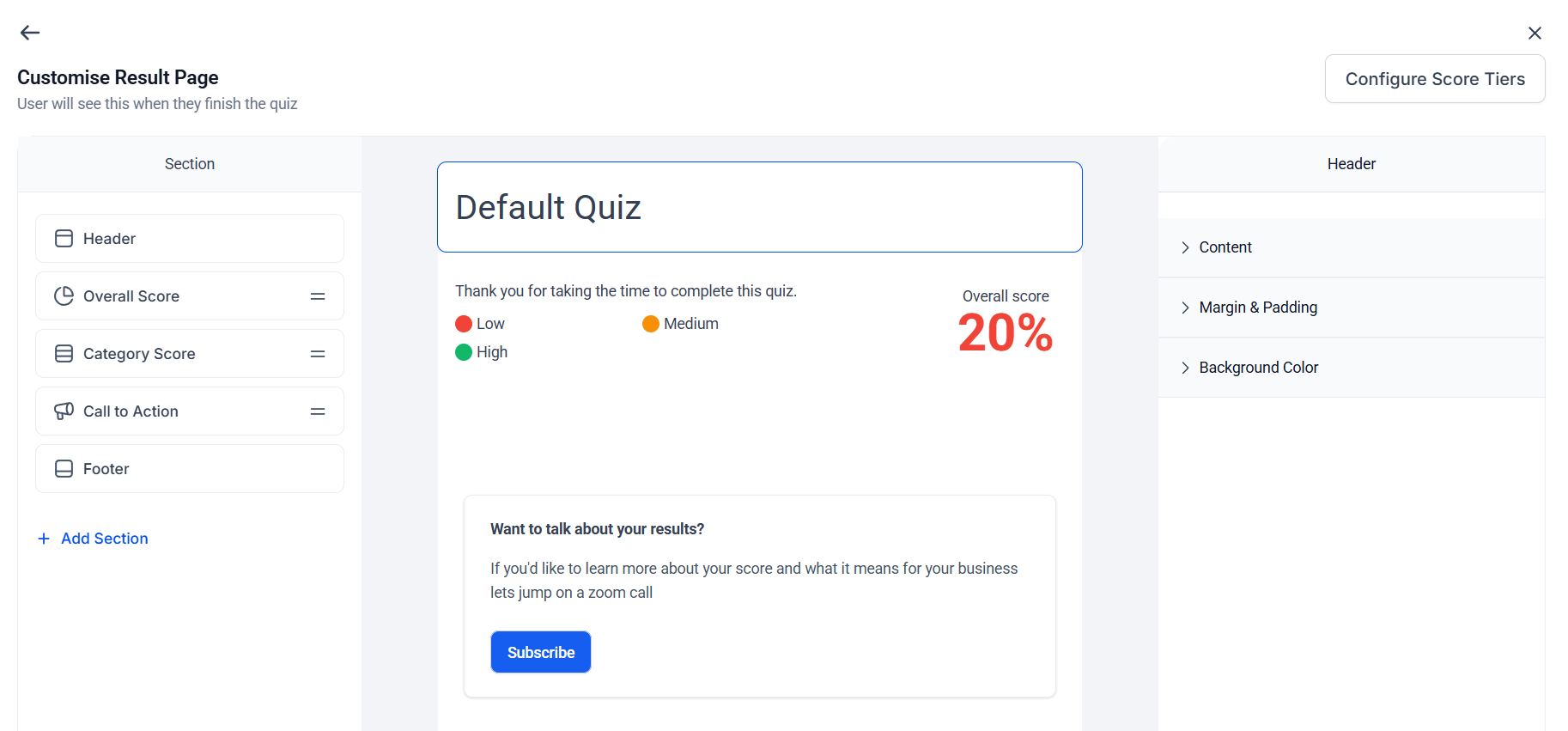
Once you are satisfied with the content of your quiz, scroll to the bottom to customize the quiz result page to reflect your brand’s identity.
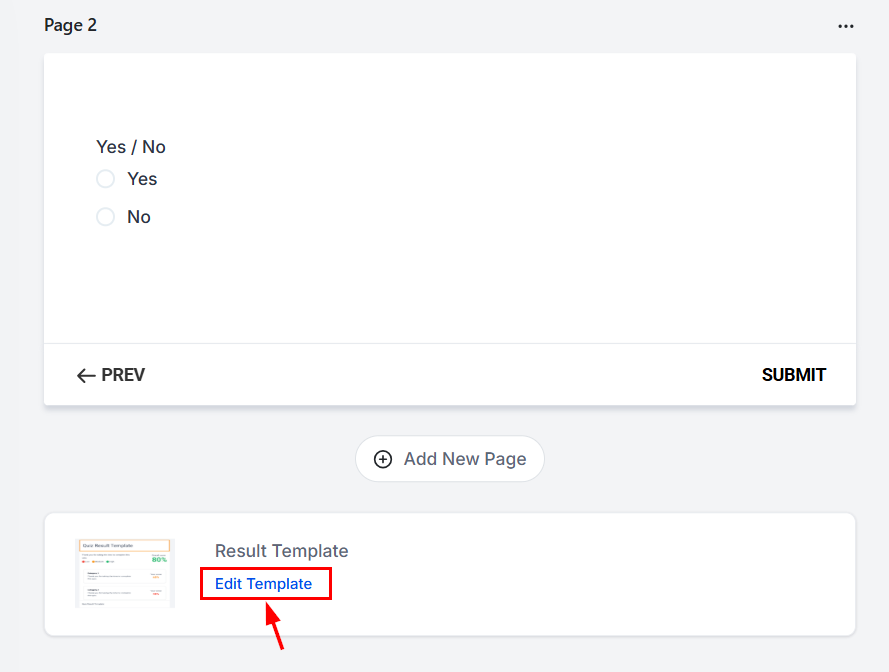
Customize the Content, Margin & Padding, and Background Color settings to suit your preferences. Once you’ve made the adjustments, preview the page in the right-hand section of the screen. When you are satisfied with the changes, save the template.
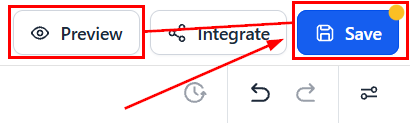
Save & Preview
With your quiz and results page now configured, save the quiz, then test it thoroughly before publishing it to ensure accuracy and functionality.
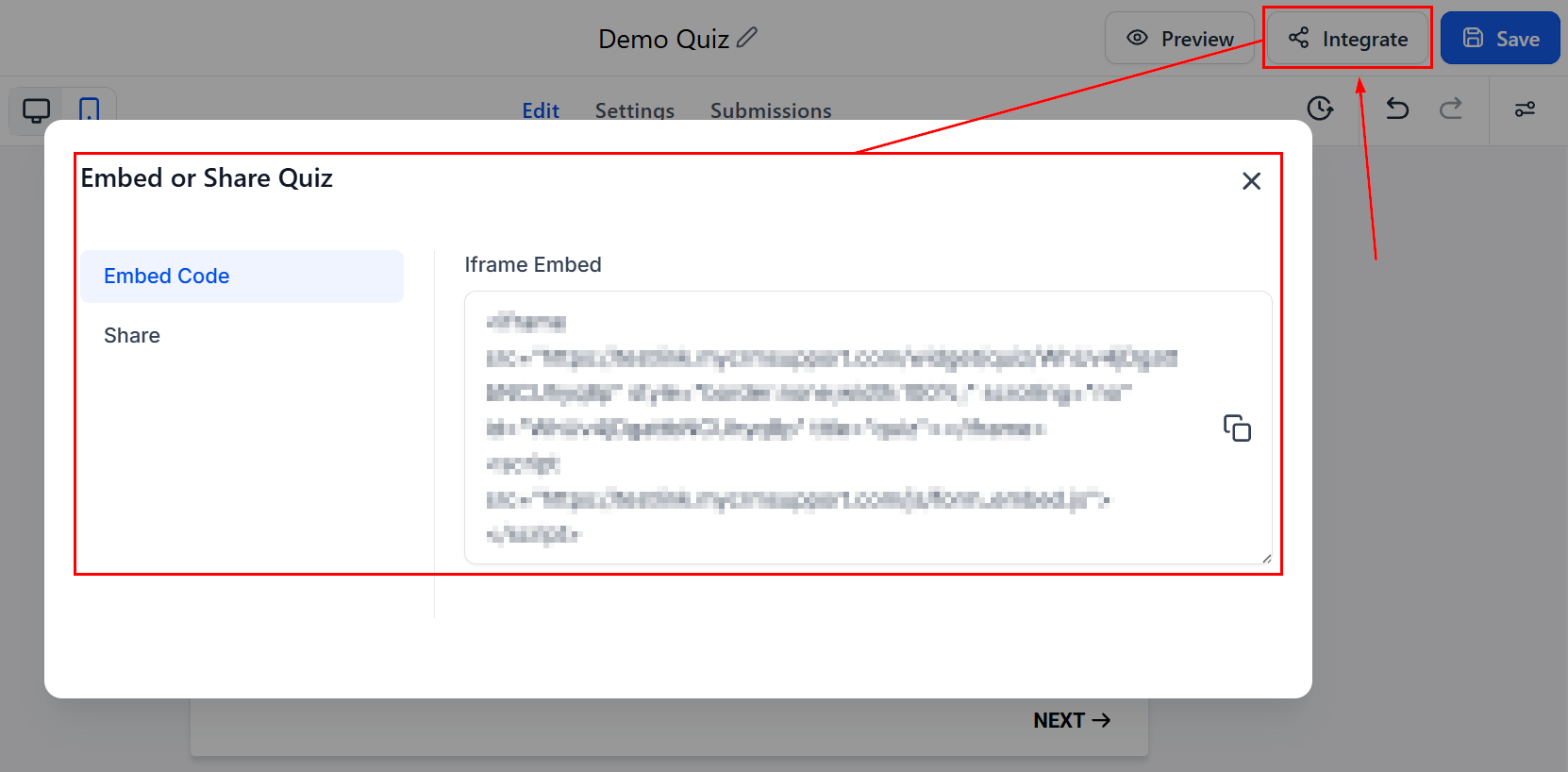
Distribute your quiz by sharing direct links, embedding it on websites, or integrating it with automated workflows for seamless sharing.
With its versatile features and user-friendly interface, the Quiz Builder is a powerful solution to create impactful, interactive quizzes that drive engagement and improve outcomes.
Practical Use Cases and Examples
- Education & Training: Assess student knowledge, reinforce learning, and provide personalized instructional experiences through interactive assessments.
- Product & Course Recommendations: Utilize quiz results to recommend relevant products, courses, or services, improving conversion rates and customer satisfaction.
- Certification & Compliance: Ensure compliance with training programs and validate skills through quizzes, while also issuing certifications based on performance.
- Increased Engagement & Interactivity: Enhance the user experience by creating adaptive quizzes that dynamically adjust based on user responses, fostering deeper engagement.
Frequently Asked Questions (FAQs)
Q: Does Quiz Builder support branching logic?
- Yes, you can create quizzes that adjust dynamically based on user responses, providing a customized experience.
Q: How can I analyze quiz results?
- Detailed analytics are available within Quiz Submissions to help you track performance and engagement metrics.
Q: Can I automate follow-ups based on quiz scores?
- Yes, by using the Quiz Submitted Trigger in workflows, you can set up automated follow-ups via email or SMS.
Q: Is Quiz Builder suitable for certification exams?
- Yes, the tool supports the creation of quizzes for certifications, with the ability to define pass/fail criteria and generate certificates based on performance.
Not a Funnelbud customer yet?
Try our all-in-one CRM for sales and marketing — free for 7 days, no commitment.