How to Add Multiple Email Addresses to a Contact
Every contact may have different email addresses for various purposes, such as work, personal, or other specific roles. The CRM allows users to add up to ten additional email addresses per contact, on top of one primary email address, making it easier to manage and communicate with your contacts.
Creating or Editing a Contact
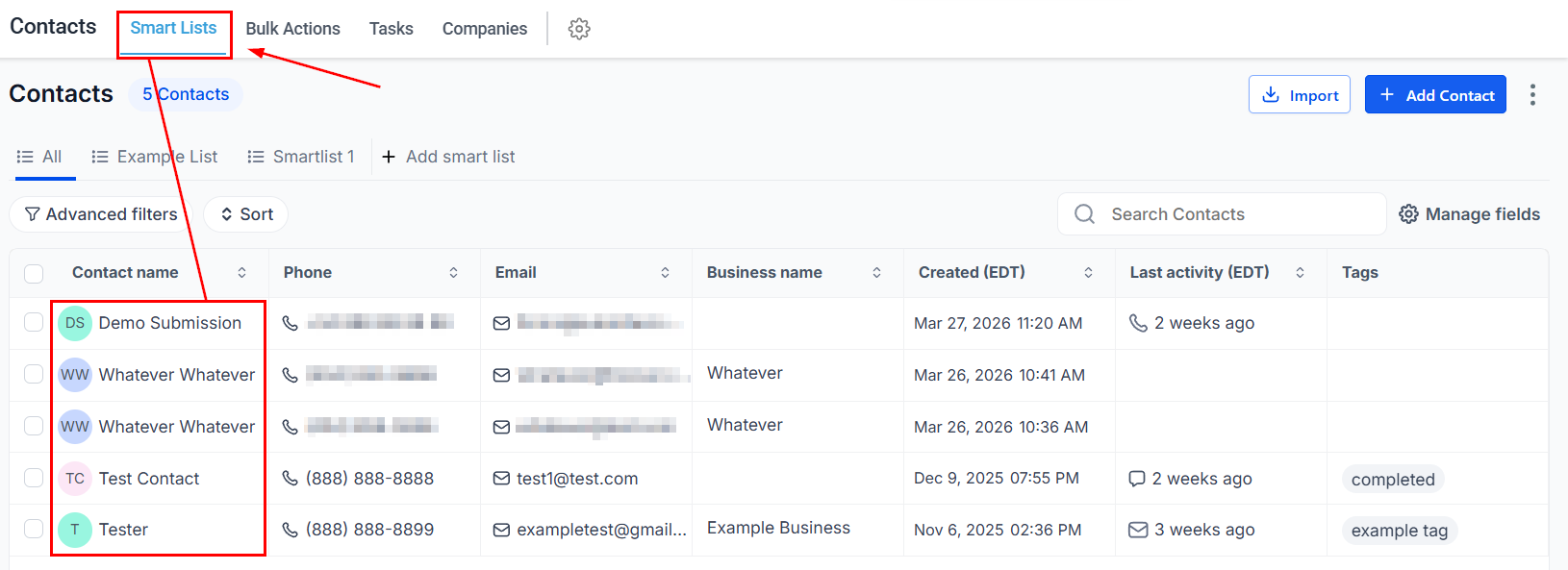
To add email addresses to a new contact, navigate to the contacts page and choose a contact from the list.
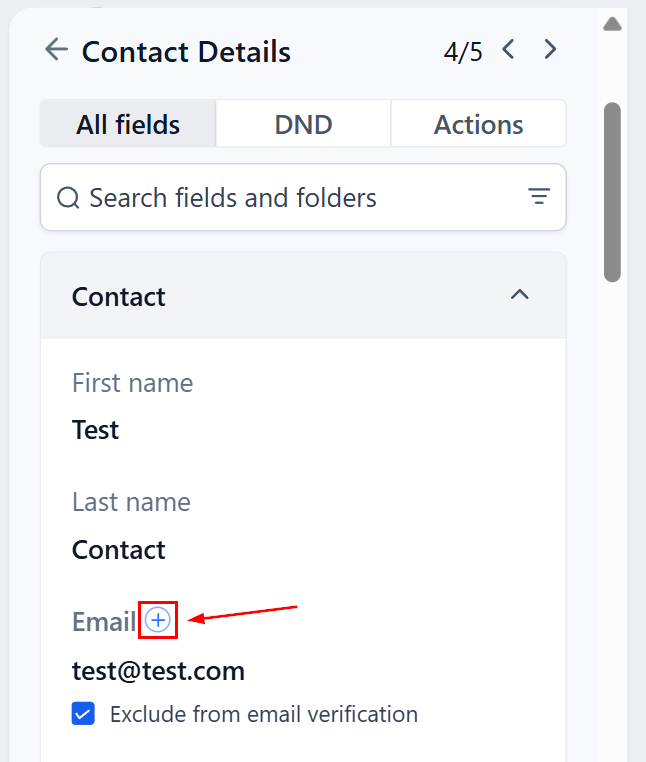
In the “Contact” section, click the “+” icon next to your primary email to input additional email addresses.
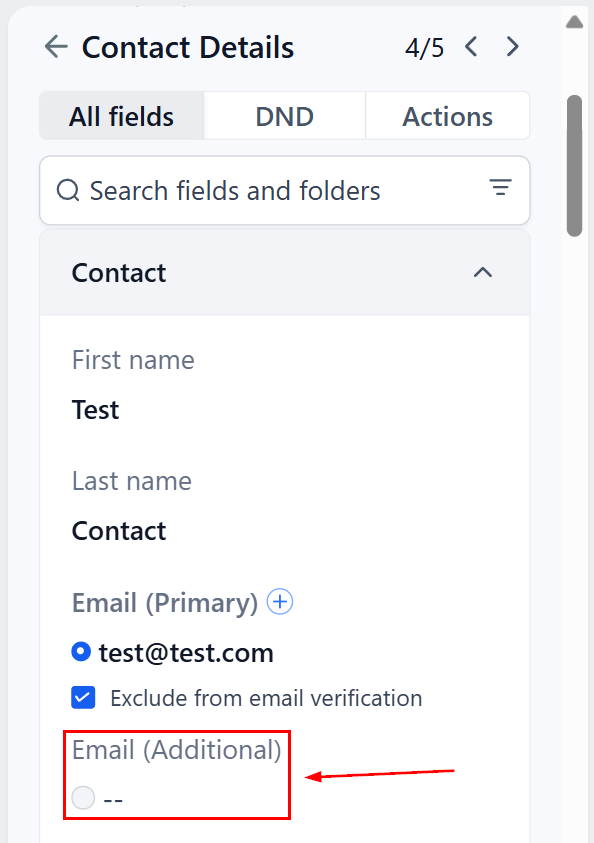
Enter the email address in the designated field, then click outside the field to ensure the information is properly captured.
📌Note: The option to add more email addresses will disappear once you reach the limit of eleven email fields per contact.
Choosing the Primary Email Address
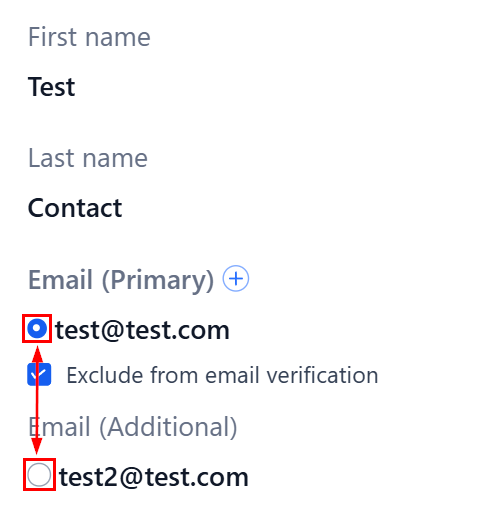
Next to each email address field, there’s a circle that you can click to designate that email as the primary one.
The primary email address will be automatically selected for all actions and interactions with the contact.
Selecting From Multiple Emails for Sending
When sending an email to a contact with multiple addresses, you can choose which email to use from a dropdown menu. The primary email address will be automatically selected, but you can easily switch to any of the other added emails as needed.
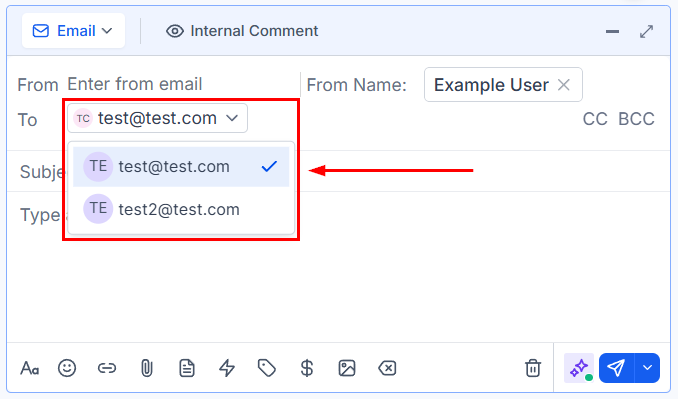
This feature enhances contact management by allowing you to manage multiple email addresses for each contact, catering to different communication needs. Improved communication is achieved by ensuring that messages are sent to the correct email address through the designation of a primary email for each contact. Additionally, increased efficiency is realized by avoiding the creation of multiple contact entries for the same individual, streamlining your contact list.
Frequently Asked Questions
Q: What if I need to add more than ten additional email addresses?
- Currently, the CRM supports one primary and up to ten additional email addresses per contact. For more extensive needs, consider grouping emails or using tags for categorization.
Q: Can I change the primary email address later?
- Yes, you can change the primary email address at any time by editing the contact’s details and selecting a new primary email.
Not a Funnelbud customer yet?
Try our all-in-one CRM for sales and marketing — free for 7 days, no commitment.