How to Edit Your Countdown Timer
Countdown Timers are a visual tool that helps you create interest and motivate customers. Since they are such a visual element, you want to ensure they match the look and feel of all your content. Or, maybe your project’s timeline has changed and you need the timer to reflect that. If that happens, you can edit your existing countdown timers to fit your goals!
How to Edit a Timer
Navigate to the Countdown Timers tab inside the Marketing section to change an existing timer’s details.
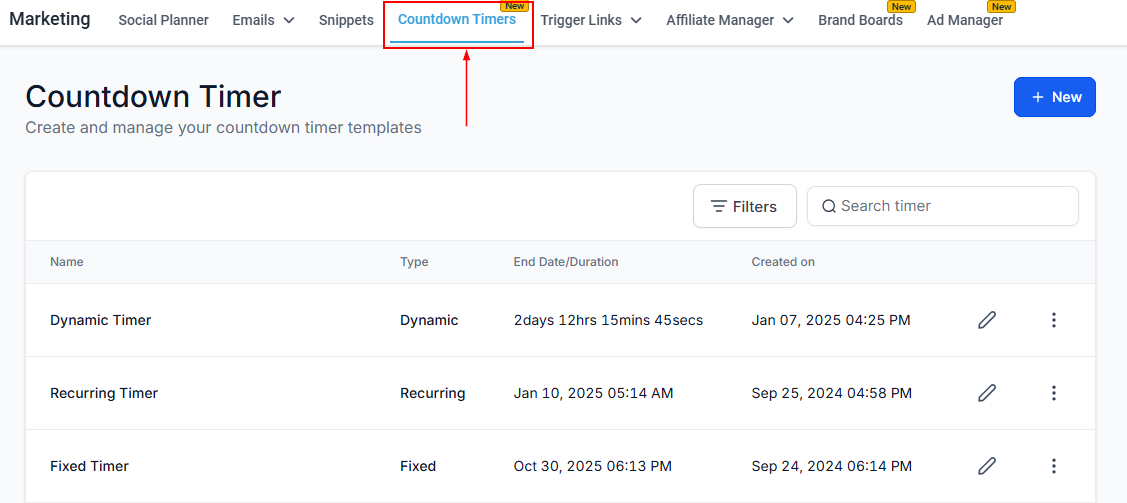
📌NOTE: Please remember that you can only do so before the email campaign you’re using the timer on is sent out, otherwise the only option available will be to archive it.
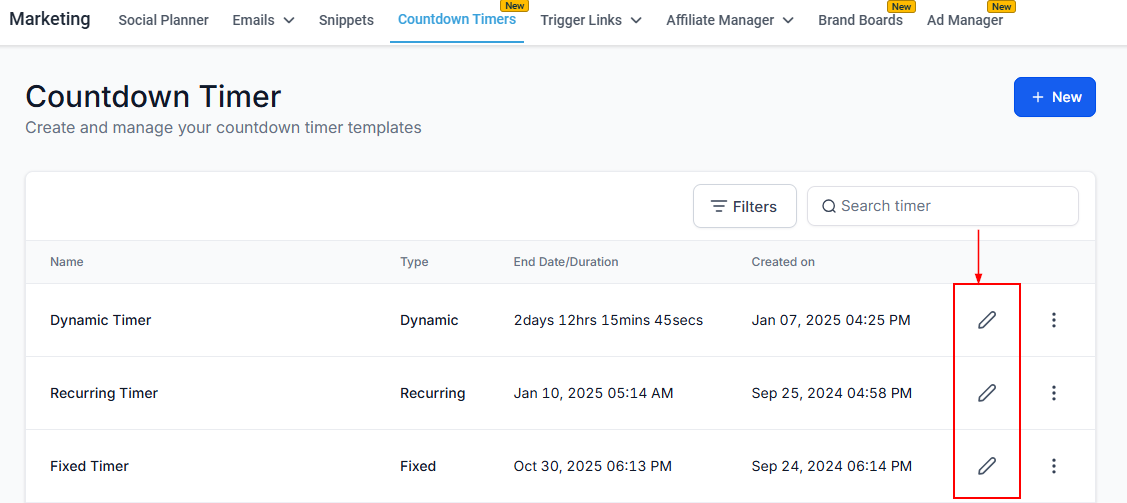
Click on the pencil icon next to the timer you wish to edit.
Next, head to the General or Styling tab and locate the setting you wish to change.
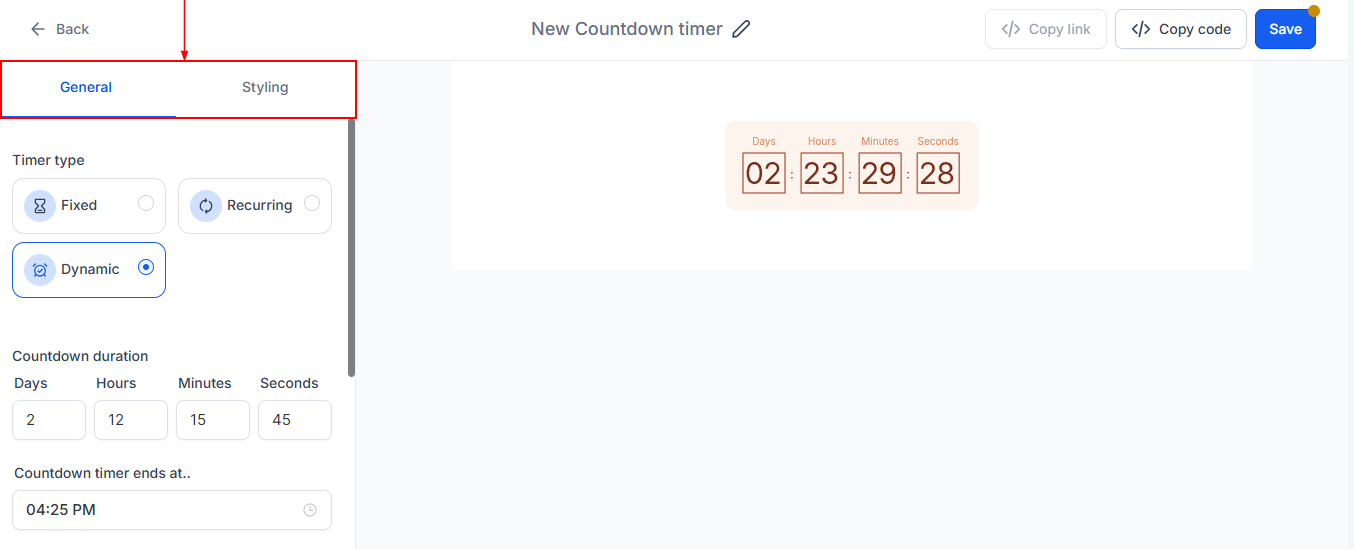
What Can You Edit?
- Timer Type: Choose between the recurring or fixed timer type.
- Time: Modify the remaining time, end date, and timezone.
- Dynamic Link: Update the Active and Expired links, to redirect users to a different landing page or resource.
- Styling: Change all elements related to the timer’s appearance including the font, colors, timer labels displayed, and more.
- Naming: Adjust the timer’s name to keep things organized or better reflect the timer’s purpose.
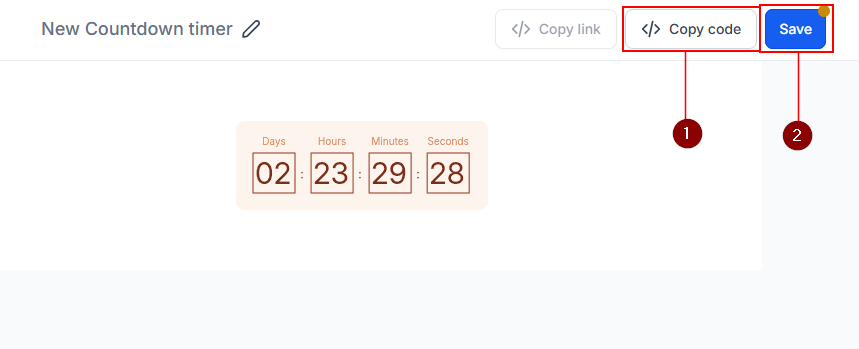
Once you are satisfied with the changes, select “Copy code” for use in emails, funnels, or websites. Then, click “Save” at the top right corner to apply your changes.
And there you have it! Now you can change any existing countdown timer and ensure they always reflect your brand and goals properly.
Not a Funnelbud customer yet?
Try our all-in-one CRM for sales and marketing — free for 7 days, no commitment.