Email Campaigns
The Campaigns section allows you to create, customize, and track the performance of your email campaigns while offering tools to organize and manage your content efficiently. From setting up new campaigns to reviewing the status and performance of existing ones, this section provides a comprehensive approach to executing your email marketing efforts.
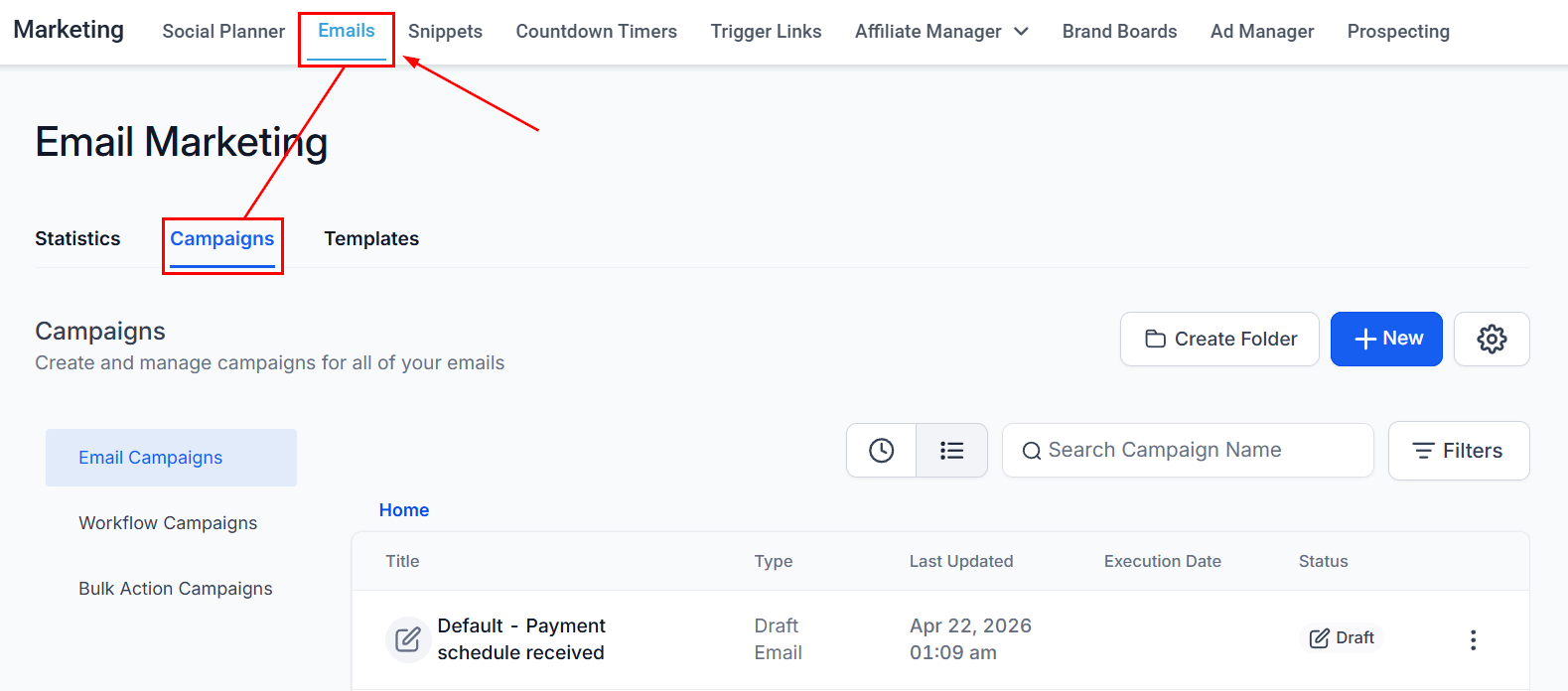
To get started, navigate to Marketing > Emails > Campaigns.
Campaign Type
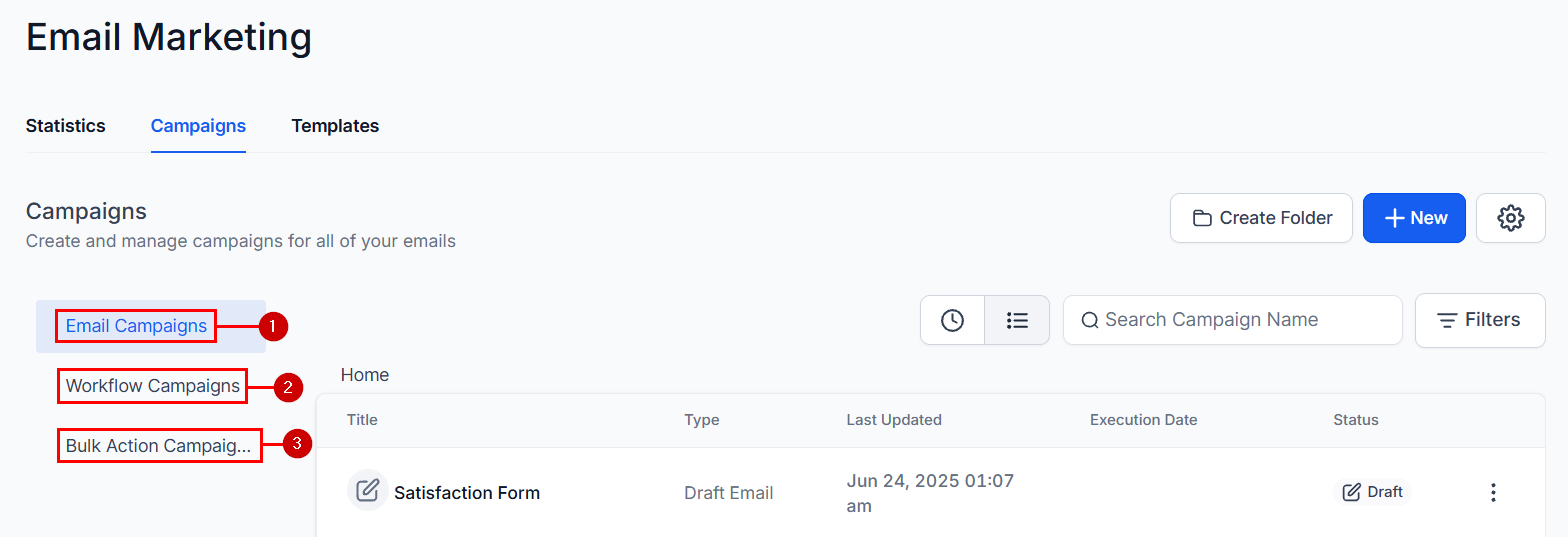
All your email campaigns are located in this section. However, they are separated into three categories:
- Email Campaigns: All email campaigns you send directly from the marketing section will be in this section.
- Workflow Campaigns: Here, you can view the emails you’ve sent from active workflows. The listing is for the entire workflow, not individual actions.
- Bulk Action Campaigns: Emails sent as a bulk action will be in this category.
Campaign Management
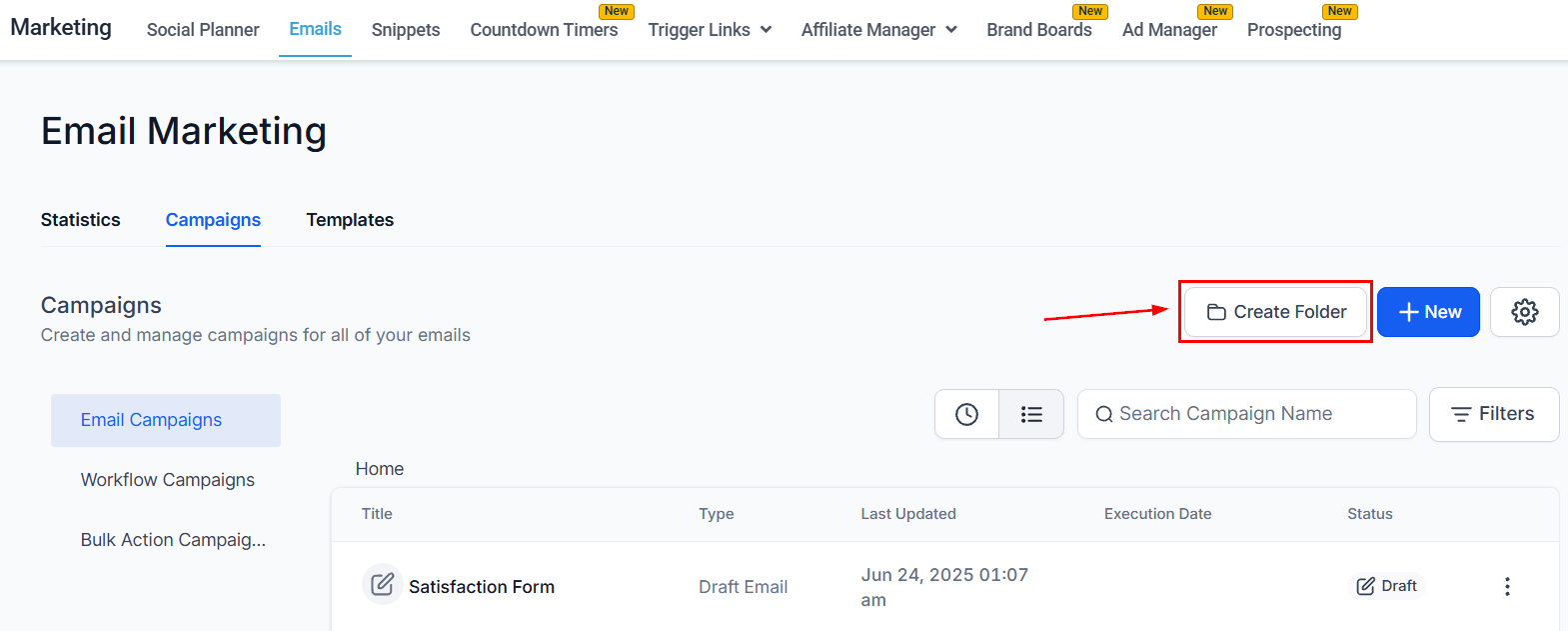
Create Folder
If you would like all of the relevant campaigns stored in the same location, you can click on the Create Folder button to organize your campaigns.
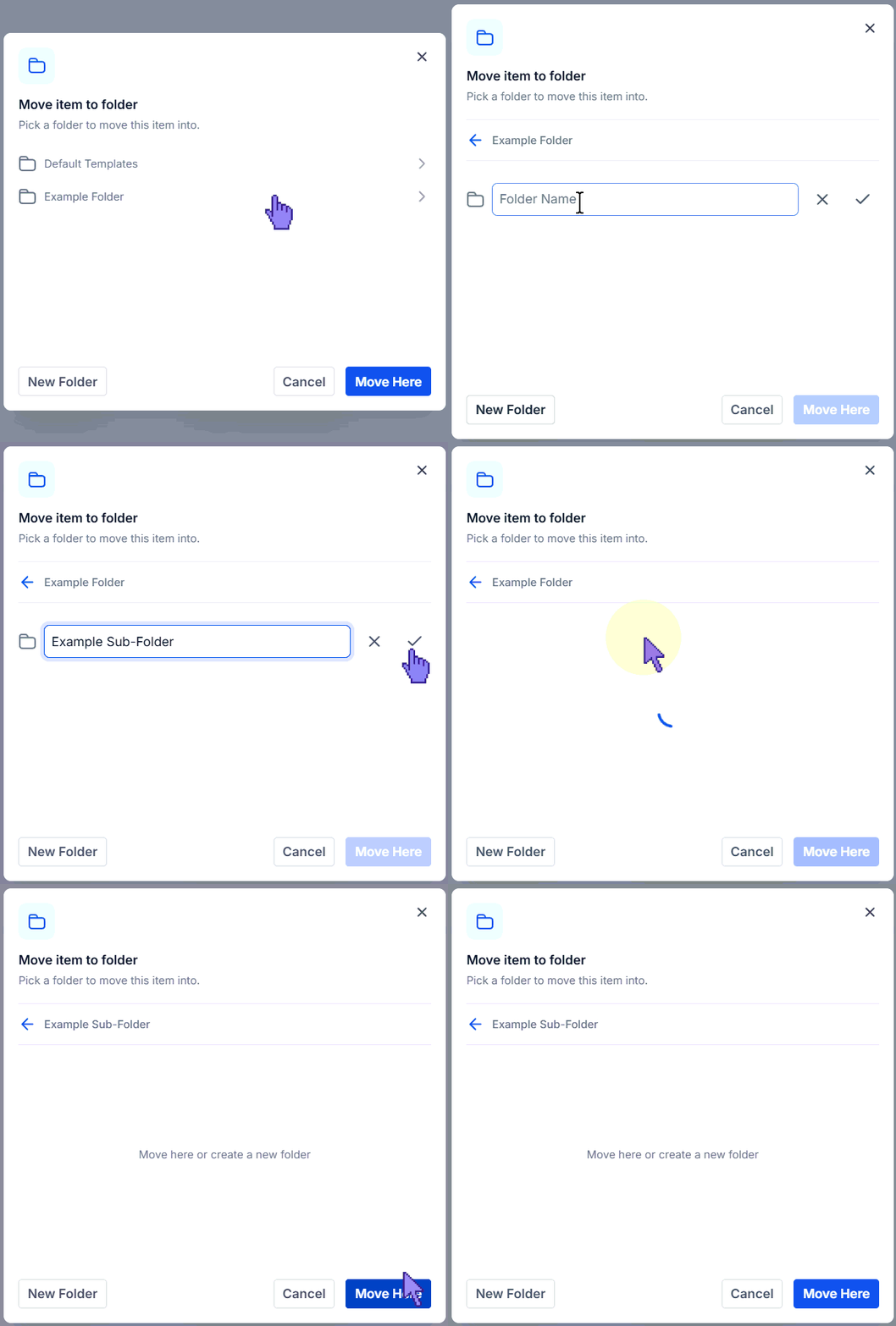
You can create nested folders by clicking the Create Folder button inside a Folder or when moving a template into a folder by clicking New Folder once the main folder has been selected.
Create New Campaign
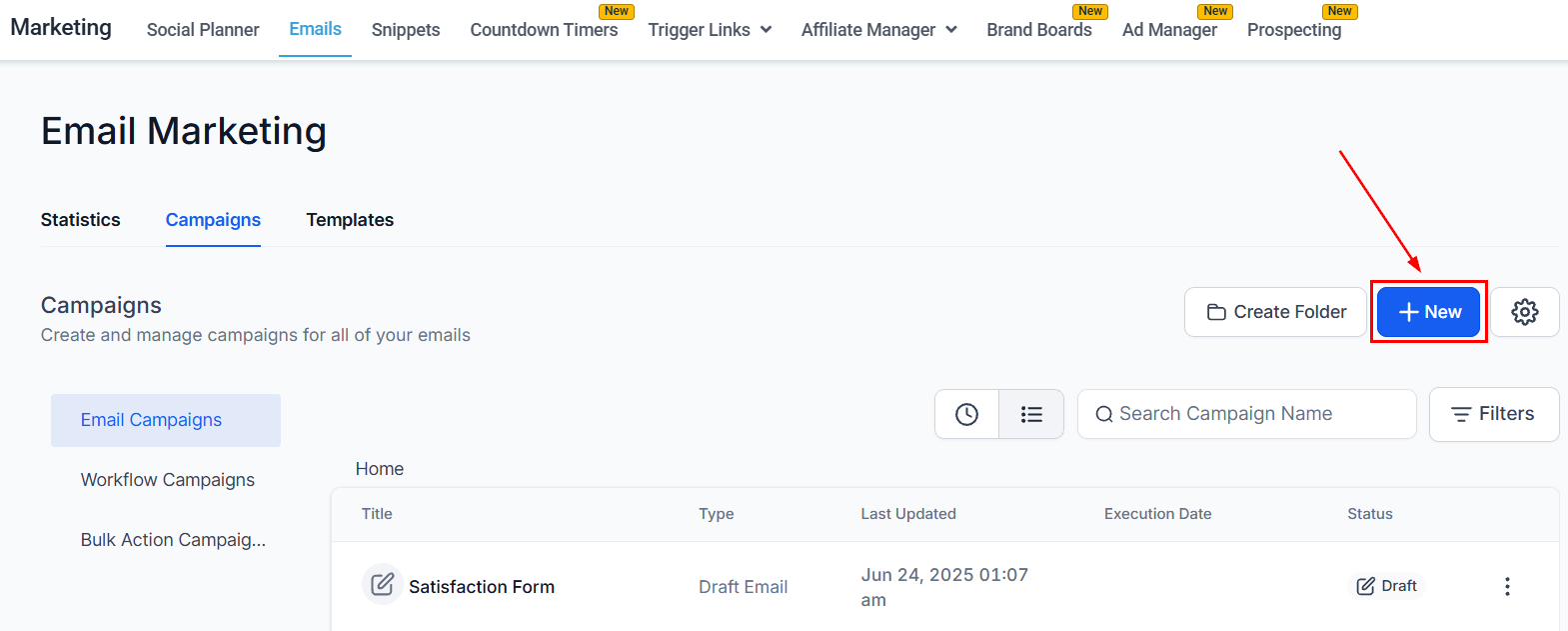
Start a brand-new campaign by clicking the +New button. Whether it’s a promotional email, a newsletter, or a follow-up email, you can design and customize the content to meet your specific goals.
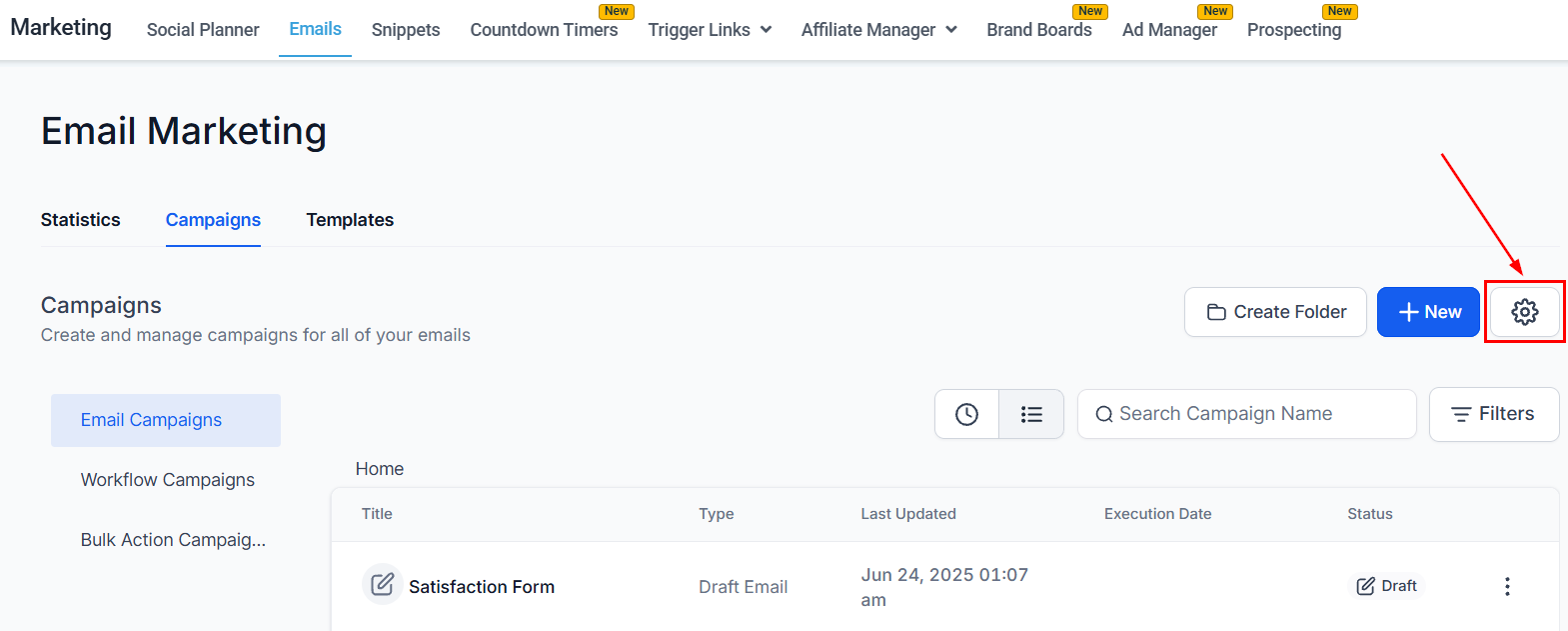
Settings
Change your email settings by clicking this option.
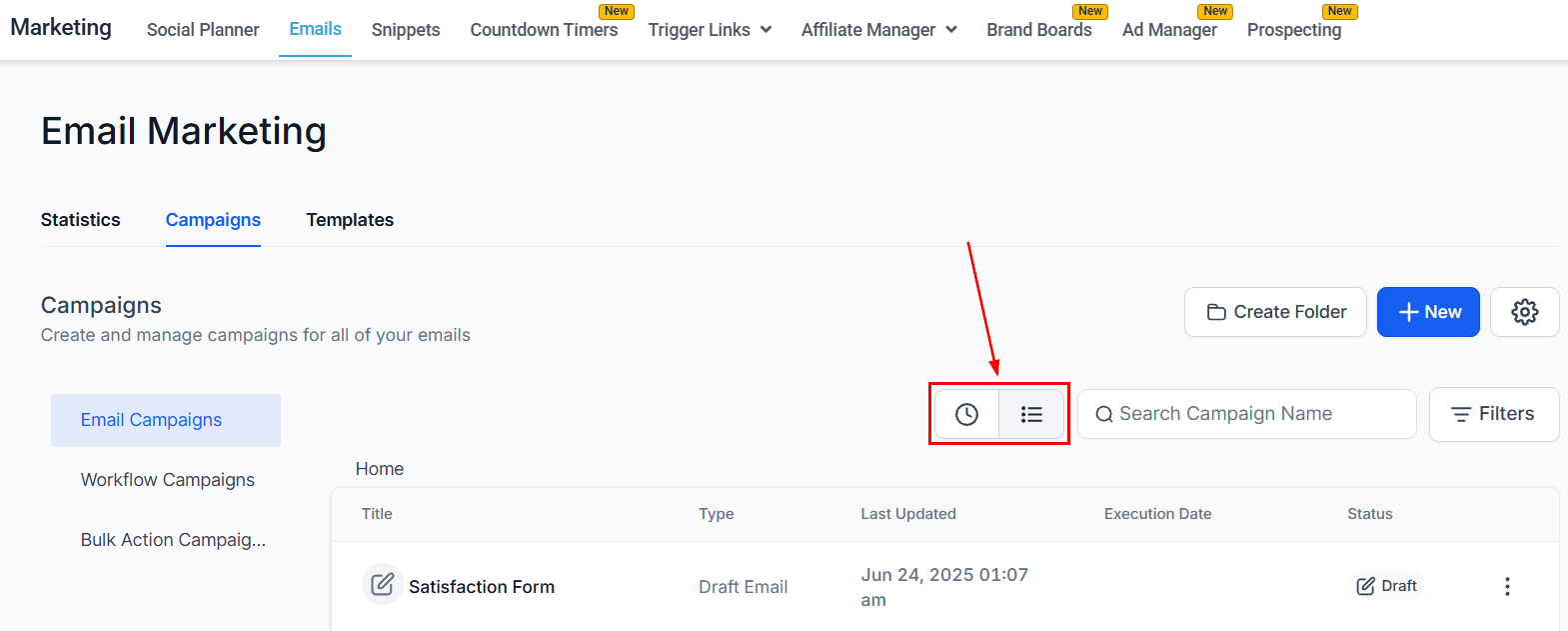
Views
Switch between the “Recent” and “List” views to manage and review your content more effectively. The “Recent” view displays the most recently accessed items, while the “List” view provides a comprehensive, organized listing of all items.
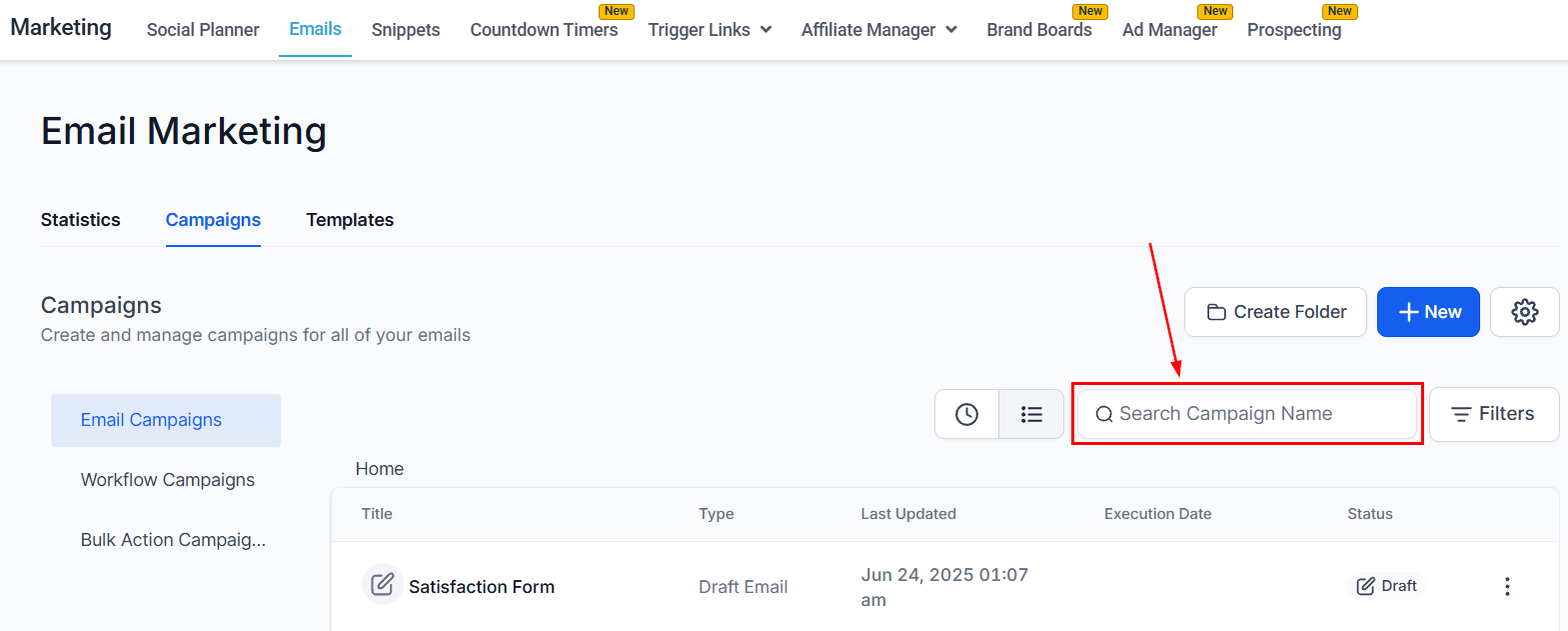
Searching Campaign Name
This will allow you to search the campaigns you have created. Enter a few characters of the name of the campaign for the system to show the specific campaign.
Filter
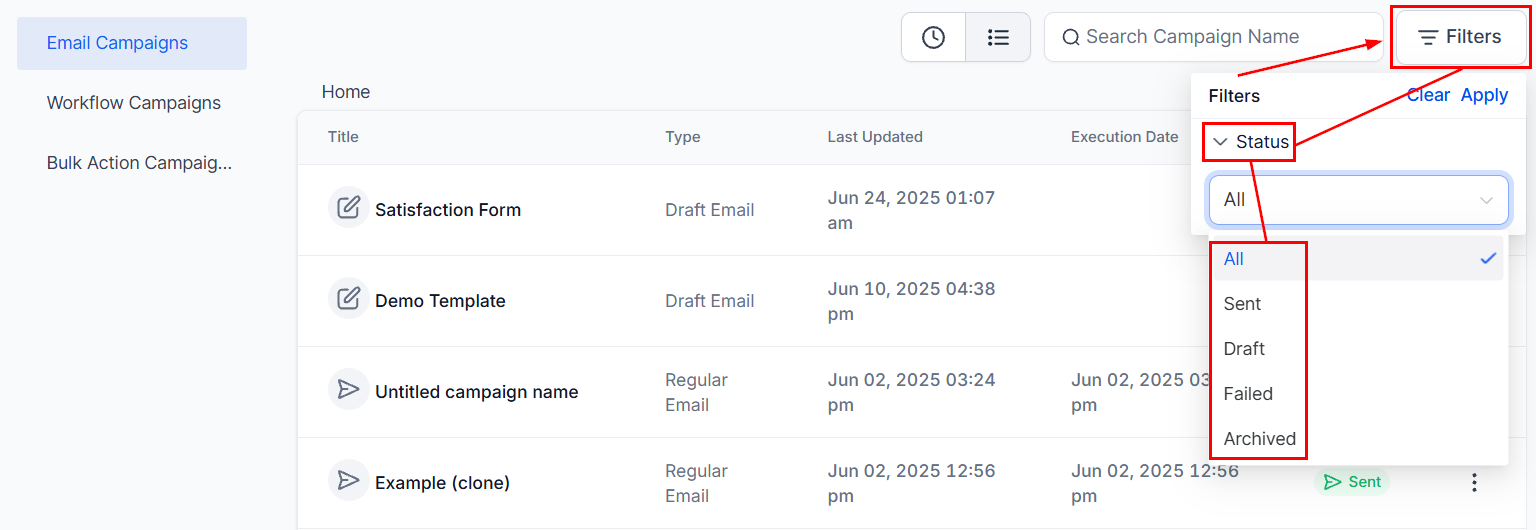
With this option, you can view specific campaign/campaigns based on their status, which include:
- All: When selected, this will show all of the campaigns you have created in your system.
- Sent: Shows campaigns that have already been sent to your contacts.
- Draft: This will show the campaigns that are in draft mode.
- Failed: This highlights campaigns that failed to execute successfully, enabling you to troubleshoot issues.
- Archived: This will show the Archived campaigns.
Campaign List
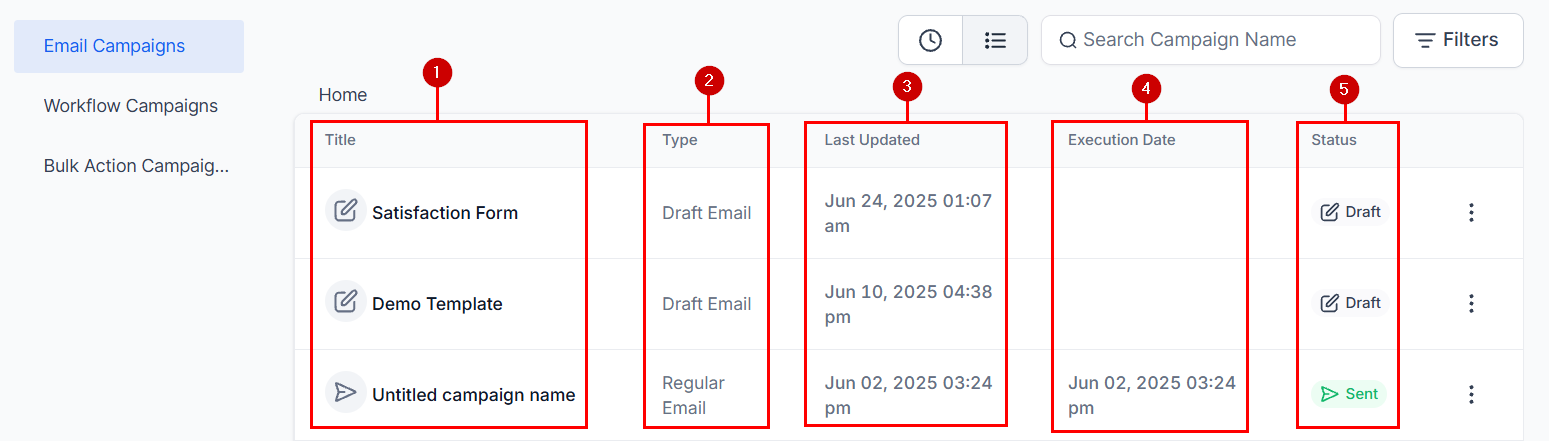
It provides important information about each campaign on the list. We will cover each one individually.
- Name: This shows the name of your campaign or the folders you have created.
- Type: Specifies the type of campaign, such as folder, draft, or regular email.
- Last Updated: This will show when the campaign was created/scheduled.
- Execution Date: This refers to the date when the campaign is supposed to be executed.
- Status: This shows if the individual campaign is sent in a draft mode or scheduled.
Campaign Action Menu
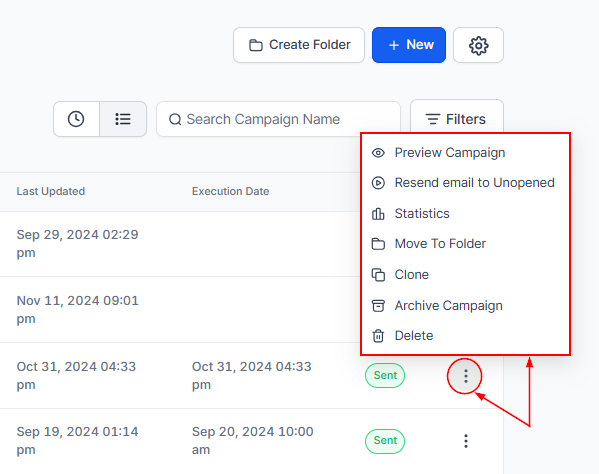
This tab will allow you to perform several actions concerning your campaign.
- Preview Campaign: To preview an individual campaign, you can use this tab.
- Resend Email to Unopened: Target recipients who didn’t open the original email by resending it.
- Statistics: This shows the statistics for each campaign.
- Move to folder: This lets you quickly move the campaign to a specific folder.
- Clone: Click here to make a copy of the campaign.
- Archive Campaign: You can use this tab to archive one of the campaigns you would like to be archived.
- Delete: This lets you delete the campaign from your CRM. Once deleted, it cannot be recovered.
With tools like search functionality, organized folders, and detailed statistics, you can efficiently track and refine your efforts. By using features like campaign status filters and action menus, you can ensure your email marketing strategy stays effective and organized.
Not a Funnelbud customer yet?
Try our all-in-one CRM for sales and marketing — free for 7 days, no commitment.