Shipping & Delivery Settings
Flexibility in managing shipping costs is crucial for store owners seeking to optimize customer satisfaction and operational efficiency. This article delves into the capability of allowing e-commerce store owners to define manual delivery charges based on shipping zones. This feature enables tailored pricing strategies to enhance user experience and operational effectiveness, from creating and managing zones to setting specific rates.
Feature Overview
E-commerce store owners can:
- Create Shipping Zones: Define geographical areas by selecting countries under each zone.
- Set Manual Rates: Customize delivery charges within each zone. This allows for multiple pricing tiers tailored to different regions.
- Flexible Pricing Strategies: Define delivery rates based on the total cart value. For instance, offer free shipping for orders exceeding $500, otherwise apply a flat rate of $10 for orders below this threshold.
Accessing the Feature
To utilize this feature, navigate to Payments > Settings > Shipping & Delivery.
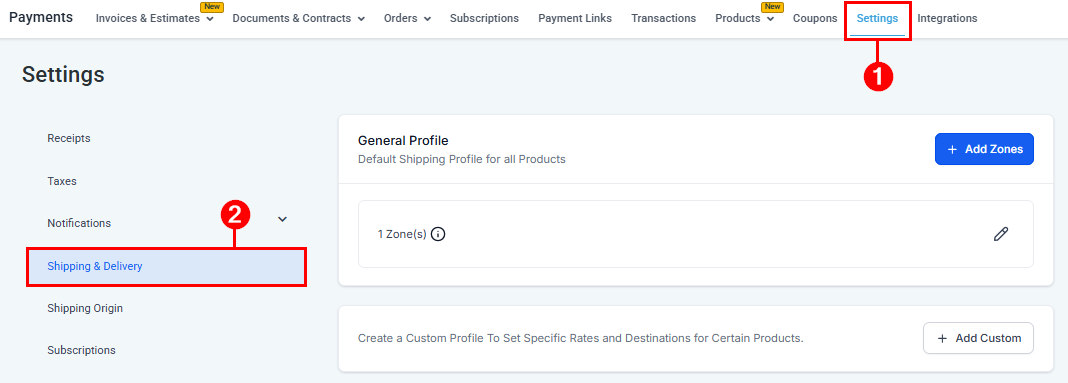
Here, you can configure and manage shipping zones and rates according to your business needs.
Adding Custom Profiles
Shipping Profiles allow you to set tailored shipping rates for specific products, stores, or app integrations, while a General Profile automatically applies to anything not assigned to a custom profile. They determine how shipping is calculated at checkout based on zones and rate types, giving you flexible control over costs for different product types.
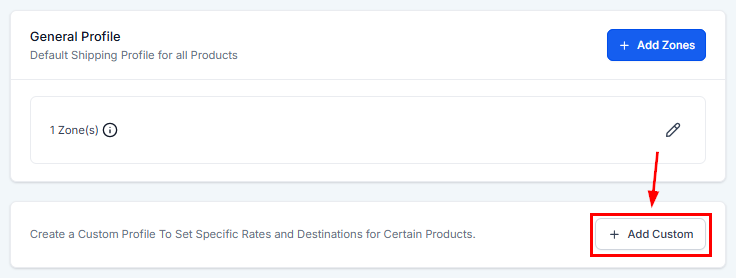
To set up a profile, click the “Add Custom” button.
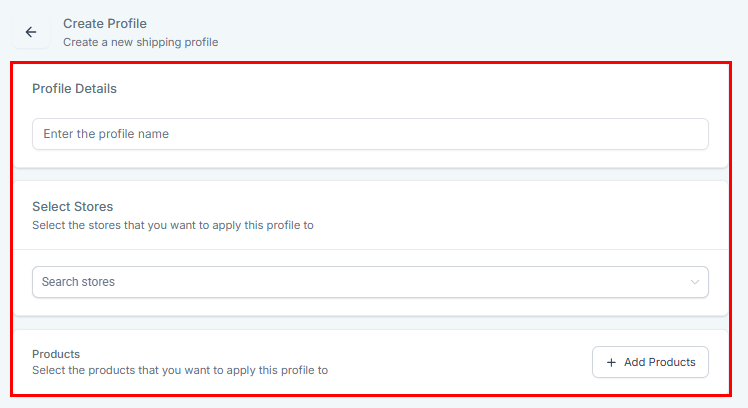
Next, add a profile name, choose applicable stores and products, define zones, and assign rate types.
Adding a Zone
Begin creating a zone by selecting the “Add Zone” button located in the upper right section of this page.
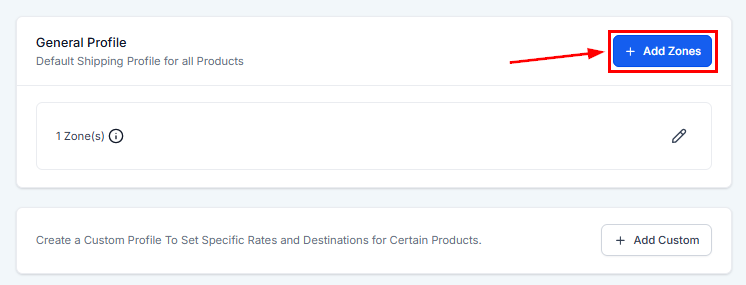
If you have multiple shipping profiles, review the profile details, then click the “Add Zone” button once again.
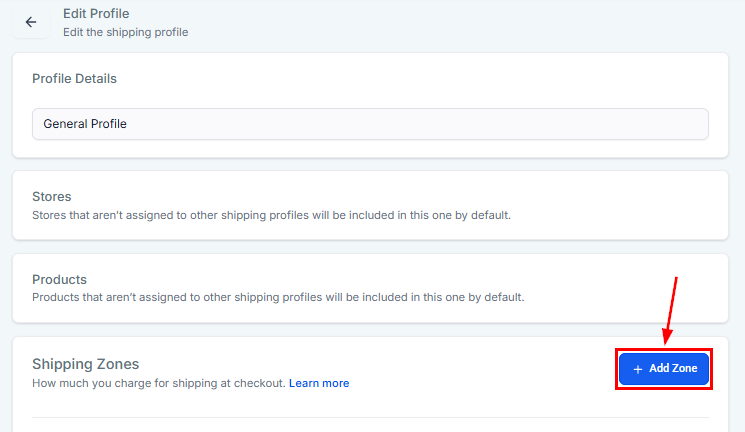
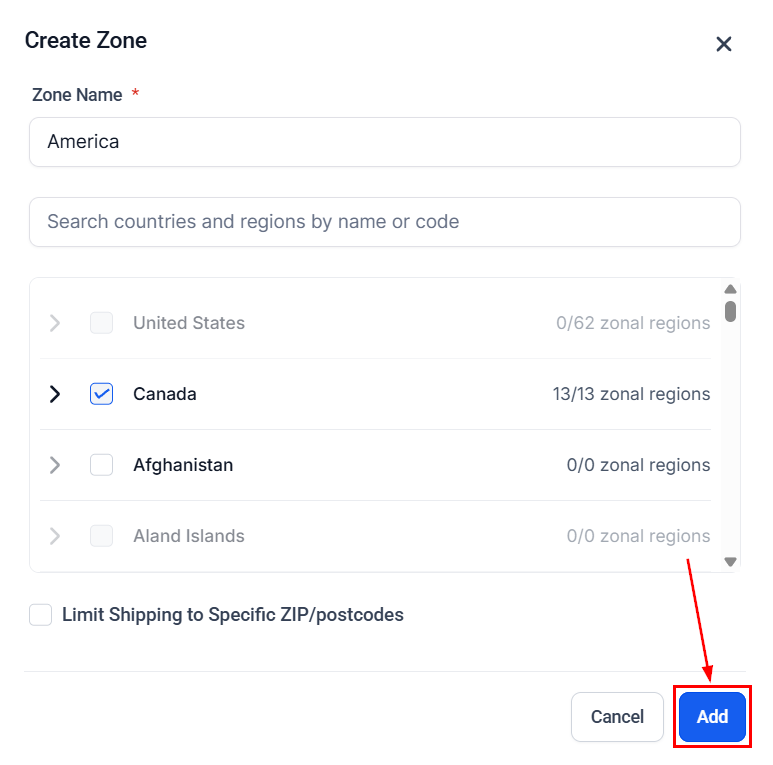
This action will open a panel allowing you to customize the name of your zone and select one or multiple countries for inclusion.
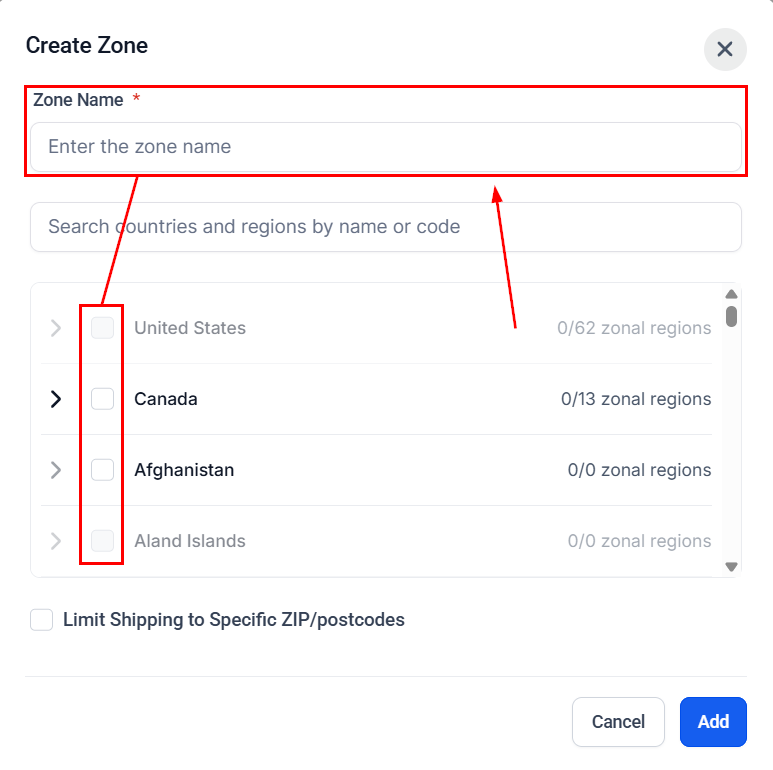
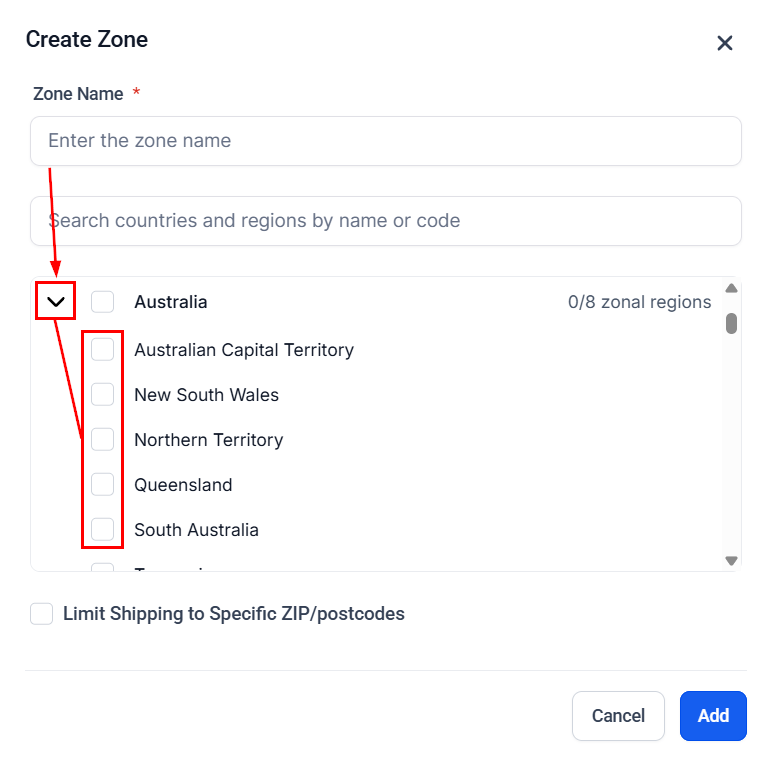
To select specific regions within a country, click the arrow next to the country, then choose the desired states or provinces for inclusion.
Or check the box next to Limit Shipping To Specific ZIP/postcodes and enter your desired ZIP codes. List your numbers by adding an asterisk after the first three to four digits to include an entire area and separating them with a comma for different zones.
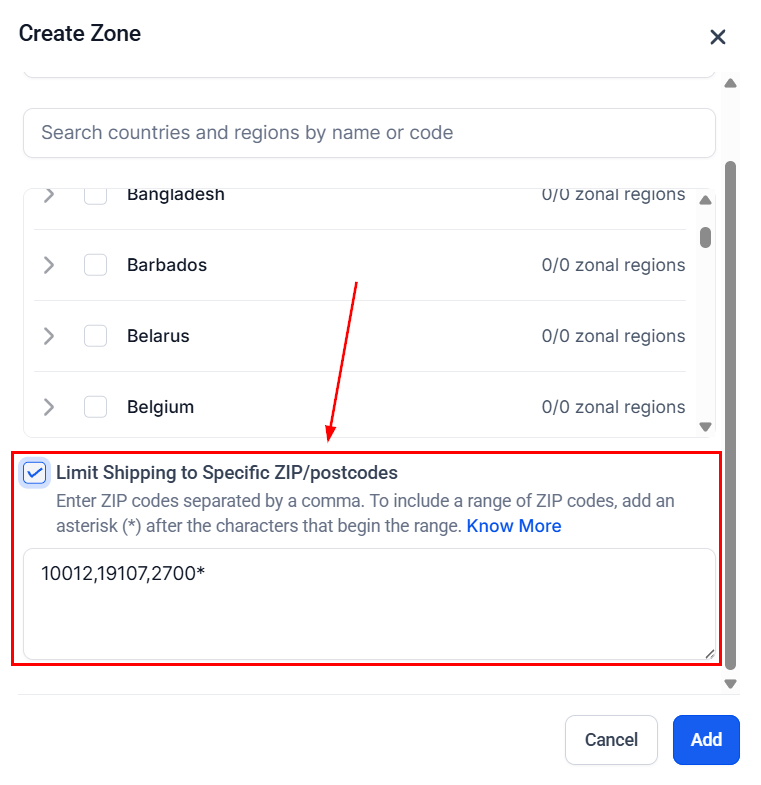
After completing this step, click the “Add” button to save your zone.
Adding a Rate
After successfully adding your zone, proceed to define a rate.
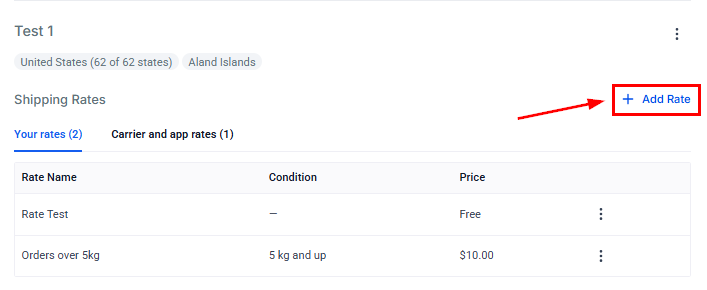
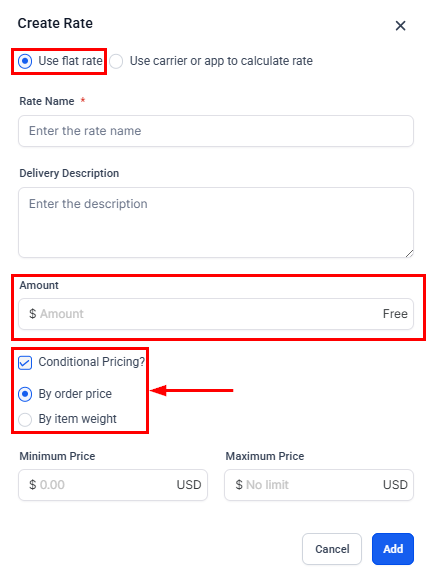
Enter a name, description, and amount for the rate. Additionally, you have the option to configure conditional pricing based on order value or weight. This feature enables store owners to effortlessly implement differential shipping and delivery charges based on various weight and price ranges.
In so doing, delivery charges can be specified for particular zones based on the product weight in the cart. For example, you can offer free shipping for orders weighing between 0-5 kg, and charge a fee for orders exceeding 5 kg.
You can also create a rate by using a Carrier or an App to calculate the shipping rate.
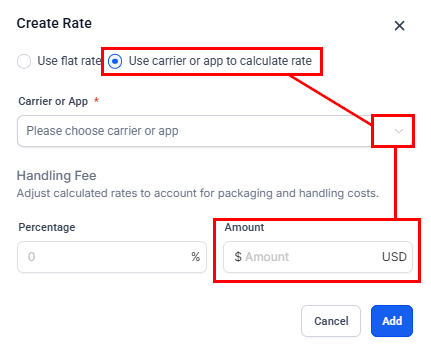
After completing this step, click the “Add” button to save your rate.
To add multiple rates, repeat the aforementioned steps to configure your shipping and delivery charges according to your preferences.
Managing Zones
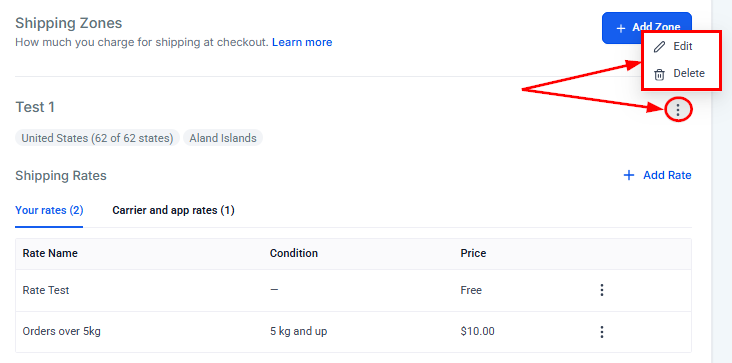
To edit or delete a zone, click the three-dot dropdown menu and select the appropriate option.
Manage Rates
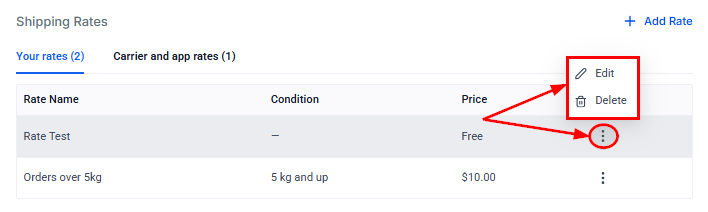
To edit or delete a rate, click the three-dot dropdown menu and select the appropriate option.
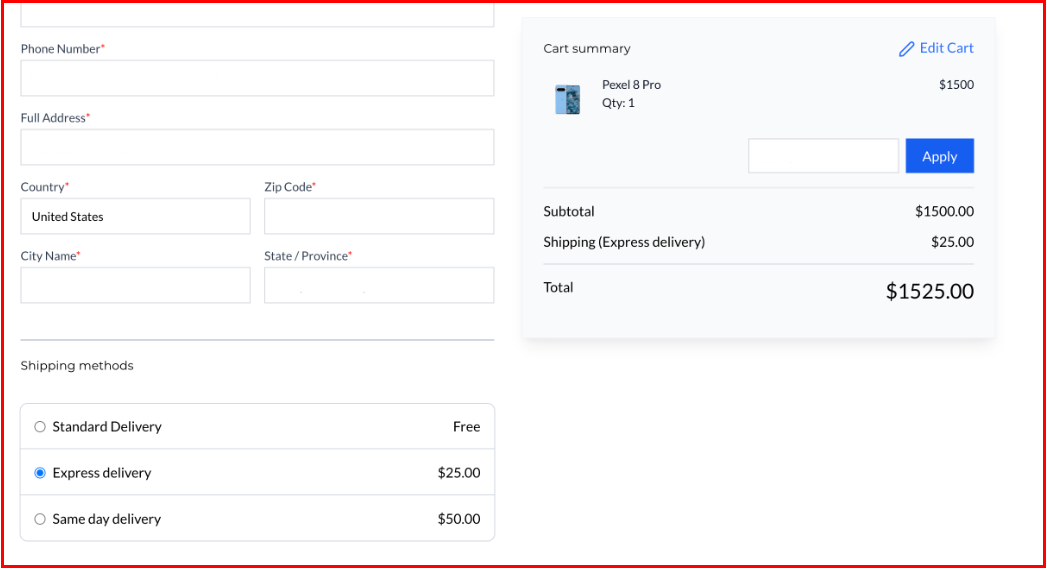
Once you have configured your shipping and delivery rates, customers will see the names and prices of your rates during checkout.
By showing where orders are coming from and customizing shipping rates for different areas, you can make the process more efficient while improving customer satisfaction. It’s a simple way to make shipping easier and more transparent.
Troubleshooting Tips
- Clear Cache and Cookies: If encountering display issues or errors, clear your browser’s cache and cookies before accessing the settings page.
- Verify Permissions: Ensure that you have the necessary permissions and access rights to modify shipping and delivery settings within your account.
Frequently Asked Questions
Q: How do I create a new shipping zone?
- To create a shipping zone, go to the desired profile and use the “Add Zone” option. Select the countries you wish to include in the zone to define its geographical scope.
Q: Can I define multiple pricing tiers within a single shipping zone?
- Yes, you can set multiple rates within each shipping zone based on different criteria such as order value or weight.
Q: How can I offer free shipping for orders above a certain amount?
- When defining rates, specify conditions such as offering free shipping if the order amount exceeds a set threshold (e.g., $500).
Q: How do I add a shipping origin?
- To add a shipping origin, navigate to the “Shipping Origin” section, and enter the address from where your orders will be shipped. This information will be displayed to customers during checkout, helping them know where their order is coming from.
Not a Funnelbud customer yet?
Try our all-in-one CRM for sales and marketing — free for 7 days, no commitment.