How to Post Your Reviews on Social Media
Customer Reviews create social proof for your products or services that serves as a boost to your brand growth and credibility. By allowing customers to express their opinions of your product or service you naturally build an image that appeals to others. One of the best places to leverage the power of these reviews is by posting them to social media, so let’s check how to do it!
Posting Reviews
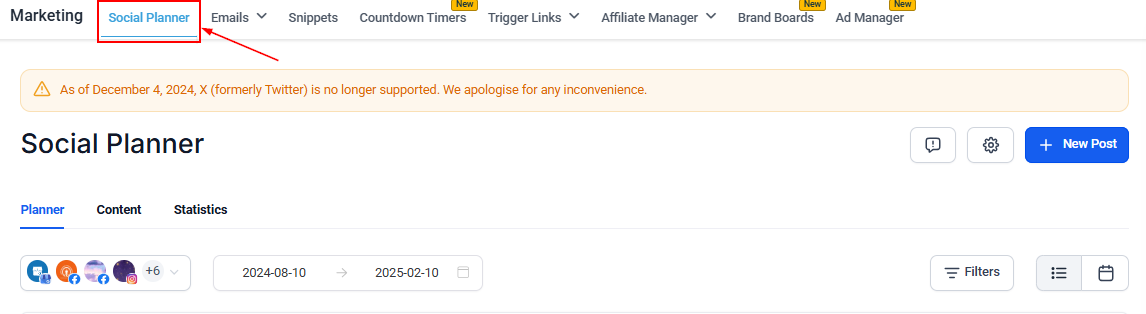
Navigate to the Social Planner tab inside the Marketing section.
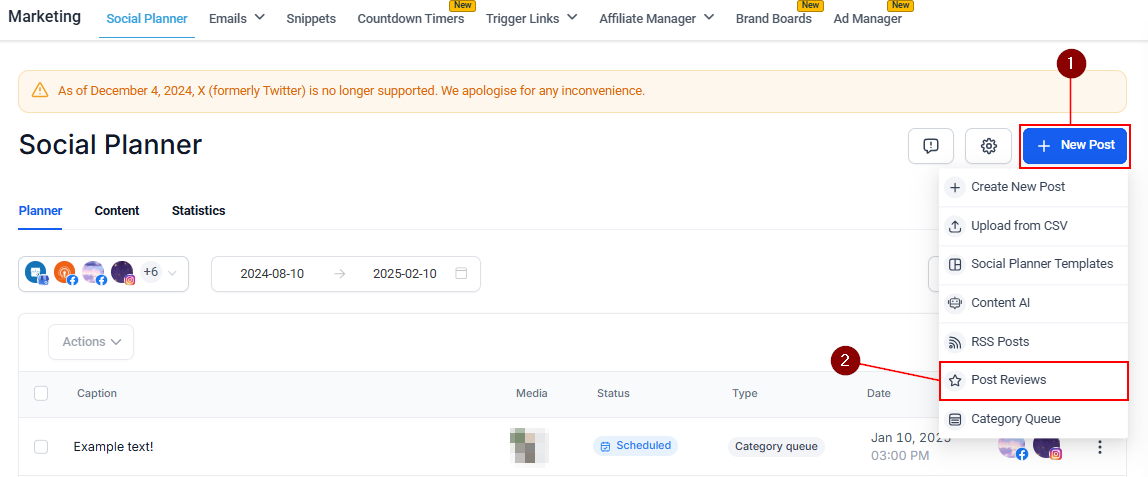
Click on “New Post” and select “Post Reviews.”
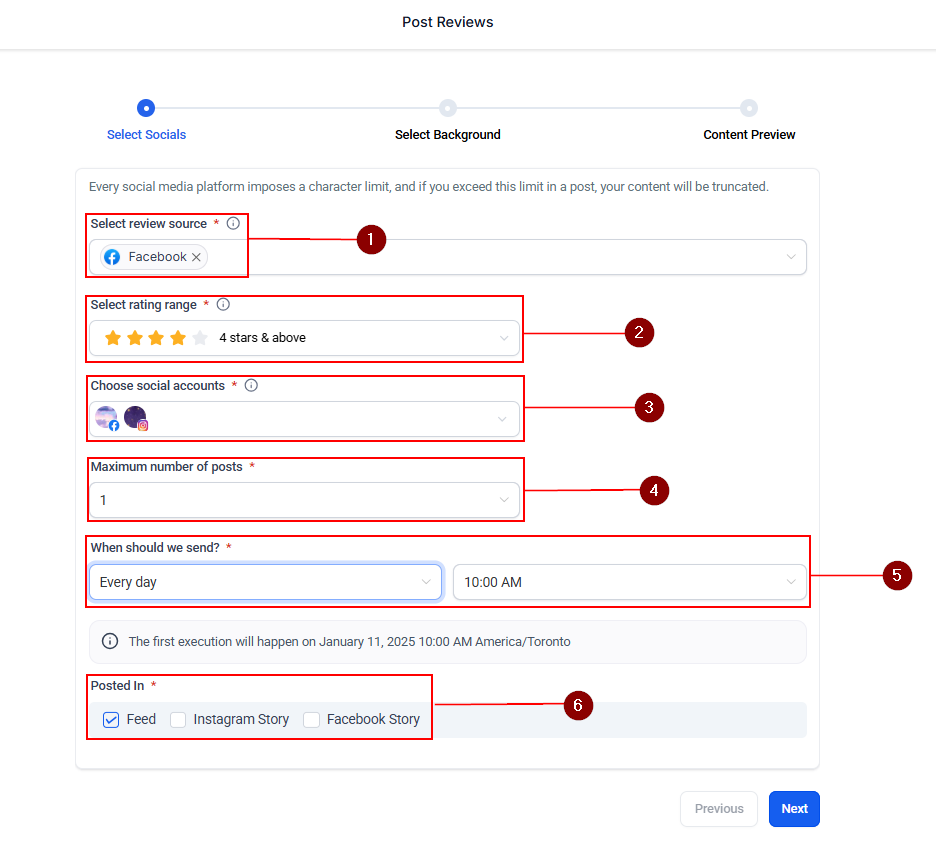
Select Socials
- Choose your review source(s). It’s recommended to connect both Google and Facebook to maximize your social proof.
- Filter the reviews by rating, opting for five-star reviews to highlight the best testimonials.
- Select the social media accounts where you want the reviews to be posted.
- Set the maximum number of posts you want your audience to see.
- Set the frequency of posts (e.g., one per day) and the optimal posting time for your audience.
- Select how the post should be published.
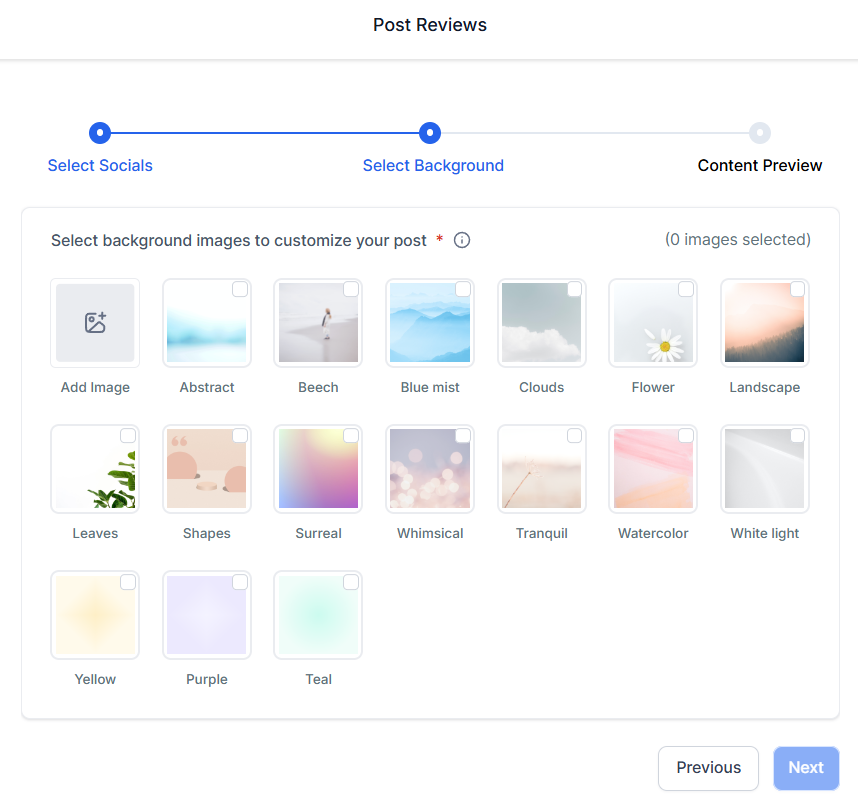
Select Background
Choose a background image for your posts from the provided templates that best aligns with your brand.
Content Preview
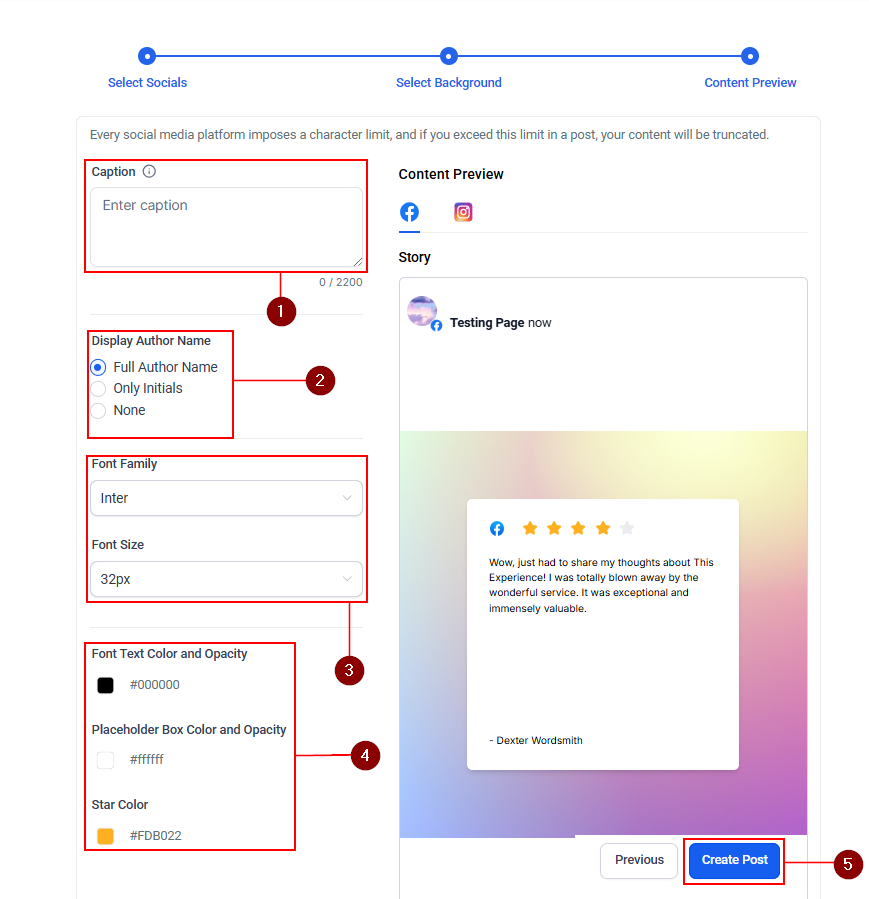
- Set a Caption for your post.
- Select how you want the reviewer’s name to be displayed.
- Set the Font family and size.
- Then set the Font, Box color, opacity, and Star color.
- Once satisfied with the settings, click “Create Post” to activate the automation.
Managing Your Automated Posts
After setting up the automation, maintaining control over your posts is straightforward, allowing you to edit, delete, or pause the automation as needed.
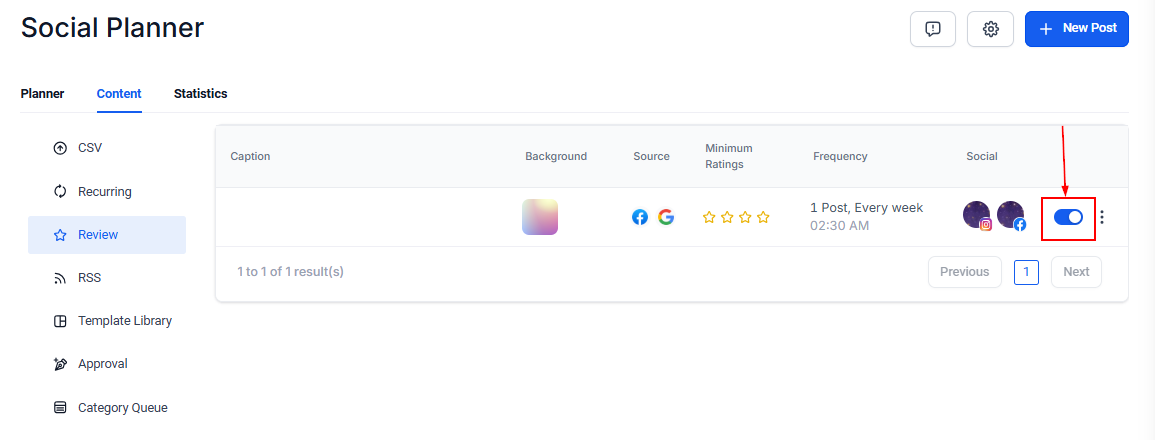
Pausing
Head to the Content tab under the Social Planner section and toggle the post off.
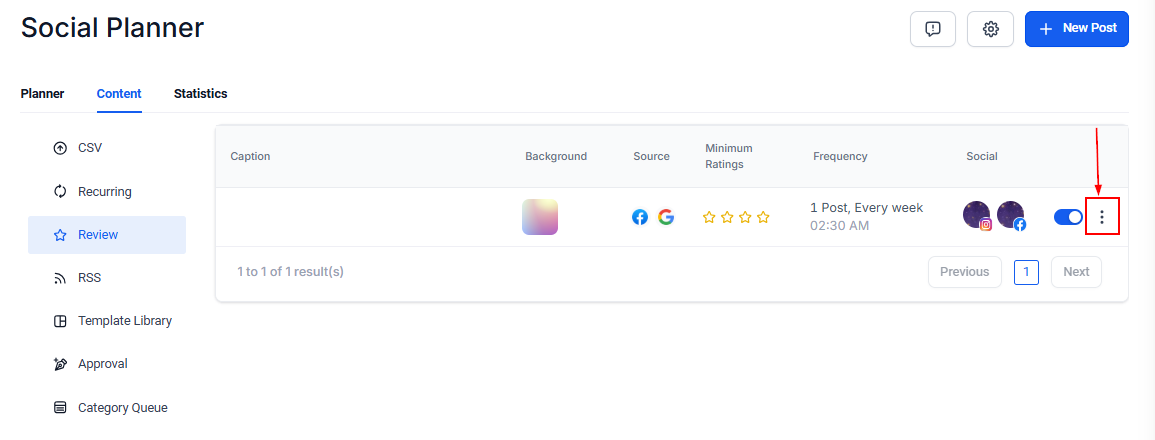
Editing or Deleting
Head to the Content tab under the Social Planner section and click the three dots icon.
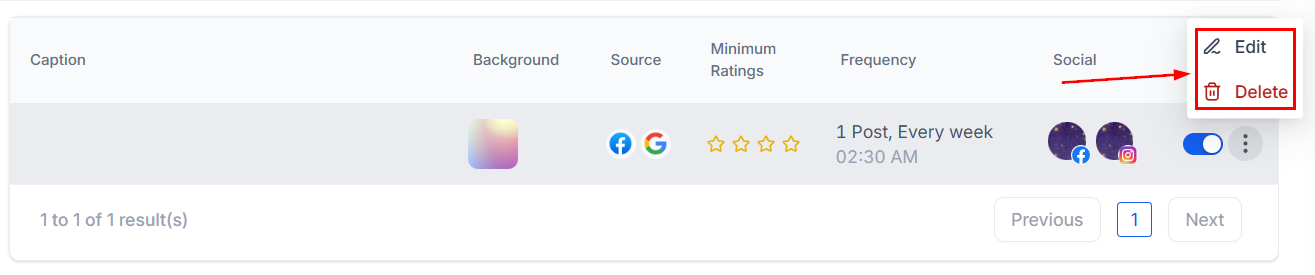
Select whether you want to Edit or Delete the posts. Editing will take you back to the builder. Deleting will ask you to confirm and will remove the automation.
Troubleshooting Tips and FAQs
Q: What if my social media accounts aren’t linking?
- Ensure you’re using the correct login credentials and have granted the necessary permissions. If issues persist, consult the CRM’s support documentation or contact support.
Q: Can I customize the template for the review posts?
- While the CRM offers a selection of templates, customization options may be limited. Explore the template library to find the best fit for your brand.
Q: Why aren’t my reviews published on social media?
- Reviews are pulled from the ‘Reputation’ module, which requires all social accounts to be active and properly connected in the ‘Integrations’ tab. If the session tokens expire or the accounts disconnect, you’ll need to reconnect them to successfully post reviews.
Q: How do I set up review automation to fetch and publish reviews automatically?
- To automate review fetching and publishing, create the review automation in the ‘Social Planner’ module. This ensures reviews are fetched and posted according to your defined schedule.
Not a Funnelbud customer yet?
Try our all-in-one CRM for sales and marketing — free for 7 days, no commitment.