Google Contacts Actions & Triggers in Workflows
The Google Contacts integration provides seamless synchronization of contact data between your CRM and your Google ecosystem. By connecting these platforms, you can automatically create, update, and organize contacts across both systems, ensuring that information remains consistent and accessible without the need for manual entry.
Why It’s Valuable
This integration ensures that your team’s contact lists across Gmail and other Google services remain accurate, up to date, and easily manageable. The result is improved efficiency, reduced errors, and a more streamlined workflow.
Available Triggers & Actions
Triggers
These are events in Google Contacts that can initiate a workflow in your CRM:
Trigger Name | Description |
|---|---|
New Contact | Triggered when a new contact is created. |
New Group | Triggered when a new group is created. |
📌Note: All triggers use polling. The system regularly checks Google Contacts (every ~5 minutes) for updates and retrieves the latest data to initiate workflows.
Actions
These are actions your CRM can perform within Google Contacts:
Action Name | Description |
|---|---|
Create Contact | Creates a new contact in Google Contacts. |
Create Group | Creates a new group. |
Find or Create Contact | Searches for a contact and creates one if it doesn’t exist. |
Add Contact to Groups | Adds an existing contact to one or more groups. |
Update Contact | Updates details of an existing contact. |
Find Contact | Searches for a contact by name, email, or phone number. |
Getting Started with Google Contacts
Search in Workflows
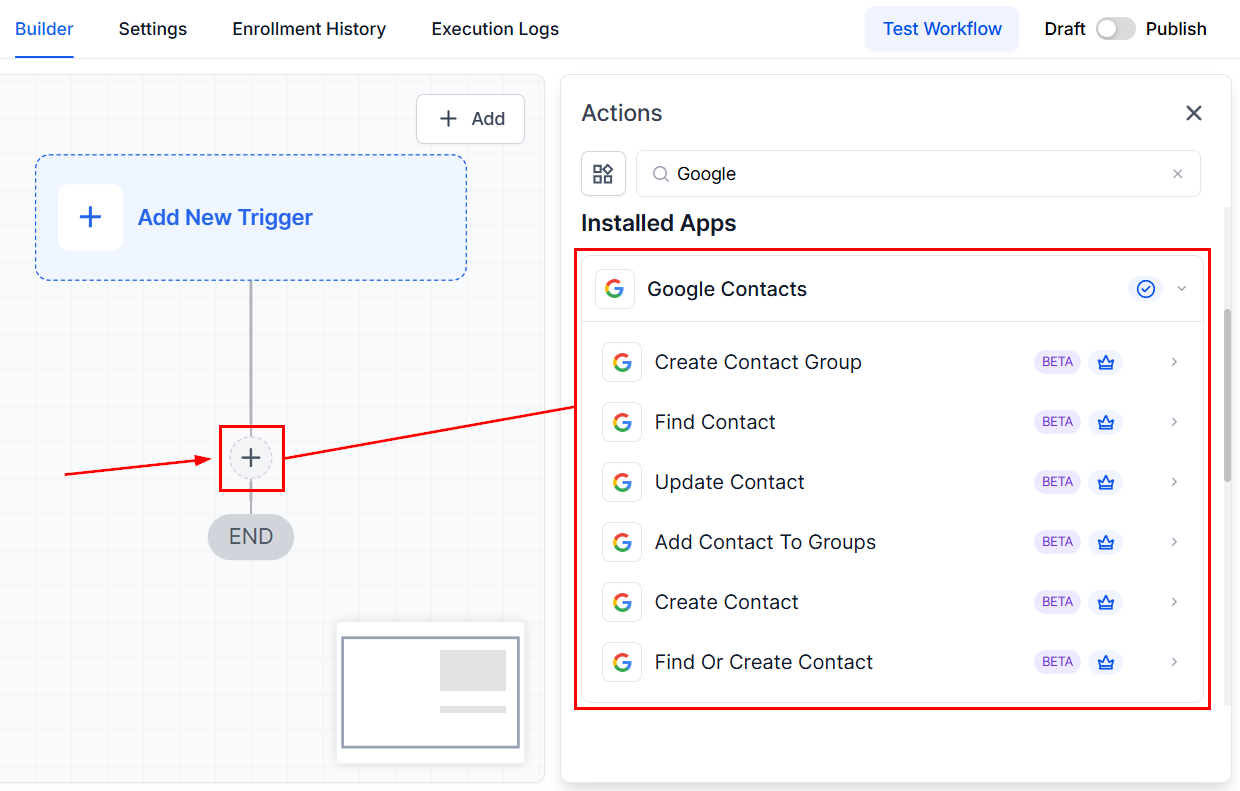
In the workflow builder, search for Google Contacts triggers or actions (e.g., Find Contact, Create Contact).
Connect Your Account
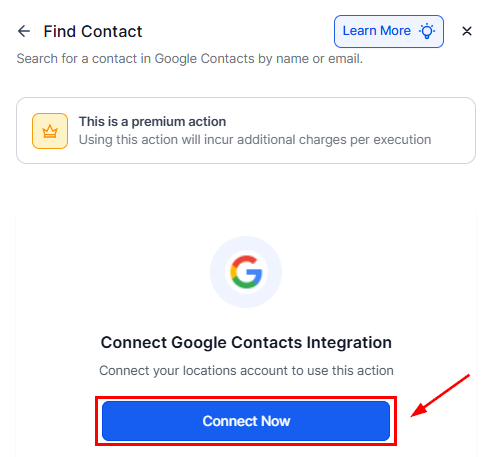
If Google Contacts is already connected, you’ll be able to configure fields right away. If not, click Connect Now and log in with your Google account.
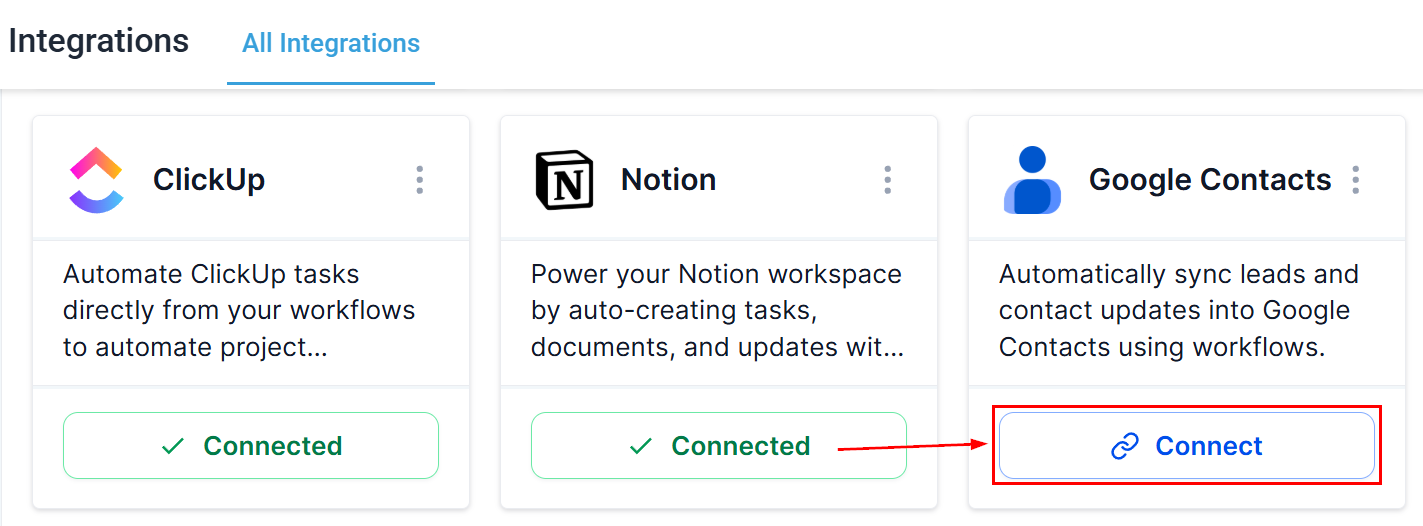
Alternatively, you can connect Google Contacts from the Integration Settings section of your account.
Once connected, you’ll be able to sync, find, and update contacts seamlessly in your workflows.
Common Use Cases
Save Contacts from Appointments
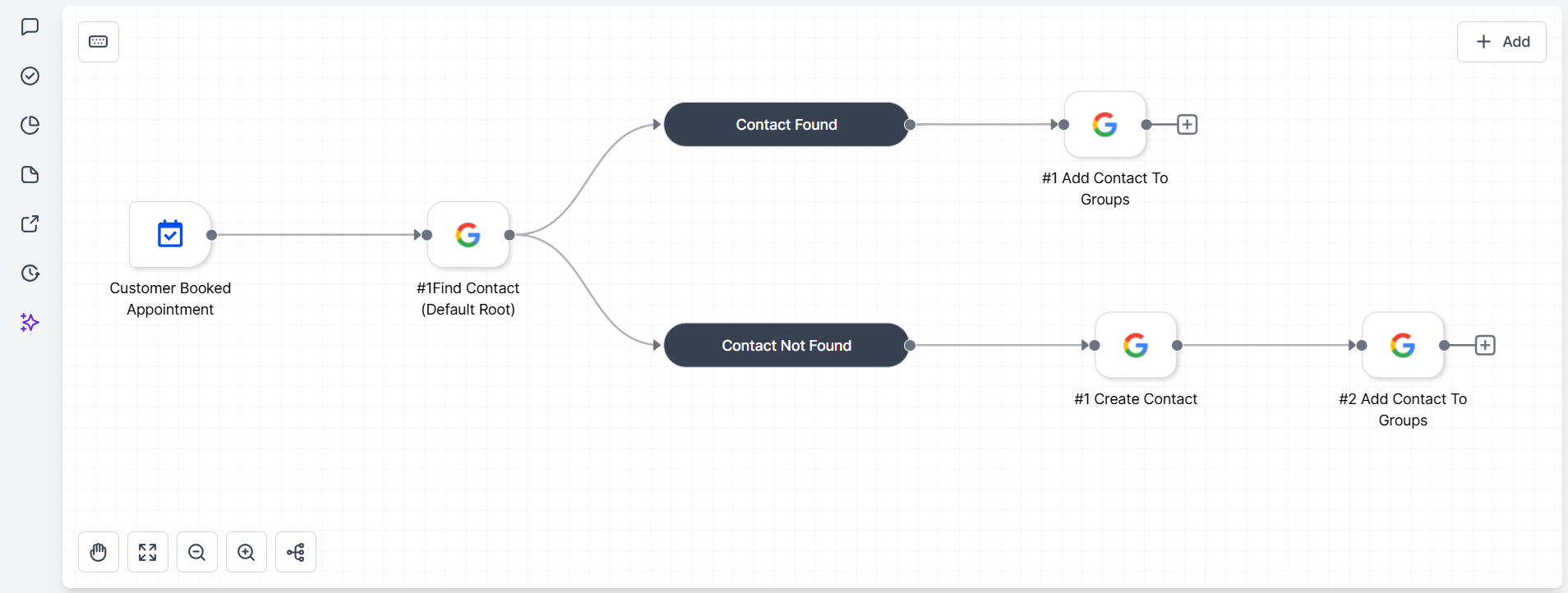
Use Case: Automatically add clients to Google Contacts when they book an appointment and organize them into groups (e.g., Consults, Demos).
Workflow Example:
- Trigger: Appointment Booked
- Filter: Calendar = Demo Calls
- Actions: Find or Create Contact (Google Contacts) and Add Contact to Groups → e.g., Demo Leads.
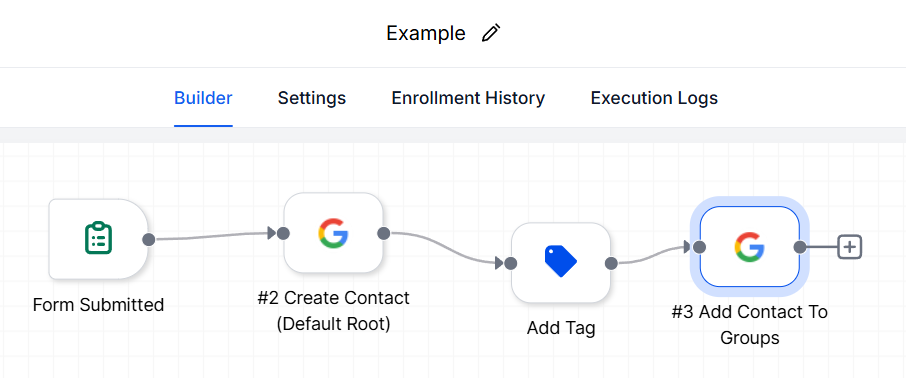
Turn Form Submissions into Google Contacts
Use Case: Capture lead data from form submissions and sync it into Google Contacts for smooth follow-ups.
Workflow Example:
- Trigger: Form Submitted
- Filter: Form Is = Website Lead Form
- Actions: Find or Create Contact and Update Contact (for resubmissions with new info).
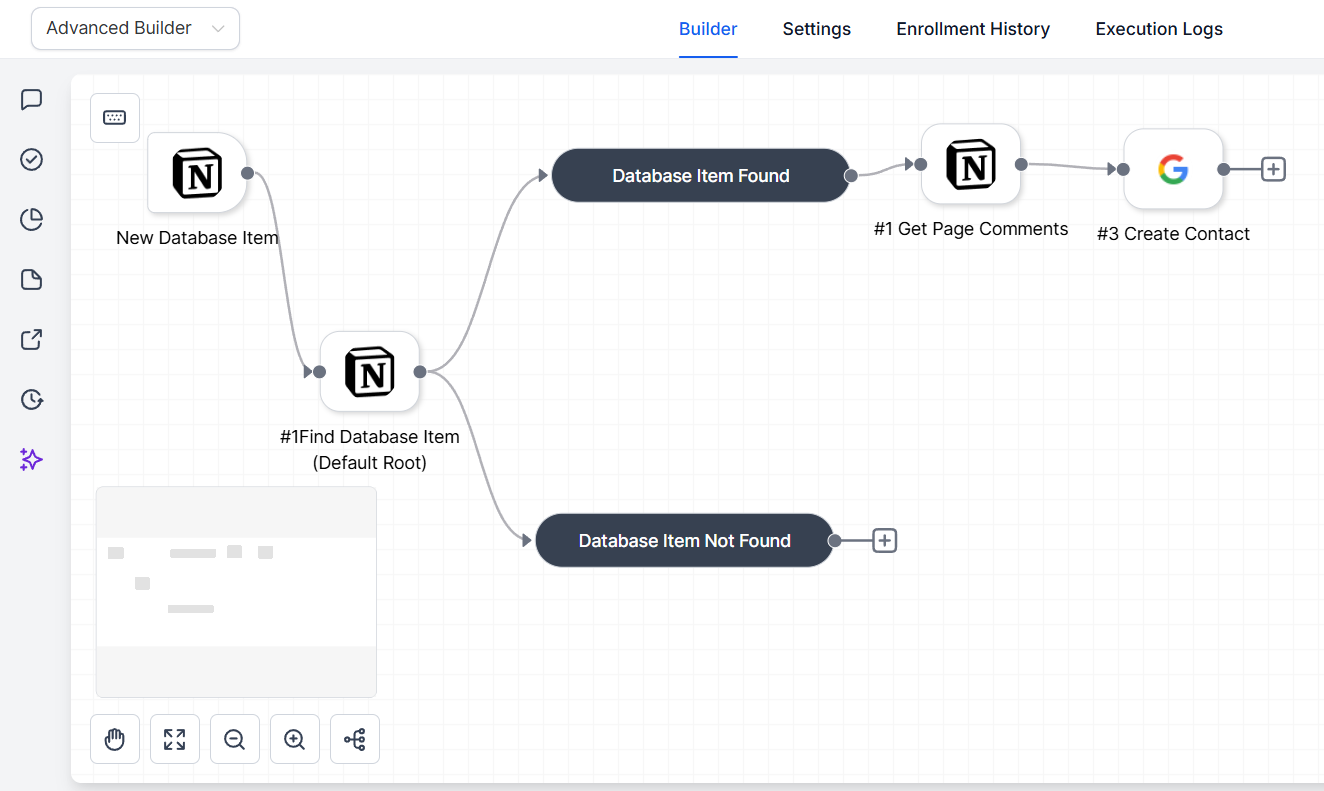
Create Google Contacts from Notion Records
Use Case: Automatically create Google Contacts from new records in Notion.
Workflow Example:
- Trigger: Notion – New Database Item
- Database: New Users Data
- Actions: Find Record in Database, Create Contact, and Add Contact to Groups
The Google Contacts integration simplifies the way you manage and organize contact data by ensuring accuracy across your CRM and Google ecosystem. By leveraging triggers and actions, you can automate repetitive tasks, reduce manual input, and streamline communication workflows. This integration is a powerful tool for keeping your contact lists clean, connected, and always up to date.
Frequently Asked Questions
Q: Can I update contacts already in Google Contacts?
- A: Yes. Use the Update Contact action to modify existing records.
Q: Do I need a paid Google account for this to work?
- A: No. The integration works with any Gmail account that has access to Google Contacts.
Q: Can I group contacts dynamically based on tags or pipeline stages?
- A: Absolutely. Use conditional logic and map tags to Google Groups to dynamically segment synced contacts.
Not a Funnelbud customer yet?
Try our all-in-one CRM for sales and marketing — free for 7 days, no commitment.