How To Add A Blog Post to Your Funnel/Website
Blog posts help you boost your SEO and create a distinguished perception of your business over other alternatives. These informative yet short entries serve as a freebie that captures a lead’s attention and prompts them to opt-in to your marketing. So, let’s check how to add them to a funnel and create an effective lead magnet!
Crafting Your Blog Post
Creating a blog post involves several key steps, from initial setup to adding content and setting SEO details. Here’s how to get started:
Creating Blog Post
Navigate to the Blogs tab inside the Sites section and click the “Create Blog” button to set up your Blog site.
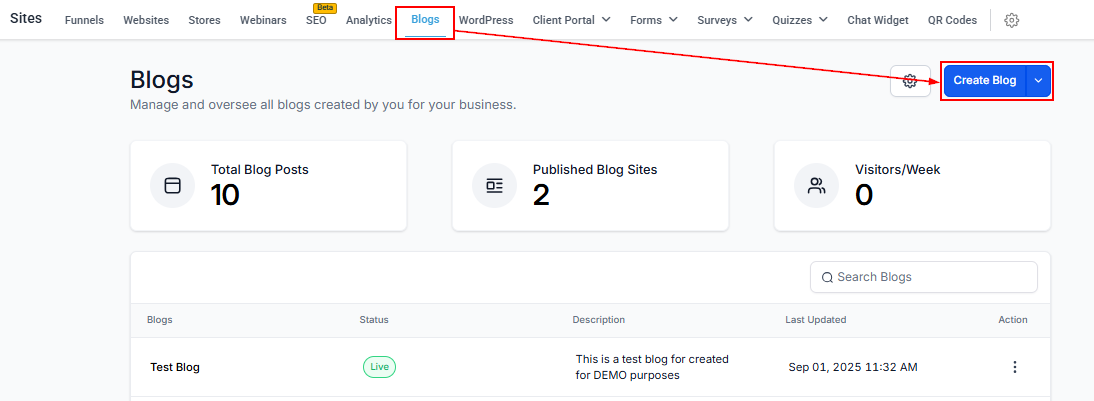
Choose whether you want to create the blog from scratch, from a URL or CSV, or using AI.
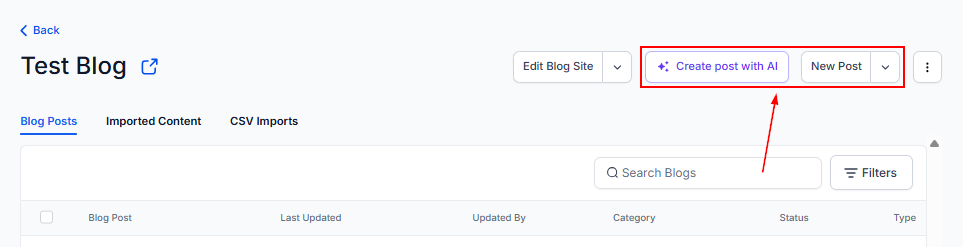
Adding Content
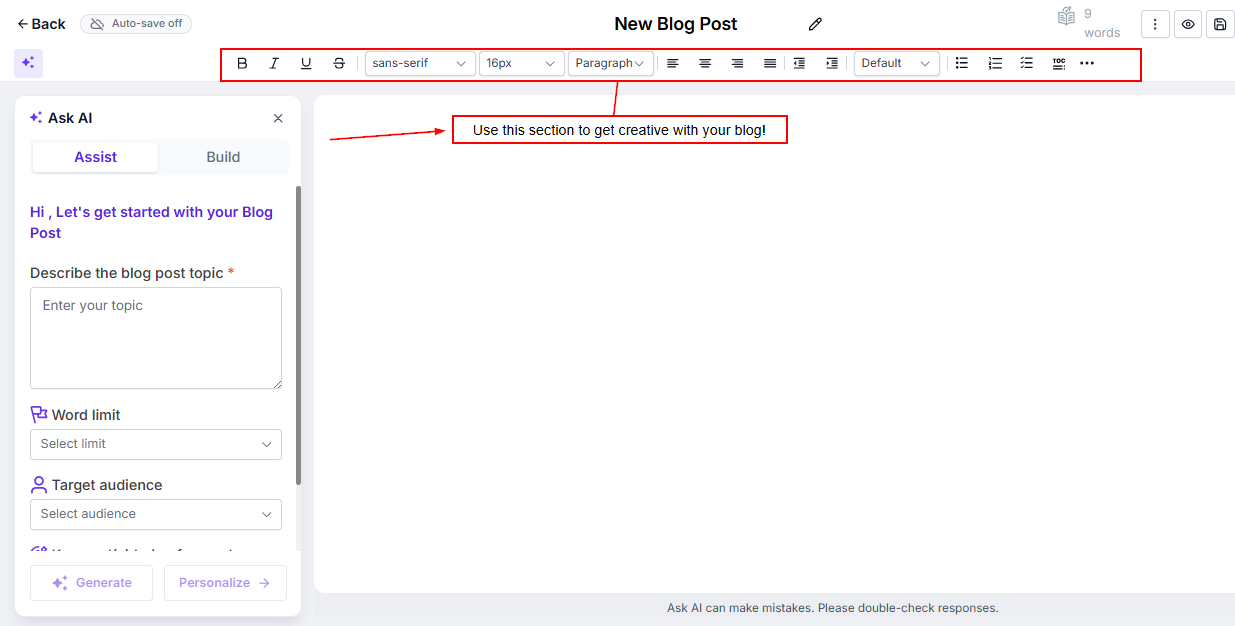
The blog builder works similarly to a regular doc. In it, you can write your content and use the editor toolbar to enrich your blog post.
If you choose to use AI to write the blog, you can also use the toolbar to adjust the content.
Once you’re satisfied with your content, click Continue to publish it.

To release your post, fill out these fields:
- URL Slug: This defines the path for your blog post.
- Category: This helps relate posts as belonging to the same group. You can select between already created categories or add a new one.
- Author: To properly credit the article’s writer.
- Canonical Link: This step is optional. It is used as the representative page when there are duplicates.
- Add Keywords: Add any relevant words that will help people find your post, such as the title, interesting topics, etc. This will help improve SEO.
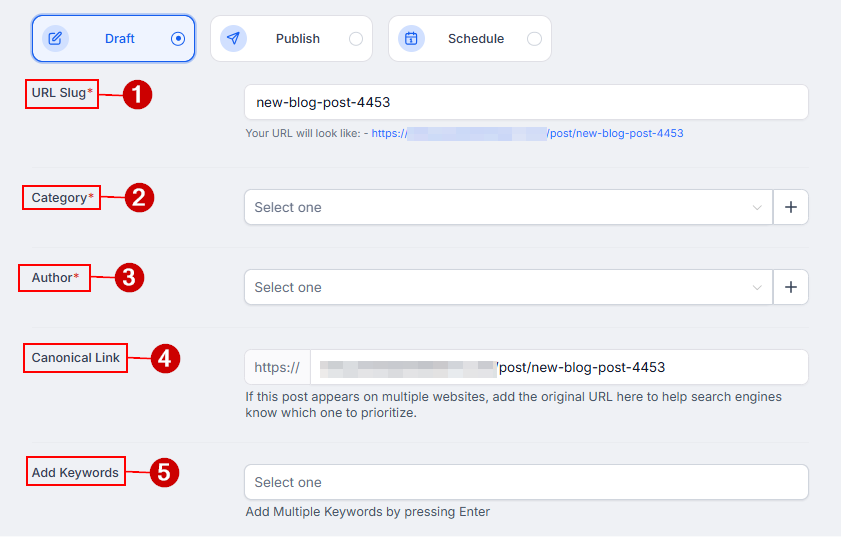
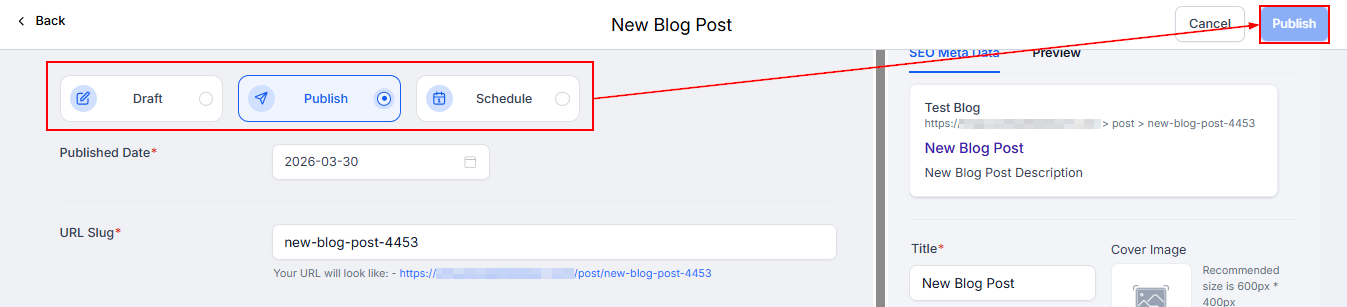
Review your blog details and SEO, select a status, add a date, and publish or schedule the post.
Integrating the Blog Post into Your Funnel or Website
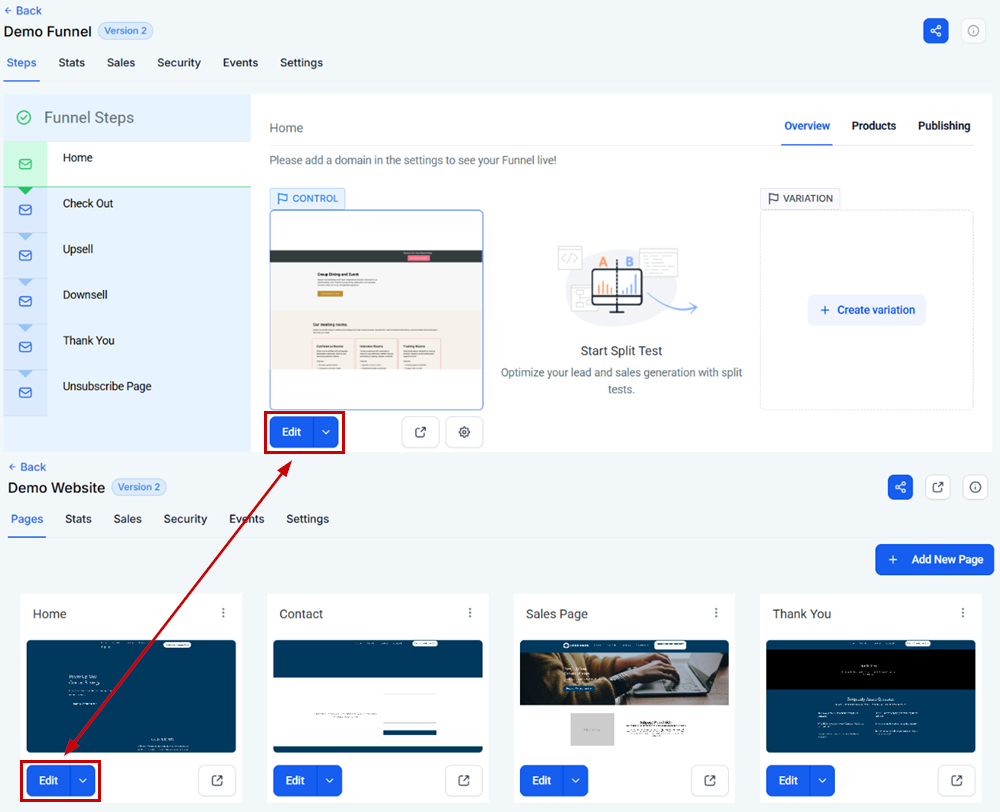
To ensure your audience can access your blog posts, you can add them to your funnel or website. So, start by accessing any page of the Funnel or Website builder.
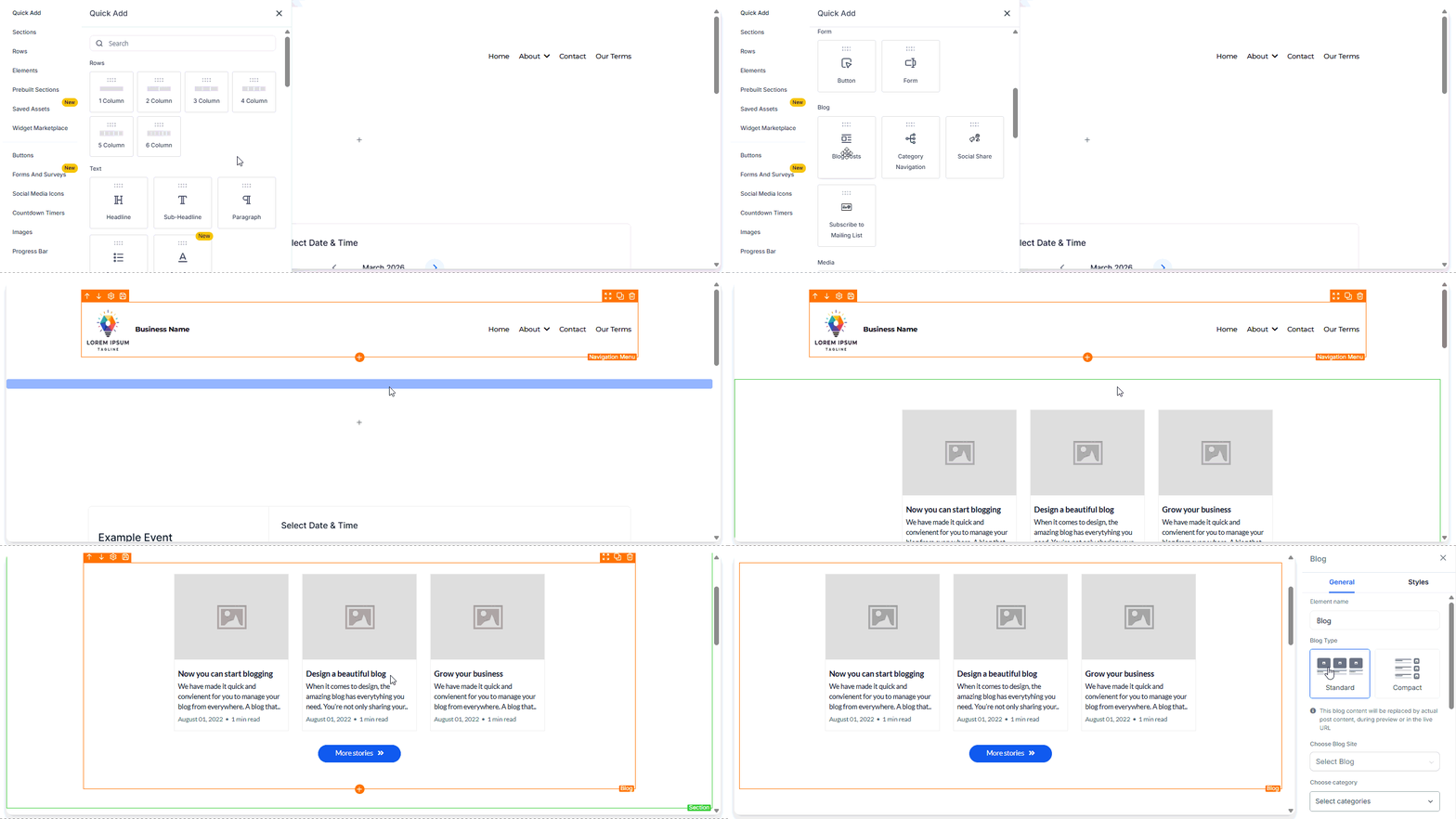
Add the Blog Post Element by dragging it onto the page.
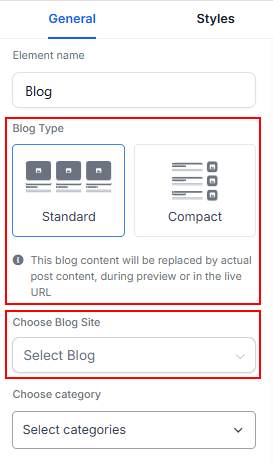
Choose between Standard and Compact layout types, and select the Blog site to pull from.
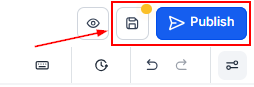
Once ready, click Save and Publish at the top right corner. This will prompt you to add a domain to your Funnel/Website if you haven’t already.
With your blog post created and seamlessly integrated into your funnel or website, you’re now equipped to attract, engage, and convert your audience more effectively.
Frequently Asked Questions
Can I update the Category, Keywords, Author, and Slug after publishing?
- Yes, this can be done from the Blogs by accessing the post and continuing as if to post.
What is the maximum image size for a blog post?
- The maximum image size allowed is 10MB.
How can I make my blog post appear on my main website domain?
- Set the blog page as the Default Page in your domain settings.
Not a Funnelbud customer yet?
Try our all-in-one CRM for sales and marketing — free for 7 days, no commitment.