Day Timer
Integrating the Day-Timer element into your website/funnel page is a powerful way to create urgency and boost user engagement. With this feature, you can easily add a countdown timer to your site, customizing its duration in hours, days, and seconds. Whether you’re promoting a limited-time offer or counting down to an event, this tool helps capture visitor attention and encourage action.
General Settings
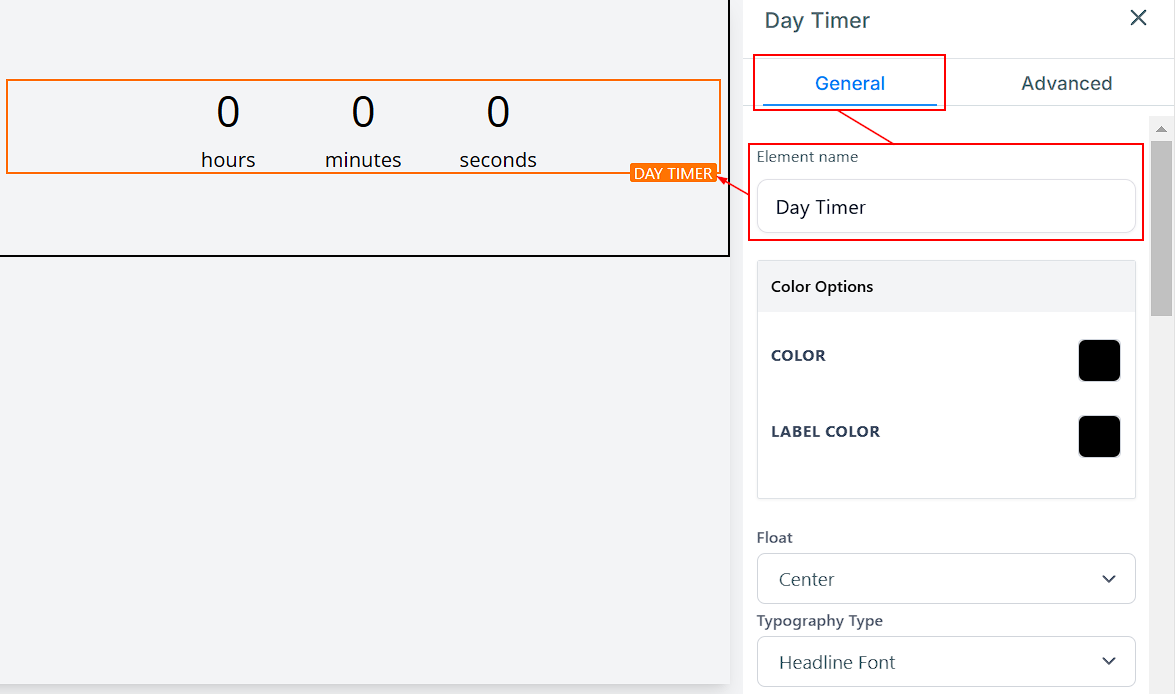
Element Name/Title
Under General Settings, you can rename the timer and make it more descriptive, which will come in handy when you have several elements on your page.
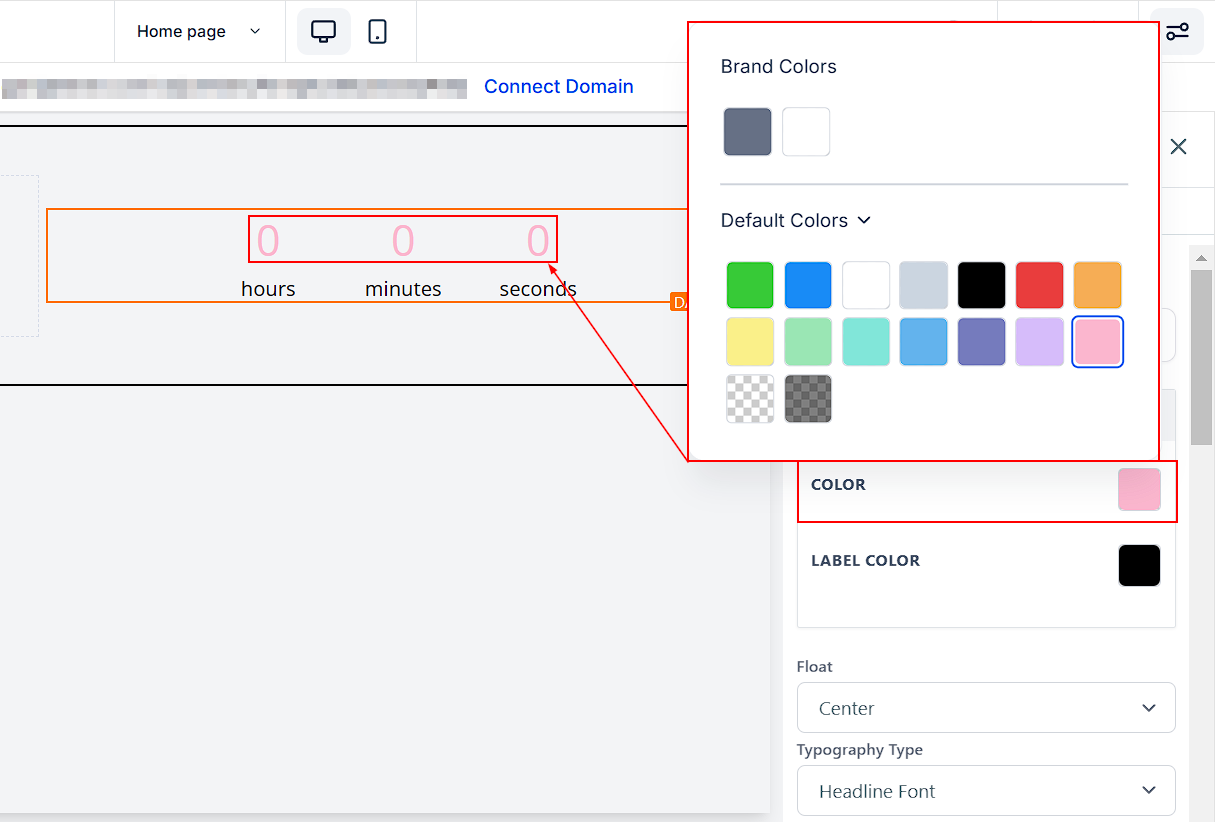
Color Options
- Color: You can change the color of your timer by selecting from the available options or adding a custom color. If you have the color code of the exact color you are going for, go to Custom Colors and click “Add”.
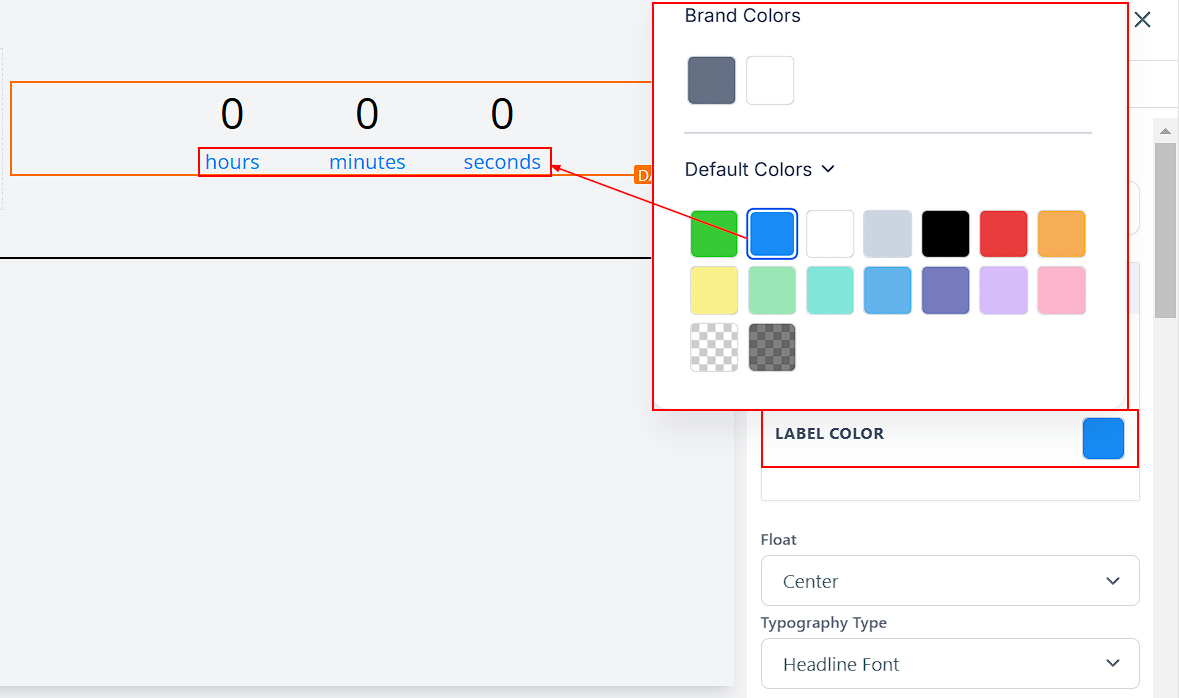
- Label Color: To customize the color of your timer label, follow the same steps as the timer color. Choose from preset colors, add a custom color, or enter a specific color code.
Float
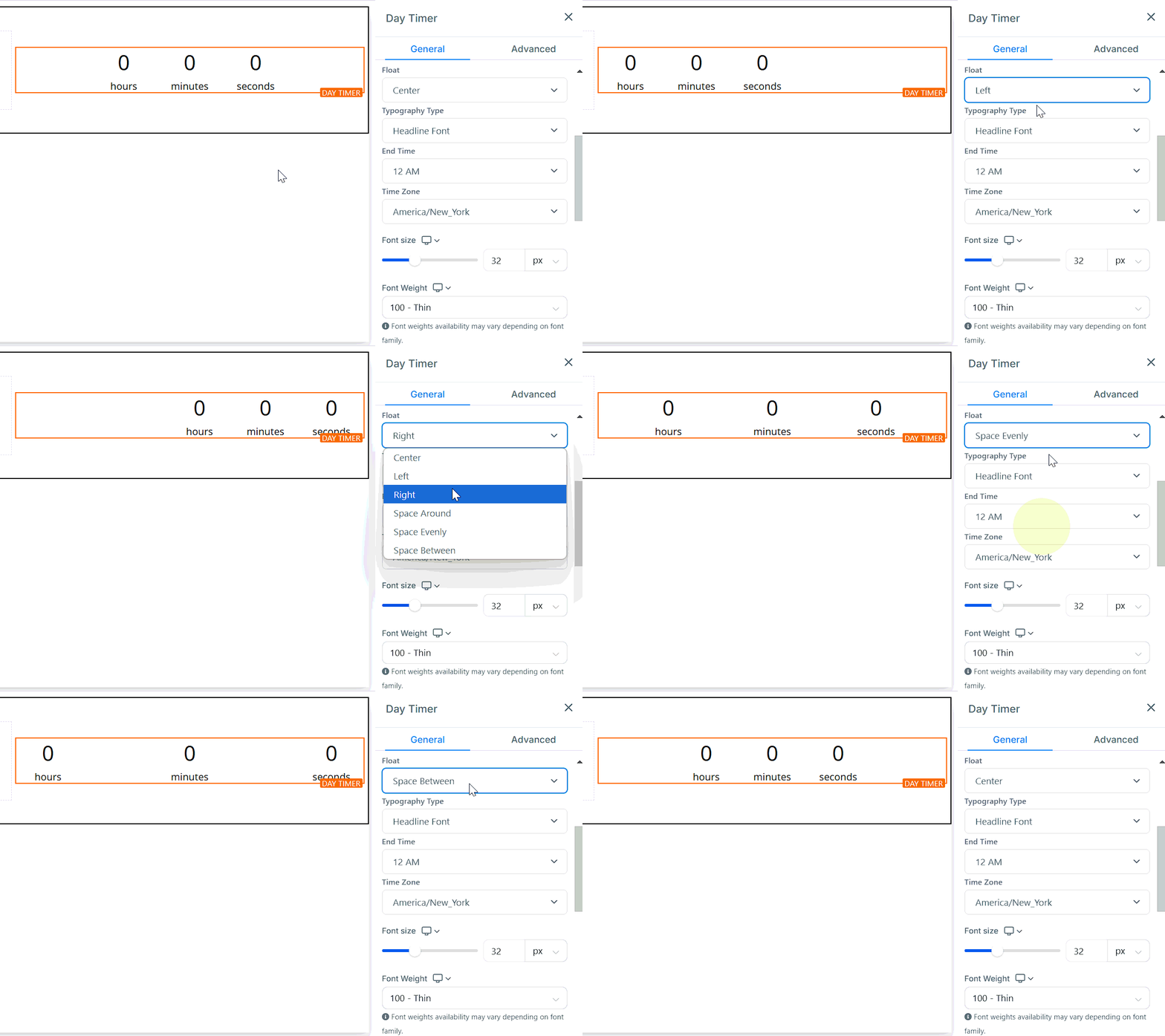
The Float feature provides several positioning options for your timer, such as Left, Center, Right, and spacing options like space-around, space-evenly, or space-between to improve readability.
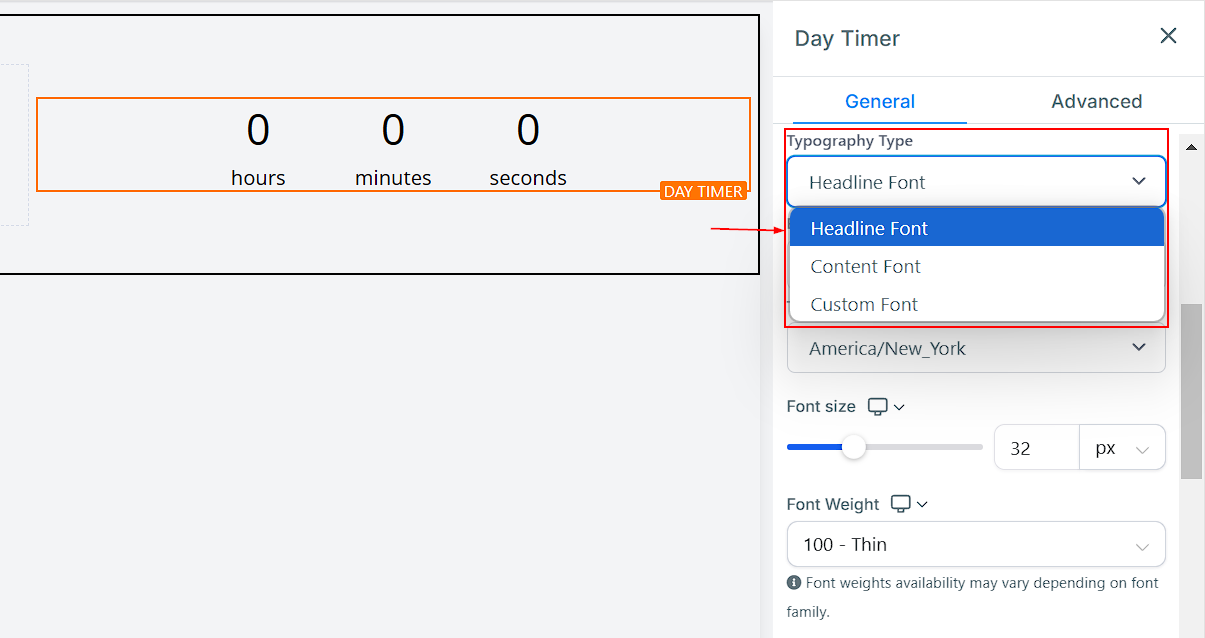
Typography Type
The Typography Type feature enables you to modify the font and typography styles for your text or content. You can further customize it using the dropdown options available.
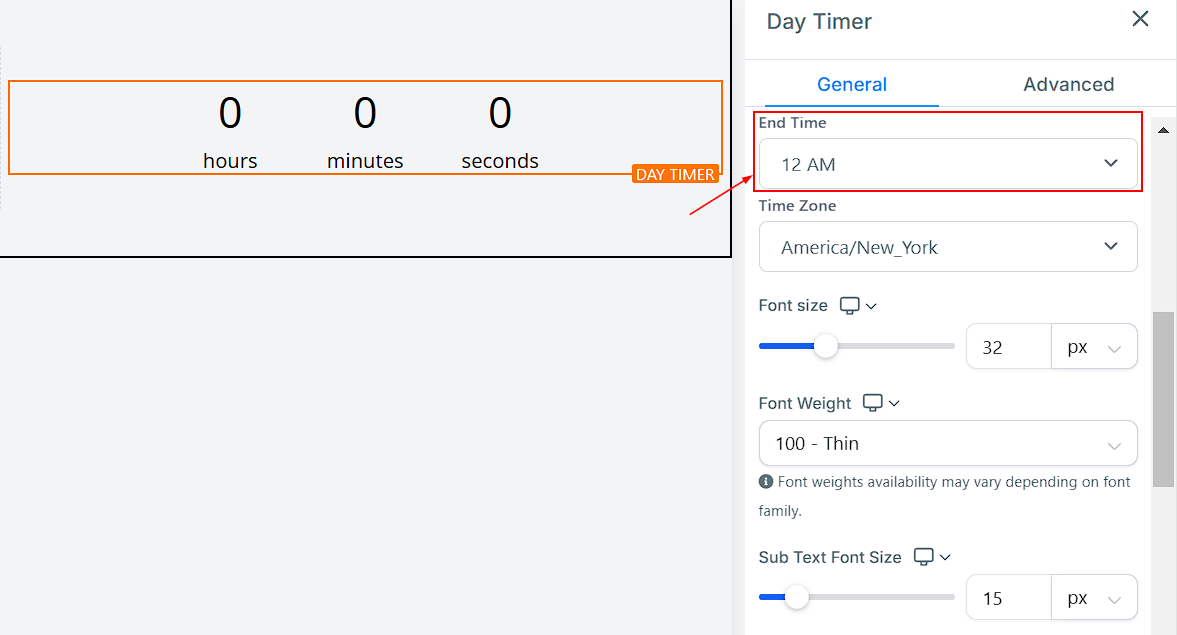
End Date and Time
Here, you can set the date and time you want your countdown to end. For instance, you can set the date and time for the timer to end on the 4th of July at 6 am.
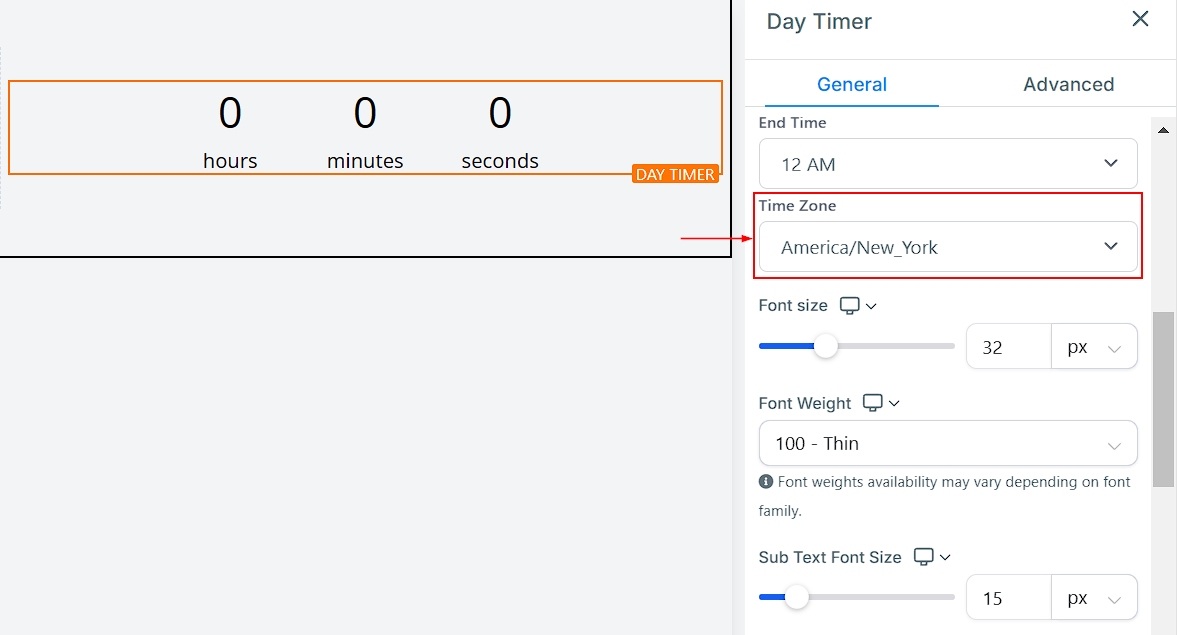
Time Zone
When setting up the day timer, you can choose the Time Zone you want it to operate in, making sure it correctly counts down to the end time. You can select your preferred Time Zone, including popular regions and countries.
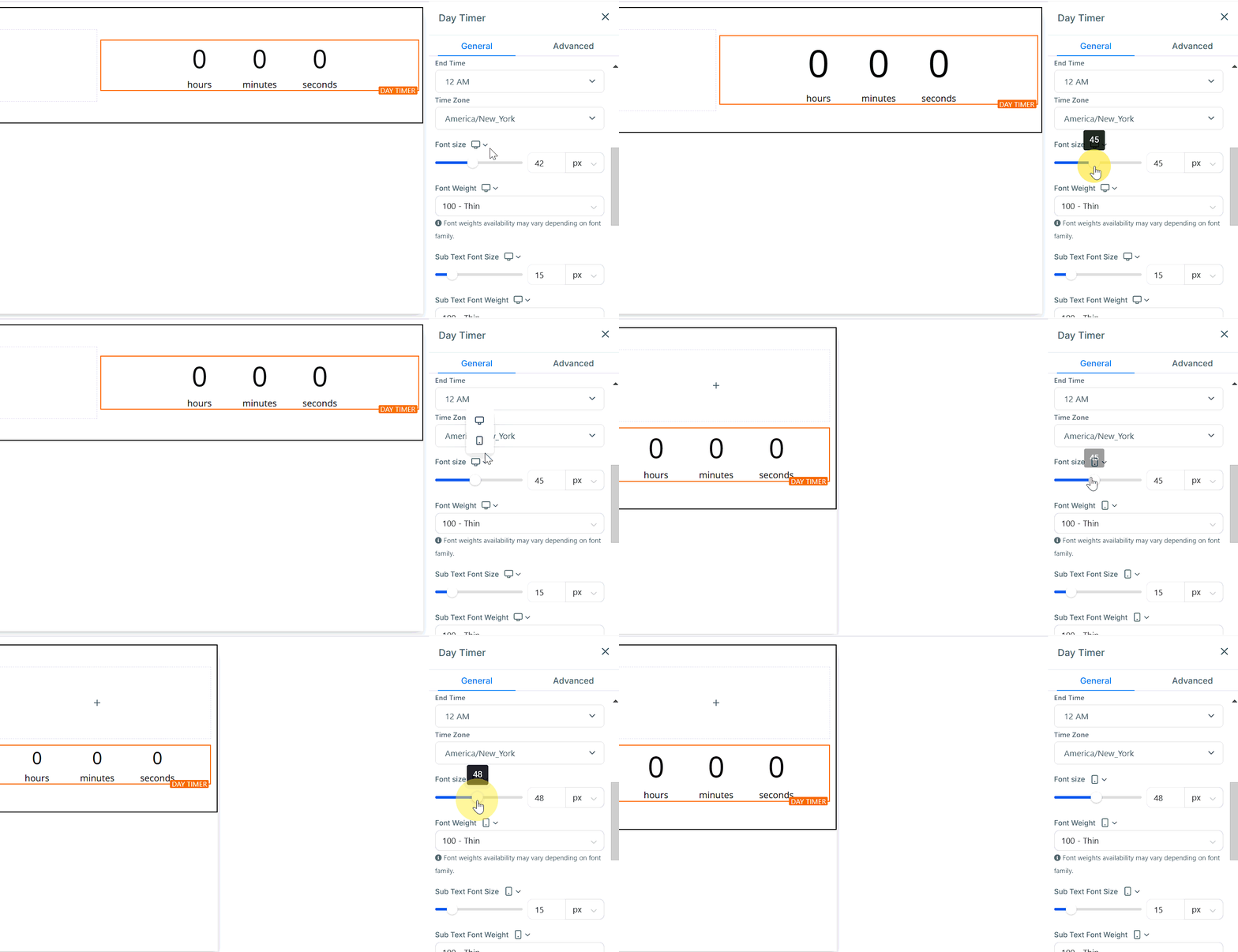
Desktop and Mobile Font Size
You can adjust the mobile and desktop font sizes of your countdown timer simply by adjusting the size bars.
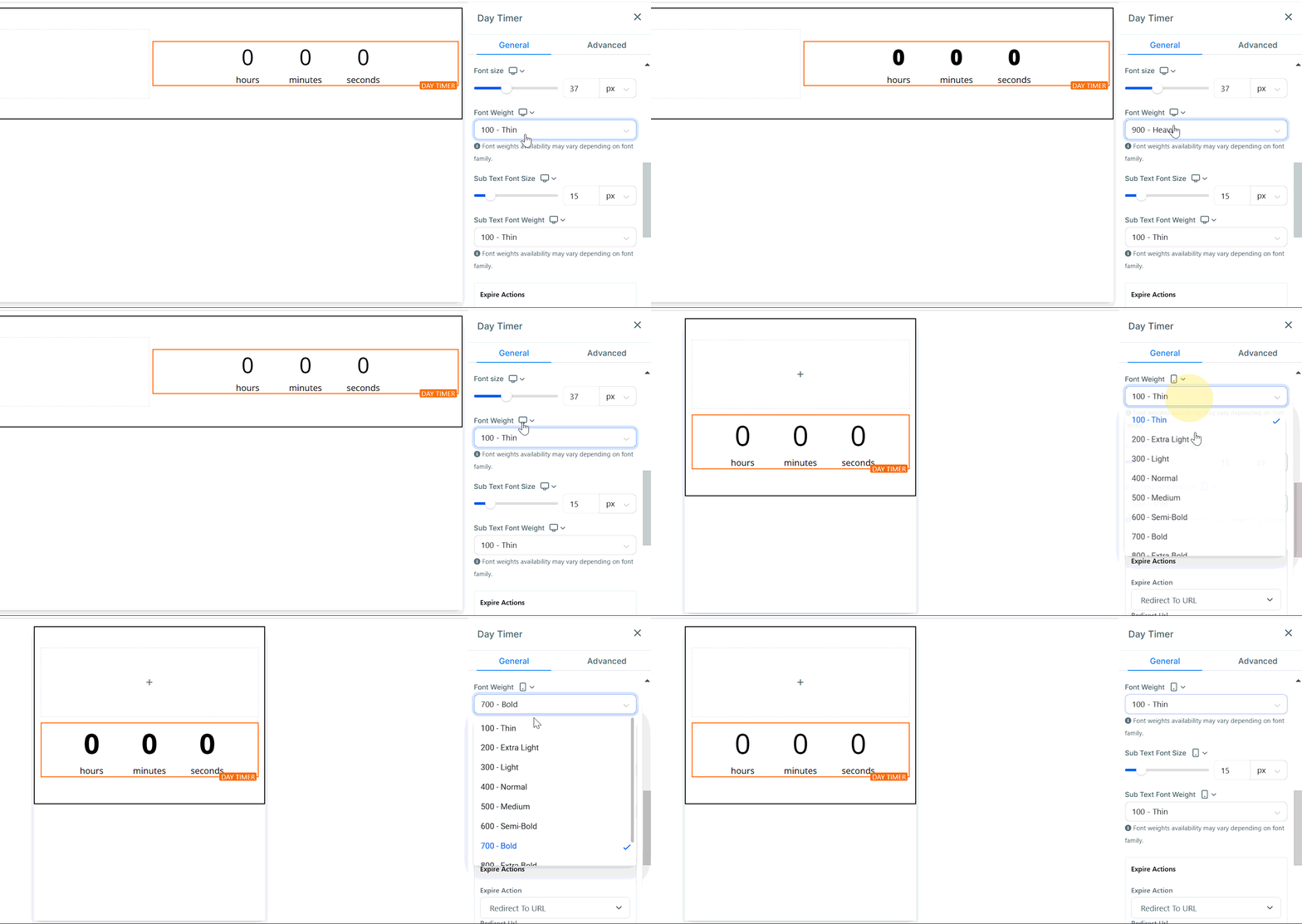
Desktop and Mobile Font Weight
Modify the thickness of your text to make it stand out or blend with the rest of your page.
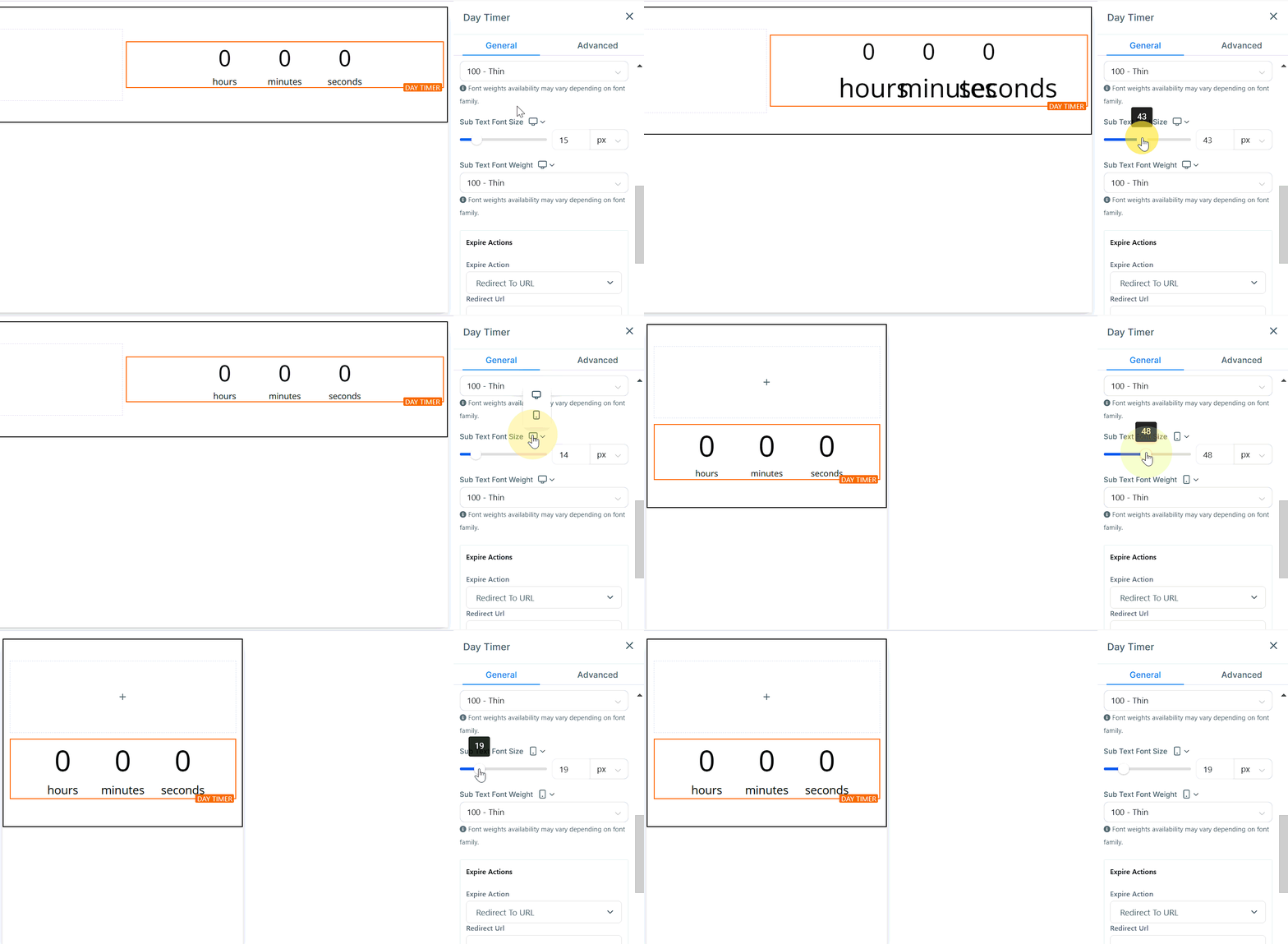
Desktop and Mobile Sub Text Font Size
You can adjust the mobile and desktop sub text font sizes of your countdown timer simply by adjusting the size bars.
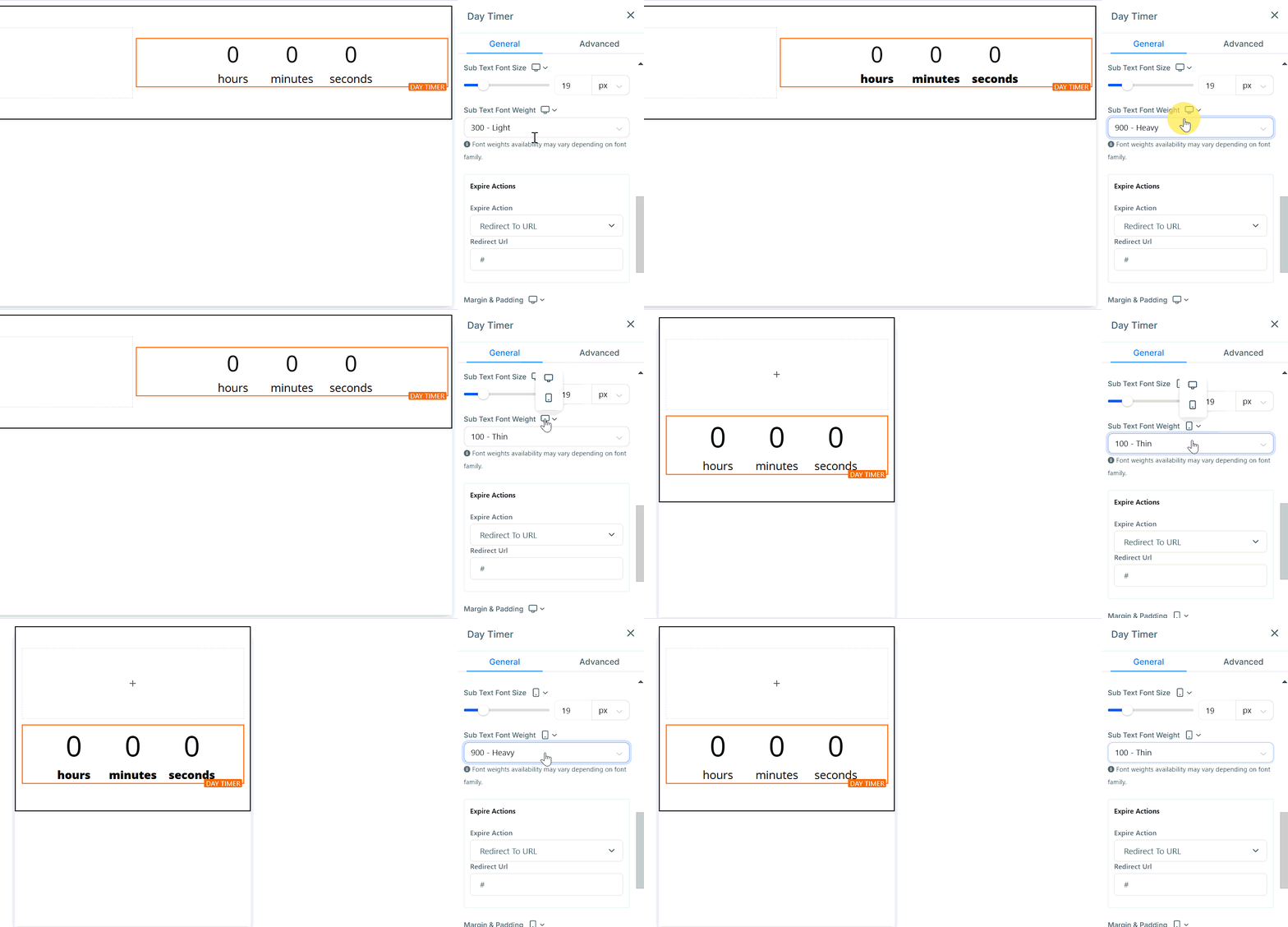
Desktop and Mobile Sub Text Font Weight
Control the weight of the sub text to match the overall design and emphasis of your timer.
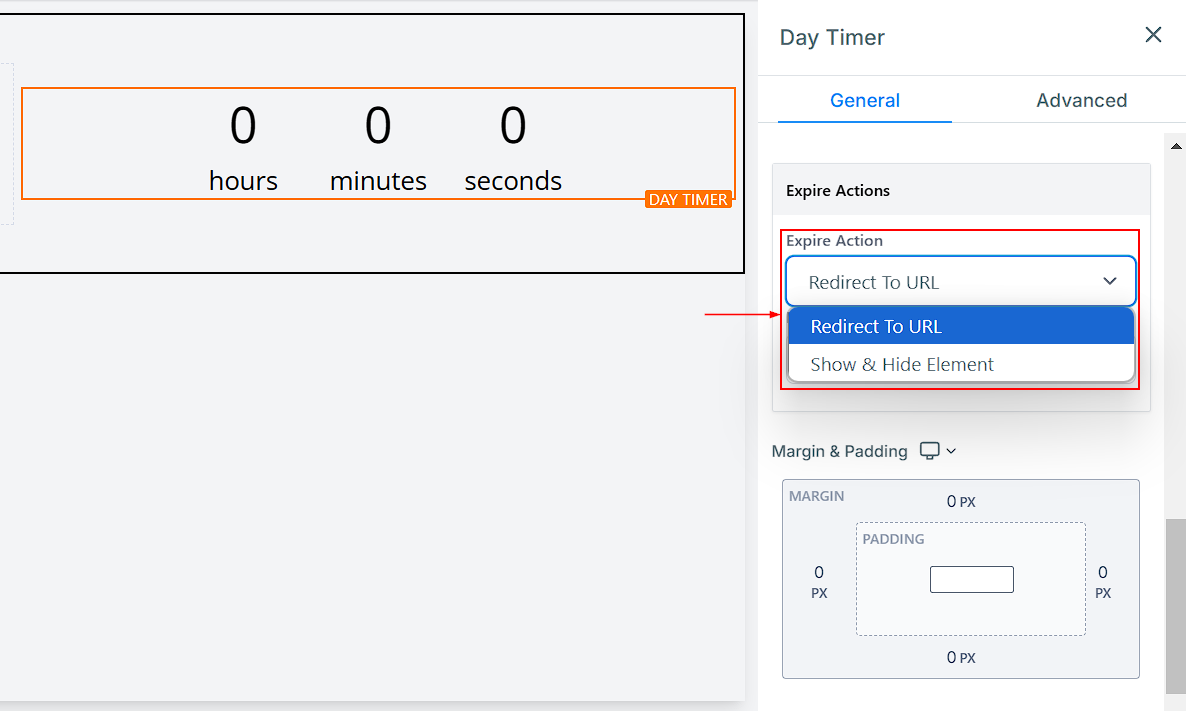
Expire Action
When the countdown ends, you can choose from different expiration actions:
- Redirected URL: With this option, you can automatically send users to a specific page when the timer expires.
- Show & Hide Element: You can decide to hide or show your section, column, row, or element.
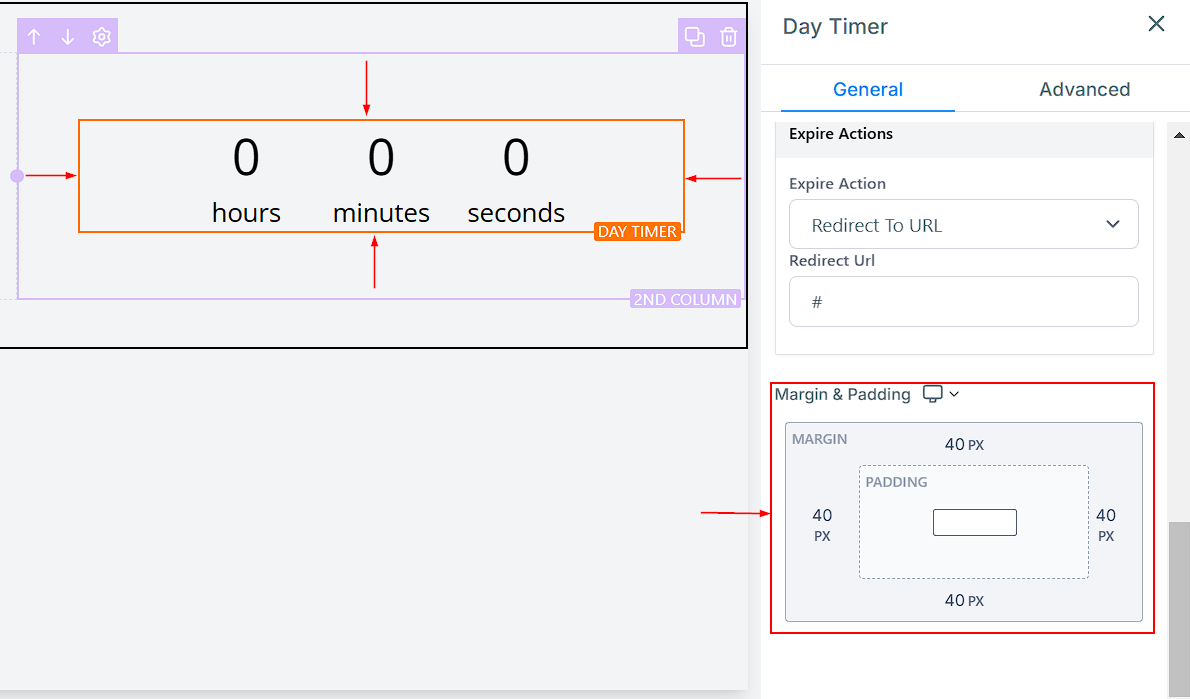
Padding
There are different spacing options available for adjusting your Form. Depending on the Edit option you are working on, the settings will only apply to that option. For example, editing the Bottom padding.
- Padding Left, Right, Top, and Bottom: These four (4) different padding fields move the Form to the left, right, top, or bottom depending on the field you add padding. Simply type a number into the given field to add padding to the top, bottom, left, or right based on your preferences.
Advanced Settings
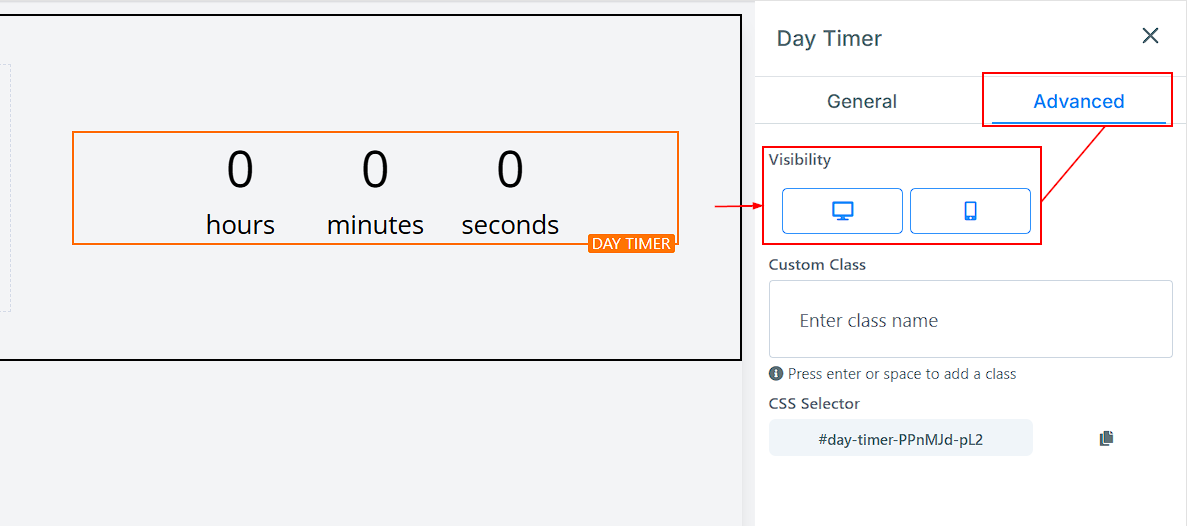
Visibility
You can decide if you want this particular Edit option to be visible on only mobile devices, desktops, or both by clicking on it to highlight the icon.
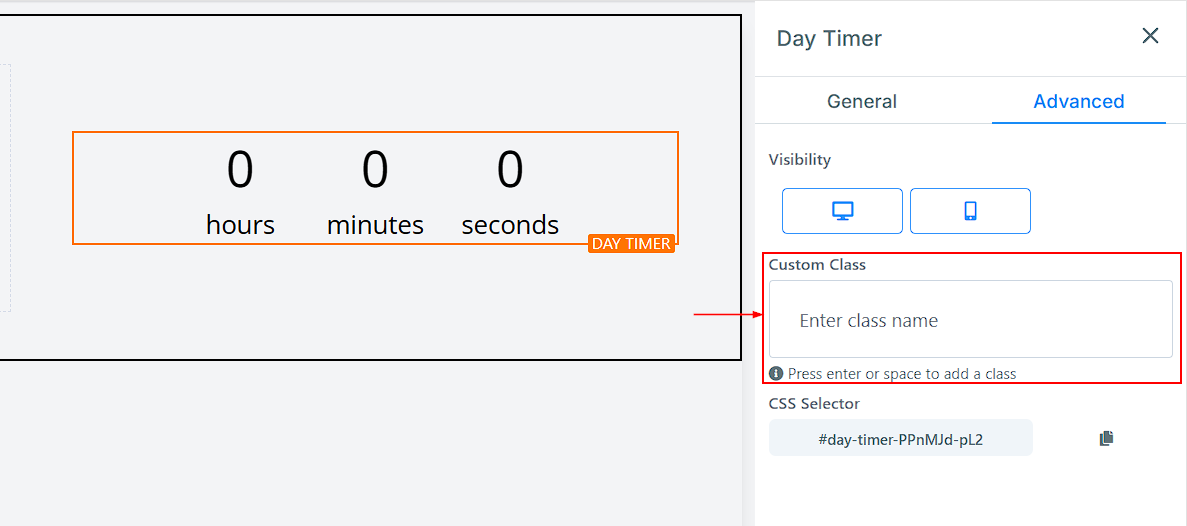
Custom Class
You can input your custom class code here for further customization of your element.
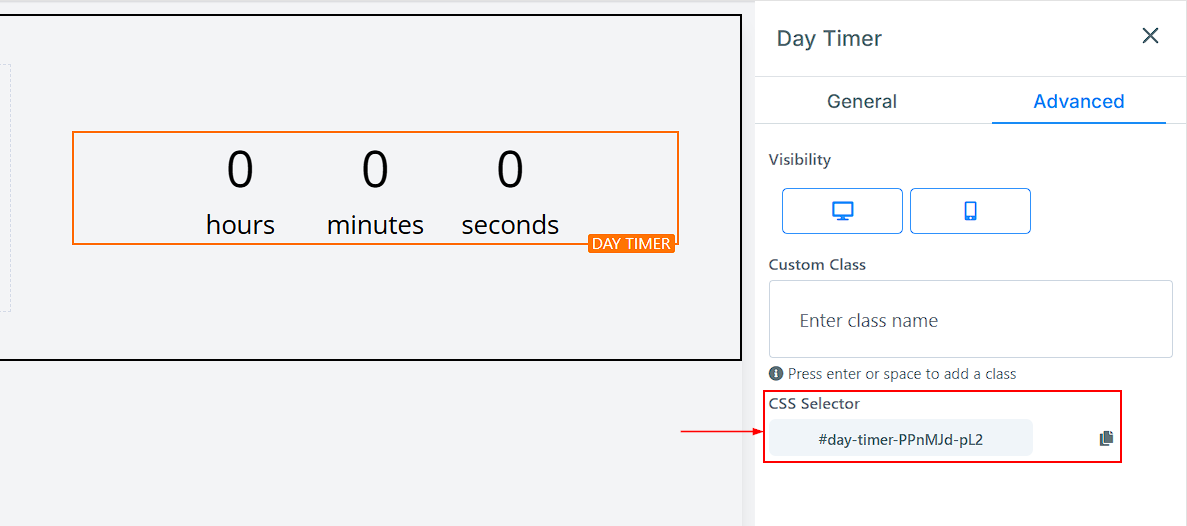
CSS Selector
If you need to copy the Custom CSS, just click on the “Copy” icon on the right side of the reference code.
This is a simple yet effective way to drive urgency and engagement on your website/funnel page. With its customizable settings, you can tailor it to fit your design and marketing goals. Whether you’re launching a flash sale or counting down to a big event, this feature helps keep your audience informed and motivated to take action.
Not a Funnelbud customer yet?
Try our all-in-one CRM for sales and marketing — free for 7 days, no commitment.