How to Rearrange Actions in Your Workflow Builder
Efficient workflow management often requires adjusting actions to ensure processes run smoothly. Whether you’re optimizing the sequence of tasks or correcting a misplaced step, moving actions within your workflow is a simple yet powerful feature. This guide walks you through the steps to reposition actions effortlessly and keep your workflow logic intact.
Access the Workflow to Edit
Navigate to the Workflow Builder in the Automation tab and select the workflow you wish to modify.
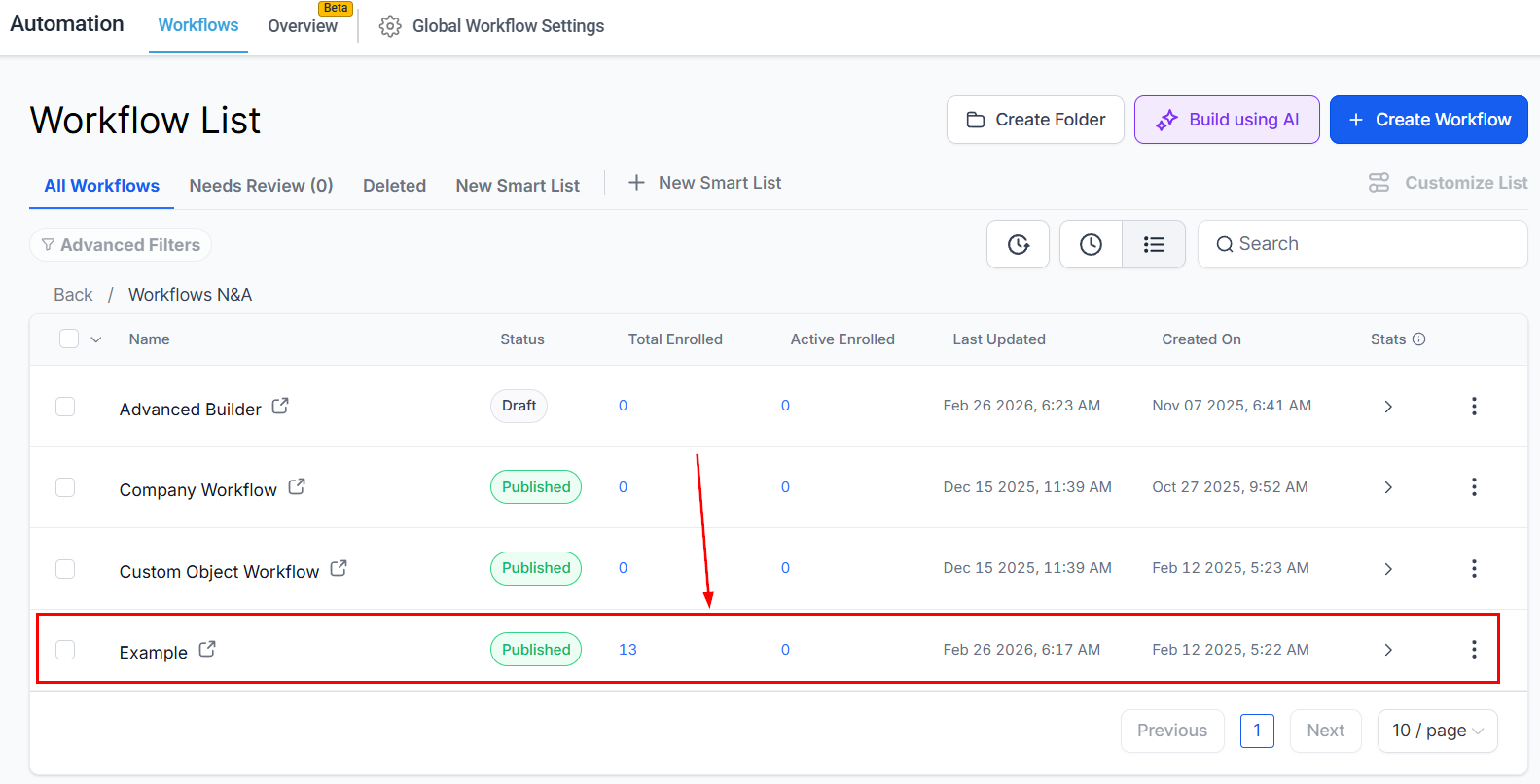
Select the Action to Move
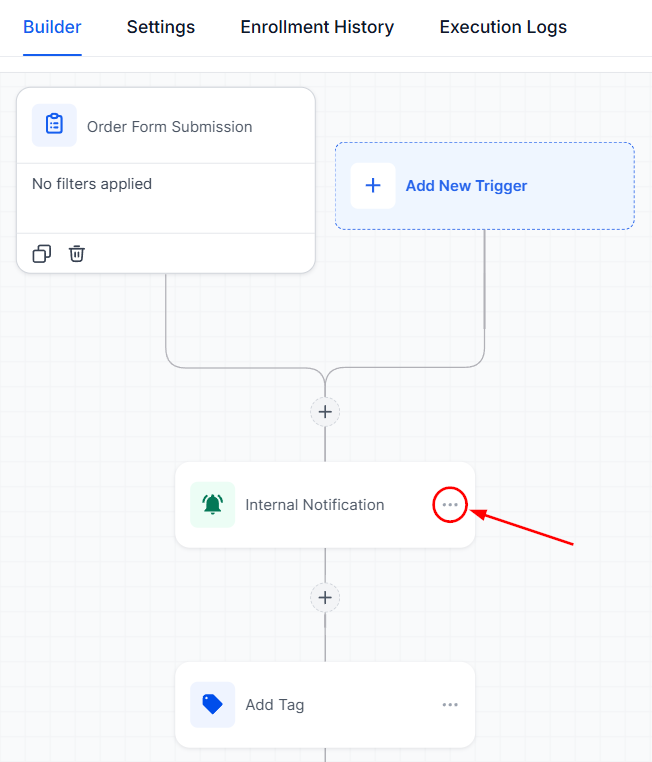
Locate the action you want to reposition. Click on the three dots (often referred to as the “more options” icon) next to the action’s name to reveal a dropdown menu.
Choose “Move” From the Menu
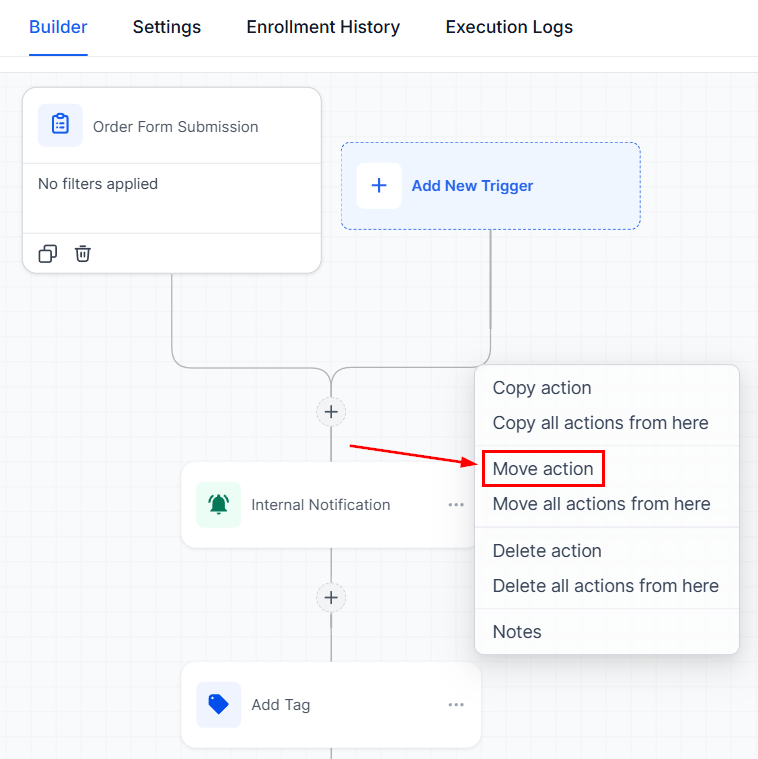
From the dropdown menu, select the “Move Action” option. This will allow you to reposition one specific action within the workflow.
Reposition The Action
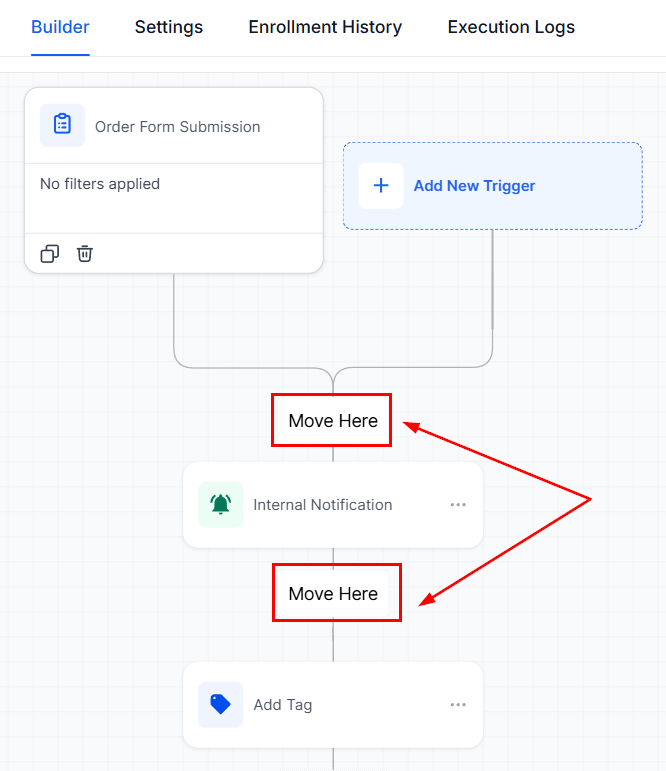
After selecting “Move Action,” navigate to the new desired location for the action within the workflow. Click on the “Move Here” button to place the action in its new position.
Save Your Changes
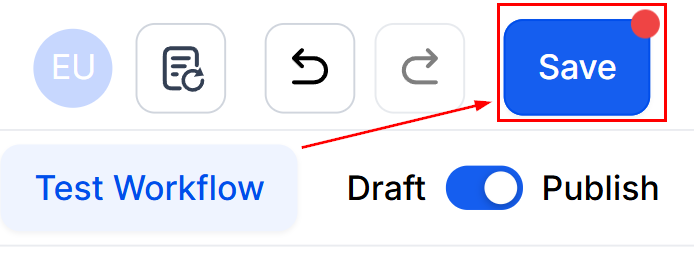
Once you’ve successfully moved the action to its new location, make sure to save your changes to update the workflow.
Repositioning actions in your workflow allows you to maintain structure and adaptability as your needs evolve. With straightforward steps and flexible options, you can fine-tune workflows to optimize efficiency and ensure flawless automation. Remember, small adjustments can have a big impact on streamlining your processes.
Additional Tips
- Moving Multiple Actions: If you wish to move a series of actions, select “Move All Actions From Here” instead of “Move Action.” This will relocate the selected action, along with all subsequent actions, to a new part of the workflow.
- Special Note for If/Else Actions: When moving an If/Else action, be aware that it will also move all steps below that action, including any branches (Yes and None). It’s crucial to rearrange the condition accordingly to ensure the logic of your workflow remains intact.
Troubleshooting and FAQs
Q: What if I accidentally move an action to the wrong place?
- A: Repeat the steps above to move the action to the correct location. Remember to save your changes each time you modify.
Q: Can I undo a move action?
- A: Yes, click the undo button or Ctrl + Z / ⌘ + Z to correct your change back to the original position.
Not a Funnelbud customer yet?
Try our all-in-one CRM for sales and marketing — free for 7 days, no commitment.