External Tracking
External Tracking is a simple integration tool that records user activity—such as page views and form submissions—from websites hosted externally. After placing a small tracking script on your site, data is automatically collected and matched to contact records. This ensures every lead submission is properly attributed and available for automation or follow-up actions. This guide provides step-by-step instructions for setting up External Tracking, verifying that it’s working correctly, and troubleshooting any installation or data capture issues.
Key Benefits
- Use Existing Forms: Capture leads directly from your current third-party forms without needing to rebuild them.
- Seamless Contact Sync: Each submission automatically creates or updates a contact record for immediate follow-up.
- Attribution Insights: UTM parameters and traffic source data are captured for easy campaign tracking.
Confirm Form Compatibility
Your external form must meet the following requirements:
- Uses a
<form>tag - Includes an email input field
- Includes a submit button
- Is not embedded within an
<iframe> - Does not block submission with custom JavaScript
Example Minimal Form:
<form action="#" method="post">
<input type="email" name="email" placeholder="email@example.com" required />
<button type="submit">Submit</button>
</form>
How to Set Up External Tracking
Access the Tracking Script
Go to the Settings > External Tracking section. Under the Installation tab, click Copy Script.
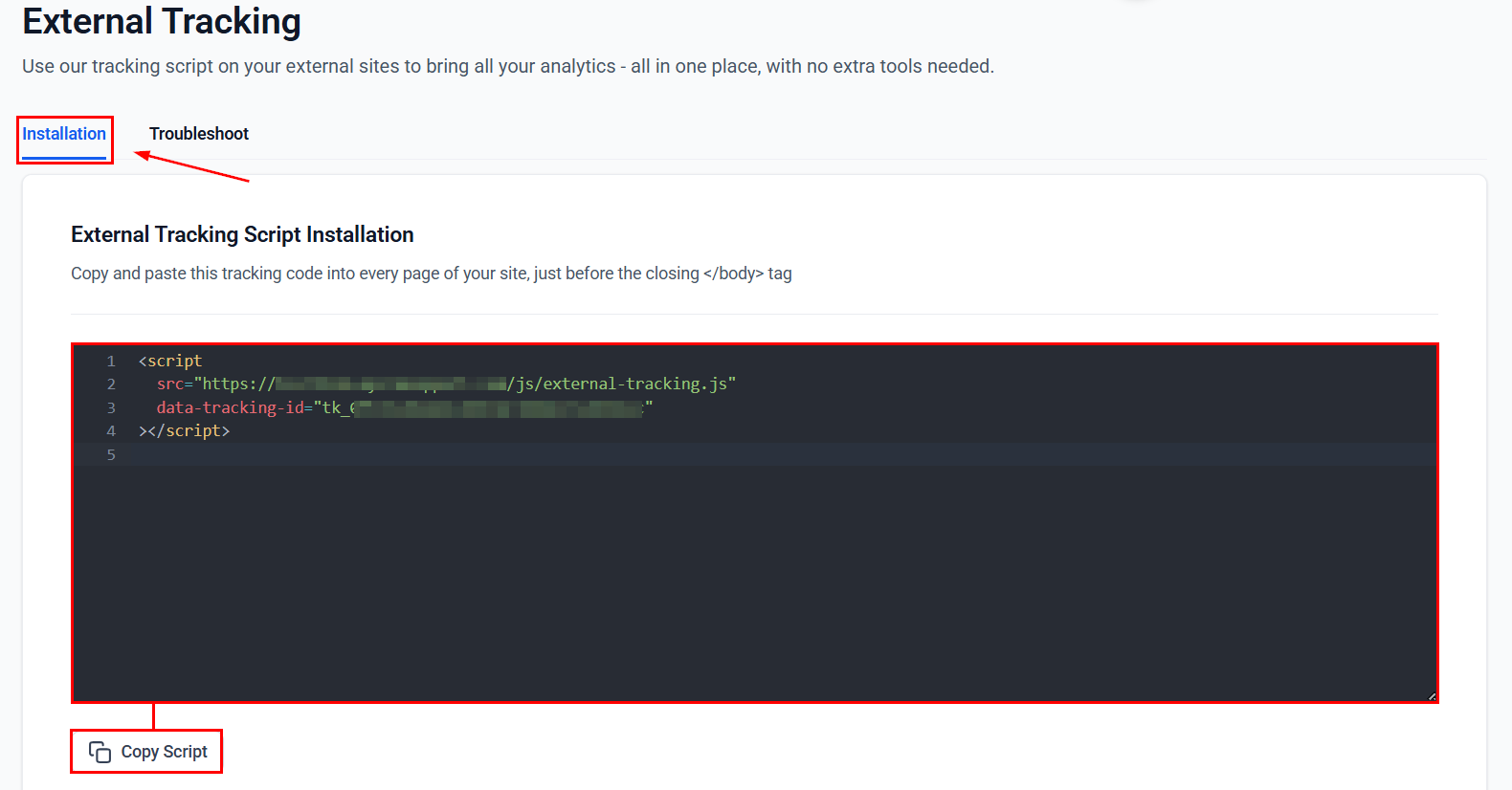
The script will resemble the following example:
<script
src="https://link.example.com/js/external-tracking.js"
data-tracking-id="tk_xxxxxxxxxxxxxxxxxxxxxxxxxxxxxxxx">
</script>
📌Note: Do not modify the data-tracking-idas it is unique to your account.
Add the Script to Your Website
Paste the script in the external website’s footer, immediately before the closing </body> tag.
For example,
Custom HTML Site
...
<!-- Paste tracking script here -->
<script
src="https://link.example.com/js/external-tracking.js"
data-tracking-id="tk_xxxxxxxxxxxxxxxxxxxxxxxxxxxxxxxx">
</script>
</body>
</html>
WordPress
Go to Appearance > Theme Settings > Footer or use a plugin such as Insert Headers and Footers and paste it into the Footer Scripts box.
Wix / Squarespace / Webflow
Navigate to Site Settings > Custom Code > Footer Code Injection and paste the script.
View Submissions
After installation, go to the Forms > Submissions section.
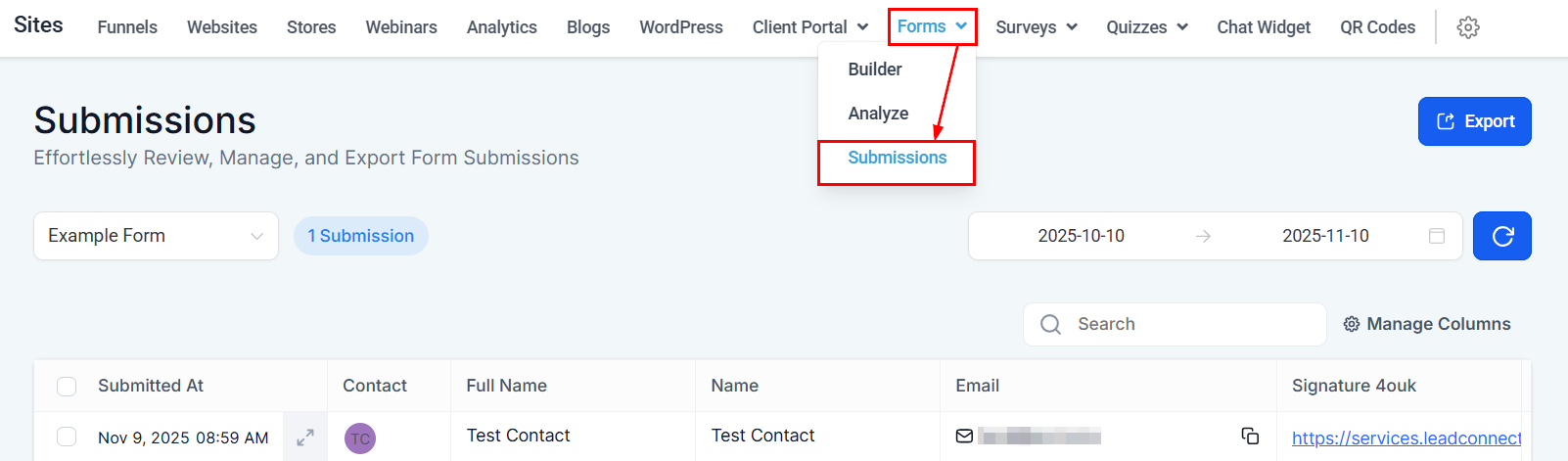
Use the filter External: "Form Name".
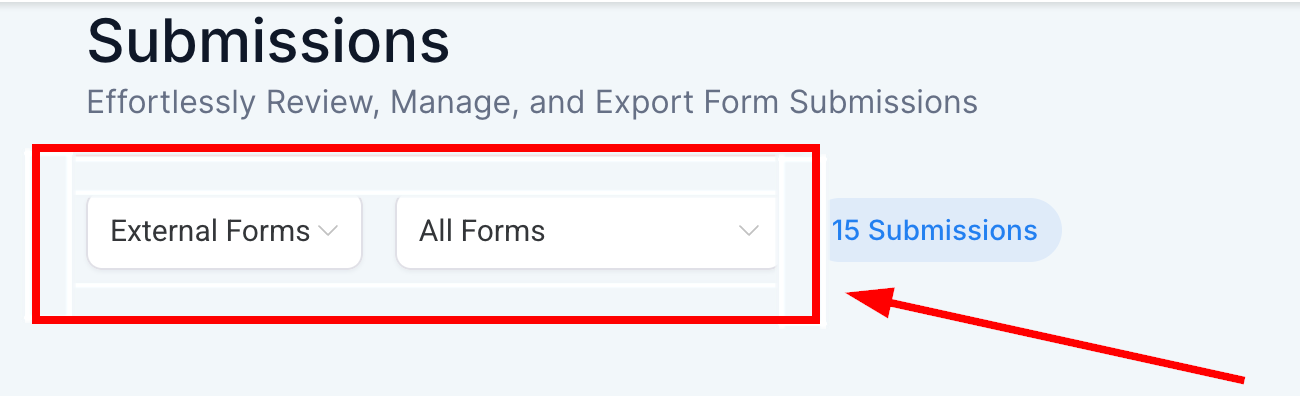
Review and export submissions as needed.
Each captured submission includes detailed event and attribution data:
- Timeline Events: Page visits and form submissions appear as timestamped events.
- Activity Details: Access field data, page titles, URLs, and medium/source information within the contact record.
- Tagging: Contacts can be automatically tagged with the external form name for easier segmentation.
Viewing Analytics
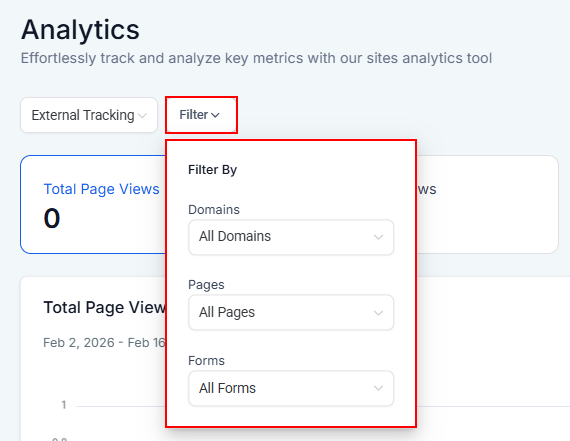
Leverage the External Tracking filter within the Analytics Dashboard to monitor page views, form views, responses, and completion rates. This feature provides advanced filtering capabilities and detailed audience breakdowns to support precise performance analysis and reporting.
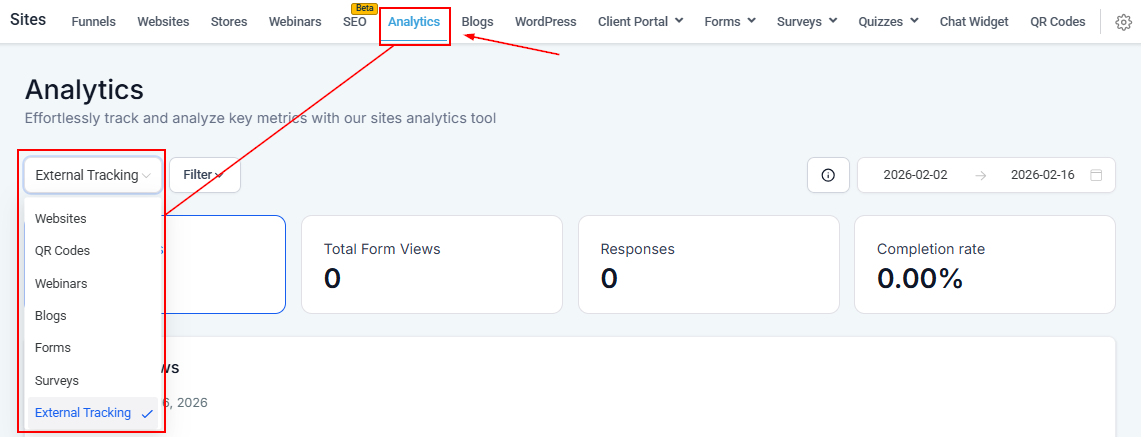
📌Note: The External Tracking option appears in the analytics dropdown only when the tracking script is connected.
Apply filters to target a specific domain, page, or form.
Advanced Troubleshooting
If form submissions or tracking data are not appearing, follow these steps:
Enable Debug Mode
Add data-debug="true" to your script:
<script
src="https://link.example.com/js/external-tracking.js"
data-tracking-id="tk_xxxxxxxxxxxxxxxxxxxxxxxxxxxxxxxx"
data-debug="true">
</script>
Reload your page, open the browser console (Ctrl/Cmd + Shift + J), and look for logs beginning with [LC Tracking], such as:
- Tracker initialized successfully
- Event sent successfully: external_script_page_view
If no logs appear:
- Confirm the script is on the page
- Verify your
data-tracking-id - Check for ad blockers or Content Security Policy (CSP) restrictions
Network and API Checks
Open the Network tab in your browser developer tools and confirm:
- Page view requests return a 2xx success status
- No CORS errors appear
- Responses show successful acknowledgements
Cookies & Sessions
The script uses a session cookie to track users. Check under Application > Storage > Cookies to confirm it exists. If missing, review browser privacy settings or iframe policies.
Common Issues
Issue | Possible Cause | Solution |
|---|---|---|
No console logs | Debug mode not enabled | Add |
CORS errors | Endpoint restrictions | Update CORS policy or verify domain permissions |
Form not tracked | Incorrect HTML structure | Ensure a valid |
Tracking ID errors | Invalid or missing ID | Verify script includes correct |
SPA route changes | Dynamic page loads | Add manual route-change tracking if needed |
Example Setup with Additional Fields
<form name="abc">
<label for="first_name">First Name</label>
<input type="text" name="first_name" id="first_name" />
<label for="last_name">Last Name</label>
<input type="text" name="last_name" id="last_name" />
<label for="email">Email</label>
<input type="email" name="email" id="email" />
<label for="phone">Phone</label>
<input type="tel" name="phone" id="phone" />
<label for="company_name">Company Name</label>
<input type="text" name="company_name" id="company_name" />
<input type="submit" value="Submit" />
</form>
External Tracking provides a simple yet powerful way to unify your lead capture process across multiple websites. By connecting form submissions and page views from external domains, you gain deeper visibility into visitor behavior and campaign performance—all without disrupting your existing site setup.
Implement the steps above to begin collecting and analyzing your external traffic data today.
Frequently Asked Questions
Q: Do I need to rebuild my existing forms?
- No. External Tracking works with compatible forms already on your website.
Q: How can I automate follow-ups?
- Use the “Form Submitted” workflow trigger to send notifications, apply tags, or start campaigns.
Q: Why are UTMs missing for some contacts?
- Attribution depends on cookies and URL parameters. Strict browser settings or missing UTMs may limit visibility.
Q: Which form types are supported?
- External Tracking works with standard HTML forms and Formspree.
Not a Funnelbud customer yet?
Try our all-in-one CRM for sales and marketing — free for 7 days, no commitment.