How to Integrate Your Campaigns Into Workflows
Effectively managing campaigns and workflows is essential to your business processes. Whether you’re starting fresh or integrating an existing campaign into a new workflow, having clear guidance makes all the difference. This step-by-step guide walks you through the process of importing a campaign, and customizing it to meet your specific needs.
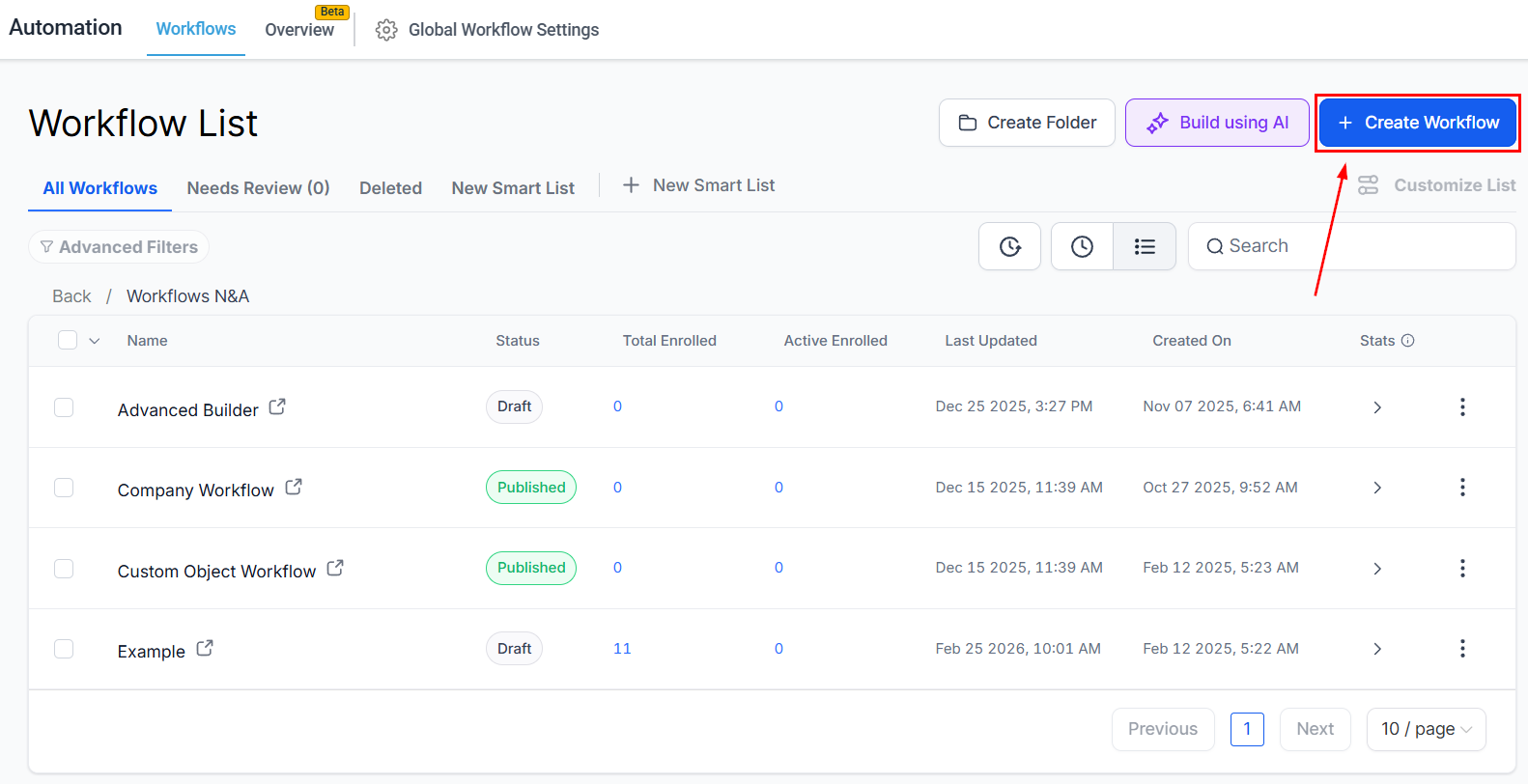
To get started, navigate to the Automation section, in the Workflows tab click on the “+Create Workflow” button.
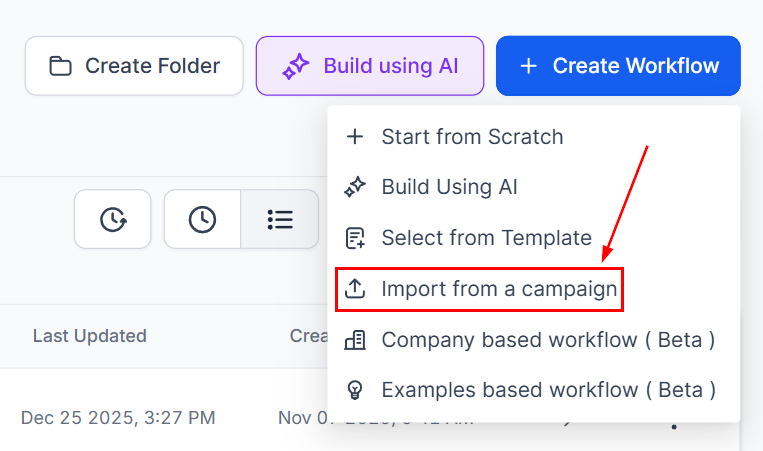
In the dropdown, you can select the “Import from a Campaign” option.
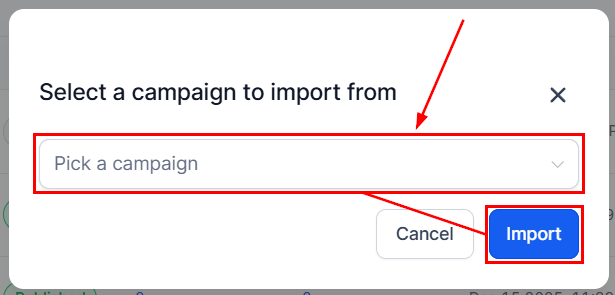
Select and Import Your Campaign
The dropdown allows you to browse through the list of available campaigns and select the one you want to import. Once selected, click “Import” to add the campaign to your new workflow.
After successfully importing your campaign into the workflow, you’ll be brought to the Workflow builder interface, where you can start customizing your imported campaign to fit your specific needs.
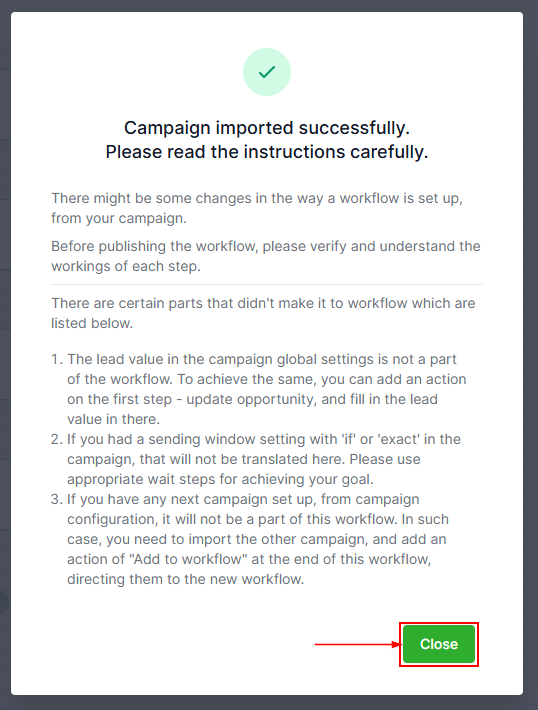
Confirm Campaign Import
A message will appear in the Workflow builder confirming the successful import of your campaign. Close this message to proceed with customizations.
Customize Your Workflow
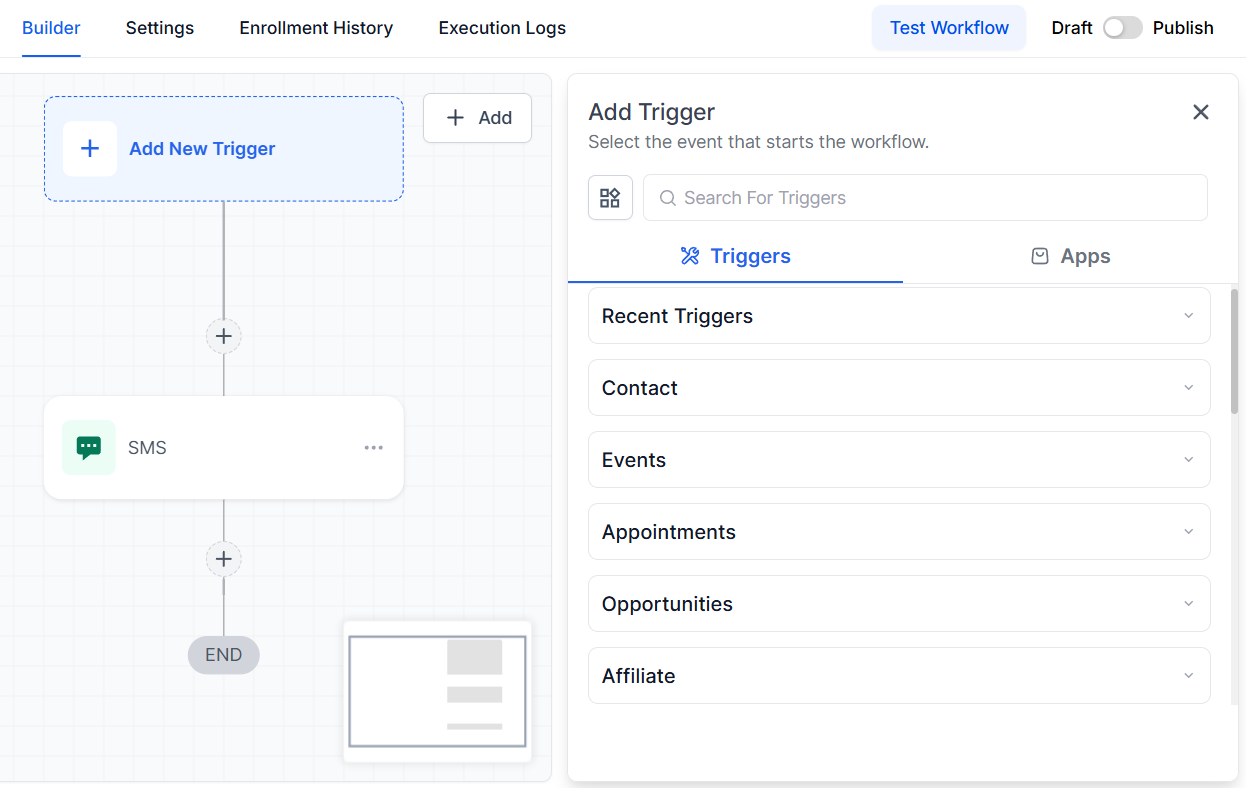
At this stage, you can add or modify triggers, paths, and actions within the workflow to tailor it to your business requirements. The flexibility of the Workflow builder allows for extensive customization to automate your processes.
Save and Publish
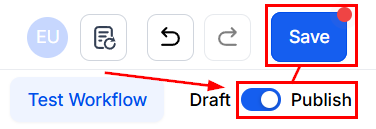
Once you’re satisfied with the customizations, make sure to save your changes. After saving, you’ll need to publish the workflow to activate it. Publishing makes the workflow live and operational.
Importing and customizing campaigns in a workflow is a great way to enhance your automation strategy. By following these steps, you can create efficient workflows, tailored to your needs, and ready to drive your business processes forward. Once your workflow is published, it will operate without extra manual intervention, saving you time and effort while delivering consistent results.
Troubleshooting Tips and FAQs
Q: What if my campaign doesn’t import correctly?
- A: Ensure that the campaign you’re trying to import is not archived or deleted. If issues persist, try refreshing the page and attempting the import again.
Q: Can I import multiple campaigns into a single workflow?
- A: Currently, the import process is designed for one campaign at a time. However, you can manually add elements from other campaigns by using the Workflow builder’s customization options.
Q: How do I know if my workflow is working as intended?
- A: Test your workflow by triggering it with a test contact or through the conditions you’ve set. Monitor the results and make adjustments as necessary.
Not a Funnelbud customer yet?
Try our all-in-one CRM for sales and marketing — free for 7 days, no commitment.