How to Use the All-in-One Chat Widget
The All-in-One Chat Widget offers a comprehensive solution for managing multiple communication channels-Live Chat, Email, and WhatsApp-through a unified interface. This not only eliminates the need for handling multiple widgets but also enhances the user experience by allowing visitors to seamlessly choose their preferred method of communication.
🔑Key Benefits
- Unified Management: Handle Live Chat, SMS/Email, Voice AI, Facebook, Instagram, and WhatsApp conversations from a single widget.
- Consistent Branding: Ensure a cohesive brand identity with a unified color scheme.
- Enhanced User Engagement: Personalize the initial welcome message to boost user interaction.
- Easy Setup: Configure the widget with ease, selecting only the active communication channels available.
Prerequisites
- Account Access: Ensure you have the necessary permissions to create or modify chat widgets within your account.
- Active WhatsApp Number (Optional): If you wish to incorporate WhatsApp Chat, ensure that an active WhatsApp number is configured in your account.
How It Works
Create a New Chat Widget
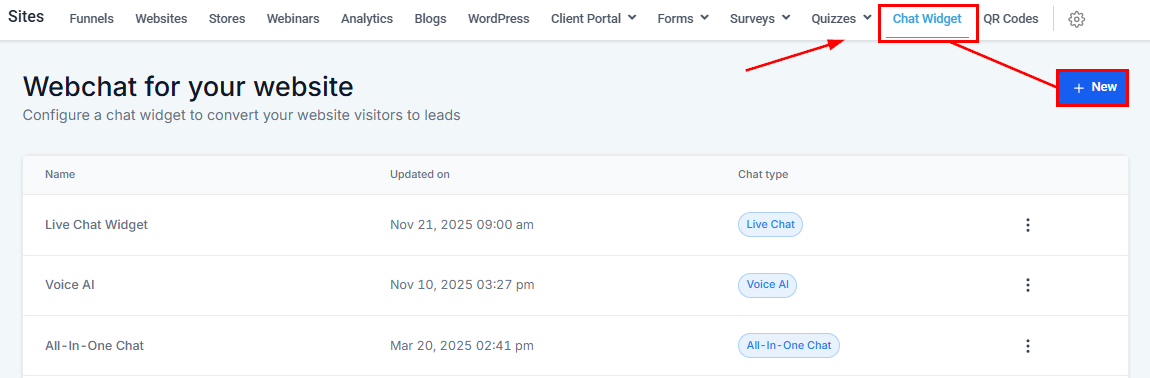
In the left-hand navigation menu, go to Sites > Chat Widget and initiate the creation of a new chat widget by clicking the “+New” button”.
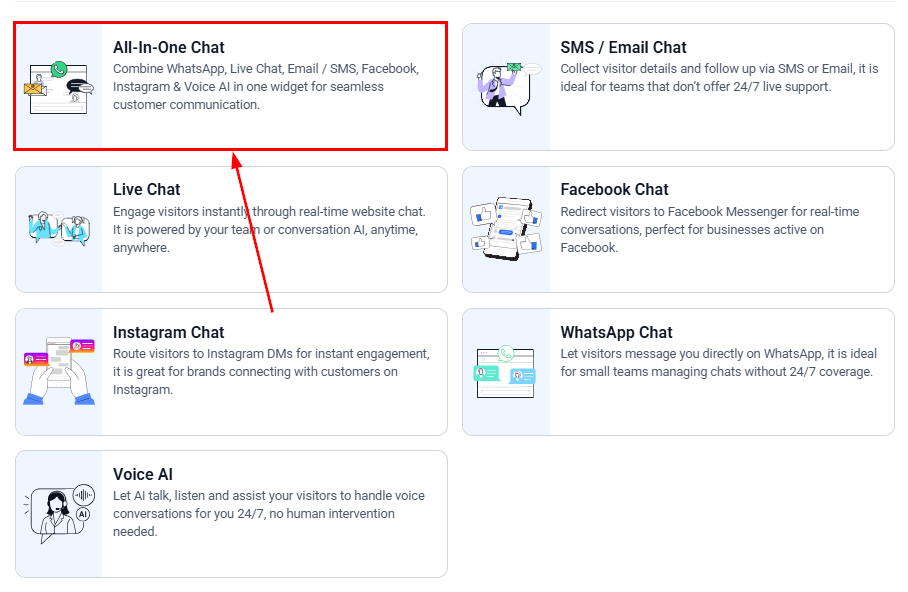
Next, select All-in-One Chat from the list of chat types.
Select Channels
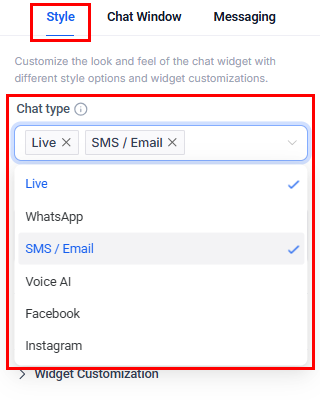
After selecting the All-in-One Chat, choose the communication channels you want to activate.
📌Note: A minimum of two chat types must always be enabled.
Customize Widget Settings
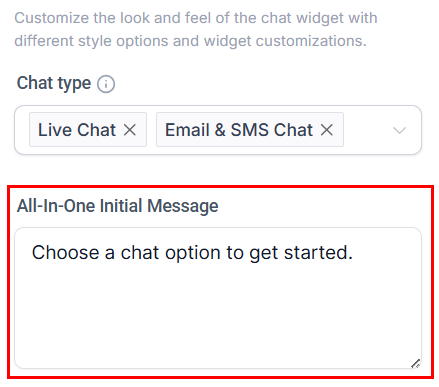
Confirm the selected channels, then update the name of the widget for easy reference.
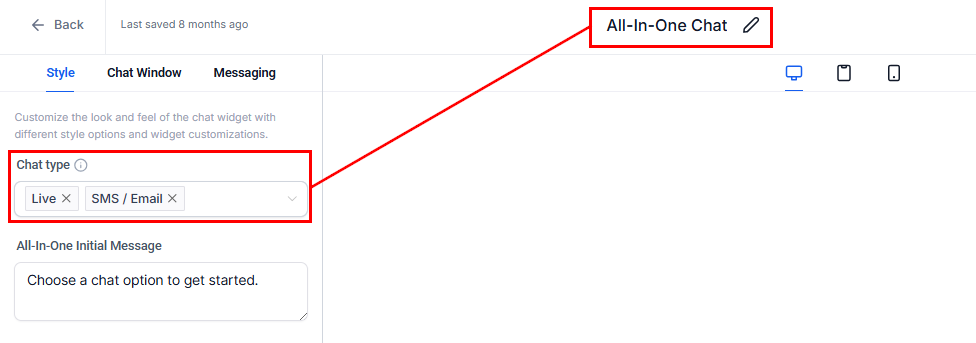
Next, customize the message that appears when visitors first open the widget. This initial message serves as the first point of contact and helps set the tone for the interaction.
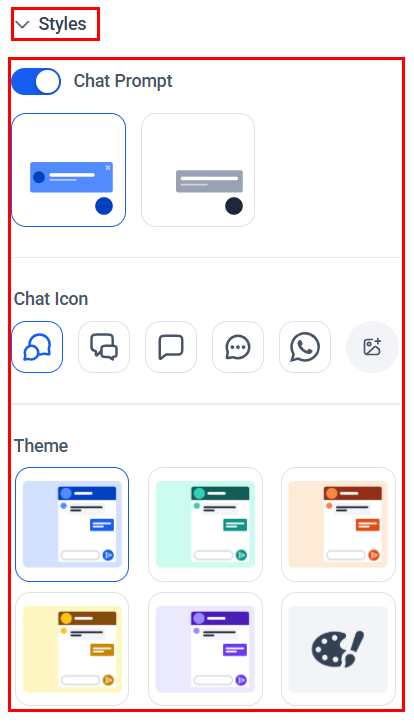
Open the Styles section to adjust the widget color and icon to match your brand, and update the greeting message if desired.
Channel Settings
Now let’s move to the Chat Window tab to configure additional settings.
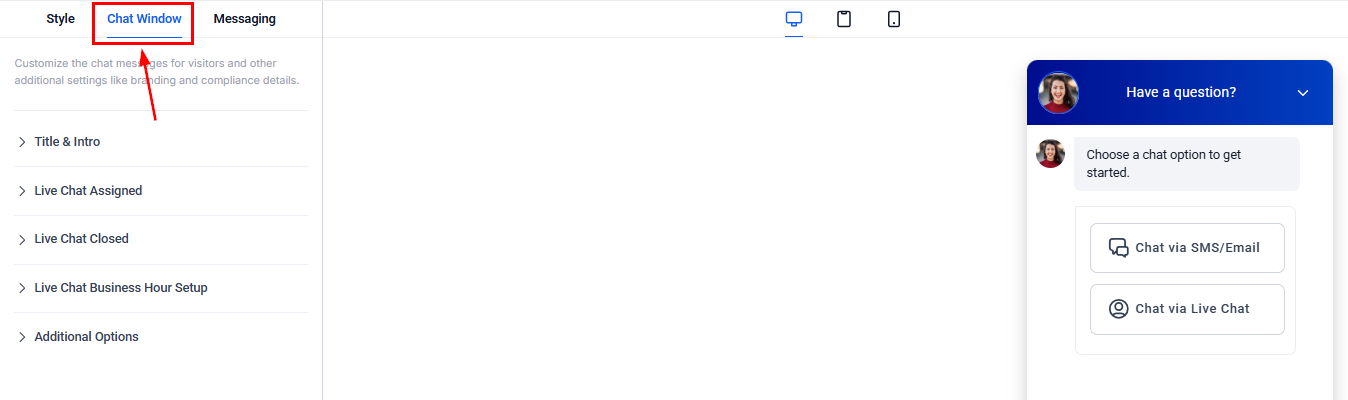
- Email & SMS Chat: Add personalized messages and customize the form fields to greet your users.
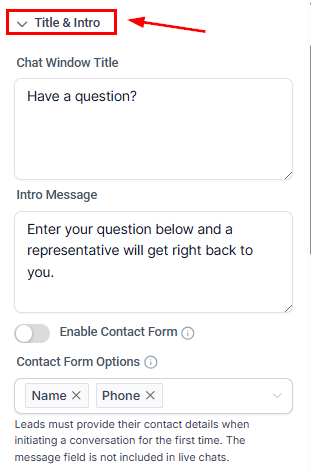
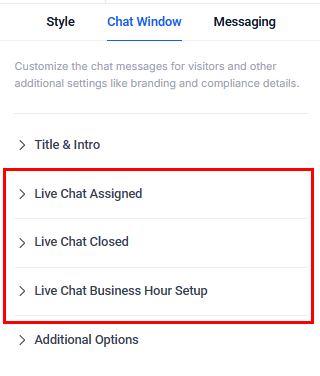
- Live Chat: Configure the display name, greeting message, and offline behavior (if any).
-
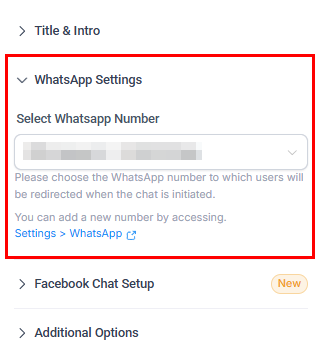
WhatsApp: Confirm your WhatsApp number and set a default greeting message.
-
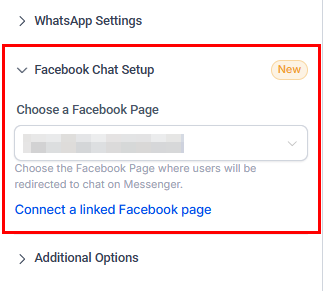
Facebook: Choose your Facebook page and configure additional settings.
-
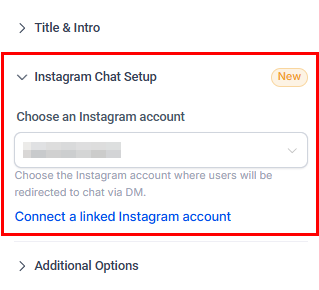
Instagram: Set up the Instagram account where users will be redirected to chat via DM.
-
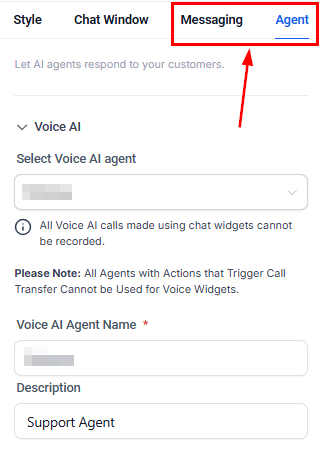
Voice AI: Configure acknowledgement and language preferences in the Messaging section, then assign the agent who should respond to messages.
Save and Preview
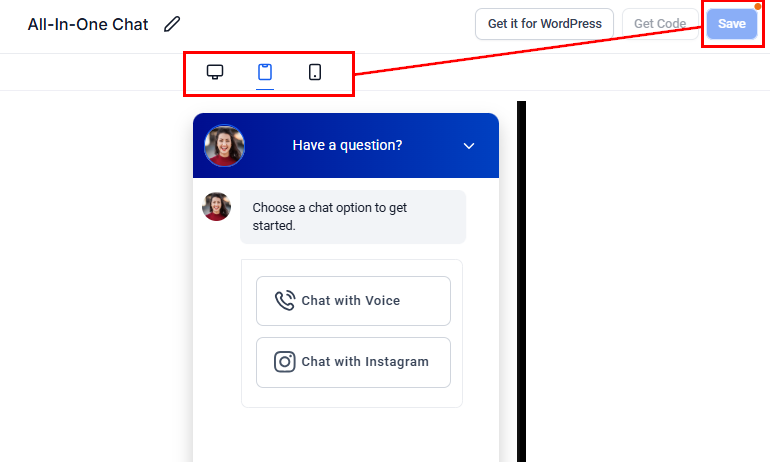
Modify the remaining sections as you prefer, then click Save to apply your changes.
Finally, preview how the widget will appear on each device type, then test it on your devices or in the platform to ensure all channels are functioning as intended.
Using the All-in-One Chat Widget
Switching Channels
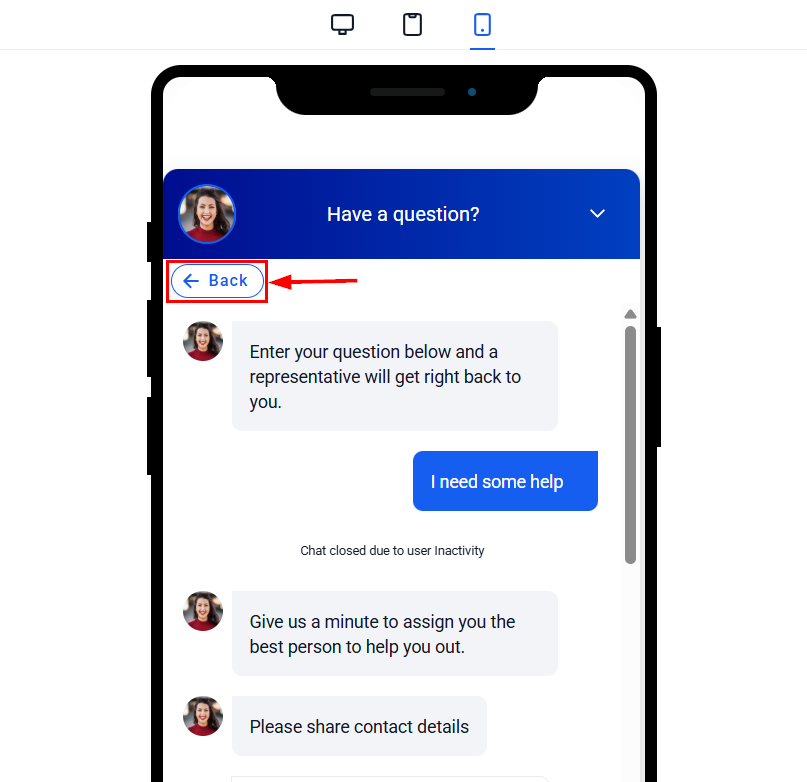
Visitors can easily switch between Live Chat, Email, or WhatsApp by using the Back button in the chat header.
Active Conversations
Chat sessions remain open until manually ended by an account user or closed automatically due to inactivity based on the widget’s timeout settings.
Contact Form Fields
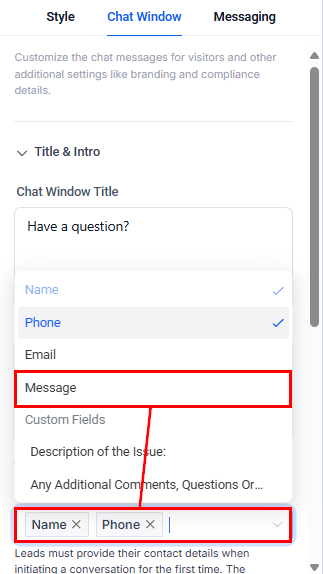
For Email, SMS, and WhatsApp chats, a standard contact form field (e.g., “Message”) is available to capture user information.
With its intuitive setup and customization options, you can enhance engagement, improve team collaboration, and provide a seamless communication experience for your visitors.
Frequently Asked Questions
Q: What if I don’t have a WhatsApp number?
- You can use the All-in-One Chat widget with other messaging channels. WhatsApp Chat will remain hidden until a valid WhatsApp number is added.
Q: Can I customize the color for each channel?
- The All-in-One Chat widget uses a single, unified color scheme across all channels to maintain a consistent brand experience.
Q: How do I end a Live Chat session?
- A session can be closed from the Conversations panel, or will automatically end after a specified inactivity timeout.
Troubleshooting Tips
Widget Not Showing Up: Double-check that you have correctly added the widget to your funnel/website. If you are considering a site built outside the platform, verify that the embedded widget code is correct.
WhatsApp Not Available: Ensure your WhatsApp number is active and correctly configured. If it’s still not visible, review your WhatsApp integration settings.
Email Not Sending: Verify that your email address is properly set up and verified in your account settings.
Not a Funnelbud customer yet?
Try our all-in-one CRM for sales and marketing — free for 7 days, no commitment.