How to Use Global Sections
Maintaining consistency within a single funnel or website can be just as important as managing it across multiple assets. Global Sections are designed to help you do exactly that. They allow users to create, save, and reuse content—such as headers, footers, banners, and calls-to-action—within the same funnel or website, ensuring design uniformity and reducing repetitive work. If this feature is for you, this guide will show you how to create and use global sections to save time while building your pages.
Types of Saved Sections
- Universal Sections: Changes instantly apply across your entire account.
- Global Sections: Changes affect only the current funnel or website.
- Section Templates: Reusable, static sections—changes do not sync.
How to Use It
Saving a Section
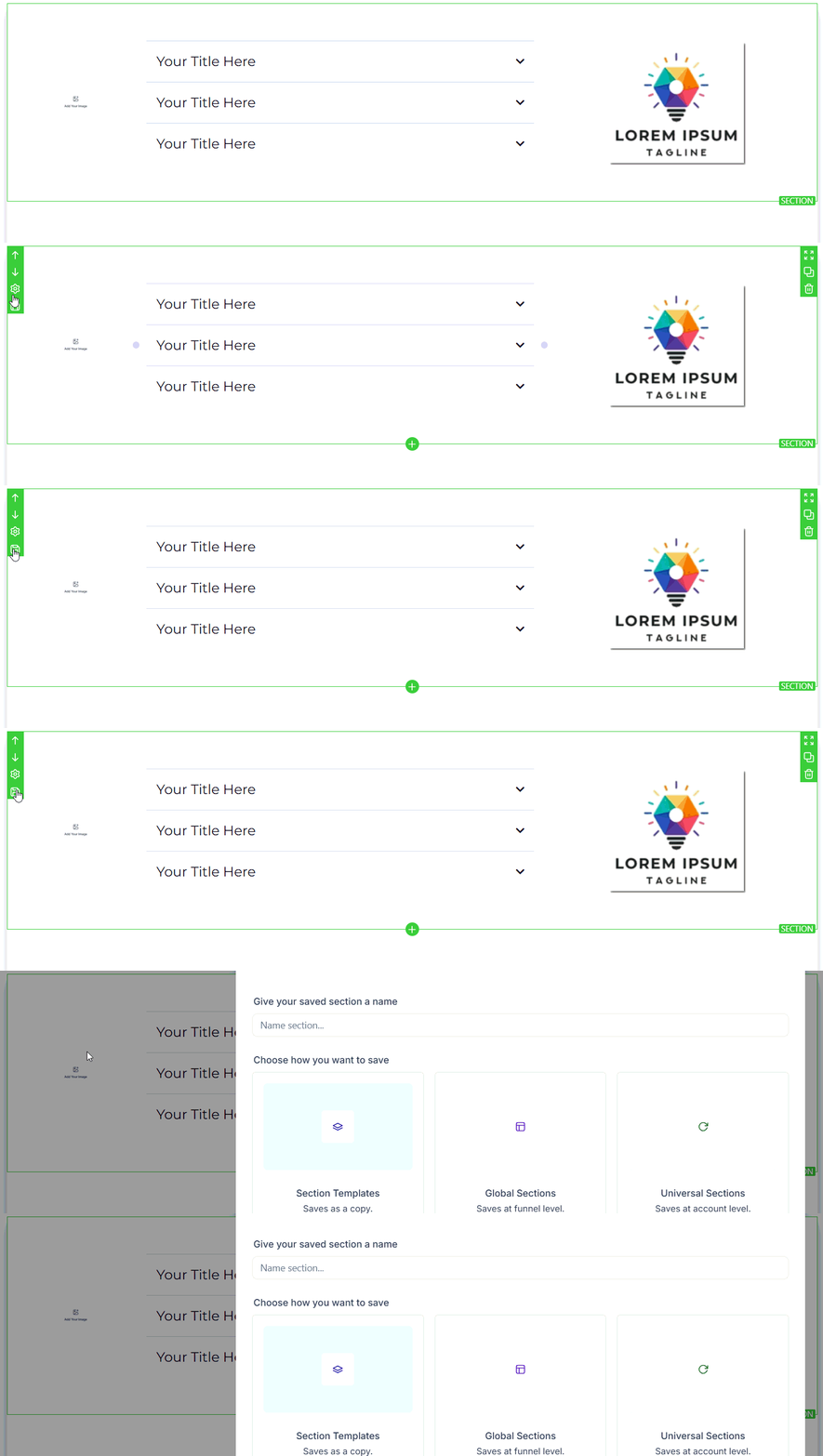
In the Funnels or Websites builder, hover over a section (like a header or CTA), then click Save Section from the left outline.
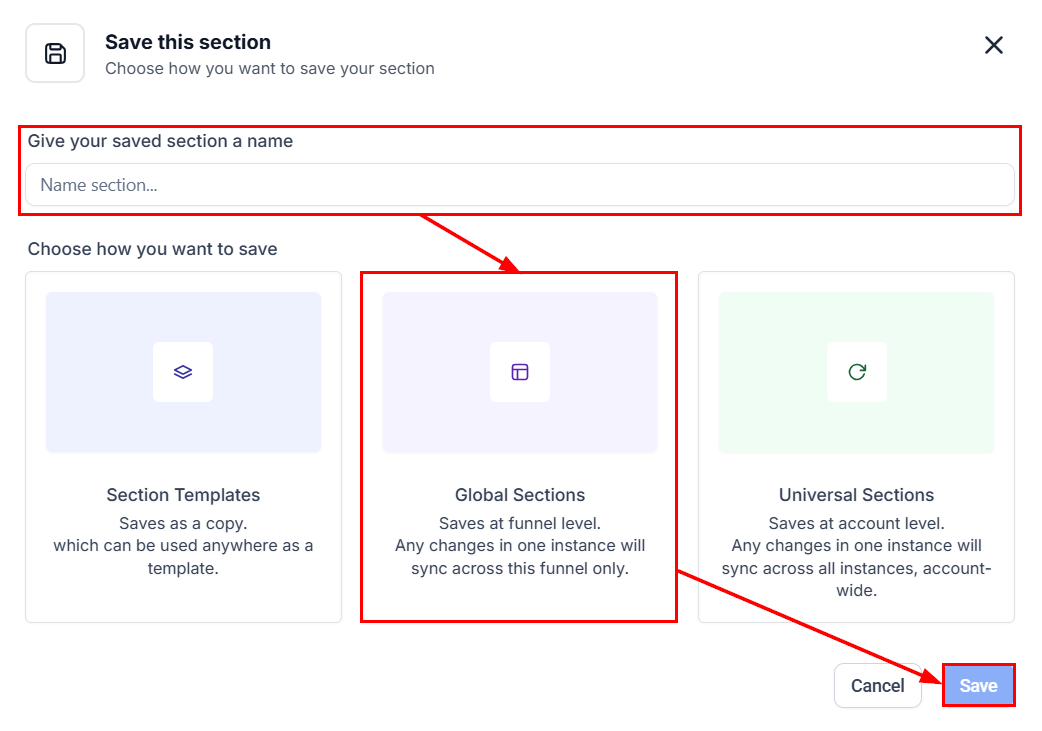
In the Save popup, provide a name, choose the Global Section option, and click Save.
Using a Saved Section
Once a section is saved globally, it becomes accessible to all users within the account to apply it within the asset editor.
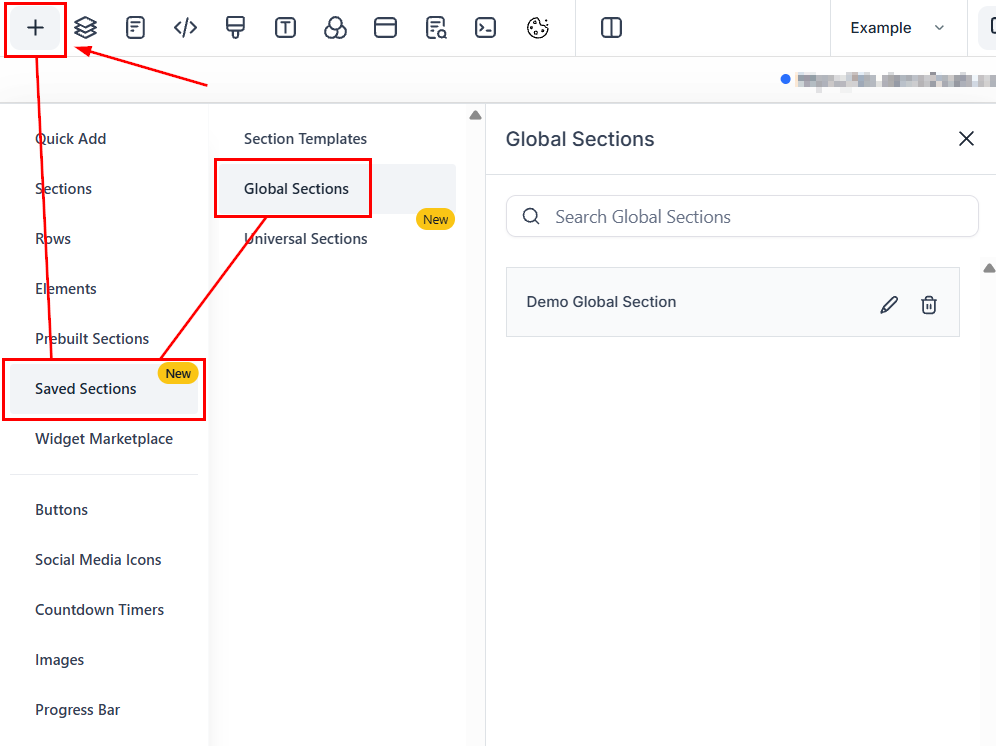
To do so, simply navigate to the ‘Saved Sections’ panel located in the left sidebar.
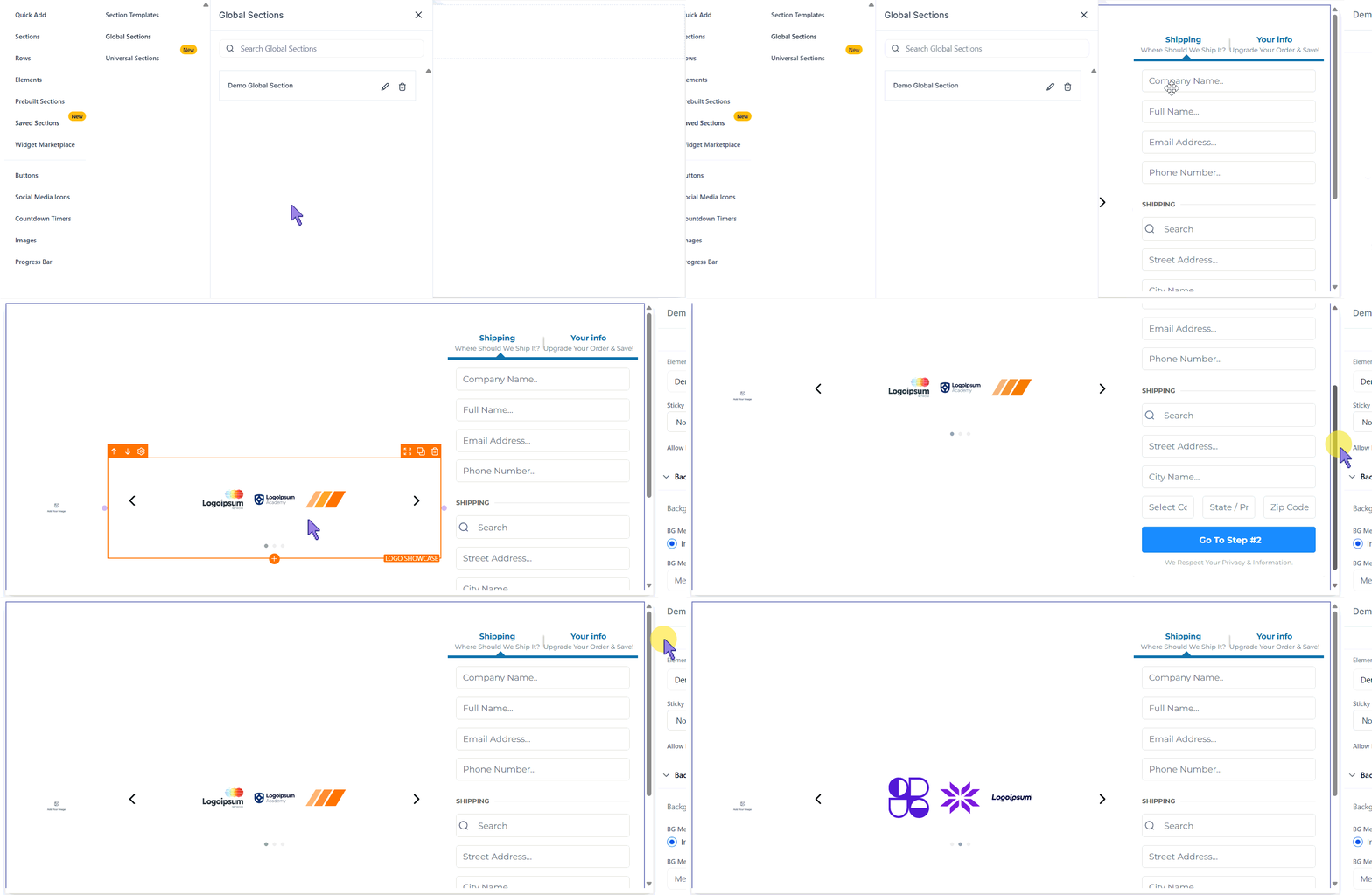
Next, drag and drop your desired section from the Global Sections window into the builder.
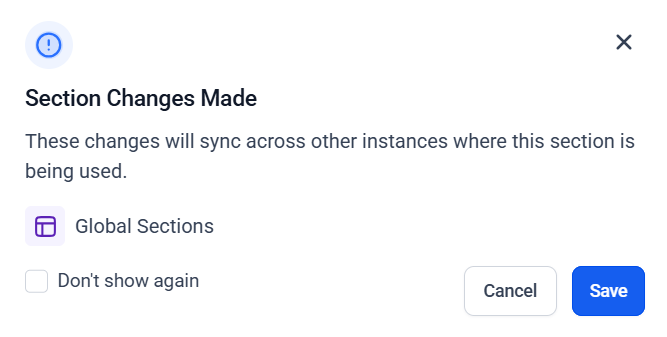
Any changes made to a Global Section will be automatically reflected across all pages where the section has been applied.
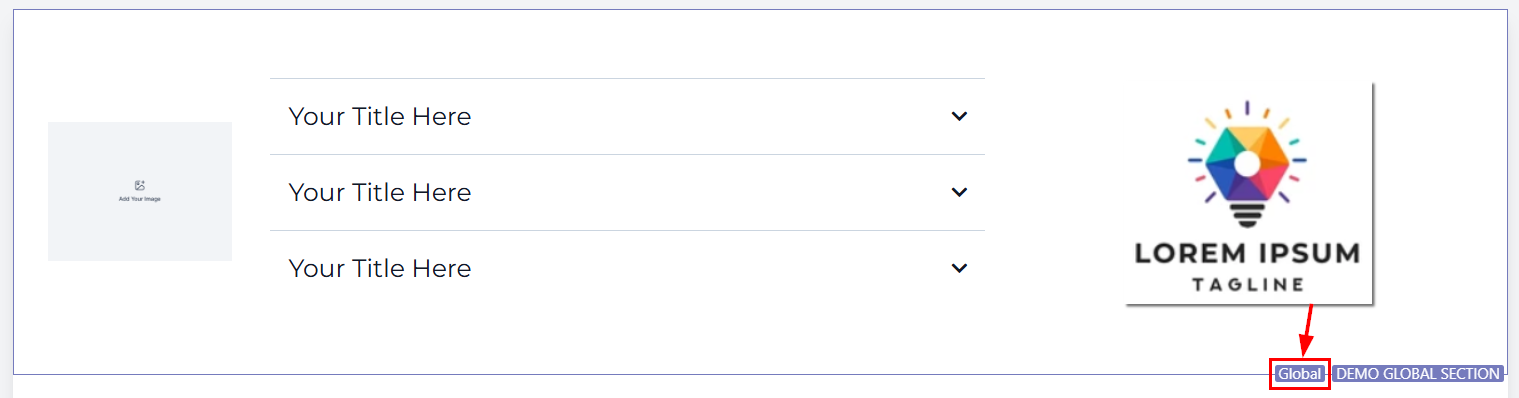
Additionally, you can hover over any saved section to see whether it’s Universal or Global, shown in a bottom-right label for quick identification.
Whether you’re working solo or as part of a team, Global Sections make it easy to maintain a consistent look and feel across multiple pages in a single project. By eliminating the need to manually copy and update identical content, this feature helps prevent discrepancies and enhances collaboration, especially when multiple users are working on different parts of the same funnel or site.
✍Important Notes
- Once a section is saved, you cannot change its type. To change the type, clone the section and save the copy into a different category.
- If a Universal/Global Section already exists on a page, it cannot be reused by dragging it again from the sidebar. You’ll need to clone the existing section instead.
Not a Funnelbud customer yet?
Try our all-in-one CRM for sales and marketing — free for 7 days, no commitment.