How To Use The Workflow Slack Premium Action?
The Workflow Slack Premium Action allows you to automate Slack messages for specific users, private channels, or public channels, making team communication efficient and seamless.
Setting Your Action
To get started, choose a suitable trigger, then select the Slack Action.
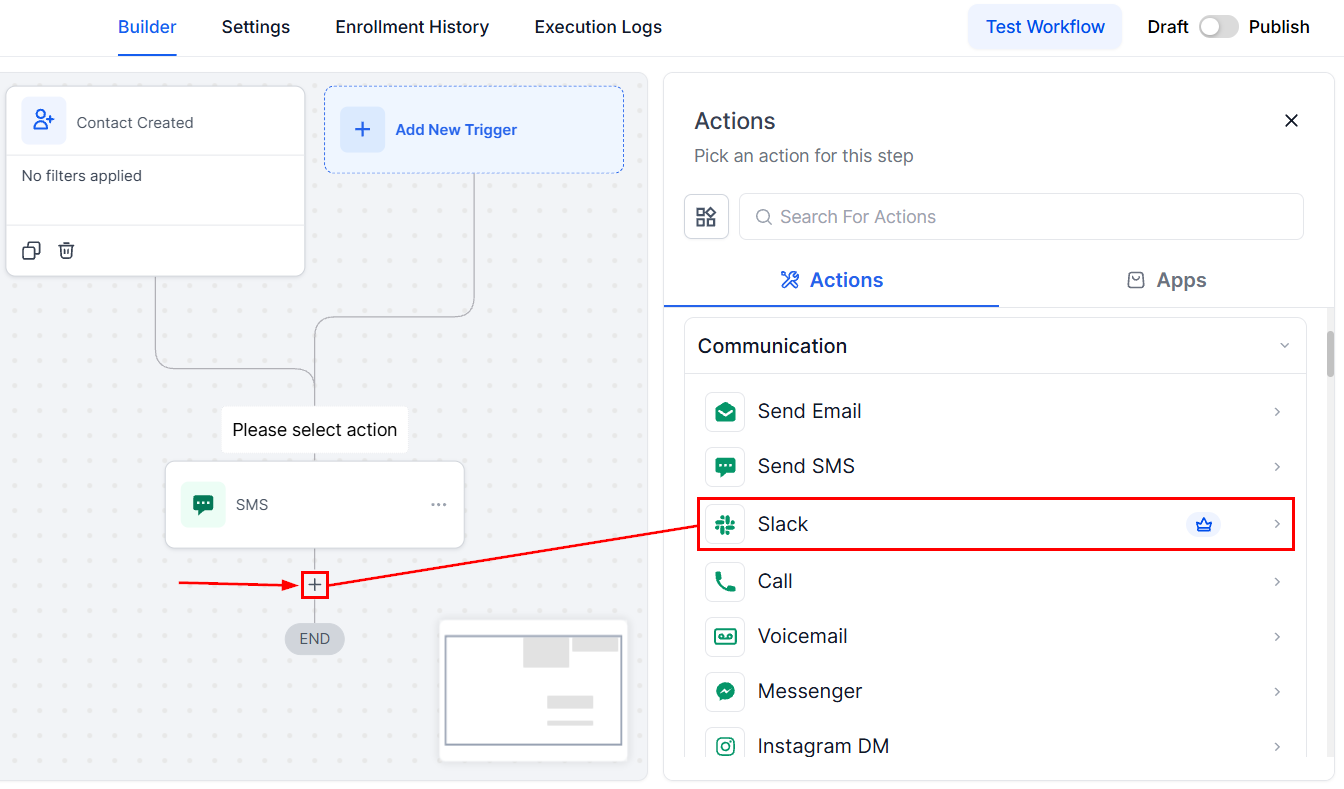
Select the Slack account you want to connect.
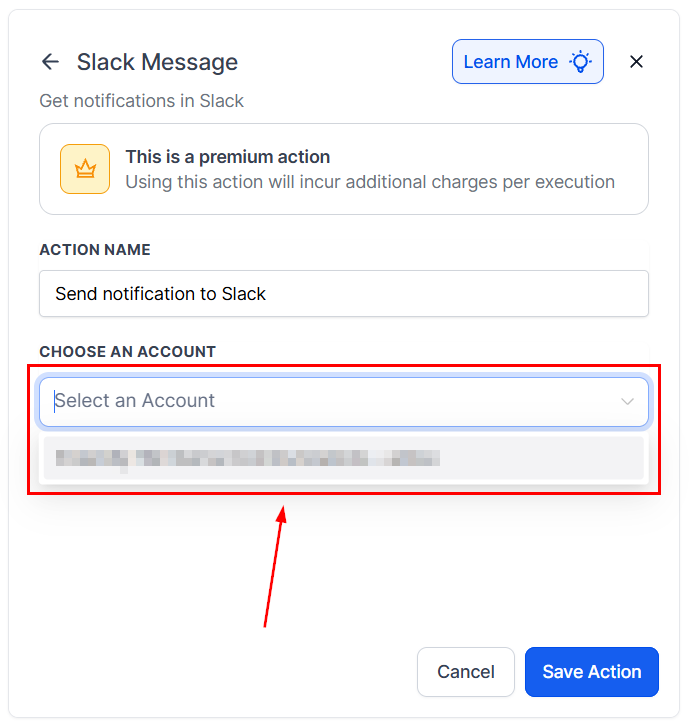
Slack Messaging Options
The Slack Messaging Options feature allows you to tailor your communication by selecting specific recipient types or channels based on your workflow needs. Here’s a breakdown of each option:
Send Direct Message to a User: Choose from four recipient types:
- Assigned User: Send messages to the contact’s assigned user in your CRM.
- Custom Email: Use dynamic or predefined email addresses to locate and message Slack users.
- Internal User: Notify specific account users (e.g., send a “Won Opportunity” alert to the finance head).
- Slack User: Directly message any Slack user in your workspace.
Send Private Channel Message: Select a private Slack channel for secure, focused communication. Messages appear as if sent manually by the user who created the Slack integration.
Send Public Channel Message: Broadcast updates to a public channel, ensuring visibility to all workspace members.
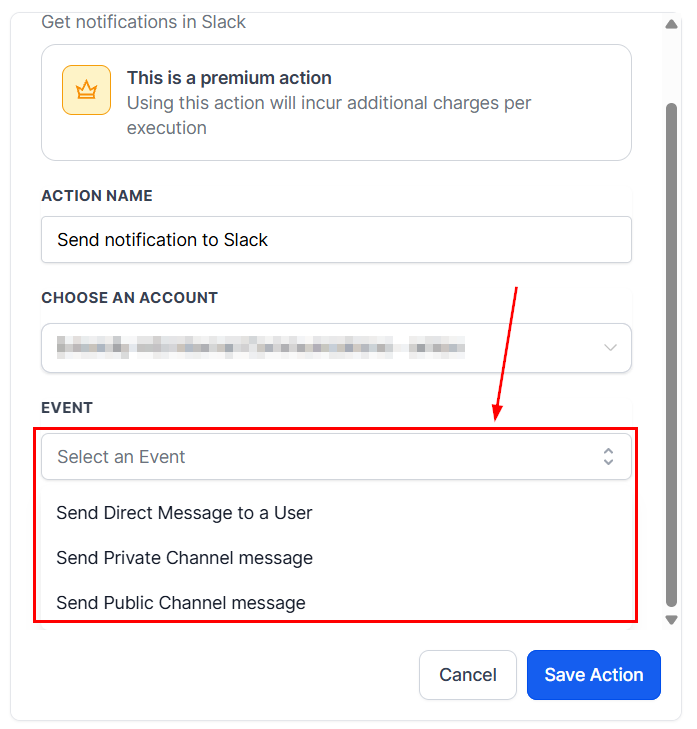
Using The Slack Message Action
In the workflow, pick one of the four user sources: Assigned User, Custom Email, Internal User, or Slack User. Then write your message in the provided field to send a direct message or a channel broadcast.
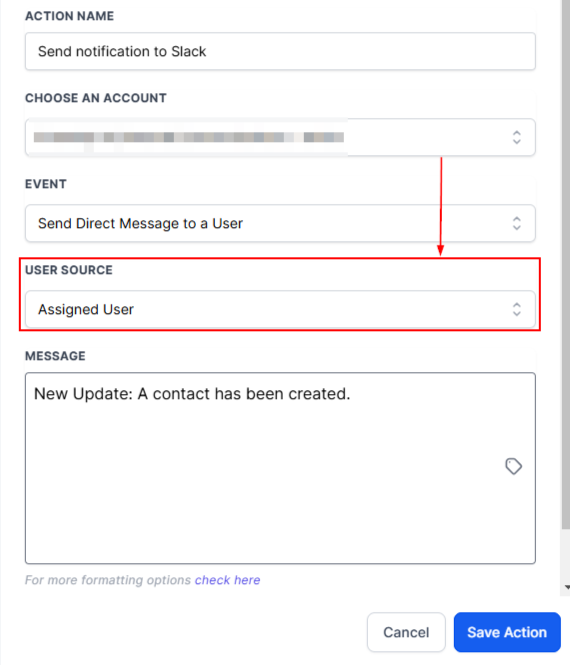
Assigned User (of contact)
This is used to send out notifications for the assigned contact user. In this case, the User’s email (in Settings> My Staff > User Info) for the User Assigned to the contact is used to find the Slack user.
Custom Email
This is used for all the cases where you need a dynamic user to send notifications to. The custom email that is filled in is used to find the matching Slack user.
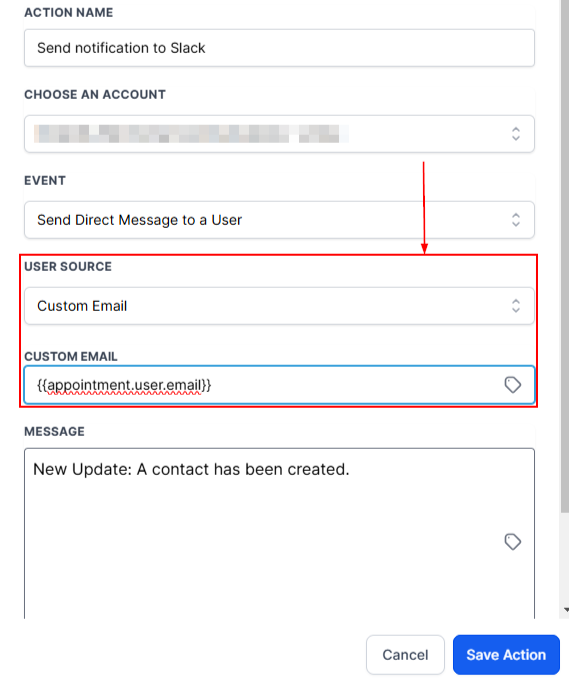
📌NOTE: This is for all those cases where you do not have the User predefined. Either type in the email or select from a list of custom variables using the custom variable picker.
Internal User
This option allows you to send messages directly to an account user. It’s particularly useful for notifying specific individuals responsible for key areas of your business. For example, you can notify your finance head about a successfully closed deal. The system uses the selected Internal User’s email to identify and message the corresponding Slack user.
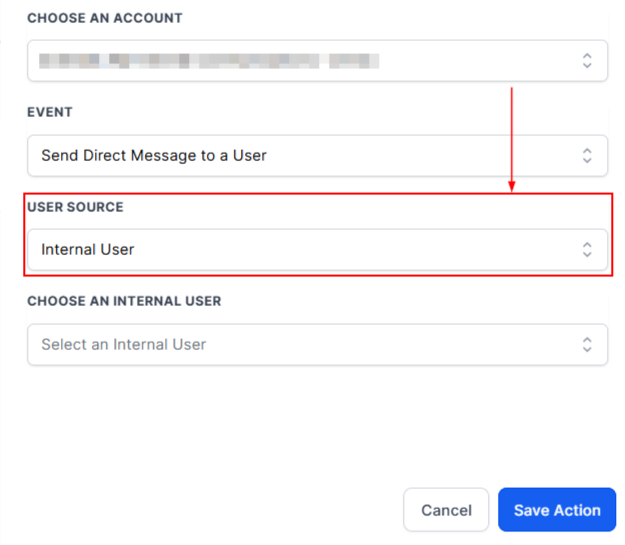
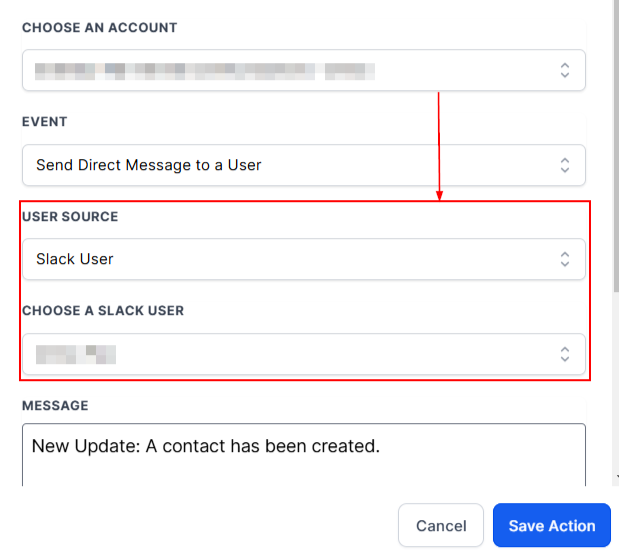
Sending a Message to a Slack User
This is as simple as it sounds. Send a direct message to any Slack user in your workspace.
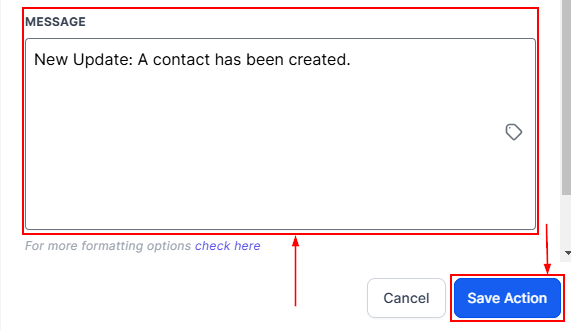
Message Content
Insert Message to send a Direct Message to a User. Remember to Save the Action.
Use Cases
- Project Management: Notify teams about task updates or deadlines.
- Sales & Marketing: Share campaign progress or lead updates.
- Customer Support: Alert teams about customer inquiries or ticket escalations.
- IT & Development: Announce system bugs or outages for faster resolution.
- HR & Company-Wide Announcements: Send organizational updates to all staff.
The Workflow Slack Premium Action saves time by reducing manual communication efforts, improves collaboration with timely updates, and enhances accountability through automated notifications that ensure tasks are monitored and followed up. We hope you enjoy it!
Not a Funnelbud customer yet?
Try our all-in-one CRM for sales and marketing — free for 7 days, no commitment.