How to Embed a Google Calendar on Your Website
Embedding a Google Calendar on your CRM website offers a streamlined way to manage and share events with your team and clients. By centralizing event information, you enhance visibility and ensure that key dates are easily accessible without navigating away from your platform. This guide walks you through the process of embedding a Google Calendar into your website.
Embedding Your Google Calendar
Create or Select Your Google Calendar
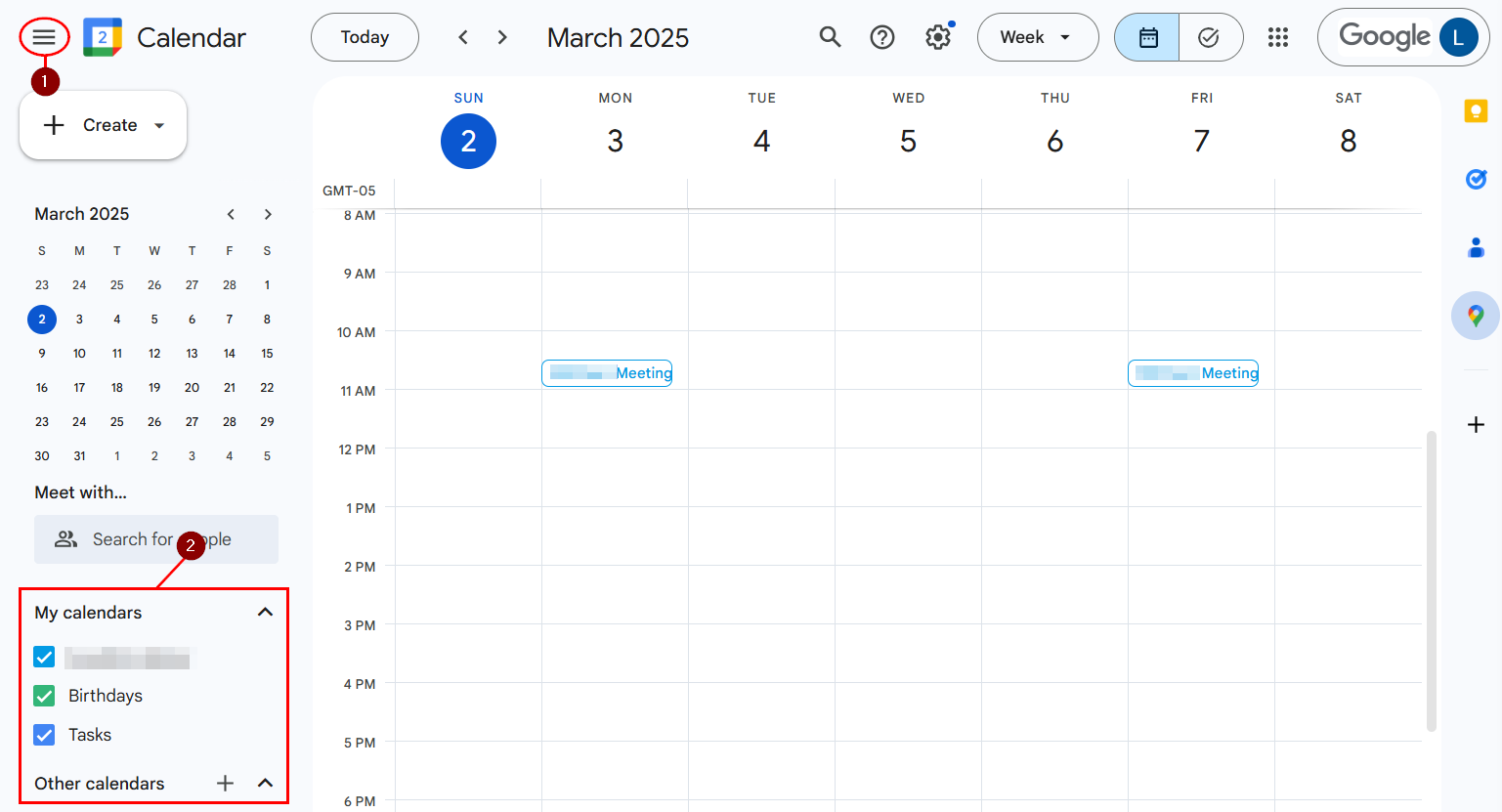
Navigate to calendar.google.com and either select an existing calendar or create a new one by clicking on the plus button next to “Other calendars” and selecting “Create new calendar” from the main menu.
Configure Your Calendar
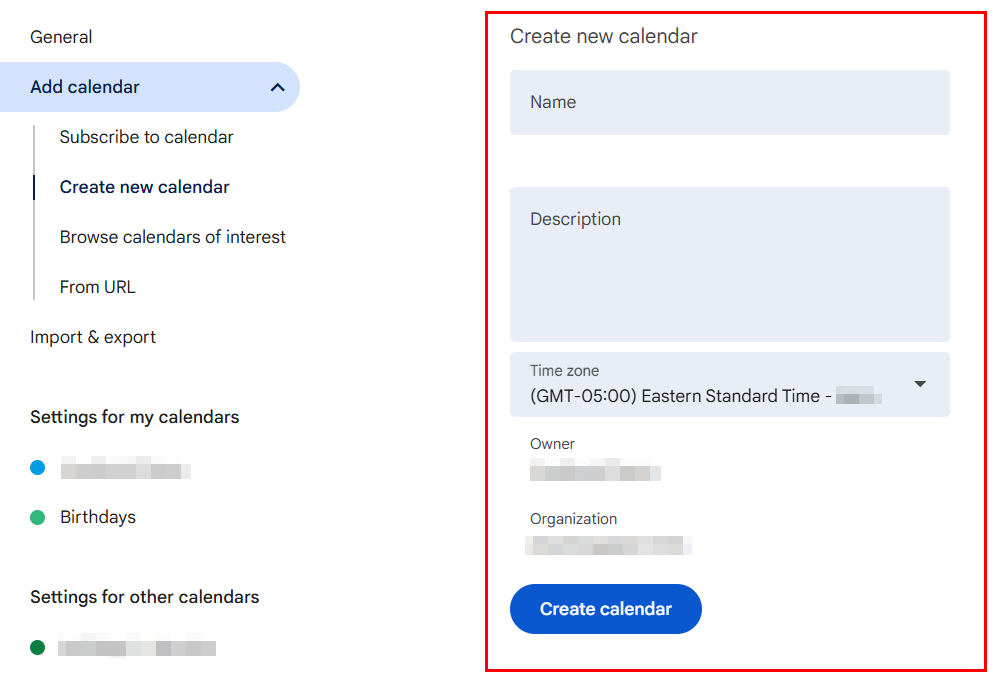
If you have opted to create a new calendar, assign a name to it, and ensure the correct time zone is selected to avoid scheduling conflicts.
Add Events to Your Calendar
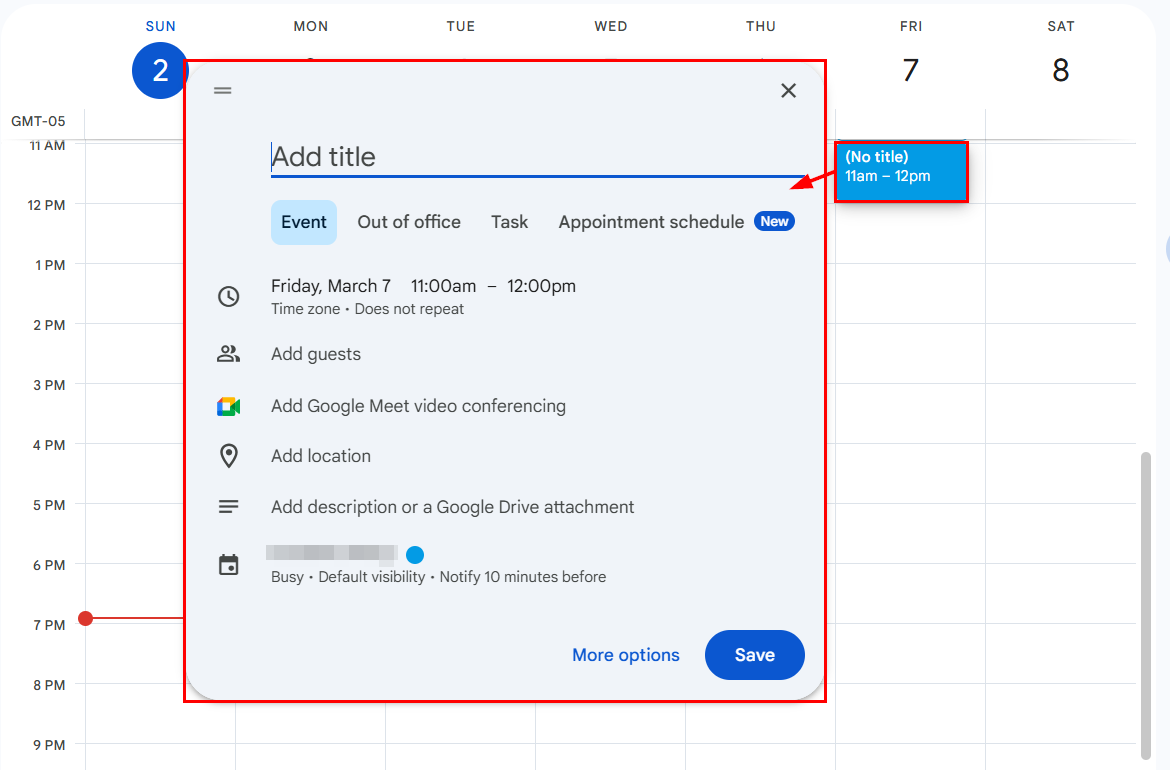
Click on your desired date and time to add an event. You can set it to repeat for recurring events and include details such as event descriptions and links.
Embed the Google Calendar
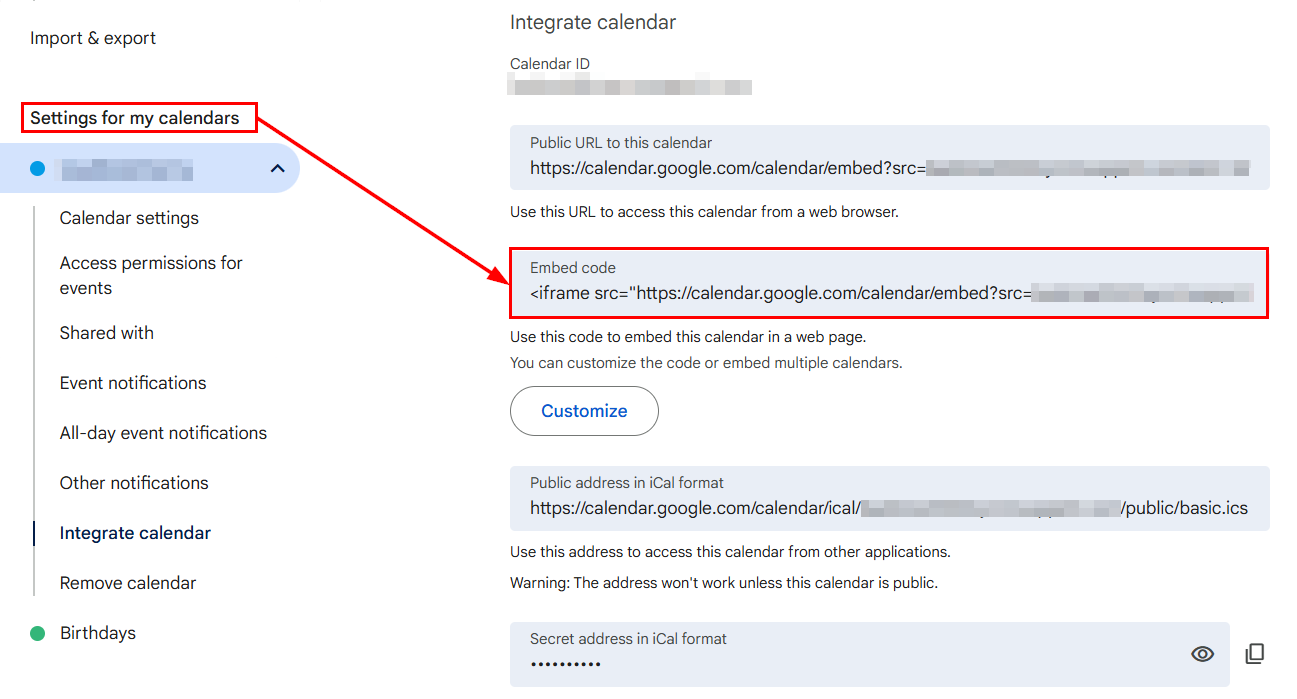
In Google Calendar settings, find your calendar under “Settings for my calendars,” select “Integrate calendar,” and copy the embed code provided.
Modifying Your Website
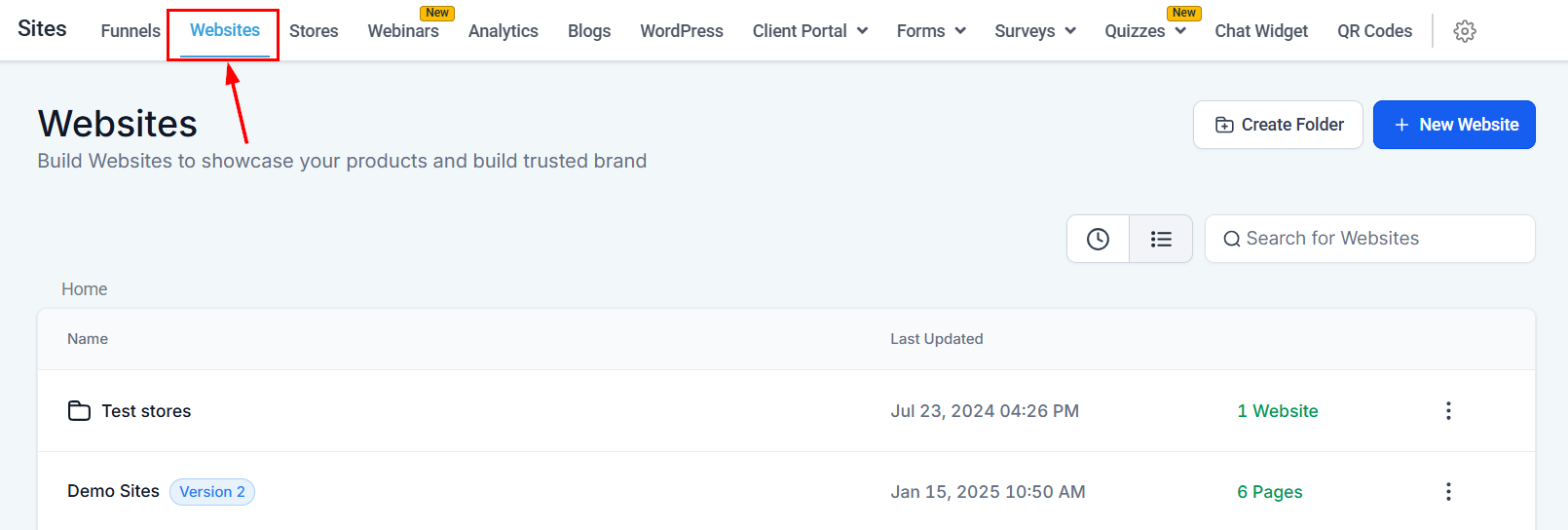
Access the Websites section of your account, and either select an existing site or create a new one where you wish to embed the calendar.
Add a Code element to your page and paste the embed code into this element.
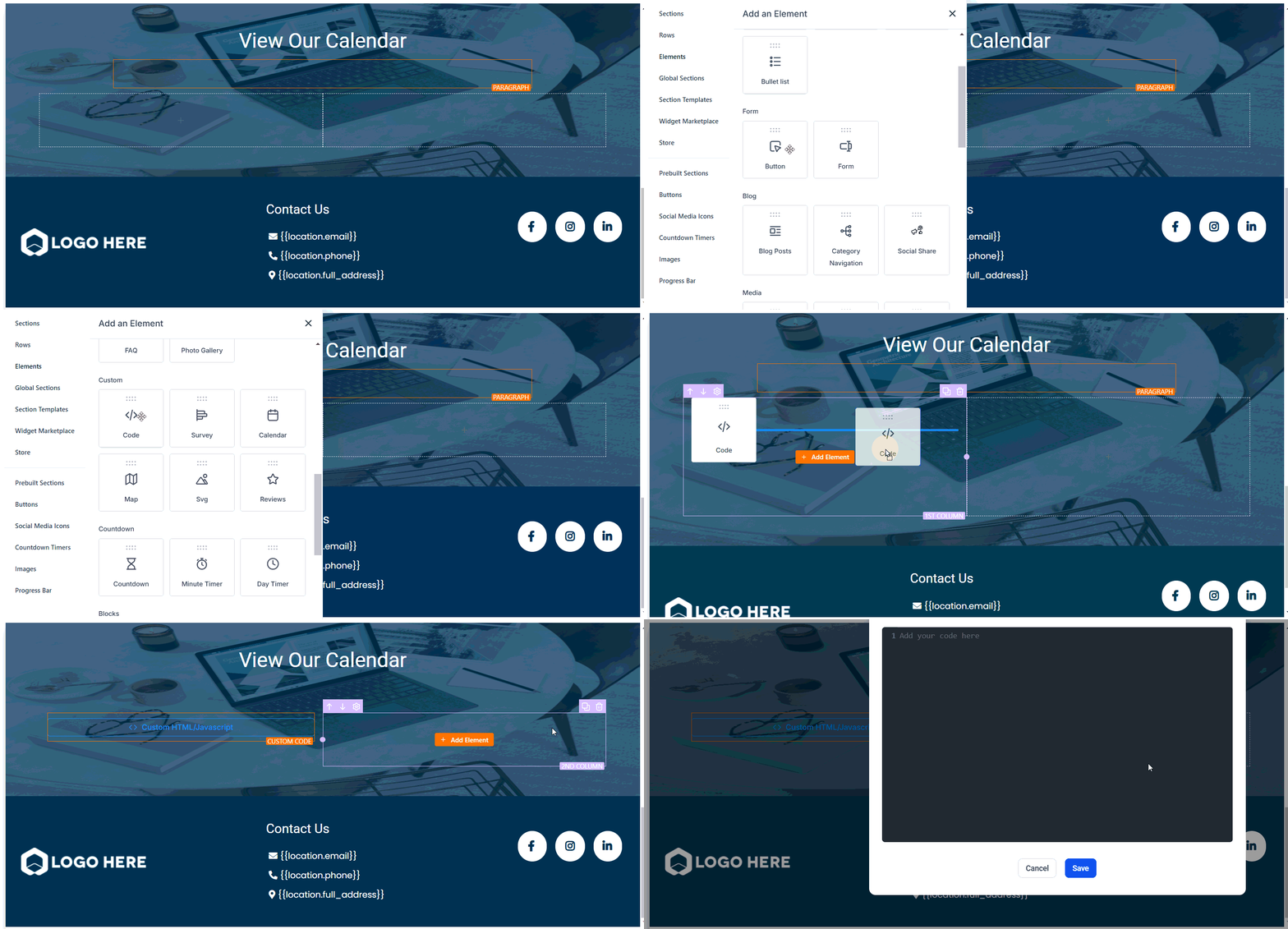
Save your changes and preview the page to ensure the calendar displays correctly. Once satisfied, publish the page.
📌Note: This embedding process enables users to view the calendar; however, clients and team members will not have the ability to make bookings. For booking functionality, it is recommended to utilize the Calendar Element.
Troubleshooting Tips
- If the calendar does not display immediately, ensure you’ve saved all changes and refreshed the page.
- Verify that the Google Calendar is set to public visibility to ensure it can be viewed when embedded on your website.
Frequently Asked Questions
Q: Can I embed multiple Google Calendars?
- Yes, you can embed multiple calendars by repeating the embedding process for each calendar you wish to display.
Q: Will changes to my Google Calendar automatically update on my CRM website?
- Yes, any updates or new events added to your Google Calendar will automatically reflect on the embedded calendar on your CRM website.
Q: Can I customize the appearance of the embedded calendar?
- Google provides customization options for the calendar, such as adjusting the size and color theme to better match your website’s design.
Not a Funnelbud customer yet?
Try our all-in-one CRM for sales and marketing — free for 7 days, no commitment.