How to Manage Cards on File for Contacts on the Mobile App
Payments are the bread and butter of business; many times, marking the most important step of a customer’s journey. So, if you mostly use the Mobile App to manage your business, follow along to learn how to securely save and manage customer cards directly from a contact’s Payments section.
Adding A Card
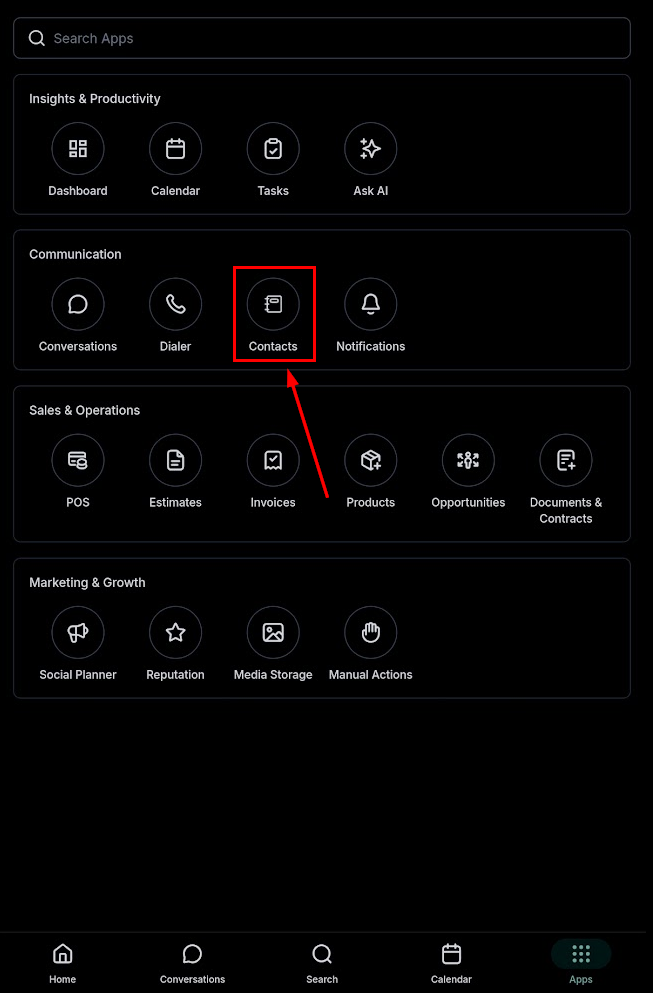
Open the mobile app and navigate to the Contacts section.
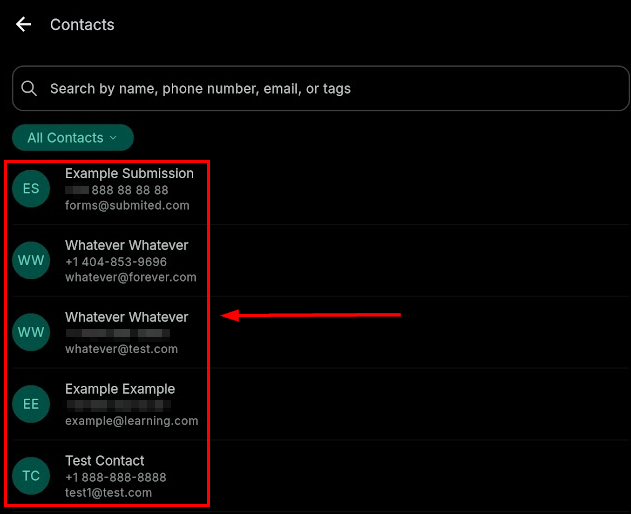
Select a Contact.
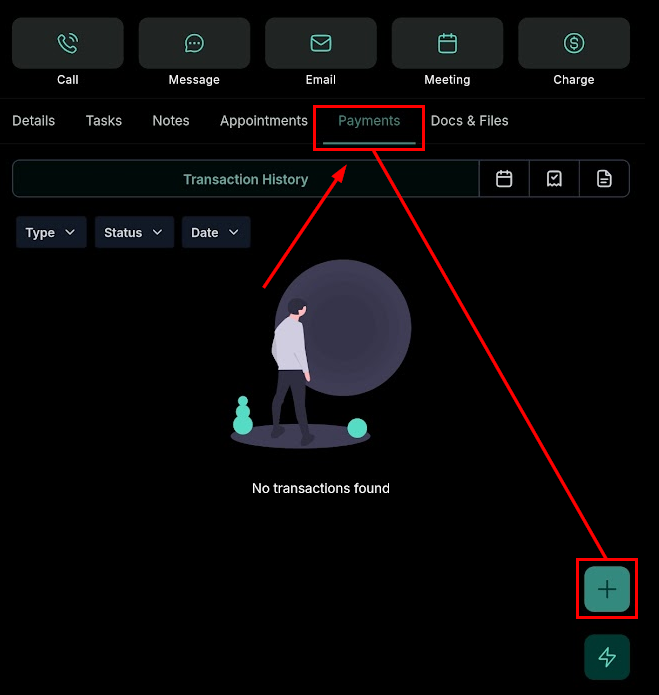
Go to the Payments section and tap the floating action button (+).
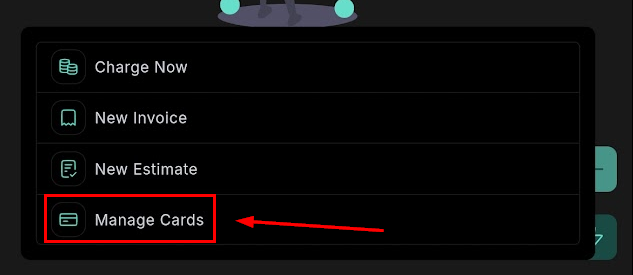
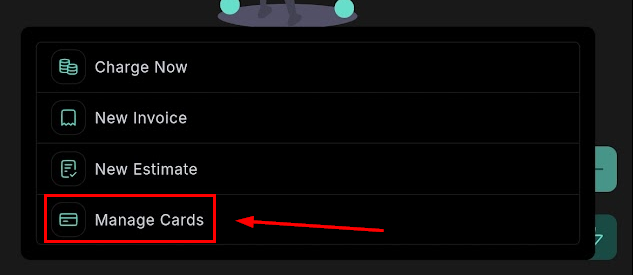
Select Manage Cards on File.
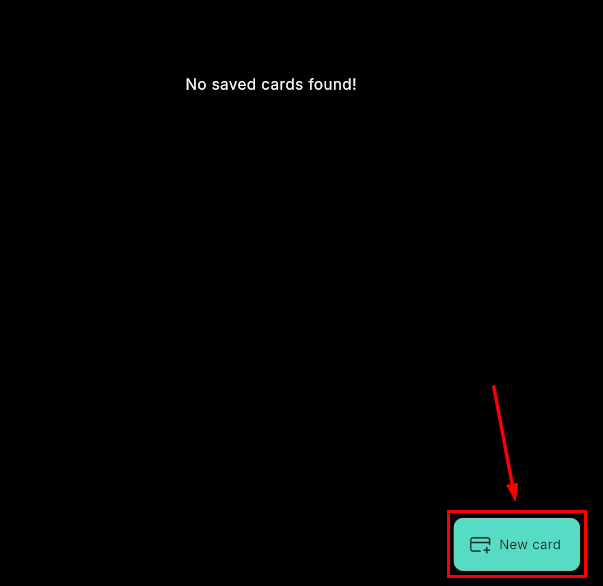
Click “+ New card” then enter the card details and save the card to the contact.
Removing A Saved Card
Open Manage Cards on File for the contact.
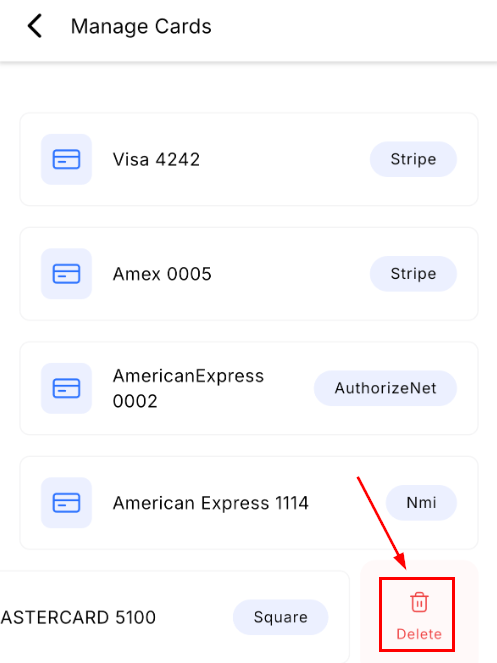
Swipe left on the card you want to remove and tap Delete.
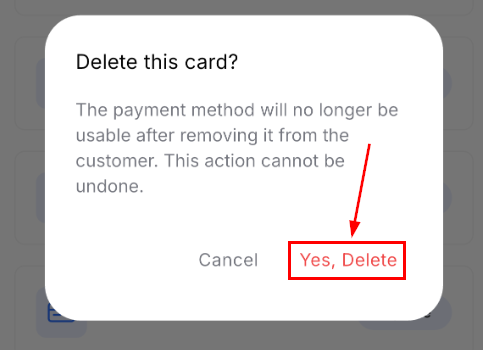
Confirm the action when prompted.
This helps you speed up checkout, keep customer payment details organised, and make repeat payments smoother and faster. Covering all your payment management needs from the comfort of your Mobile App.
Not a Funnelbud customer yet?
Try our all-in-one CRM for sales and marketing — free for 7 days, no commitment.