Auto-Payment for Invoices
Automated payments in recurring templates ensure timely invoice settlement without waiting for customer action. This feature automatically deducts the invoice amount from the customer’s credit card on the due date.
Enabling Auto Payment
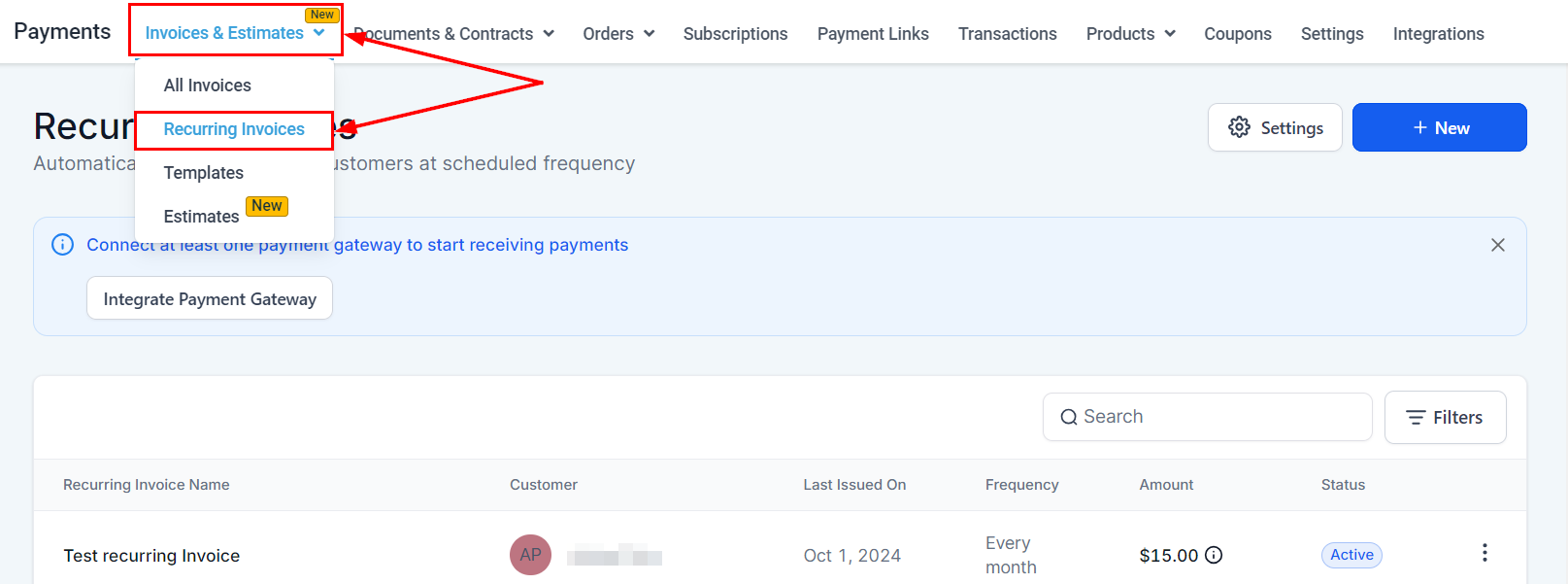
You can enable this option for both new and old invoices. To do so, start by going to the Recurring Invoices section in your Payments tab.
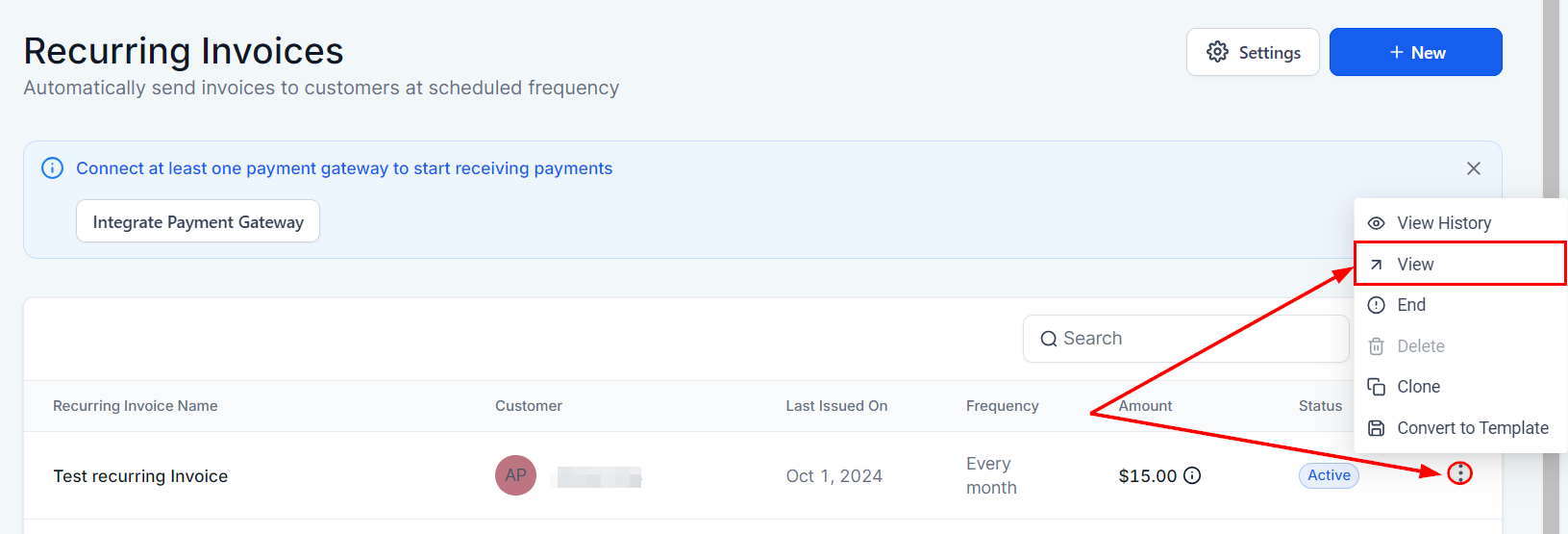
Create your new recurring invoice as normal or click on the three dots icon next to an existing Invoice to open the options then click View.
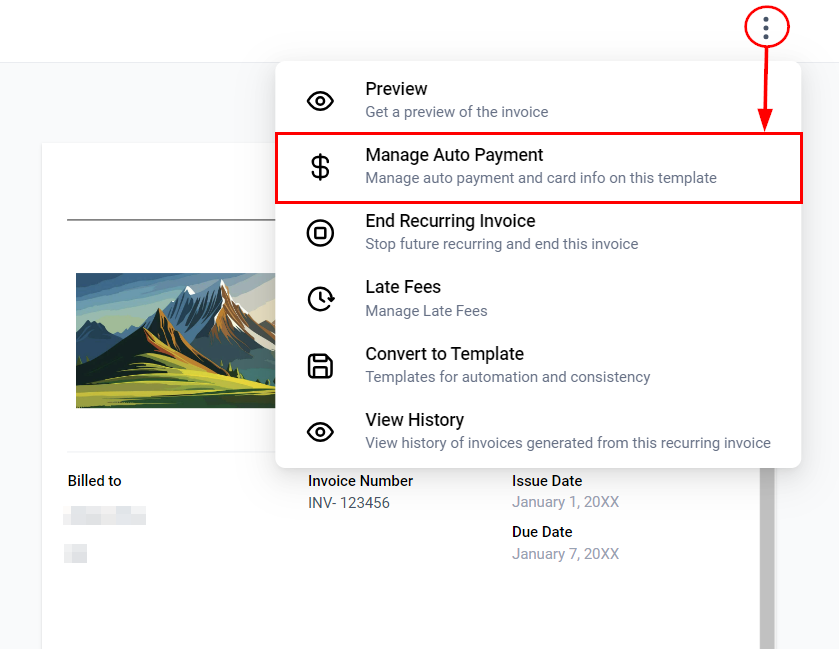
Within the Invoice Builder, click on the three dots located in the upper-right corner of the screen. This will open a dropdown menu, allowing you to select the “Manage Auto Payment” option.
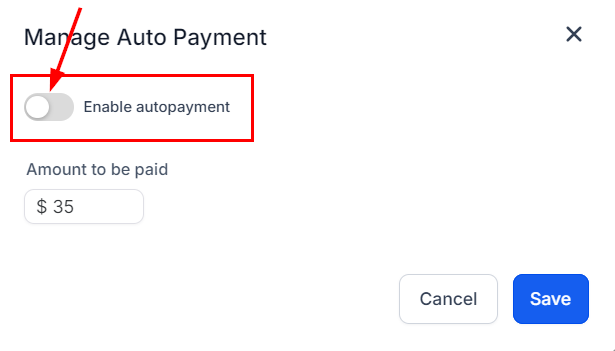
Enable the Manage Auto Payment feature by toggling the switch. Once the switch is toggled, you can proceed to select the appropriate payment method, such as the customer’s card, a saved card, or a new card.
- Customer Card: Automatically charges the customer using the card they initially used for payment in the recurring template.
- Saved Card: Utilizes any saved cards associated with the customer for automatic charges on each due date.
- New Card: Allows input of new card details for charging customers on specific cards when invoices are due in the recurring template.
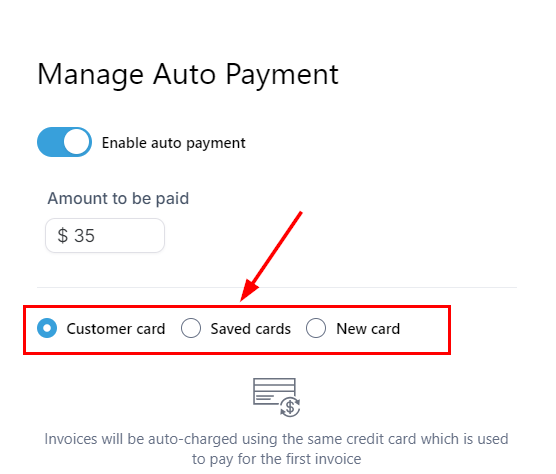
Once the card is chosen, click the update button to apply your changes. With these few steps, you can easily enable or manage auto payments, ensuring smoother operations and uninterrupted revenue.
Frequently Asked Questions
Q: How will I be notified of auto payments?
- Both the account user and the end customer will receive notifications for every successful or failed instance of a child invoice within the recurring template. Additionally, the end customer will be notified in advance before any automatic charge is made, with the notification sent “x” days in advance as specified in the recurring settings.
Q: What happens if auto-payment fails?
- In the event of an auto-payment failure, both the end customer and the invoice sender will be notified via email. If the customer successfully pays using the same card or a new card after notification, the new card will be updated for future auto-payments.
If the payment remains unsuccessful, the system will retry the payment two more times, with 24 hours between attempts. After these retries, if the payment is still not processed, the customer will need to pay the invoice manually.
Q: How many times will payment be retried in case of failure?
- If the auto-payment fails, two additional attempts will be made, each 24 hours after the initial failure. If the payment is still unsuccessful, the end customer must pay the invoice manually.
Q: How do I end auto-payments on a recurring template?
- Auto-payments can be disabled on an ongoing recurring template by selecting the “Manage Auto-payments” option in the Invoice Builder. This will open the Auto-payment scheduling modal, where you can turn off the auto-payment toggle to stop future automatic payments.
Not a Funnelbud customer yet?
Try our all-in-one CRM for sales and marketing — free for 7 days, no commitment.