Customer Booked Appointment Trigger
Appointments with customers are the best way to create a personal connection, and you don’t want to miss the opportunity to leave a good impression. So, what better way to ensure everyone has clear expectations and is taken care of than by using a workflow?
Adding The Customer Booked Appointment Trigger
With this trigger, you can easily connect with customers, confirm appointments, and establish communication as soon as they book an appointment. Let’s see how to use it.
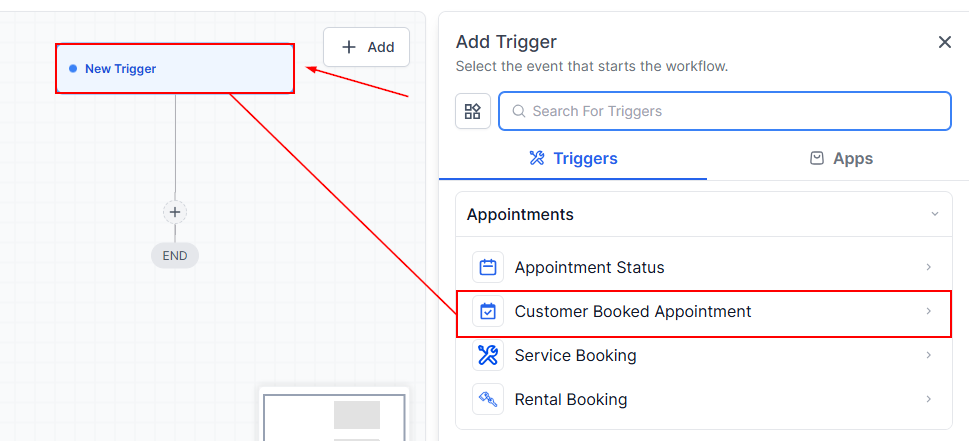
To begin, click Add New Trigger and select Customer Booked Appointment.
Choosing who to Enroll
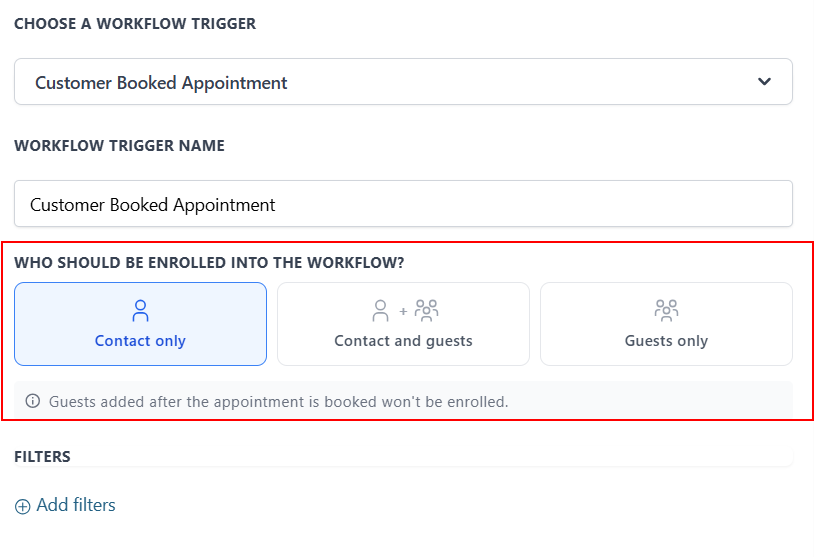
Select who should be enrolled to the workflow, whether it should be the contact or guest only, or both. Choosing Contact and Guests runs the workflow for everyone, while Guests only skips the primary contact.
Adding Filters
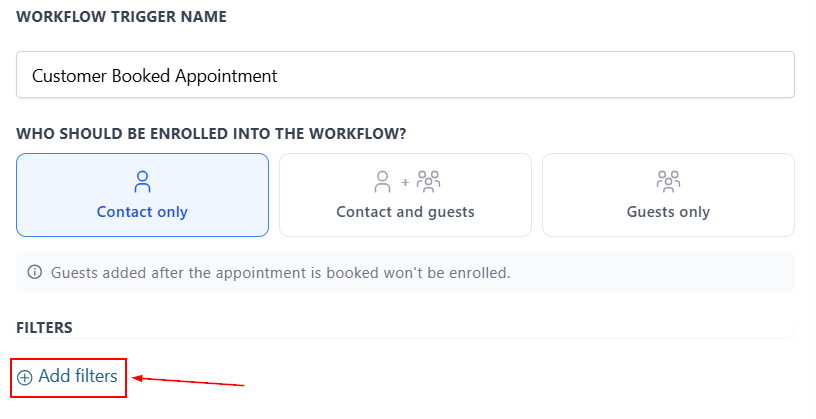
Click “+ Add Filters” to narrow down the interactions that trigger your workflow.
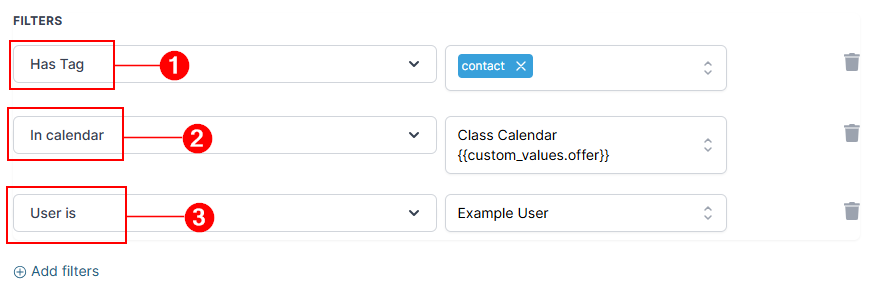
The main filters for this trigger will be:
- Has Tag: This allows you to select any of your tags as an additional requisite for the contact to trigger the appointment.
- In Calendar/In Calendar Group: Use this to select a specific calendar/calendar group as valid for triggering your workflow.
- User Is: This can be added once you’re filtering for a specific Calendar Group to only trigger the workflow if the appointment belongs to a specific person.
Once you are satisfied with your selections, save the trigger and your workflow!
Complete your workflow by adding actions, such as sending an Email to reach out first, internal notifications to remind your team of the upcoming appointment or scheduling a thank you message for a few hours after the appointment. This trigger is sure to give you an effective way to automate the contact process for contacts with booked appointments.
Not a Funnelbud customer yet?
Try our all-in-one CRM for sales and marketing — free for 7 days, no commitment.