How to Configure Rebilling in Bulk
The Sub-Accounts list includes built-in tools for bulk rebilling configuration, giving you more control, consistency, and speed in how you apply billing logic across your client portfolio. This bulk rebilling workflow is especially helpful for fast-growing agencies that manage dozens—or even hundreds—of sub-accounts. It saves valuable time, ensures consistent markup strategies, and helps monetize services more effectively with fewer manual steps.
How It Works
Navigate to the Sub-Accounts page, and select the individual accounts you want to configure or select all sub-accounts.
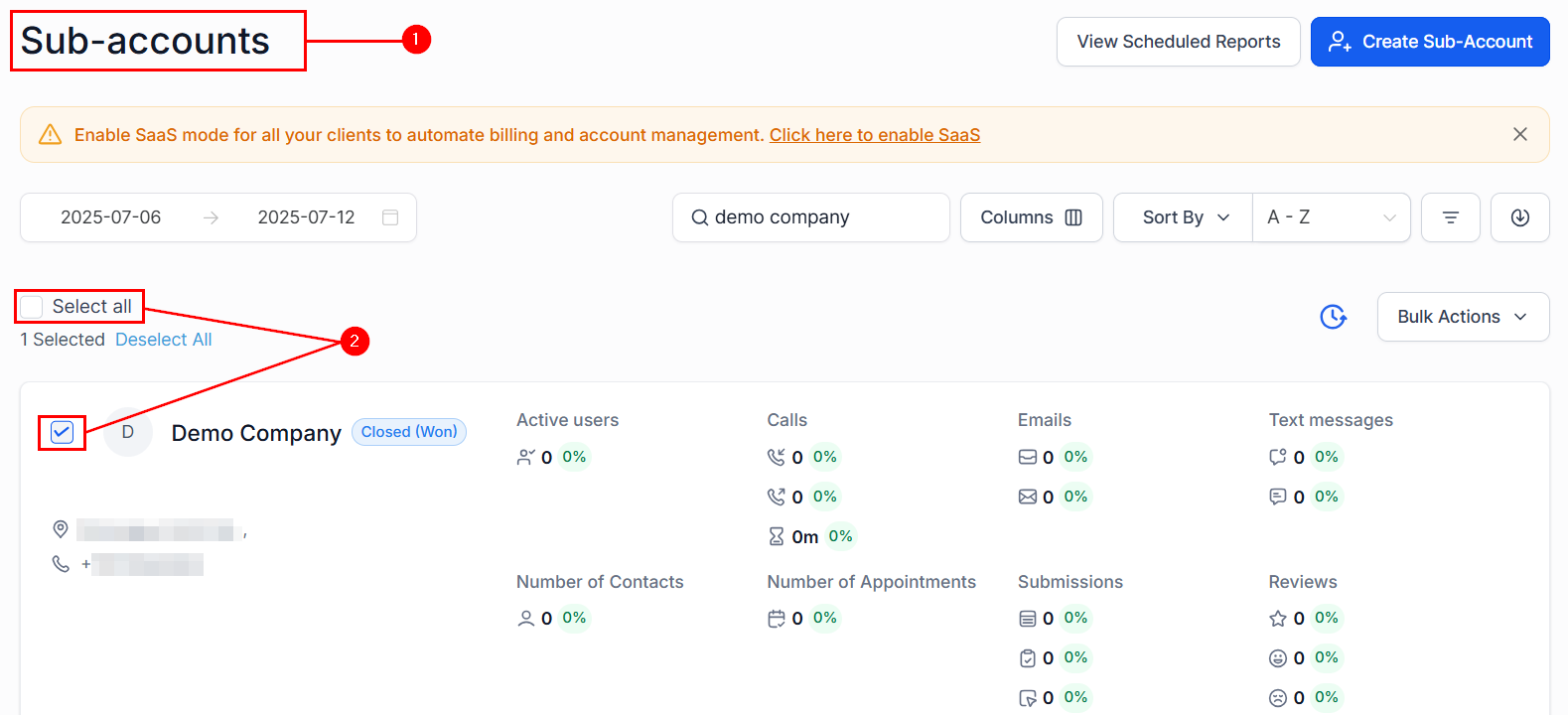
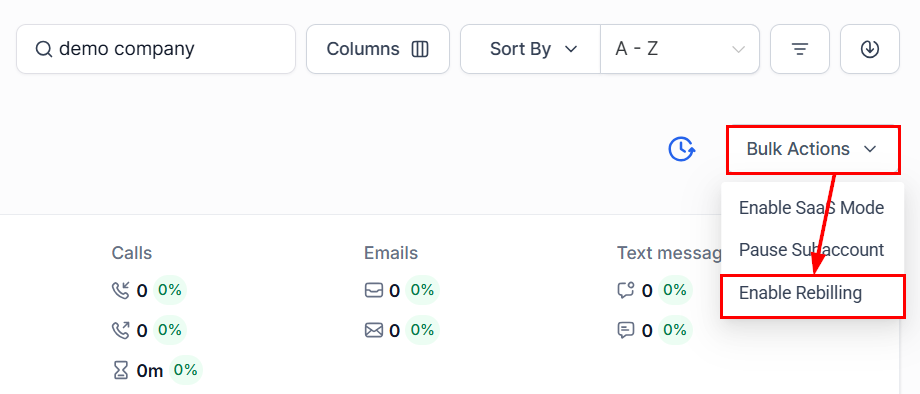
Next, click the Bulk Actions button and choose Set Rebilling from the dropdown menu.
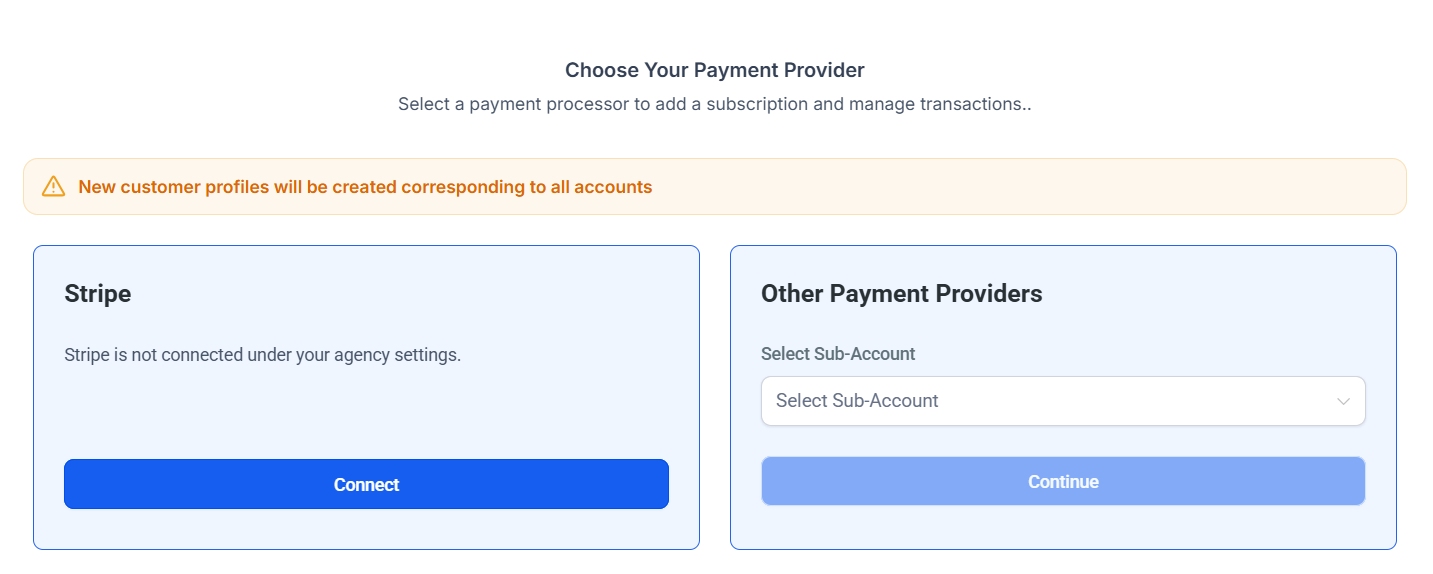
Choose your preferred payment provider (Stripe or another provider connected to a Sub-Account), then click Continue.
A new window will appear, allowing you to configure markup rates for services such as the Phone and Email System, LC - Premium Triggers & Actions and Workflow AI, and Domain Purchase.
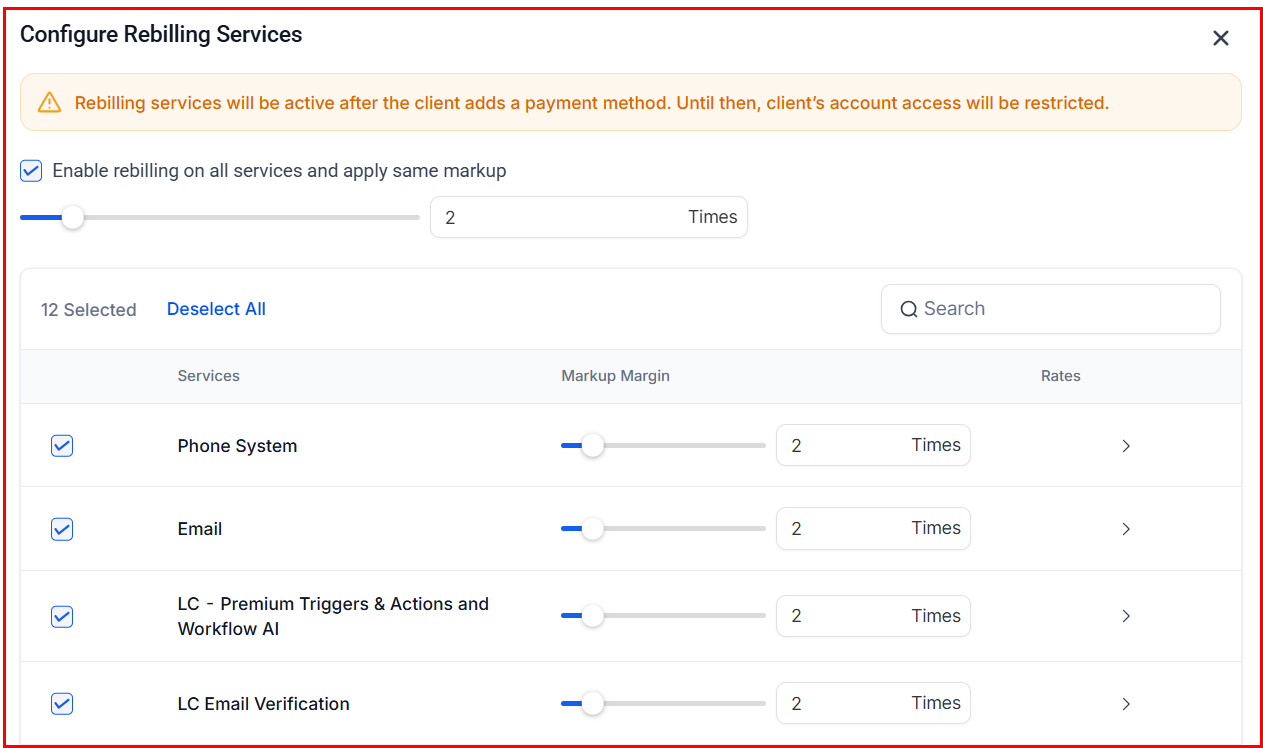
The same margin can be applied across all services by checking the box, or configured independently by entering a value in the Markup Margin field or adjusting the slider.
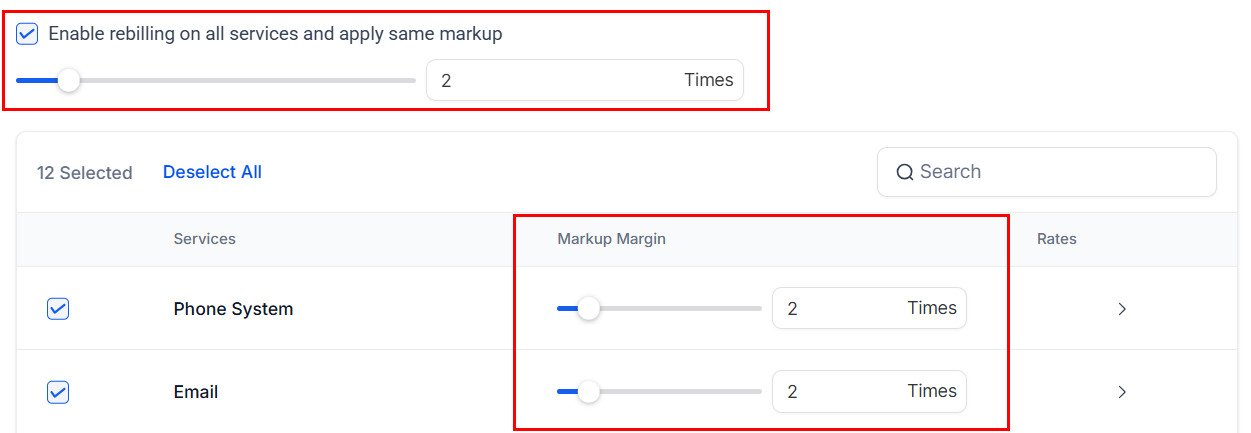
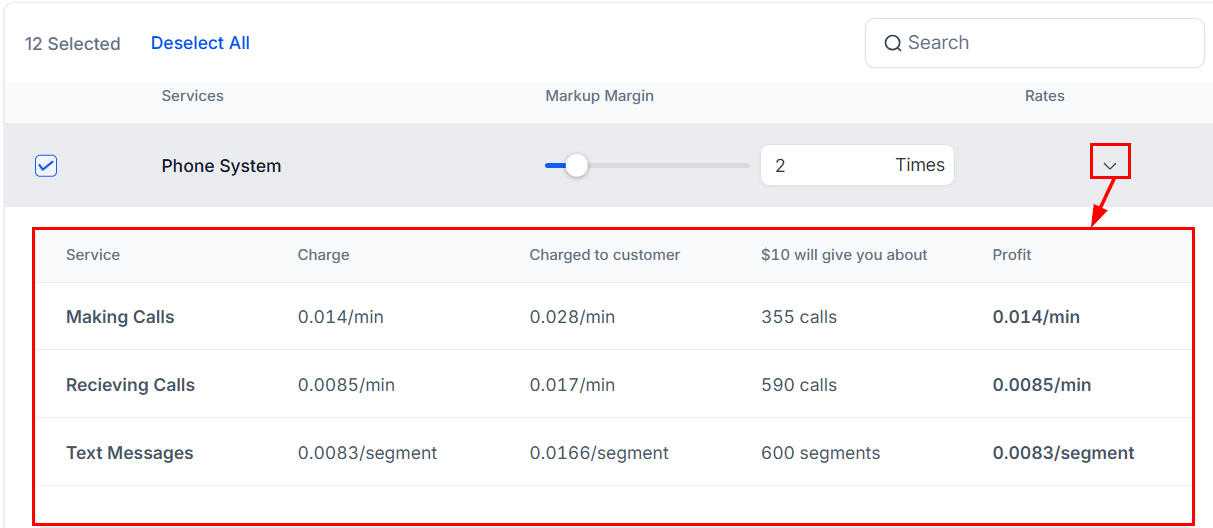
Additionally, you can expand the Rates section to view a breakdown of the charges applied to the customer for each service and the profit you will receive.
Once you have finalized your selections, hit Proceed to complete the setup.

With bulk rebilling tools built directly into the Sub-Accounts view, managing payment configuration is faster, more scalable, and less prone to error. Whether onboarding new clients or updating your billing structure, this feature helps streamline your agency operations with confidence.
✍️Important Notes
- If a sub-account already has a payment method on file, rebilling begins automatically. If not, the system sets up the billing profile and activates rebilling once a card is added.