Content Management in Communities
Content Management in Communities is a robust feature that empowers group administrators and members to create, organize, and engage with posts and channels within a community. It offers a range of capabilities, from sharing videos to handling comments and likes, enabling dynamic interactions in the community.
Group Channels
Multiple channels are available within each group to categorize discussions and facilitate organized conversations. Only admins have the privilege to create these channels.
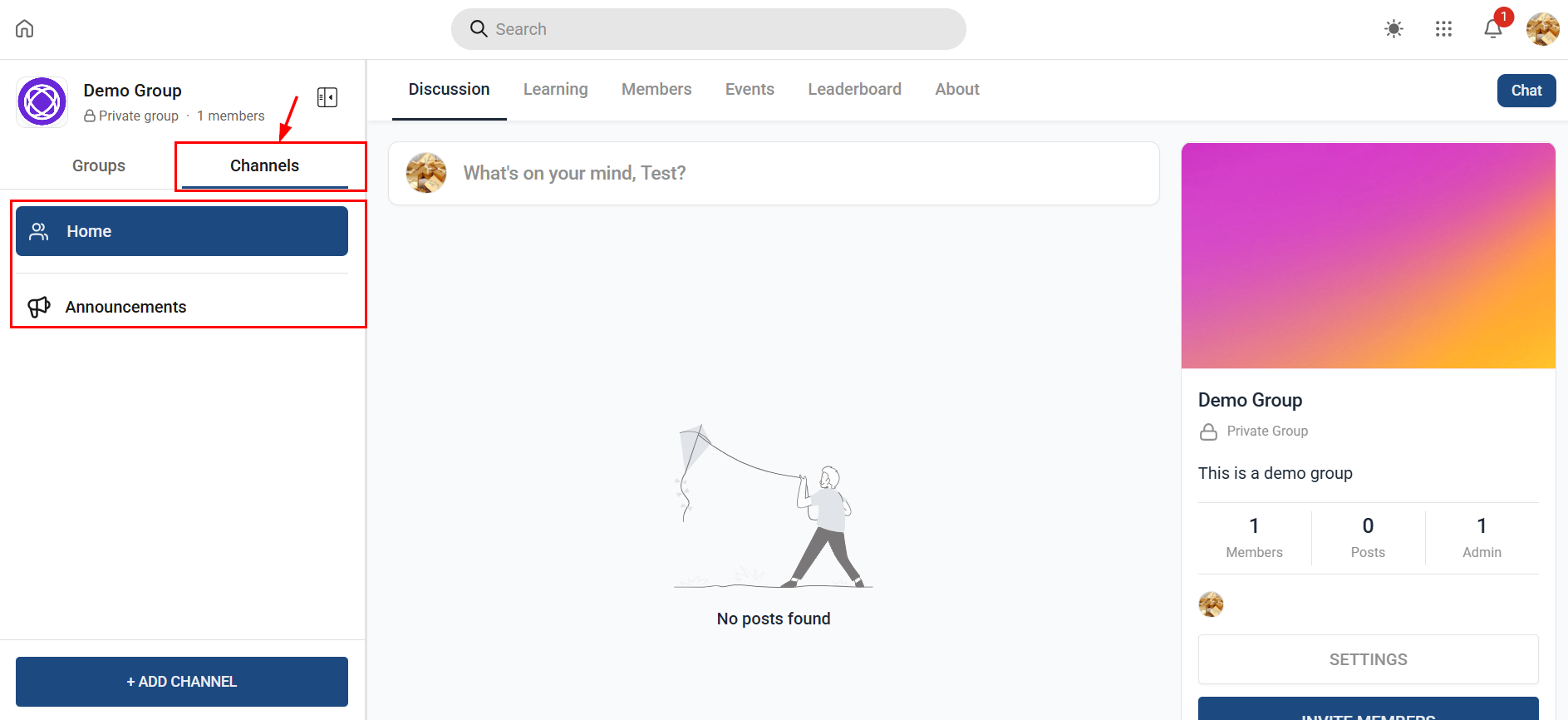
Creating a Channel
Locate and click the “Add Channel” button in the group interface’s left bar.
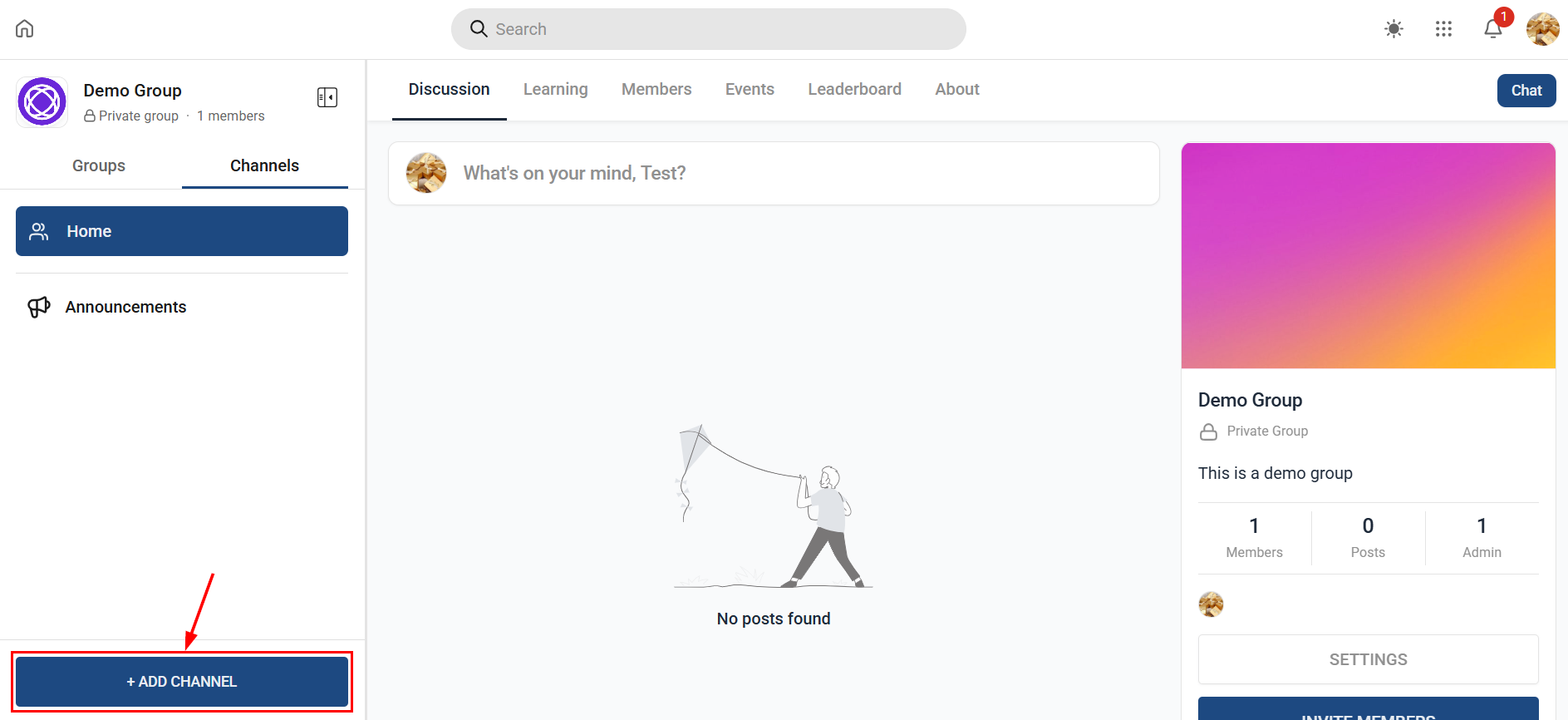
A modal window will appear, prompting you to provide specific details for the channel creation.
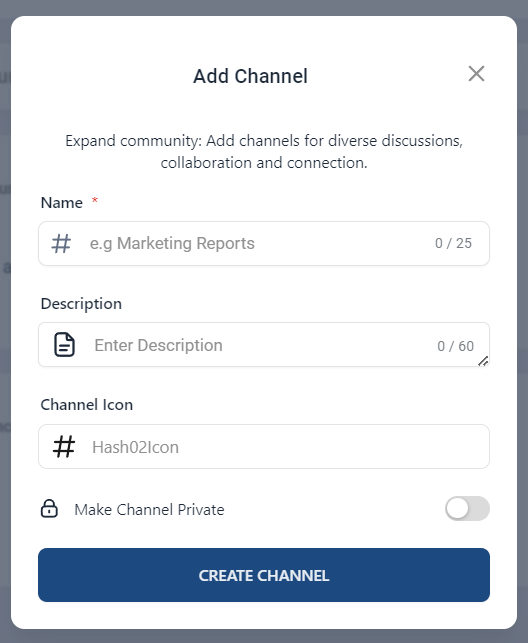
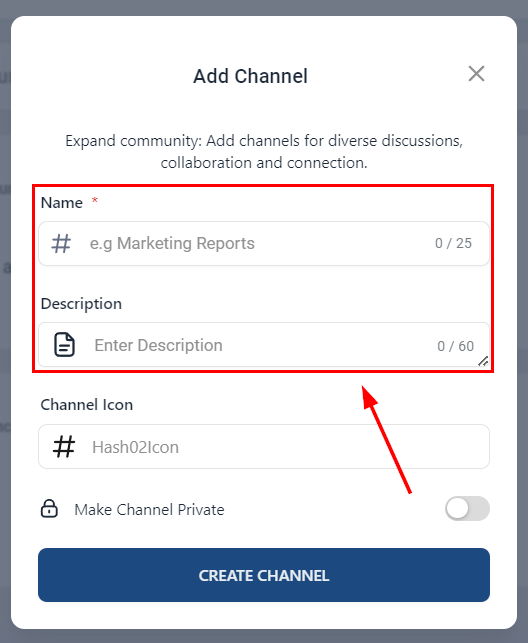
Provide a concise name and description for the channel. You have a limit of 25 characters for the Name field and a maximum of 60 characters for the description field, meaning it should be short yet informative.
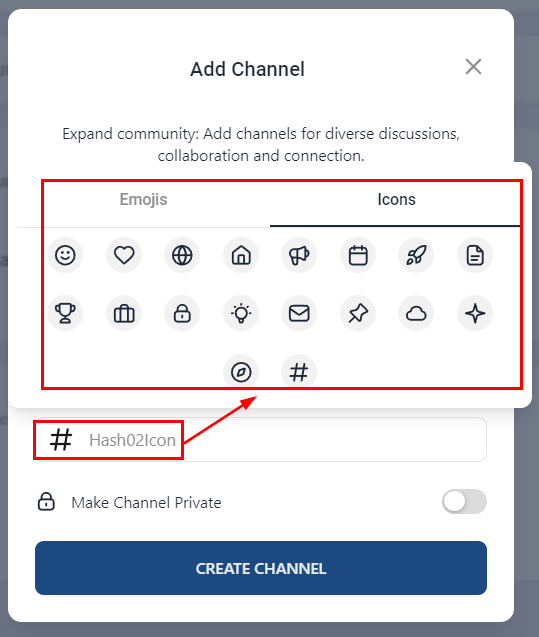
Choose a distinct icon for the channel. This icon will be displayed next to your channel name, offering members a visual cue that helps them identify your channel quickly.
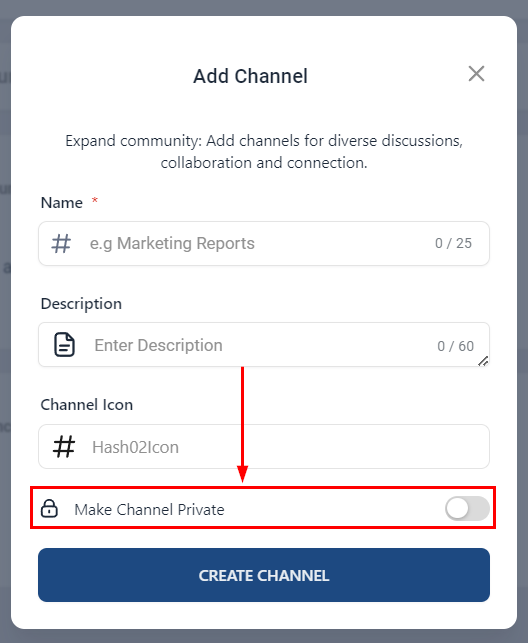
You can make your channel private by toggling it on. This allows you to manage the members who will be able to access the channel by approving or declining their request.
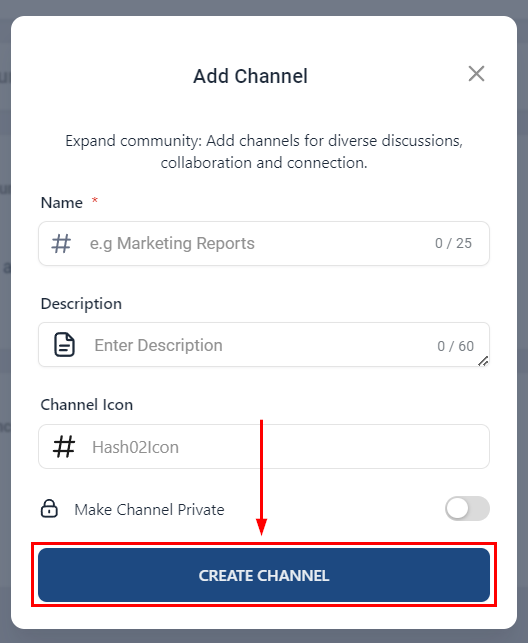
Click “Create Channel” to finish, this adds the new channel to your list.
Posts
These are the main publications done inside a Community Group, they provide a way for members to express themselves and interact.
Creating Posts
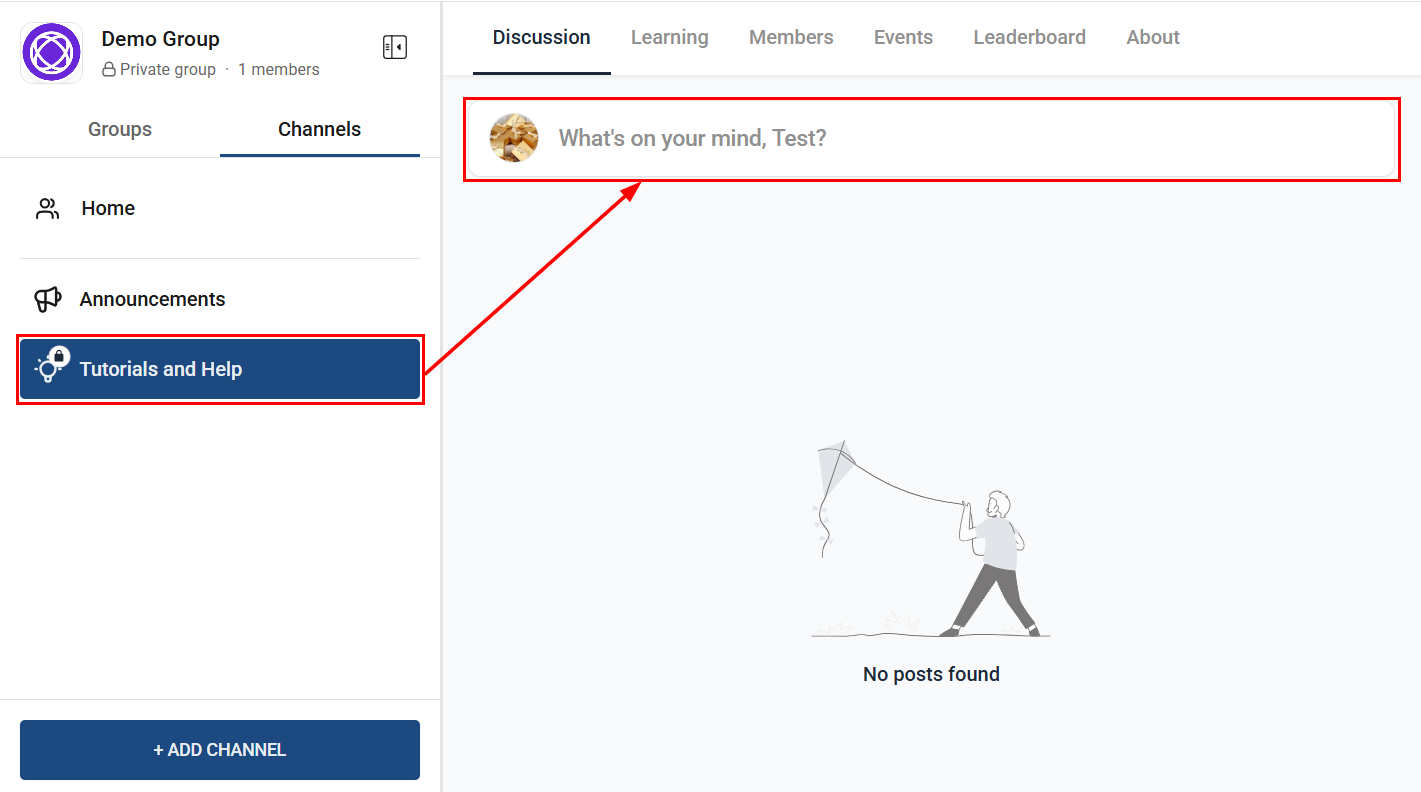
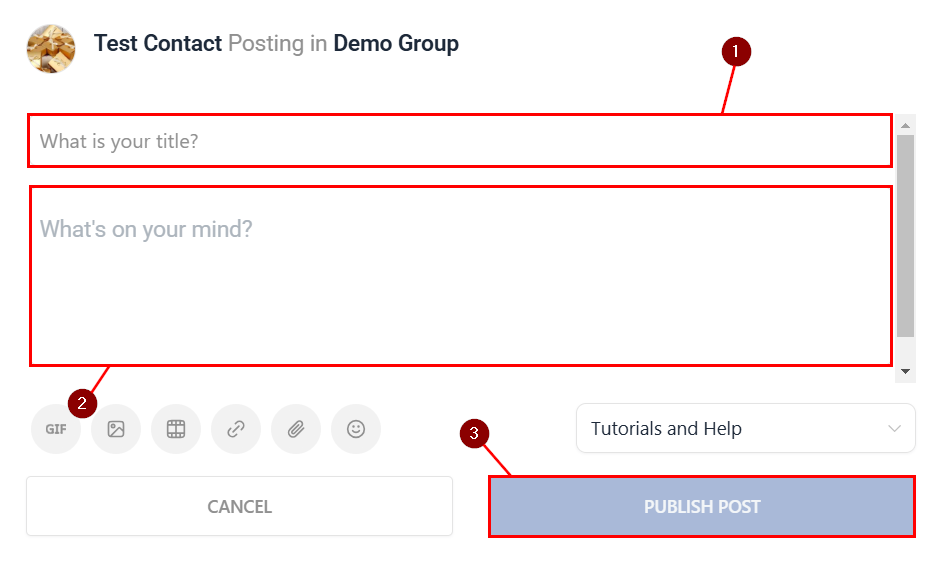
Navigate to the desired channel then click on the top bar.
- Enter a title, this will serve as a header for your post.
- Write your post, you can attach images, videos, files, emojis, or Links as needed.
- Once ready click “Publish Post” to publish it.
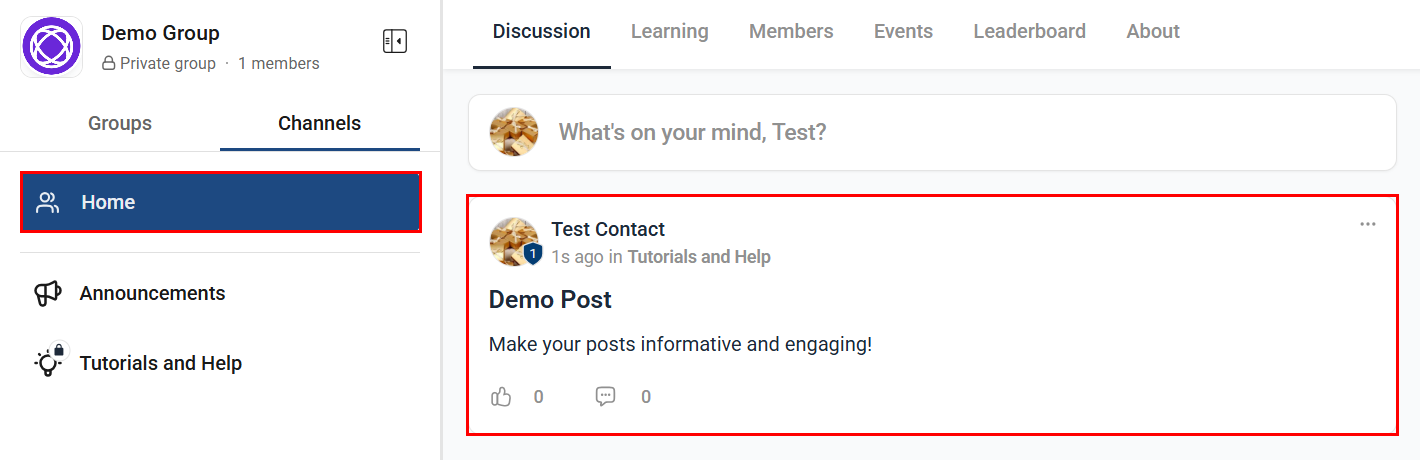
Home Timeline
This is the designated space where you can view posts from all members across all channels in one convenient location. Regularly checking the home timeline lets you stay informed and engaged with the ongoing conversations and updates within your group.
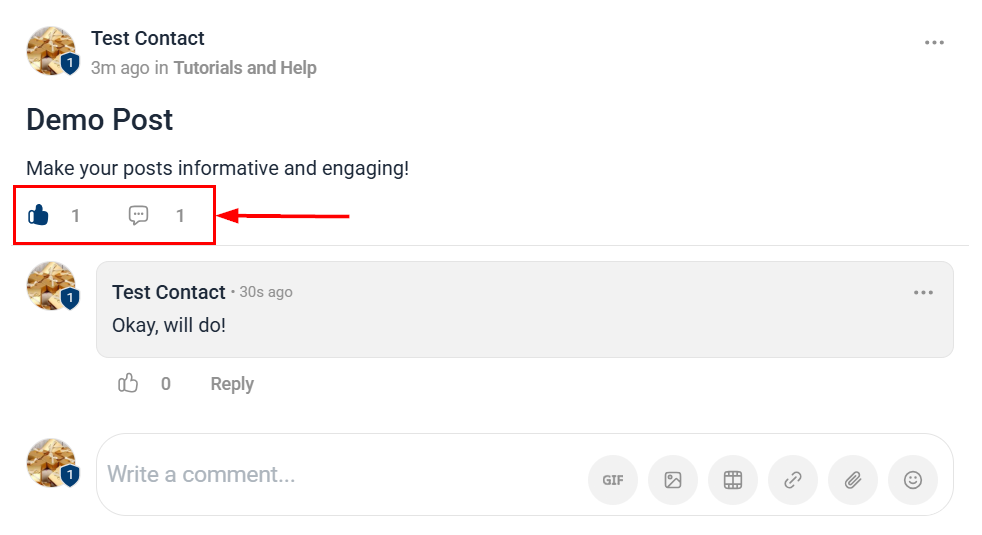
Comments and Likes
Comments and likes serve as important drivers for engagement within the group. Comments on posts allow members to engage in discussions and Liking posts or comments to show appreciation.
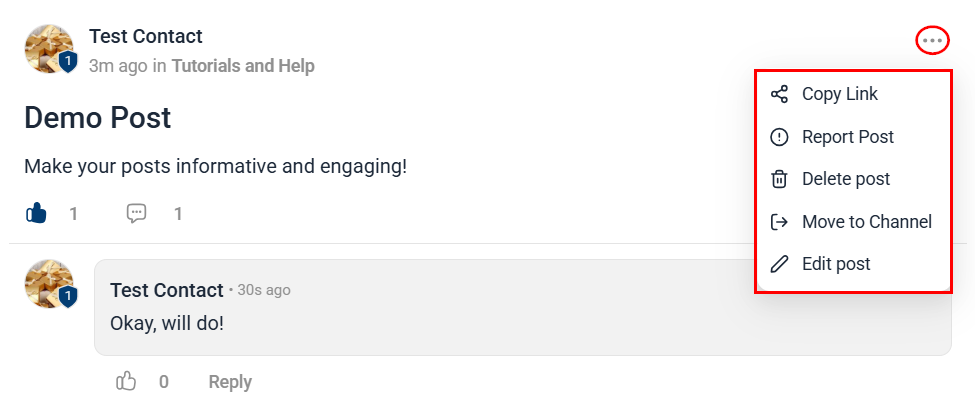
Post Actions
Click the three-dot actions menu to access post options. Here you can:
- Copy Link: Copy the URL of the post for easy sharing.
- Report Post: Report a post to the moderators or admins for inappropriate content, spam, or violation of community guidelines.
- Delete Post: Admins and moderators can delete posts if they violate the terms and conditions by selecting “Delete Post” from the post’s menu. Additionally, members can only delete their posts and comments.
- Move to Channel: Transfer posts to a different channel within the group. Note: You can only move posts you have created, or, if you are an admin or owner, posts from other members.
- Edit Post: Modify the content of a post to make corrections or add new information.
Now that you know how more about all these features, you can effectively manage the content in your Community Groups!
Frequently Asked Questions
Q: How many images can I attach to a single post?
- You can attach as many images as you like to a single post. However, we recommend limiting the number of images per post to ensure optimal loading times and readability.
Q: Can I change the title of my post after it has been published?
- Yes, you can edit your post title after publication. Simply go to the post, click on the three dots icon at the top, and select ‘Edit Post’. You can then modify your title as needed.
Q: What is the maximum size for video files that I can upload?
- File Size restrictions will be defined later for this feature. For optimal performance, we recommend keeping your video files below 100MB. (This is not the official file size limit.)
Q: What happens when I add a hyperlink to my post?
- When you add a hyperlink to your post, users can click on the linked text to be taken directly to the linked URL. This is a great way to provide additional resources or references without cluttering your post.
Q: Can I use emojis in my post title?
- Yes, you can use emojis in your post title. However, keep in mind that the use of emojis should enhance the readability and understanding of your title, not detract from it. Always consider your audience and your post’s context when choosing emojis.
Not a Funnelbud customer yet?
Try our all-in-one CRM for sales and marketing — free for 7 days, no commitment.